This article is created based on our own testing and real experience to provide accurate and practical insights.
There are many AI logo generators available today and honestly, it can be confusing to decide which one is actually worth using. AI logo generators are part of a wider ecosystem of artificial intelligence tools that are now being used across many industries. Instead of just listing tools, I personally tested three popular AI logo generators, explored their features and generated real logos to see how they perform in practical use. This way, you can clearly understand what kind of results to expect before choosing a tool for your business.
These tools are useful for business owners who want a logo quickly, freelancers and designers who want help from AI.
Now, let’s see the quick overview of my top 4 AI logo generators.
Compare the Best AI Logo Makers at a Glance
Feature | Design.com | Canva AI | BrandCrowd | Looka |
|---|---|---|---|---|
Try Now | ||||
Logo Quality | 4.5/5 | 4.0/5 | 4.4/5 | 4.8/5 |
Ease of Use | 4.8/5 | 4.5/5 | 4.6/5 | 3.9/5 |
Customization | 4.3/5 | 4.8/5 | 4.0/5 | 4.0/5 |
Free Access | 2.0/5 | 4.5/5 | 2.0/5 | 2.0/5 |
Value for Money | 4.5/5 | 4.0/5 | 4.2/5 | 4.0/5 |
Best AI Logo Generators – Real Testing and Results
1. DESIGN.COM
Design.com is an online platform that helps users create logos and brand assets using AI and ready-made design templates. It is mainly used by small businesses and individuals who want quick, simple design solutions without needing professional design skills.
If you are using AI tools regularly for work, you may also find our guide on top AI productivity tools helpful for improving daily efficiency.
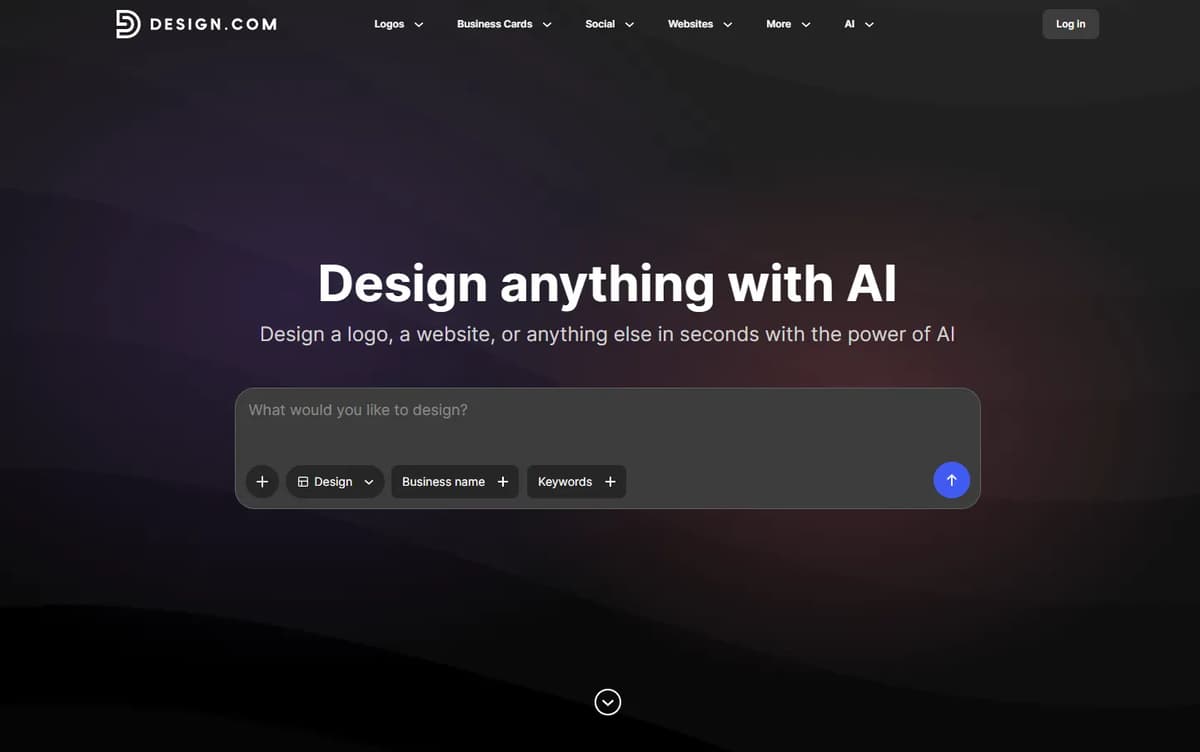
First, you only need to enter your business name. After that, a small pop-up will appear asking for keywords related to your business. Once you enter those keywords and click continue, the platform will generate your logo within a few seconds. You will then see many different logo templates with your business name already applied. If you want to change your business name or keywords, you can easily do that using the options given at the top. I’ve added an image below so you can check and understand it better.
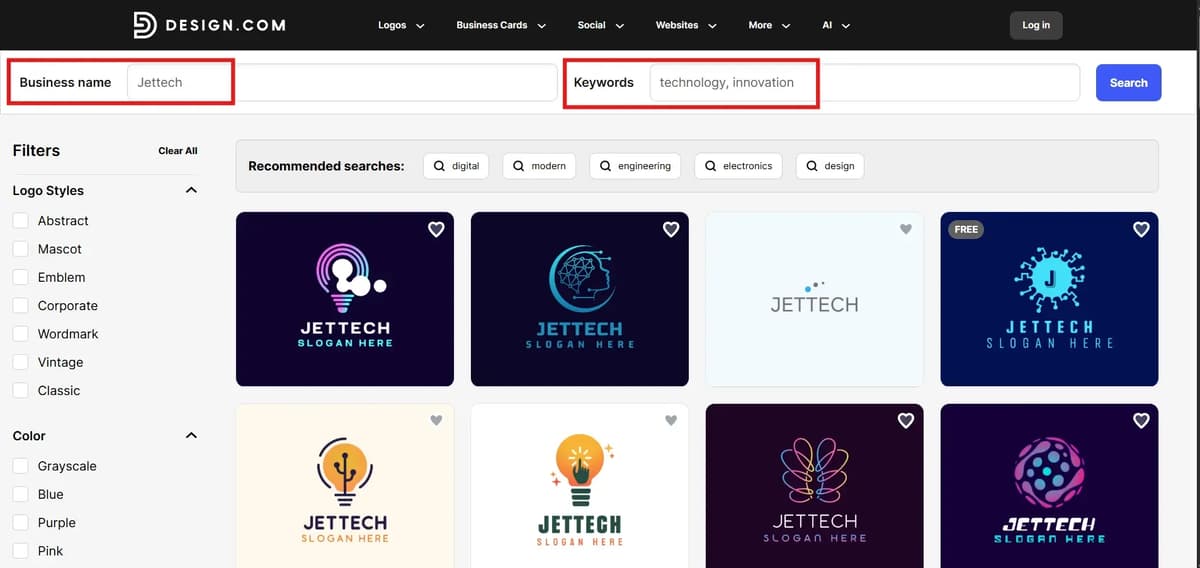
Then, click on the logo you like. A pop-up will appear and guide you through four simple steps to customize your design.
Step 1: Select your brand colors
Step 2: Edit logo text
Step 3: Edit slogan
Step 4: Select a logo layout
You do not have to follow all four steps if you don’t want to. On the same screen, you will see a “Switch to Editor” option. By clicking this, you can directly enter the editor and start customizing your logo easily. You can change the design based on your preference and there is also an option to add animation to your logo.
Below, I have attached a sample logo and i edited inside the tool that I generated for reference.

To understand all its features in detail, you can check this Design.com review blog.
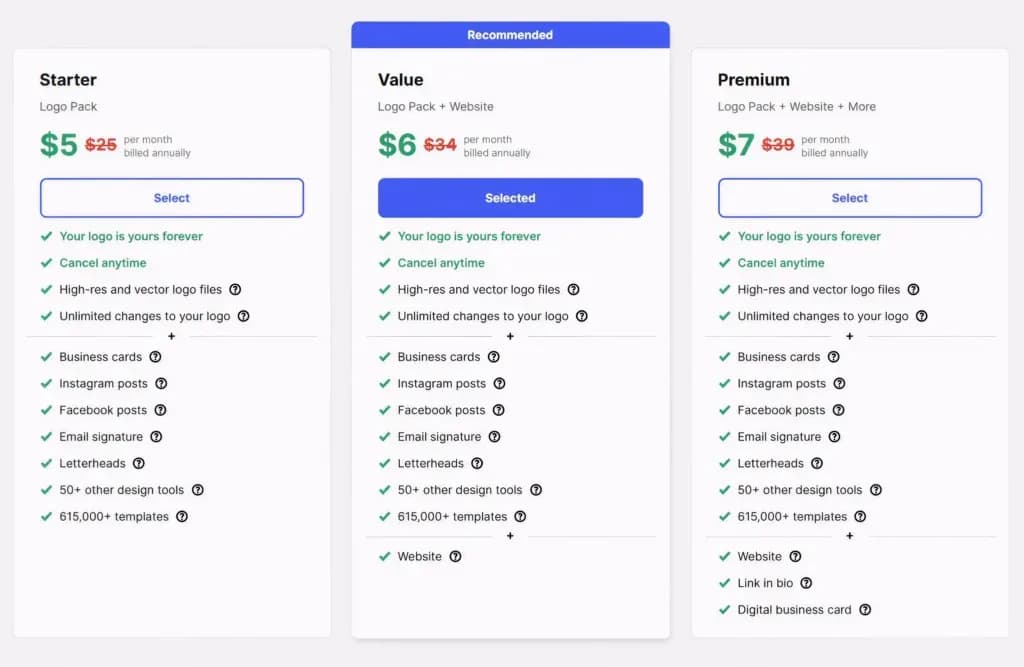
It is also important to mention that some logo templates are available for free, while certain designs are offered as premium options. The pricing details are attached below.
Design.com Pros
- You get a lot of logo ideas based on your brand name and style
- The designs look clean, modern, and ready for business use
- Changing colors, fonts, and layout is easy
- You also get brand kits, social media designs, and business card files
- Works well if you want everything needed for a full brand, not just a logo
Design.com Cons
- You need to pay to download high-quality logo files
- Some logos can look generic if you don’t customize them
- The large number of options can feel confusing at first
2. CANVA
Many people already use Canva for everyday design work, so using it to create a logo feels familiar and easy. Its AI logo generator helps users create basic logo designs without much effort or technical knowledge.
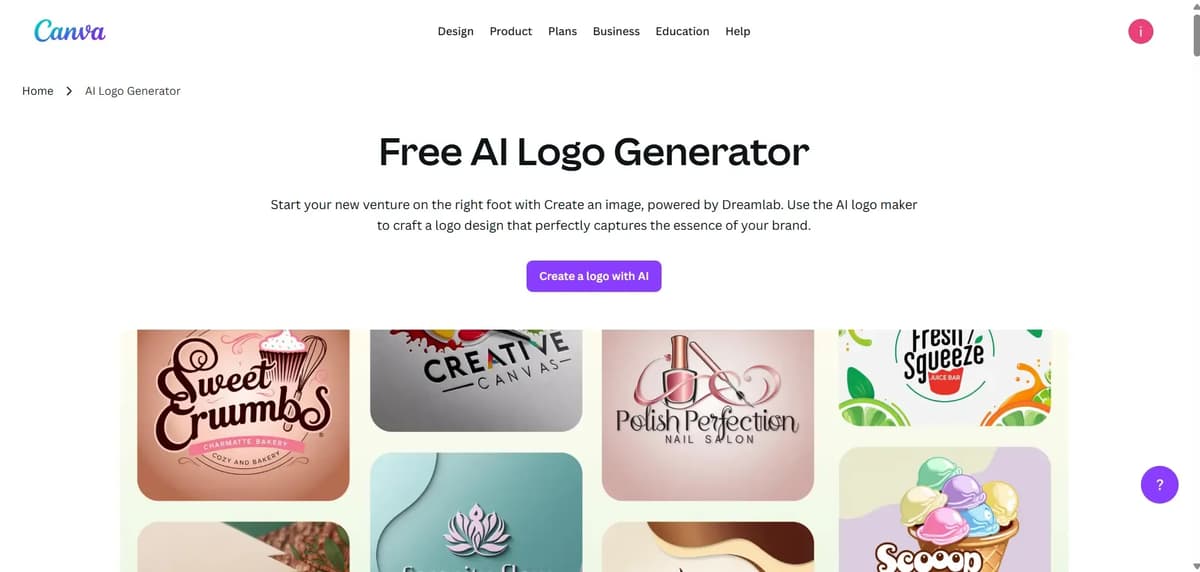
When you click the ‘Create a Logo with AI’ button, the page shown below will open. There, select ‘Logo’ under the Design options and enter a simple prompt. That’s all, Canva AI will start generating logo designs automatically.
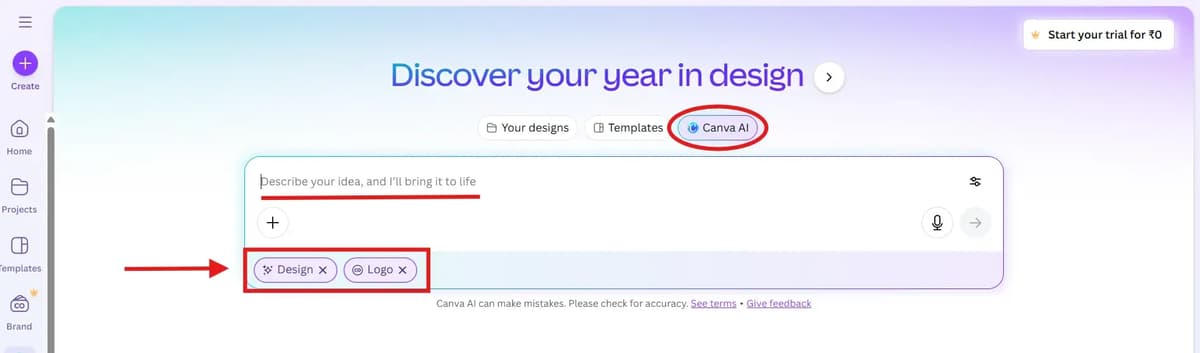
Sample prompt:
In one attempt, four logo designs are generated. If you want to make changes or create a completely new logo, you can easily do it by entering a new or modified prompt.
In my testing, Canva allowed me to generate up to seven attempts, with four logos per attempt. That means you can create around 28 logos for free, which is more than enough to test ideas before deciding. After that, free generations reset the next month.
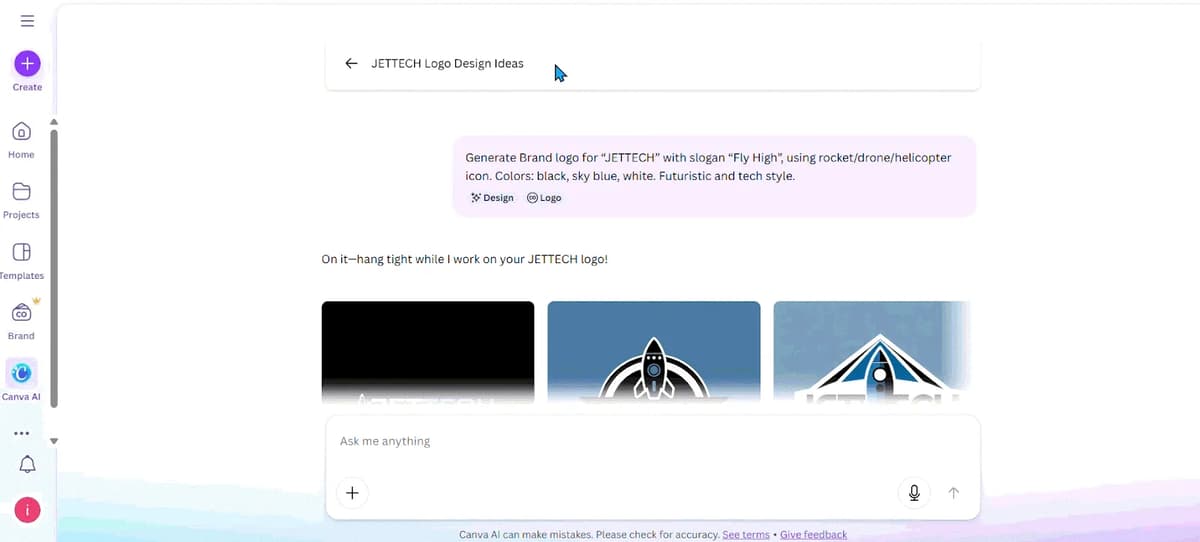
If you like any logo, you can click on it and fully customize it. If you are already a Canva user, you can quickly edit it using simple drag-and-drop options and easily change anything you want.
For creating more visuals like cinematic & realistic images, posters, and social media images, you can also explore our list of best AI image generators.
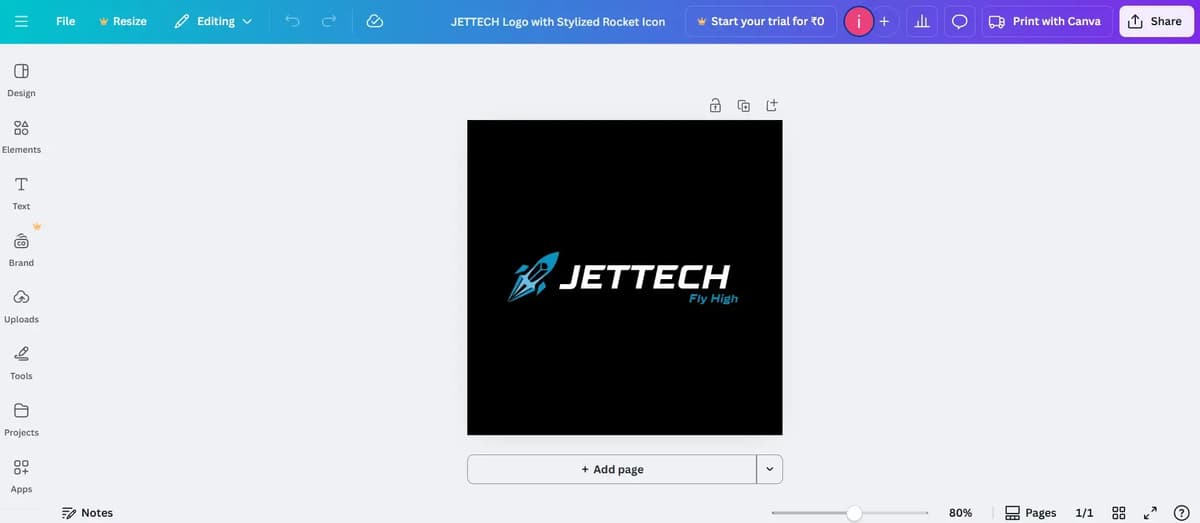
One more important thing: you can generate many logos using Canva for free. But if you want to explore and use all features, you can upgrade to Premium. For me, the free Canva account is more than enough.
Canva Pros
- Very easy to use, even if you have never designed a logo before
- You just enter a short prompt and it shows logo ideas quickly
- Editing text, colors, and icons is simple with drag-and-drop
- You don’t need any design skills to get something usable
Canva Cons
- You need the paid plan to download logos in SVG format
Canva Pricing Plan
Business plan is the best overall value with team features higher ai limits and large storage (~$20/month or ~$200/year per user). Pro is good for solo creators at around ~$120/year or ~$15/month but limited for scaling. Free is $0 with basic features only so serious users should upgrade for real work
Totally for solo creators pro plan is more than enough. It gives you premium tools tons of templates ai features and ample storage without paying for team level stuff. If you are not collaborating or scaling a business pro hits the sweet spot.
3. BrandCrowd
BrandCrowd is a quick and beginner-friendly AI logo generator that helps users create polished logos using ready-made templates and simple editing tools.
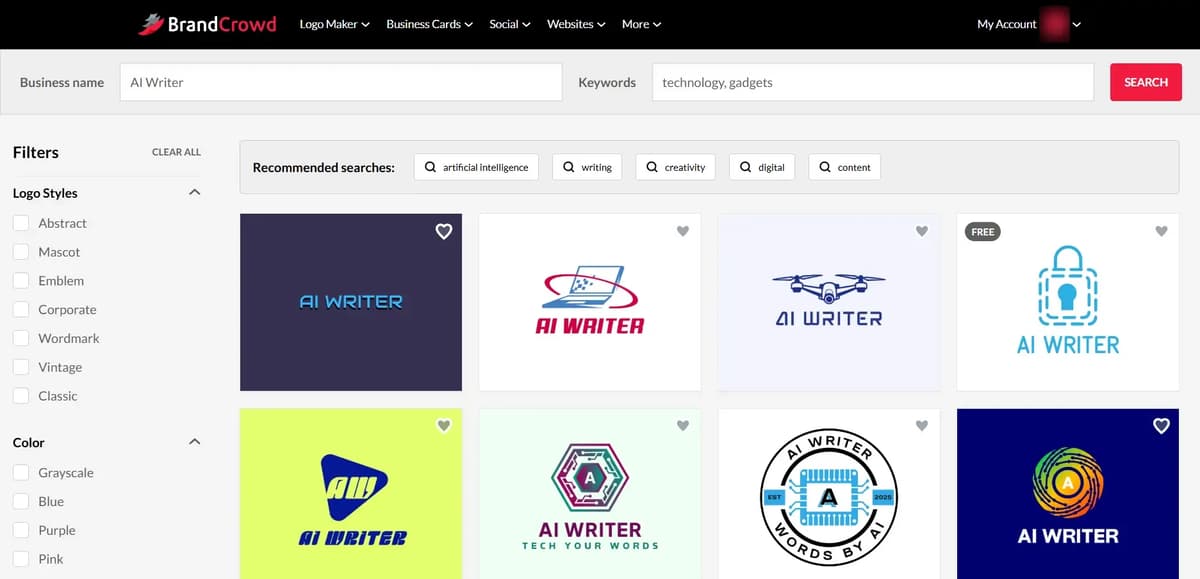
Here you will find many pre-built logo designs. You can pick the one you like and customize it based on your needs. Logos with a “Free” tag can be edited and generated without any cost. When you click download, it will take you to the pricing page, but you can choose the free plan and complete email verification. After that, you can easily download your logo in the format you need such as PNG, SVG, JPG, PDF or EPS.
Logos without the “Free” tag come under paid plans. If you select and customize those logos, when you try to download, you will not see a free option in the pricing page. Only paid plans will be shown, so you will need to pay to download them.
You can easily customize your logo using the logo maker. You can change the text font, adjust text color, modify the logo design and use shapes as needed. It also supports layer-based editing, so you can arrange elements properly. You can change the background color, use gradient options and adjust the layout based on your preference. There is also an AI option where you can enter a prompt to generate a logo and in the free account you can use this feature up to 5 times. I have shared a sample logo I created below for your reference.
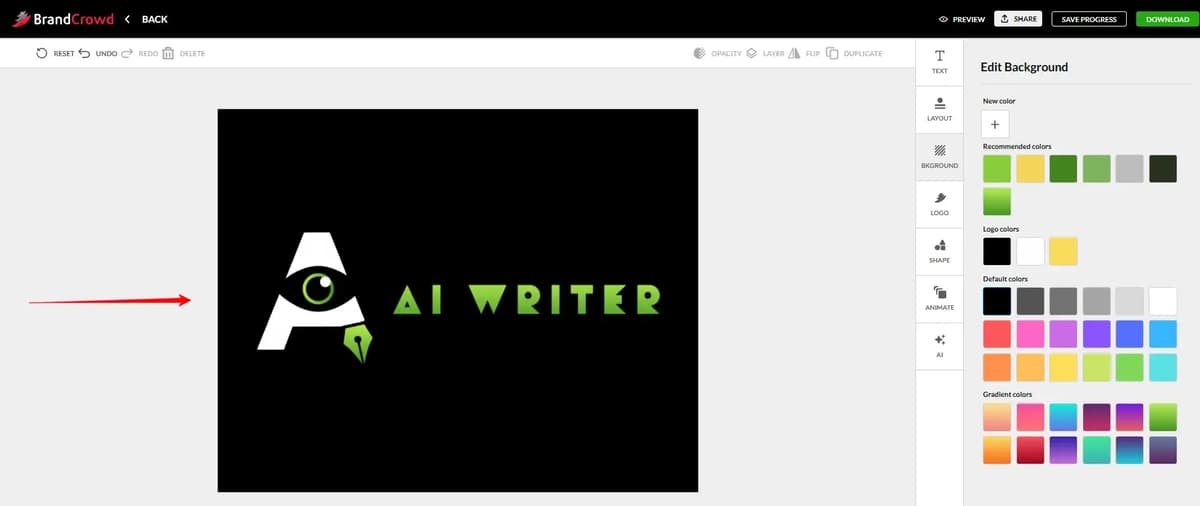
You do not need professional design skills to create a logo. Just having a few basic ideas is enough. With the BrandCrowd logo generator, you can easily create a design you like, customize it your way, and download it without much effort.
BrandCrowd is not just a logo maker. It also has many useful tools that a business may need, like branding, website, domain, business cards, and other design tools.
To understand all its features in detail, you can check this BrandCrowd review blog.
BrandCrowd Pros
- Easy to use even for beginners
- Fast logo and branding creation
- Large template library across industries
- Designs look more professional than most free tools
- No need to hire a designer for basic needs
- Good for quick branding or side projects
BrandCrowd Cons
- Designs may not feel fully unique
- Limited customization compared to advanced tools
- Free version is very restricted
- Pricing and subscription can be confusing
- Not ideal for high-end or custom branding needs
4. Looka
Looka is an AI-based logo tool that helps you create a logo by answering a few basic questions about your brand. You don’t need any design skills, just choose what you like and the tool generates logo ideas for you.
From my experience, Looka is best for people who want a clean, professional-looking logo without spending time on manual design. The step-by-step style selection makes it easy, especially for non-designers.
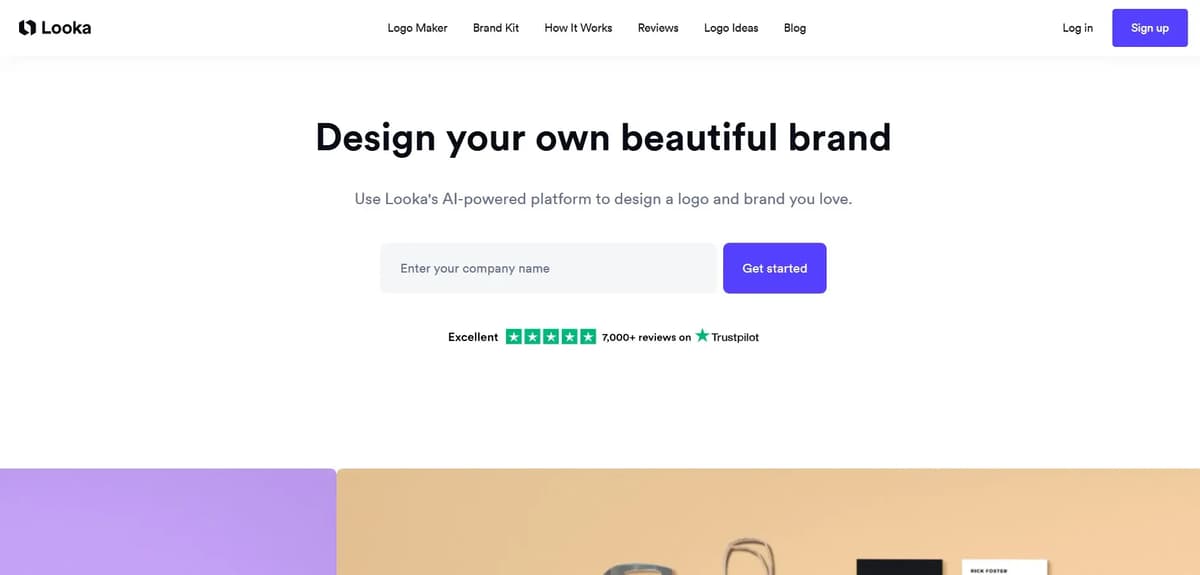
Enter your business name then click get started below page is opened
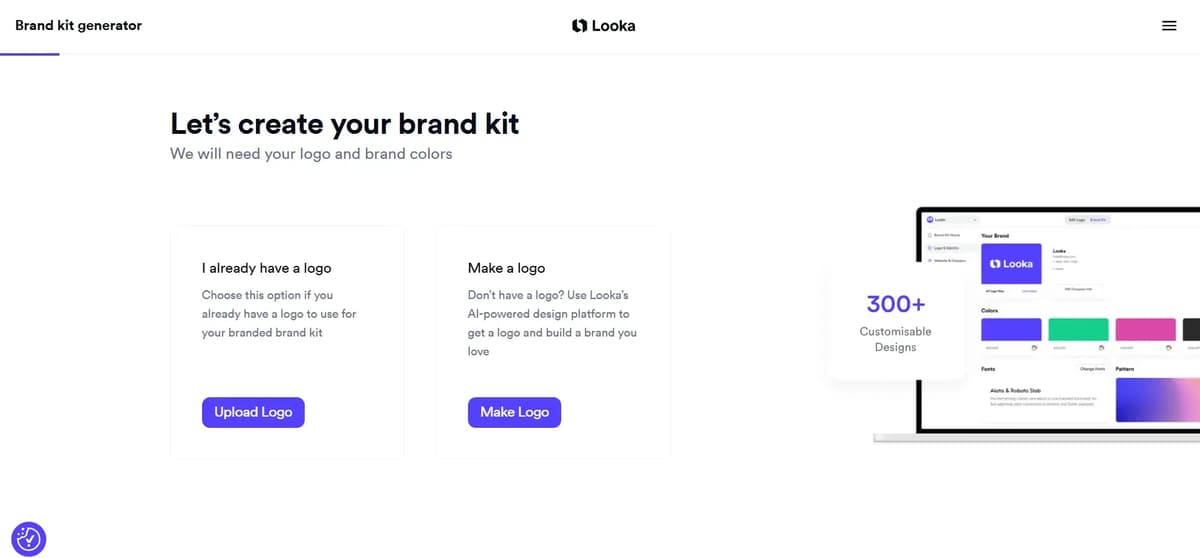
If you already have a design, click ‘Upload Logo’. If you want to create a new one, click ‘Make a Logo’. After that, you need to select a few things.
First, choose your industry. Then pick some logo styles you like (you can also skip this step).
Next, enter your company name and add a slogan if you want.
After that, select the symbol types you prefer and click ‘Continue’.
A sign-up popup will appear, you can either sign up or continue as a guest.
Once this is done, many logo templates will be shown with your business name. Choose the one you like and the next page will open for further steps.
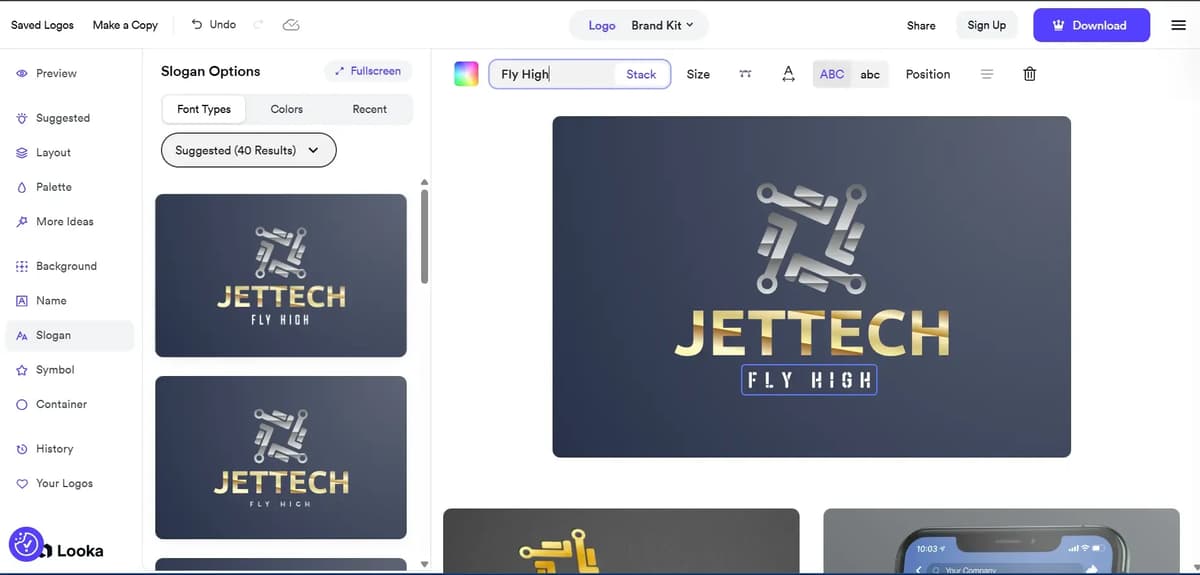
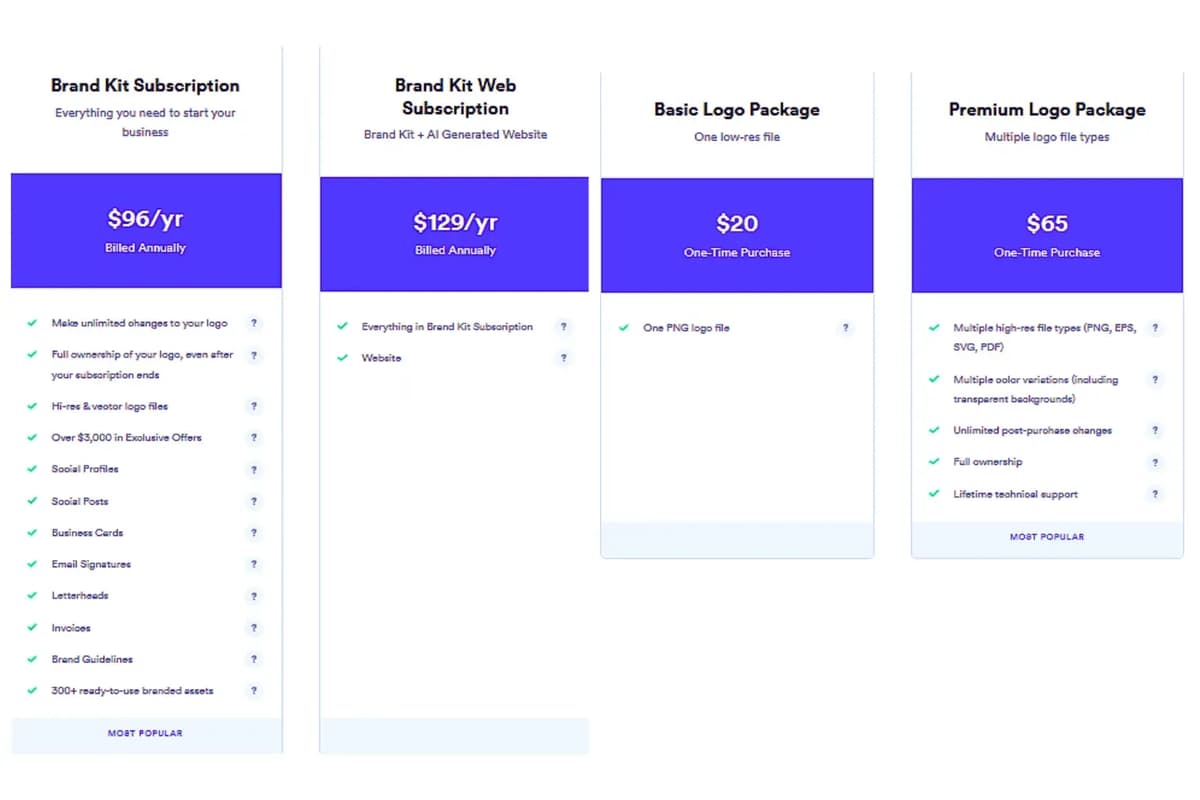
If you have brand-kit subscription plan then you can download these (logo files, multipage website, print shop, domains, social profiles, social cover, business card, email signatures, letterheads, brand guidelines, social posts, social stories, invoices, advertisements, posters, flyers, presentation, menus, cards, blog banners, proposals, newsletters, Brochures, Invitations, Custom Email.)
Looka Pros
- Creates clean and professional-looking logos
- Good if you want a ready-made brand style
- Includes brand guidelines and social media mockups
- The logo quality is strong
Looka Cons
- Not available in some countries
- More expensive than Canva
- Customization is more limited compared to Design.com
Looka currently does not offer services in some regions
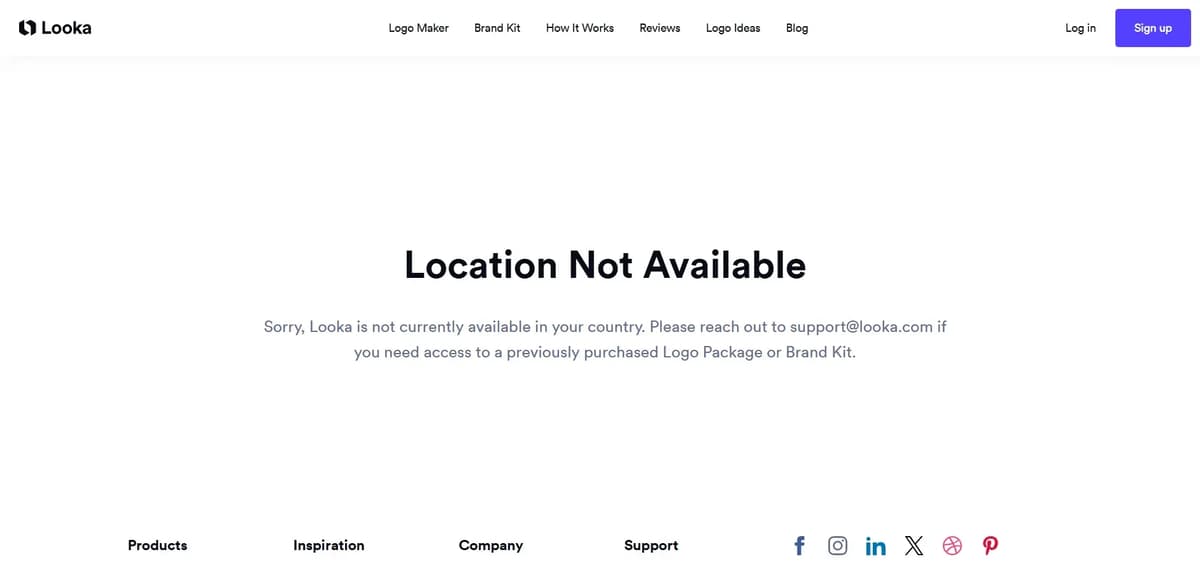
Not available in India and some other countries
Users may need VPN to access (not recommended)
FAQ’s
1. Are AI logo design tools good for startups?
Yes, AI logo design tools are very useful for startups because they save time and money. Tools like Canva and Design.com allow startups to create logos quickly without hiring a designer.
2. Which is the best AI logo maker for business use?
Design.com is a strong option as the best AI logo maker for business because it provides professional-looking logos, brand kits and multiple file formats suitable for commercial use.
3. Is there any free AI logo generator I can use?
Yes, Canva offers a free AI logo generator that allows you to create and download basic logo designs. However, advanced features like SVG format and transparent background may require a paid plan.
4. Which is the best AI logo creator for beginners?
For beginners, Canva is often considered the best AI logo creator because it is simple to use and does not require any design knowledge. The drag-and-drop editor makes it easy to edit text, colors and icons.
5. Which is better: hiring a designer or using an AI logo generator?
If you have a high budget and want a fully custom design, a designer is better. If you want a fast, affordable solution, the best AI logo generators are a good choice.
Final Verdict – Honest & Informational
Choosing the best AI logo generator depends on your purpose, budget and experience level. After testing Canva, Design.com, BrandCrowd and Looka, it’s clear that each tool is made for a different type of user.
Canva is best for beginners and people who want a simple, free option with easy editing. It works well for quick logos and basic branding. Design.com is more suitable for business owners and startups who need professional-looking logos with strong customization and branding features.
BrandCrowd is a good option if you want ready-made, polished logo designs quickly without spending much time, though customization is slightly limited. Looka creates clean, polished logos and is useful if you want a ready-made brand style. However, pricing and availability can be a limitation.
In short, Canva and Design.com are practical for most users, BrandCrowd is ideal for quick and easy branding, while Looka is better if you want deeper brand identity. The right choice depends on how much control and quality you need.