If you’re here, let’s get one thing straight, writing blog post isn’t just about doing it fast. Yes, AI can help you create content quicker and save time. Nothing wrong with that. But blindly copy-pasting AI content? That’s useless.
What actually works is using AI as a base, then adding your own experience, insights and rewriting it in your own voice. Fix the tone, clean it up and make sure it feels human. That’s what makes content valuable and satisfies real user intent, which is exactly what Google cares about.
How We Tested AI Blog Writing Tools
I tested 10 AI blog writing tools using the same prompts and compared their content quality, SEO optimization, writing style, editing features, ease of use, speed and overall output. I also checked how much manual editing was needed before the content was ready to publish.
Quick Overview of AI Blog Writer Comparison Table
|
|
|
 Writesonic
|
 Jasper AI
|
 Frase
Frase
|
|
|---|---|---|---|---|---|
| Rating ★★★★★ 4.9/5 | Rating ★★★★★ 4.8/5 | Rating ★★★★★ 4.79/5 | Rating ★★★★★ 4.75/5 | Rating ★★★★☆ 4.7/5 | Rating ★★★★☆ 4.6/5 |
| Get Started Try Now → | Get Started Try Now → | Get Started Try Now → | Get Started Try Now → | Get Started Try Now → | Get Started Try Now → |
| Best For Overall best AI blog writer | Best For Long-form blog generation | Best For In-depth, SEO-optimized articles with competitor research | Best For Natural, human-like blog writing | Best For SEO research and content optimization | Best For Beginner-friendly content creation |
| Features SEO blogs, keywords, AI images, easy workflow | Features Real-time info, WordPress publishing, AI images, fast generation | Features 10-step research, competitor analysis, internal/external links, humanizer | Features AI agents, brand voice, team collaboration, multi-format export | Features SERP analysis, content scoring, GEO and SEO scores, repurposing | Features AI writer, keywords, Shopify publishing, WordPress publishing |
| Pricing $4.99/mo | Pricing $19/mo | Pricing See current pricing | Pricing See current pricing | Pricing See current pricing | Pricing $29/mo |
Now, let’s look at the tools and the features that actually matter for blogging, from top to bottom.
6 Best AI Blog Writers (Last Tested Aug 2026)
1. Bloggr AI
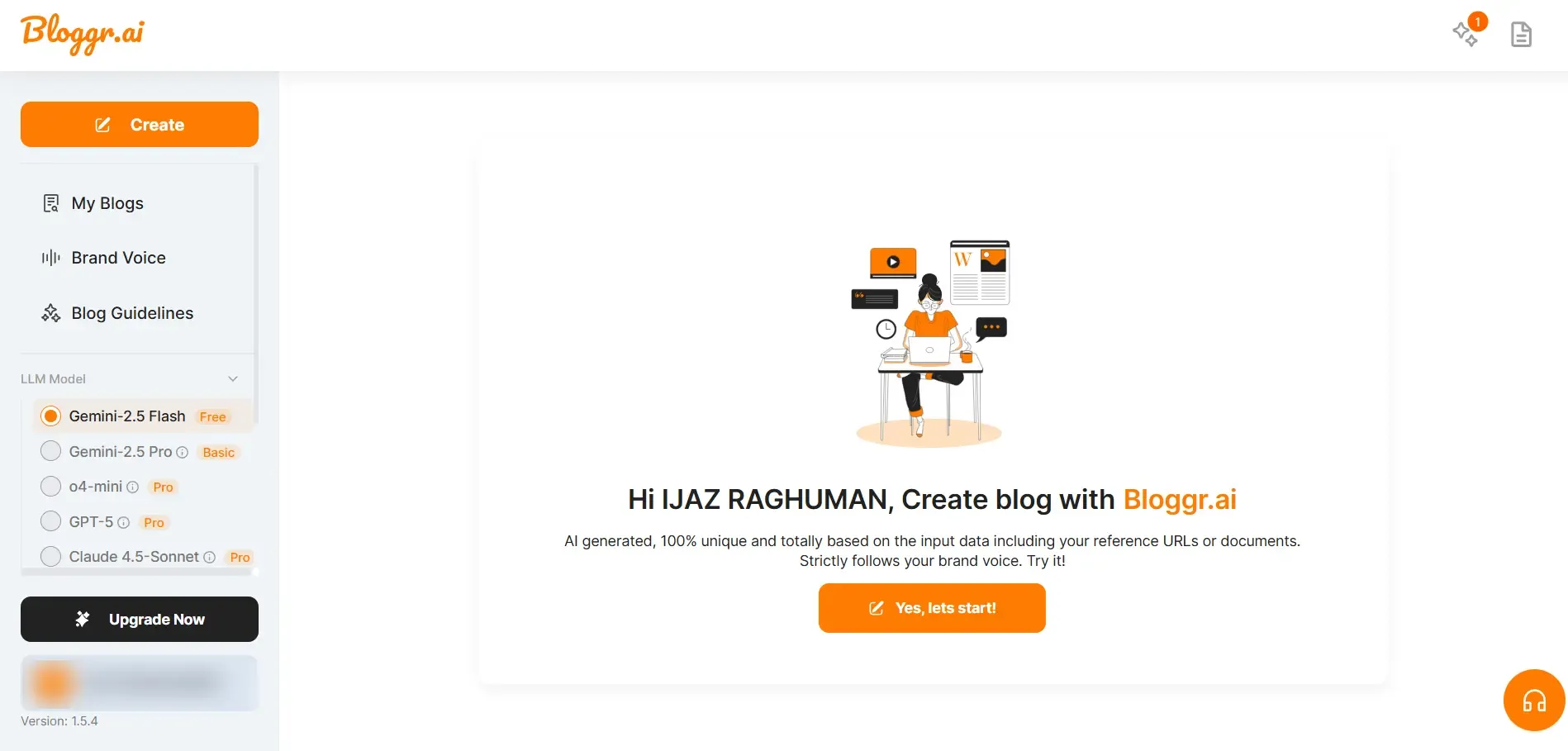
In Bloggr.ai, they’ve added multiple LLM models into the platform. Right now, only Gemini 2.5 Flash is available for free use, while the other four models are part of their paid plan. Once you’re inside, just go ahead and click the “Yes, let’s start” button to get started.
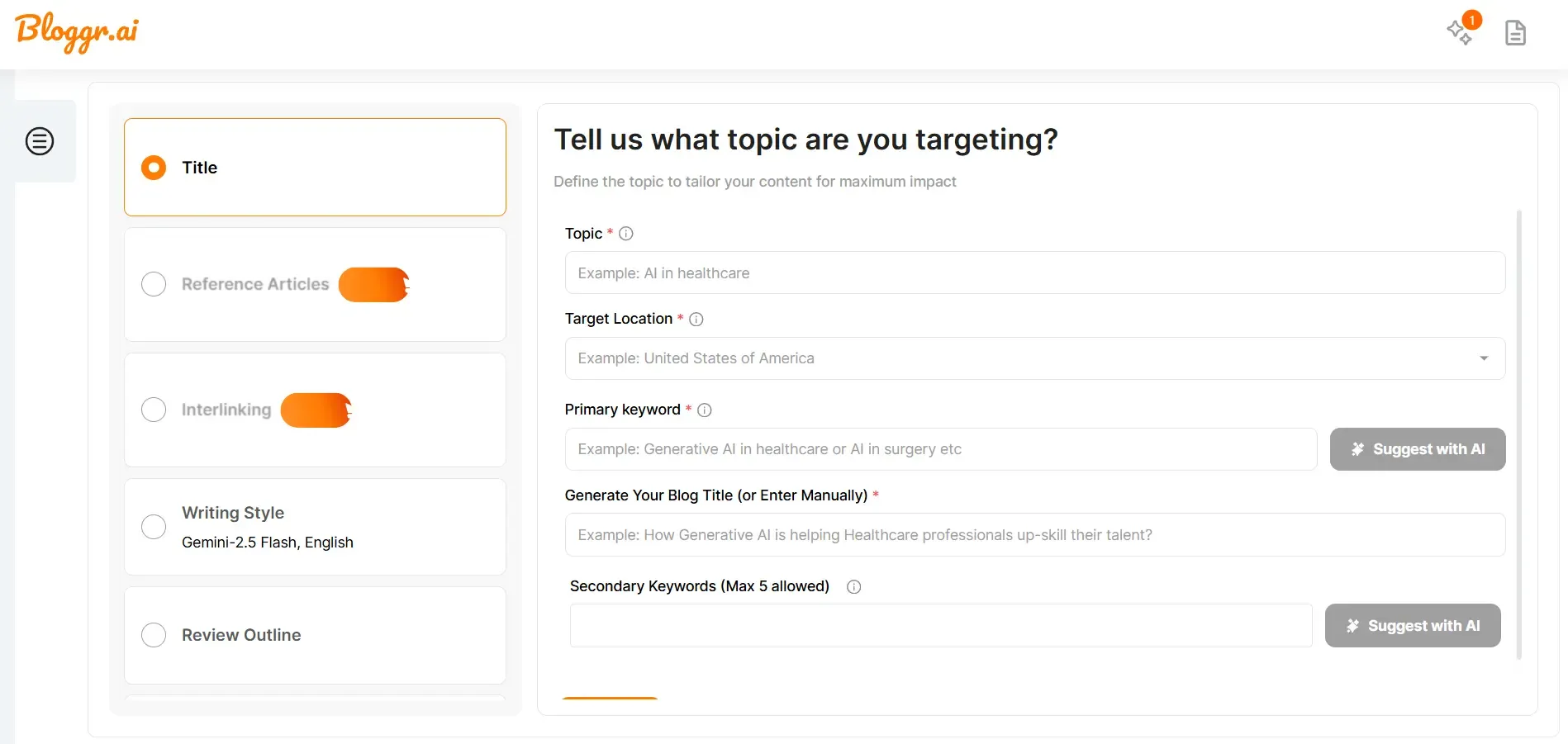
First, enter your blog title and set your target location. If you already have a primary keyword, you can add it or you can use the AI option to generate one.
I’d recommend using the AI option here. Once you click it, it will load and show a pop up with a list of primary keywords along with their search volume and also secondary keywords with their volumes. You can select one primary keyword and up to five secondary keywords from that list.
One important thing to note is that the AI generation option can be used only once. So if you use it for generating keywords, you won’t be able to use it again for generating the blog title. That’s what happened here, since it was already used for keywords, the title had to be entered manually.
After entering the title, the platform also suggests around five title options below. You can simply choose the one that feels most relevant.
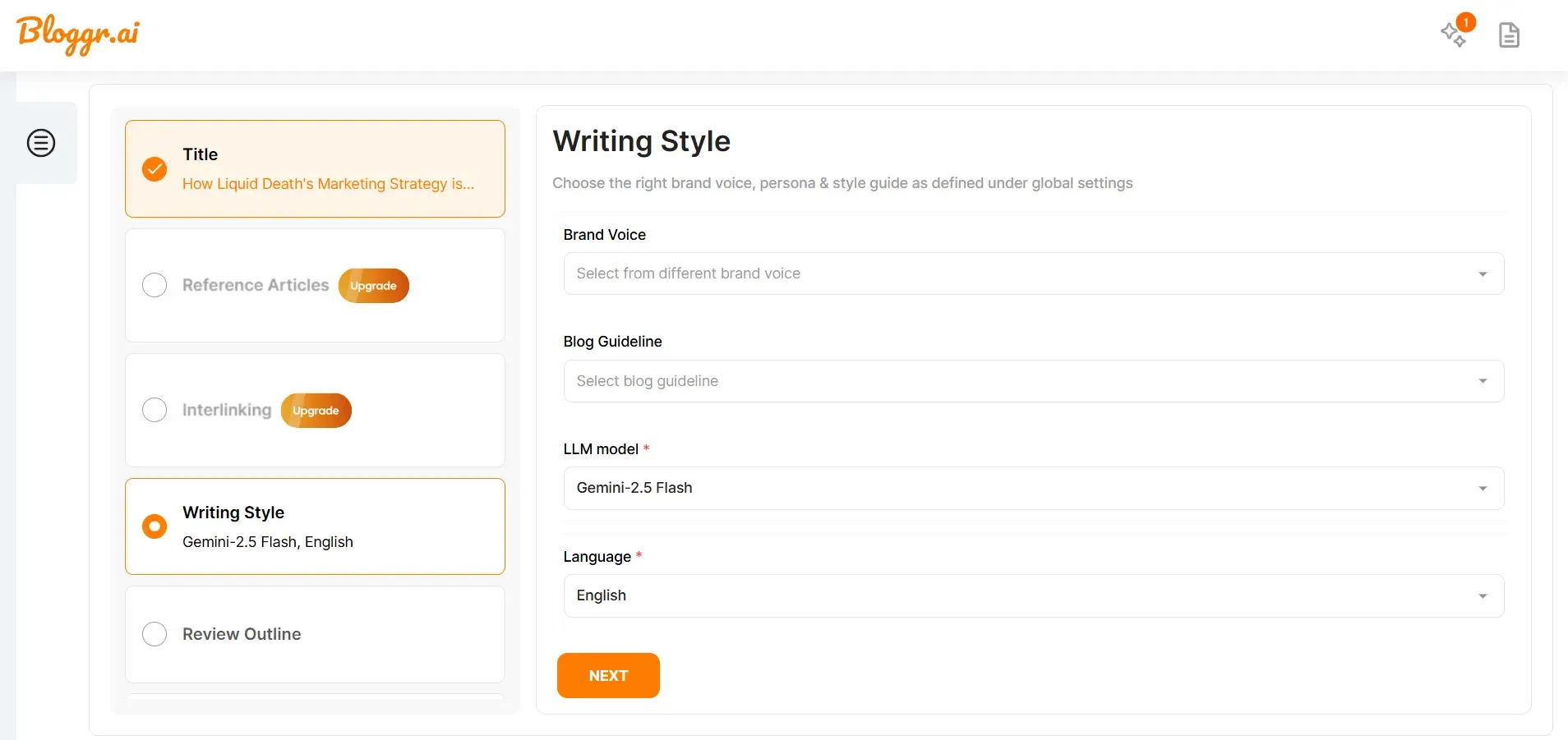
Next comes the writing style setup. First, you need to set your brand voice. This helps the AI generate content that matches your brand tone. You can simply add your website URL and set it up.
Then, you can add your blog guidelines to control how the content should be written. For example, you can mention things like including tables, using bullet points, having 5 subheadings and similar preferences.
Language and LLM model would have already been set at the beginning, so you can move ahead and click next.
Then your outline will be ready. You can easily customize it by adding new headings, deleting anything you don’t need or rewriting sections. You also have the option to regenerate the entire outline if needed.
Then once you click create, your blog will be ready in just a few minutes. You can easily edit it if needed and download it. The available download formats are HTML, Markdown or Word.
You don’t really need to download the blog and edit it separately in a doc. Almost all the features you’d expect are already available inside the platform itself. You can easily generate AI images and insert them, add high quality relevant visuals, embed YouTube videos or even copy and paste images from your gallery. You can also add links, tables, emojis, special characters and pretty much everything you need while editing.
There are a lot of options to explore, and honestly it feels quite impressive, especially considering how much they allow in the free version. If you move to the paid plan, you get access to everything. The starting plan is around $4.99 per month, where you can generate up to 5 blogs, use two LLM models, upload up to 4 files, do keyword research and work with around 30,000 embedding words.
If you go for the pro plan, you unlock even more features. Overall, it feels worth it because the tool is very user friendly and makes the entire blogging process much easier. You don’t need to switch to Docs or use other AI tools for content or image generation, everything is available in one place.
Note: 7day Free Trial on Any Plan
What other real users say about (Bloggr.AI)
Actually, I couldn’t find many public reviews about Bloggr.ai, so I’m sharing my own experience. From the tools I’ve used, Bloggr.ai is one of the best blog writing tools I’ve tried. It has everything you need to create blogs easily, including AI-generated images. If you’re planning to purchase a blog writing tool, Bloggr.ai is worth trying, especially with its current 30-day offer. Give it a try and see how much time it can save you.
2. GravityWrite
GravityWrite is an AI blog writing tool that helps you create blog posts quickly. It’s simple to use and useful for generating content with less manual effort.
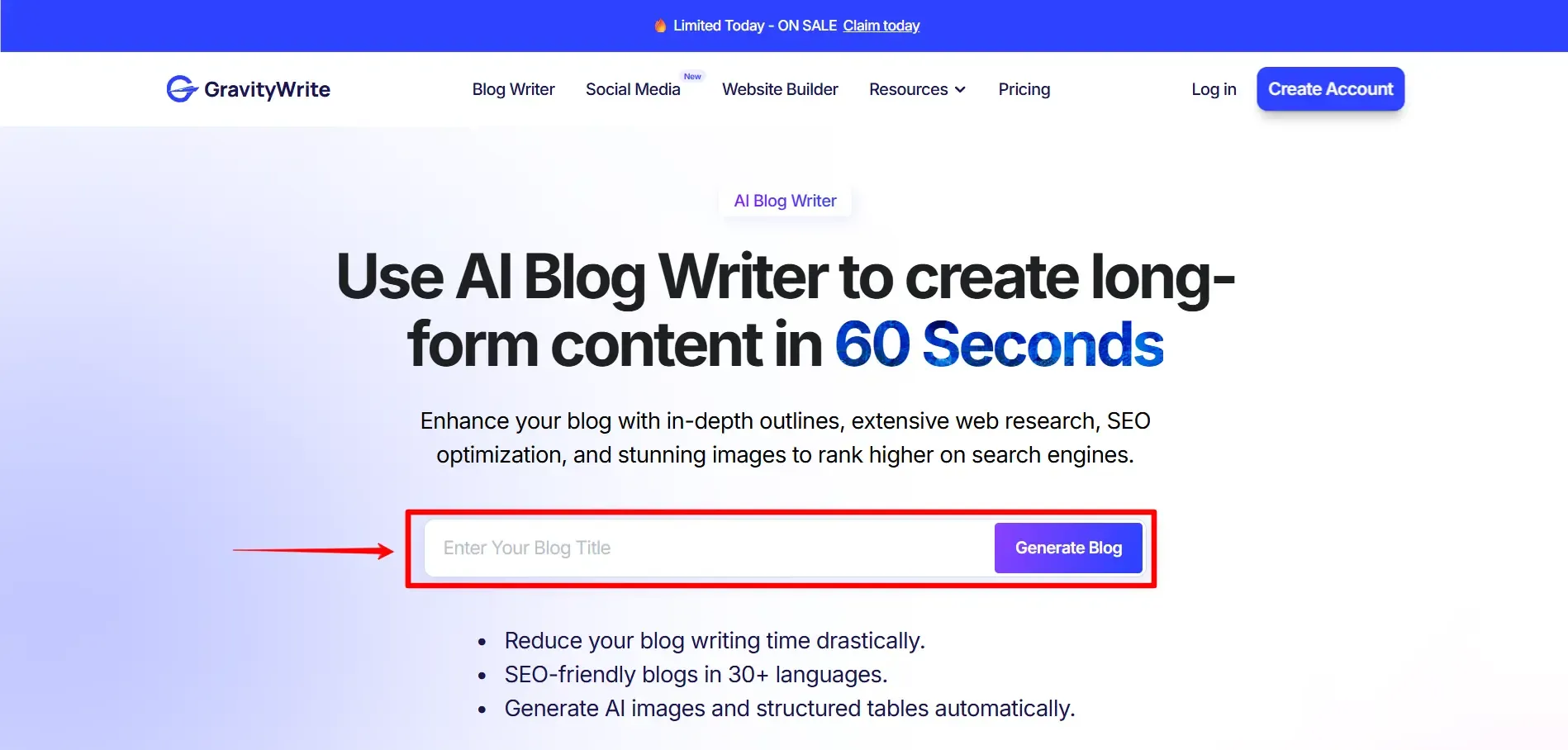
Just enter the title of the blog you want to write and click the Generate Blog button. The blog writer tool will open. Inside, you’ll see two options: Blog Writer and Easy Blog Writer. Let’s look at the difference between these two one by one.
- Blog Writer
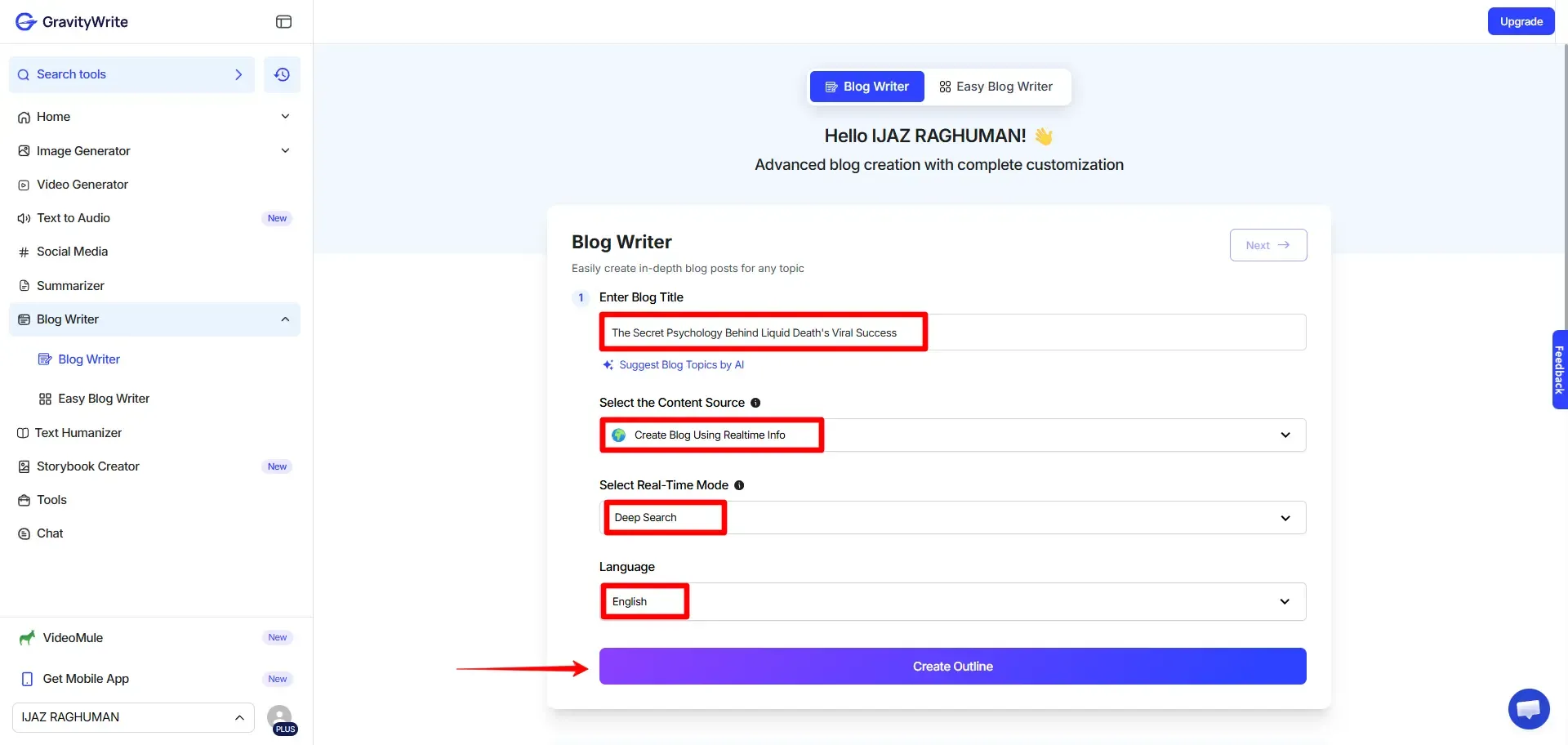
First, enter your blog title. If it’s not strong enough, you can use AI to generate topic ideas and choose one from the suggestions. Next, select the Content Source. You can generate the blog using AI, real-time information or a blog URL if you want the content based on that page.
Here, I’m using Real-time Info. It has two options: Regular and Deep Search. I selected Deep Search.
Then choose the language and click Create Outline. The tool will generate the outline as shown in the image below.
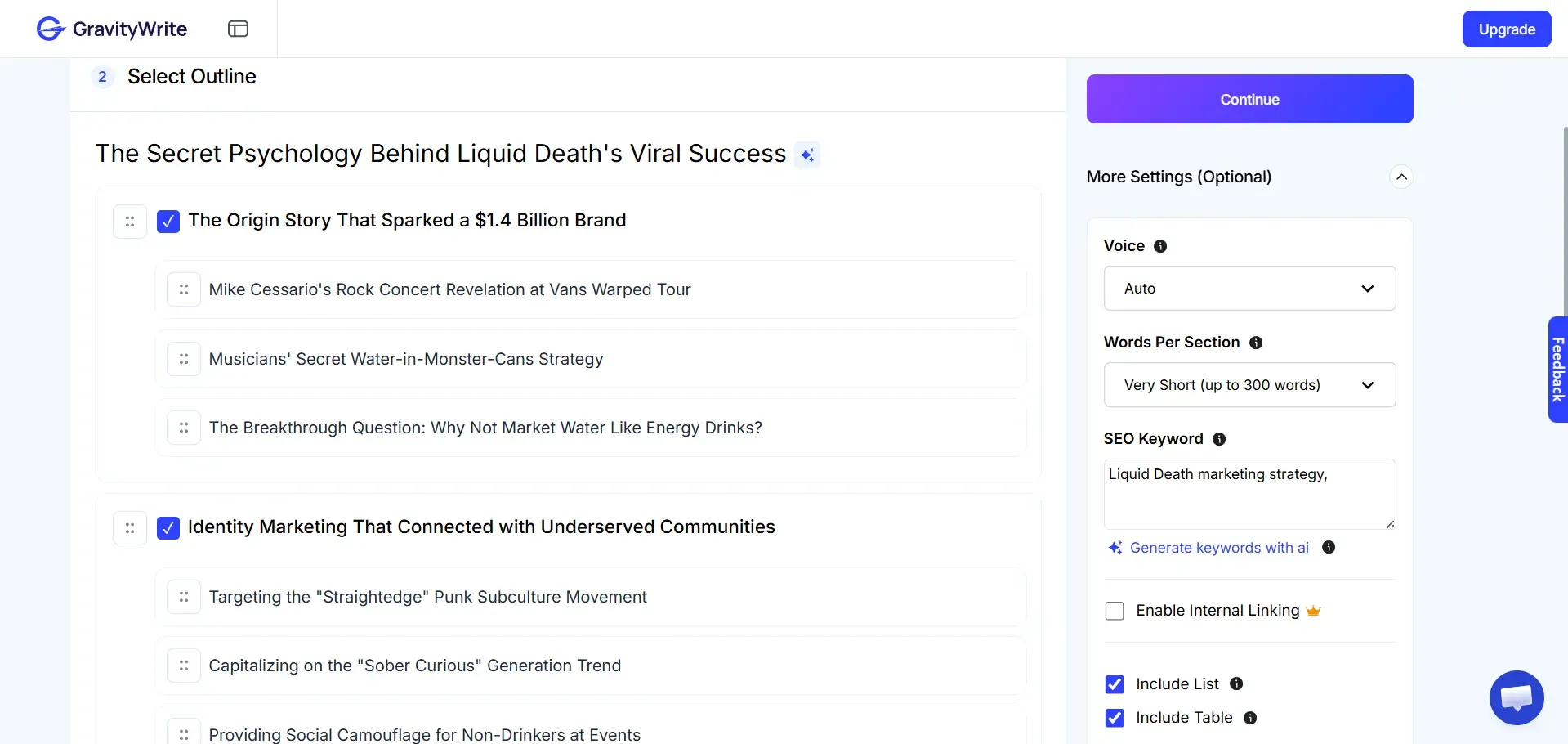
You can edit the outline by deleting headings you don’t need or adding new ones. You can also set the content length for each section.
On the right, the More Settings option lets you customize the blog. You can choose the voice tone, set word count per section and add or generate primary and secondary keywords. You can also add internal links, but this is available only in the Pro plan.
You can also enable lists, tables and AI images and choose the image quality. After setting everything, click Continue to open the next page.
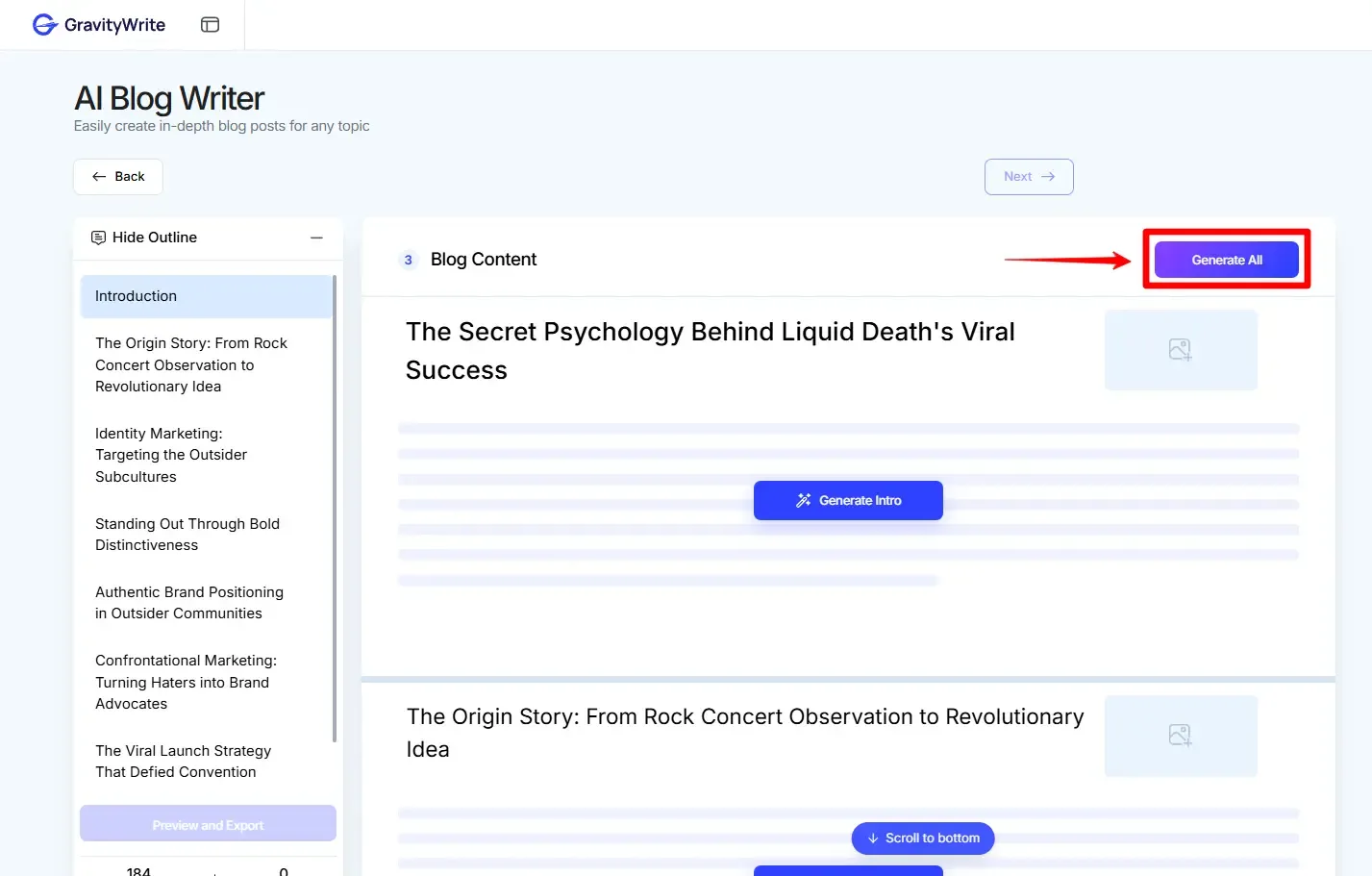
Click Generate All to create the entire blog in a few minutes. When a section is ready, a green tick appears next to the outline on the left. The tool generates content and images together, so you don’t need separate prompts like in ChatGPT or Google Gemini. If needed, you can regenerate the text or image. You can also click an image to edit the prompt or add your own.
However, the image generation needs improvement. Some results had spelling errors and didn’t match the prompt well. When I tested the same prompt in ChatGPT and Gemini, ChatGPT’s image was acceptable, but Gemini’s result was more accurate.
The tool also shows the total word count and image count. At the end, you can preview the blog or export it.
You can download the blog with images as a PDF or publish it directly to WordPress. Check the tutorial in the screenshot before exporting to WordPress.
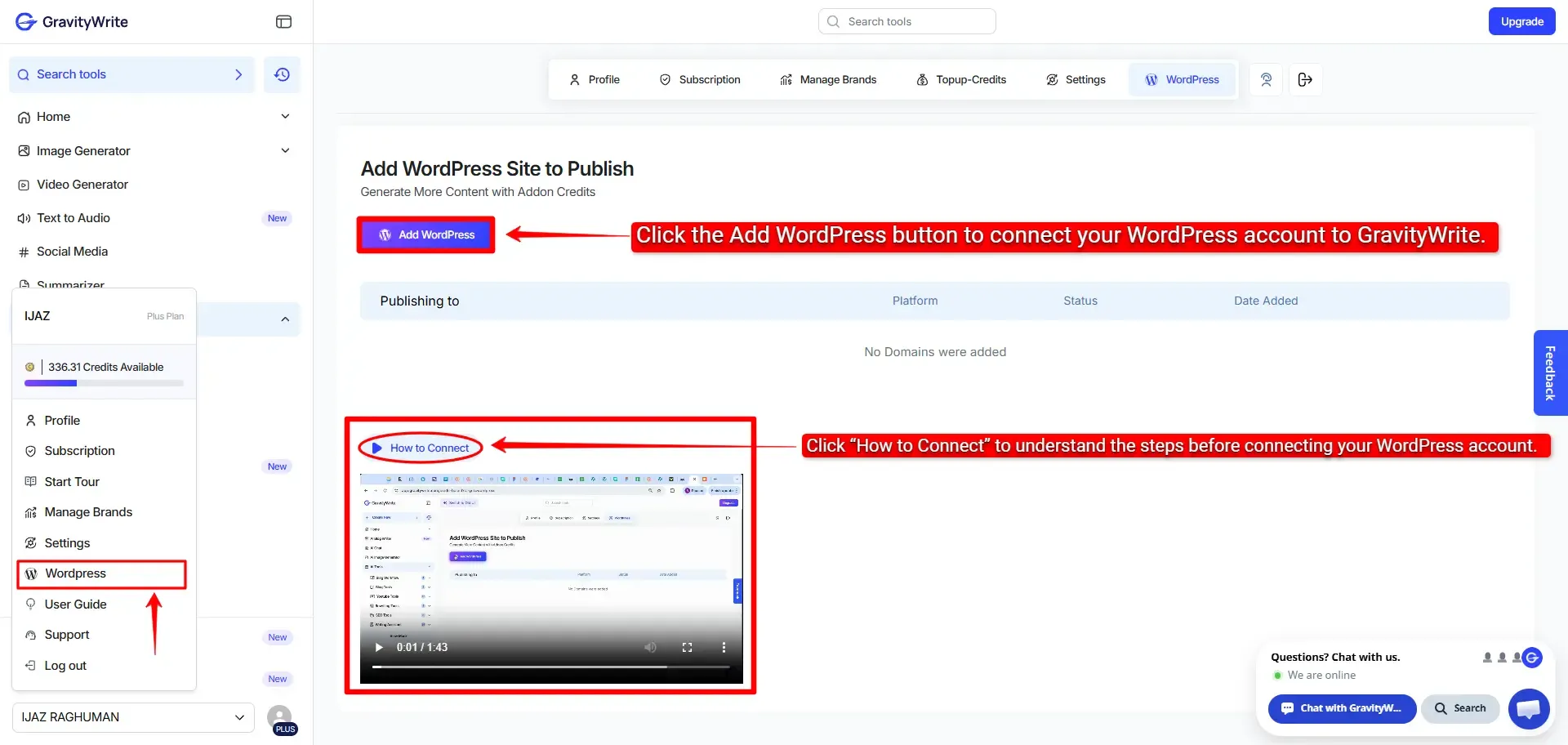
Once your WordPress account is connected to GravityWrite, you can click Export to WordPress and choose whether you want to publish it immediately, save it as a draft or schedule it for later.
Once you publish it, the blog will be published in a few minutes and a link will be generated. You can copy that link and open it to check your blog.
- Easy Blog Writer
The name itself says Easy Blog Writer, so I think this method is simpler than the first one. Just fill in the sections marked in the image below and click the Create Outline button.
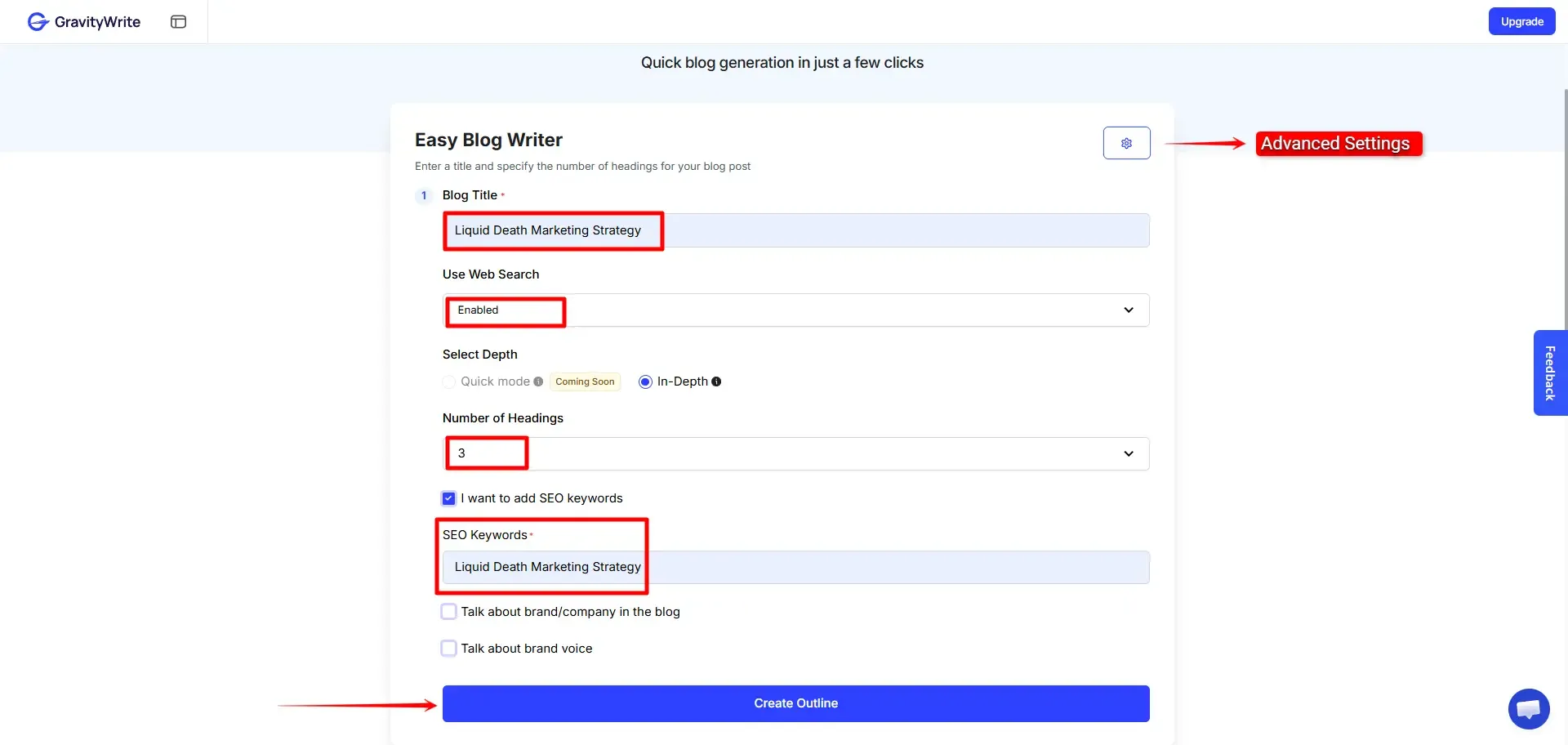
Once the outline is ready, click Continue. In a few minutes, the full blog will be generated with relevant images. You can then download the output as a PDF, DOC or TXT file, or export it directly to WordPress.
You can easily edit the content, but there is no option to regenerate the images. So in my opinion, the first method is better because it allows more customization when generating the blog.
What other real users say about (GravityWrite)
Users like GravityWrite because it’s easy to use and helps create structured, SEO-friendly blog content quickly. It saves time and is useful for getting past writer’s block, but human editing is still needed to make the content feel original. Some users also find the free plan’s credit and word limits restrictive.
3. Writesonic AI Article Writer
Writesonic uses AI to generate blog content quickly, with built-in tools to optimize and improve your articles.
They provide two modes. One is the 10-Step Article mode, which takes around 5 minutes to generate a blog. The other is the Instant Article mode, which claims to generate the article in just one minute. Let’s check and compare both options.
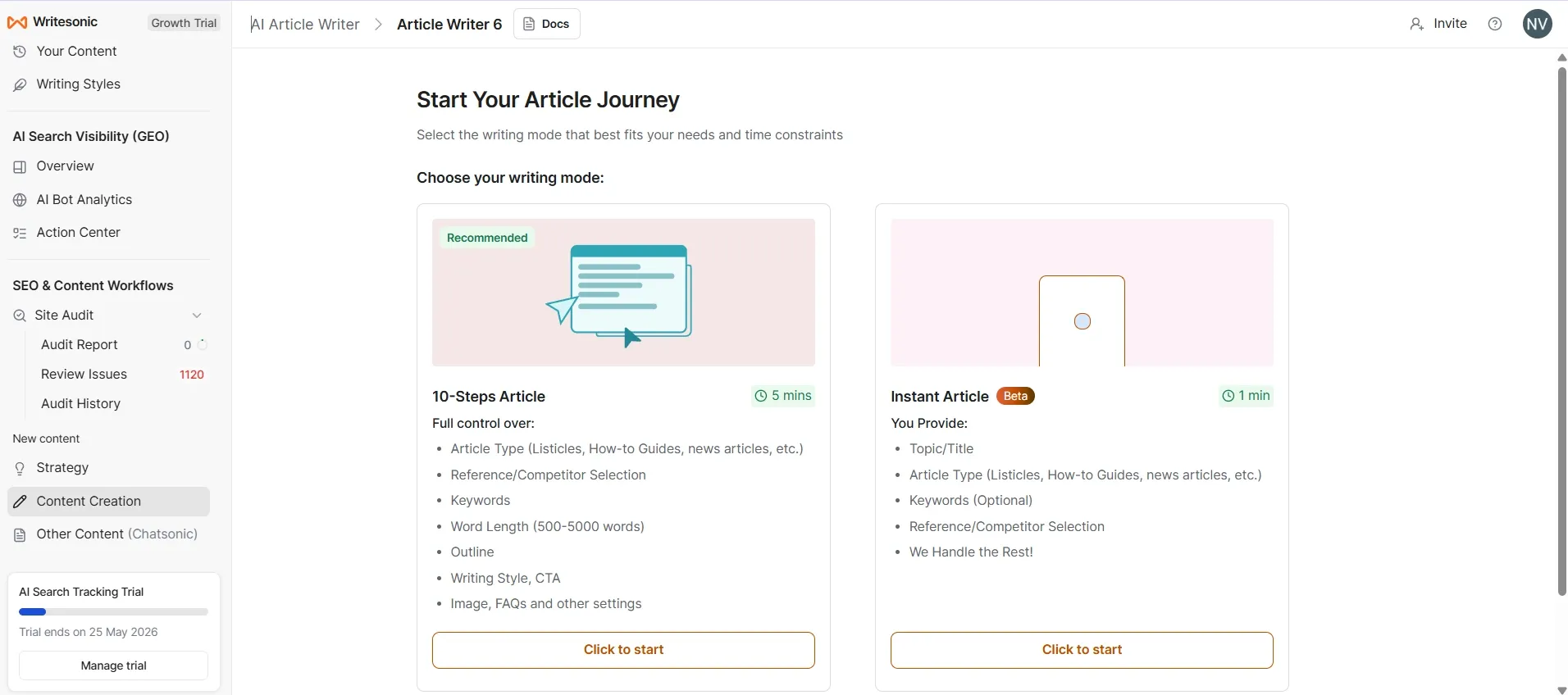
10 Steps Article
First, enter your topic. The article language and target audience location will already be set by default, but you can change them if needed. After clicking continue, the next page will open, where you need to select the article type and research method, as shown in the image below.
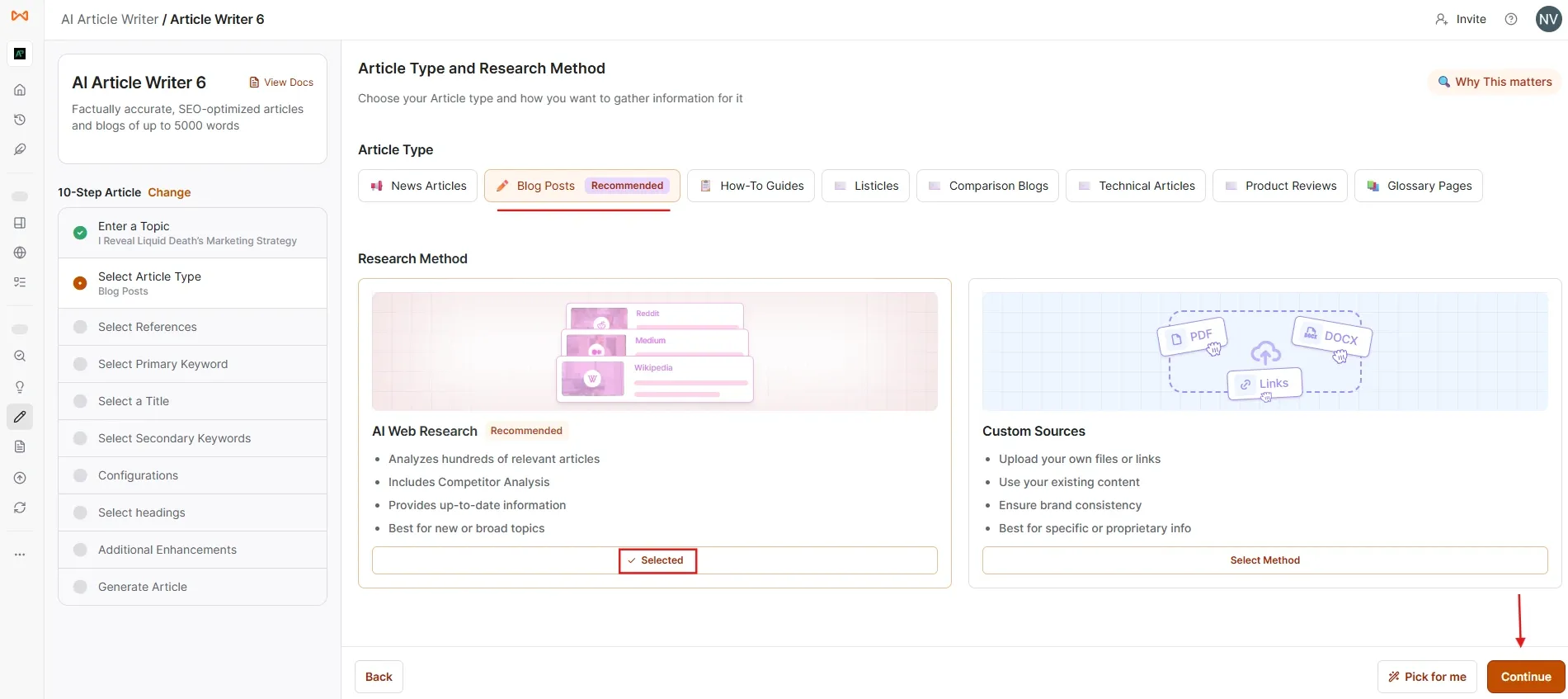
I selected the blog post option and chose the AI research method. Then, after clicking continue, I copied the links of websites that are already ranking at the top for the keyword and pasted them into the “Add Your Own Competitors” section before pressing the add button.
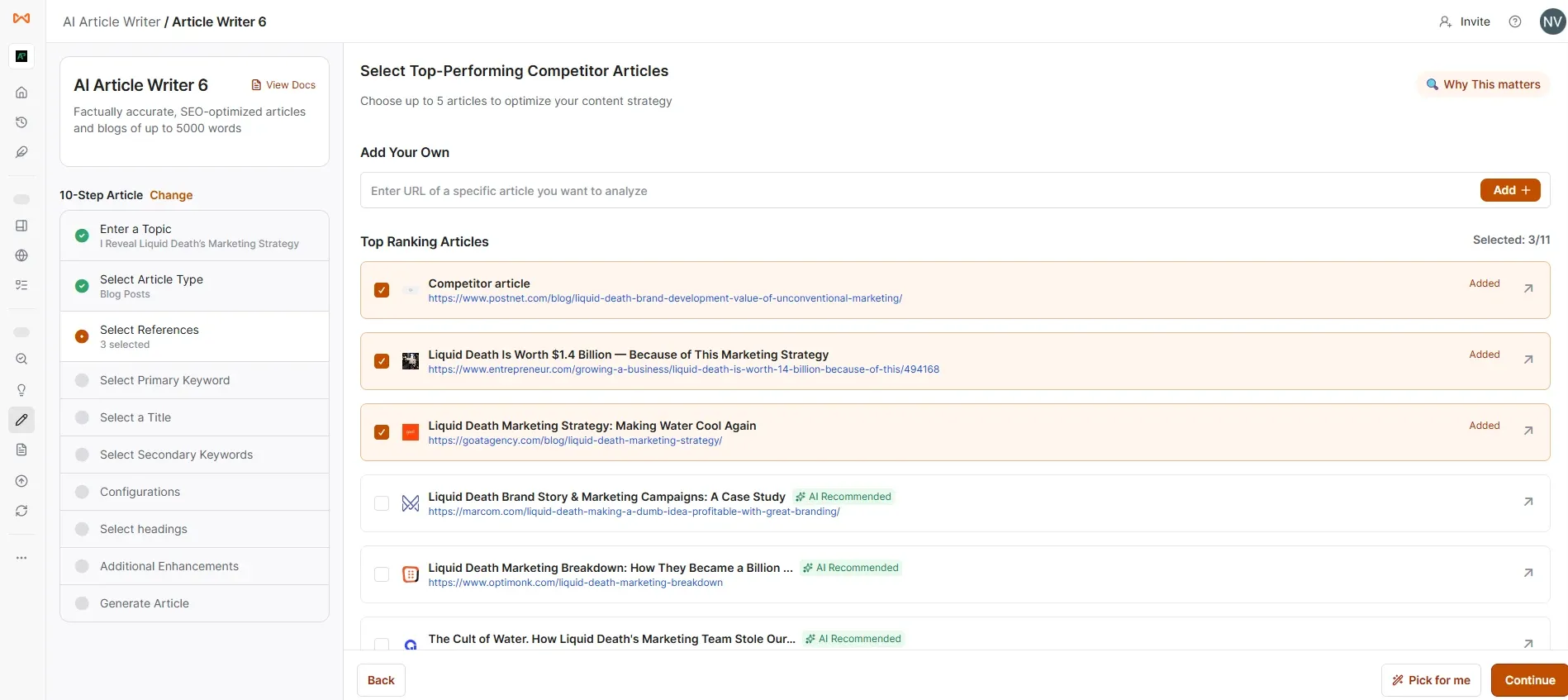
I manually searched the focus keyword on Google using guest mode and copied the links from the top-ranking pages to check what Writesonic might have missed. Actually, Writesonic already analyzes and suggests relevant competitor pages automatically, but it is still better to double-check manually.
Another thing to note is that even if you add many competitor links, you can only select up to 5 competitor pages before continuing.
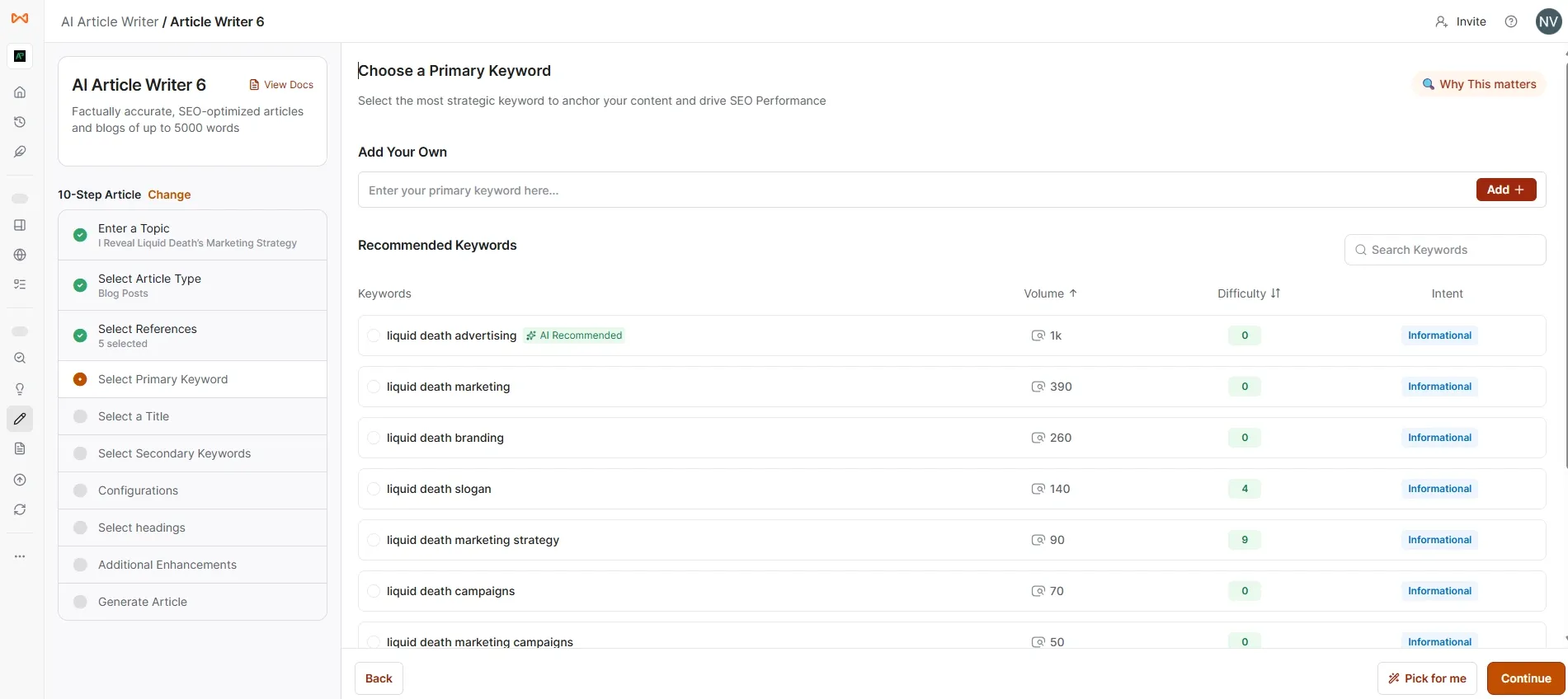
Then set your main focus primary keyword by selecting or typing it manually and adding it. After clicking continue, the tool will start loading and generate blog title suggestions.
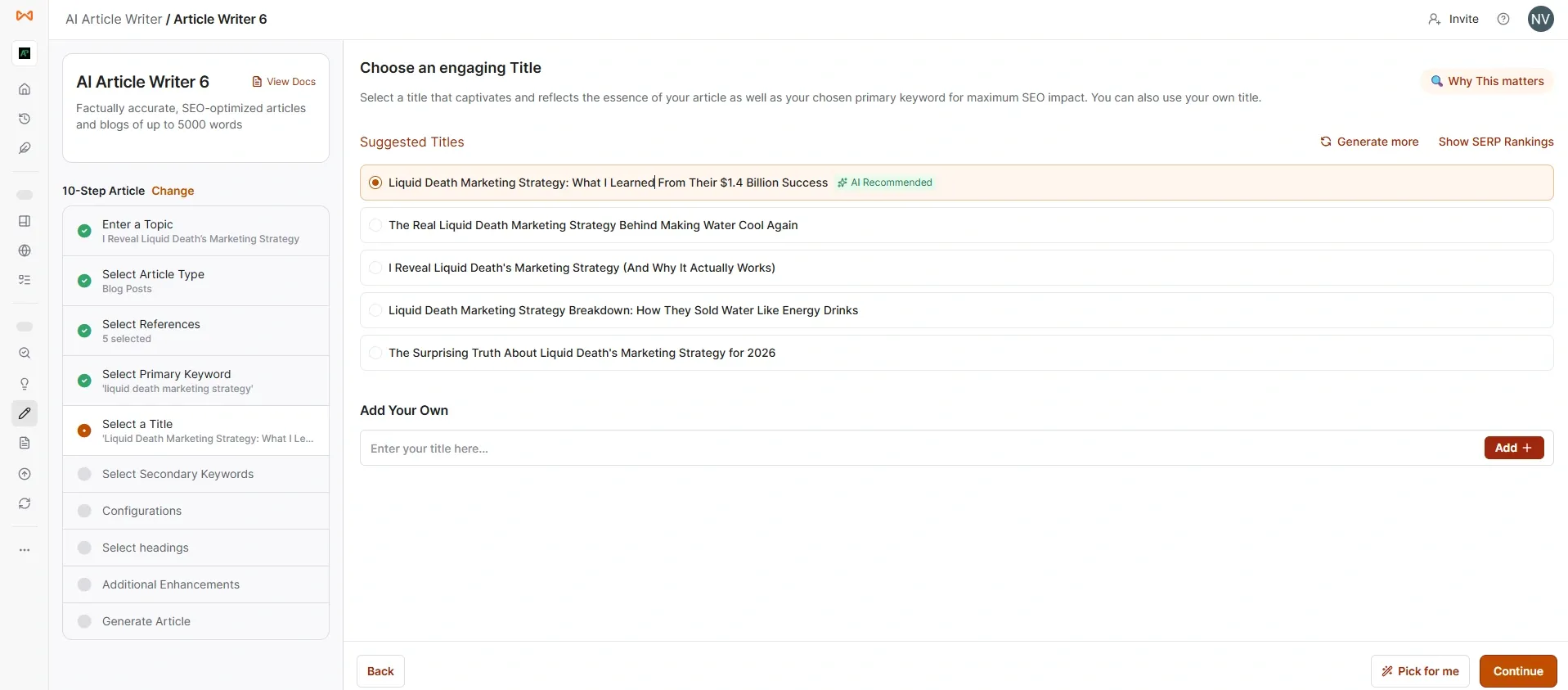
Then choose the title and click continue. After that, it will load and ask you to select secondary keywords. You can add up to 20 secondary keywords. Once you continue again, the next page will open, where you can customize your content to perfectly match your audience’s needs and your brand’s voice.
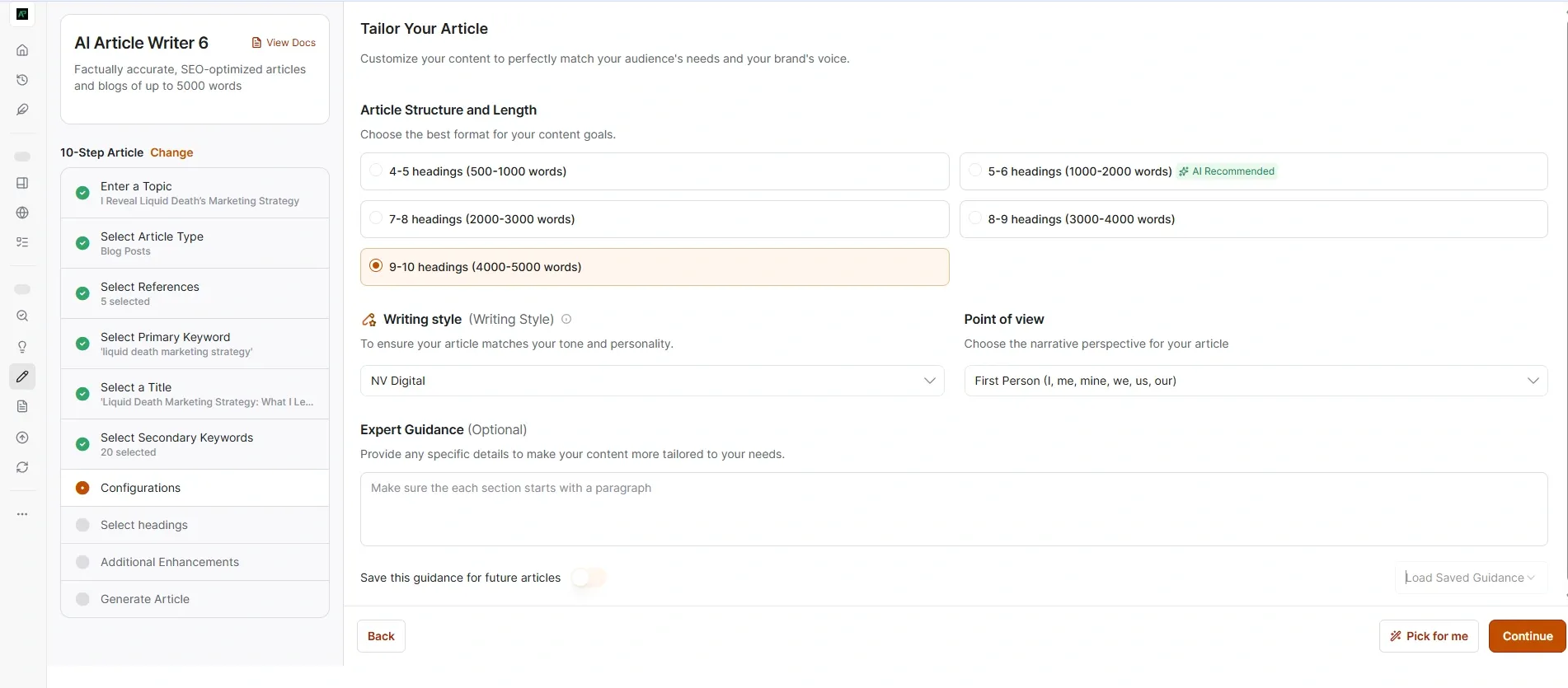
Select the article structure based on how many headings and sections you want. If you already have a unique writing style, you can upload it using a URL, document or file. It may take a few minutes because the tool analyzes and learns your writing style before proceeding.
Finally, you can choose the blog narrative perspective and tone and then the outline will be generated. I’ll share the image below.
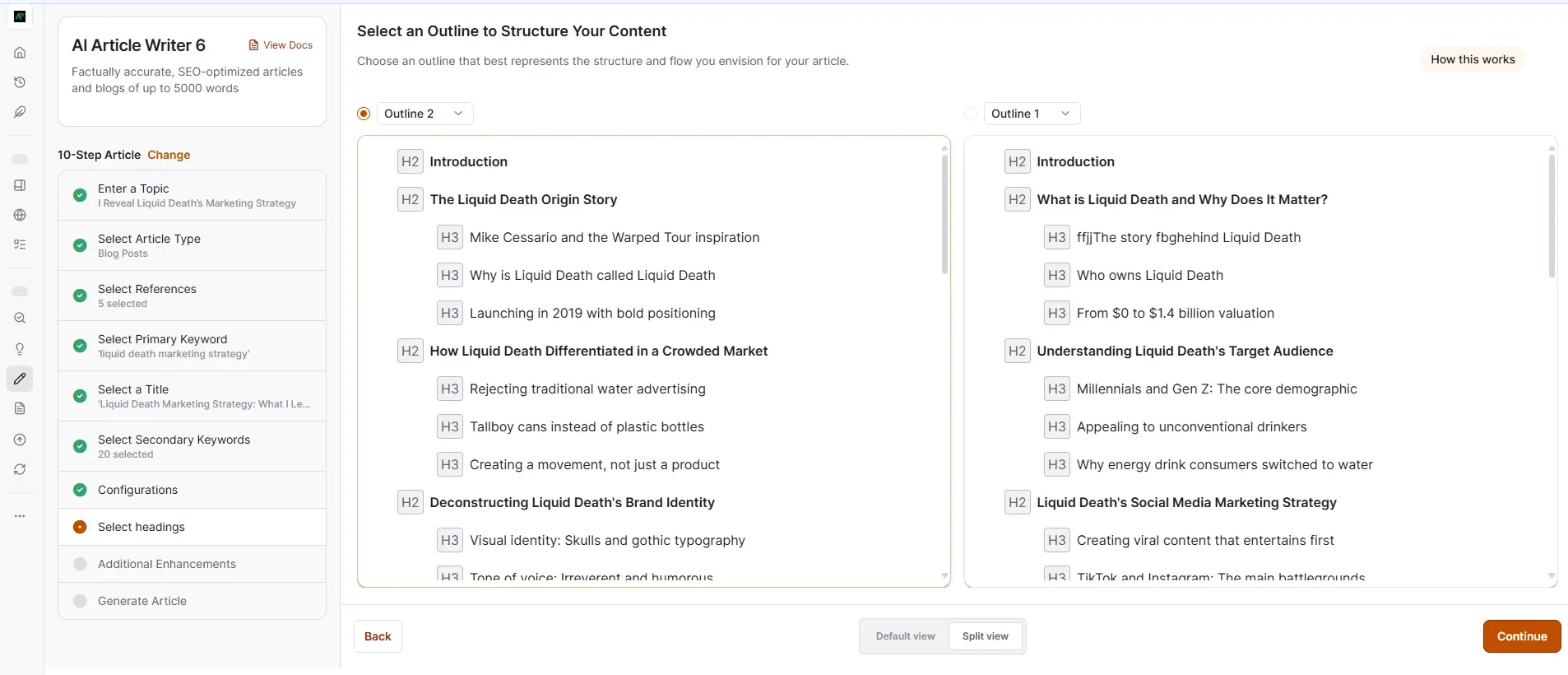
You will get two outline options, and if you enable split view, you can easily compare and analyze both outlines side by side. Then you can choose the one you need or edit them before continuing.
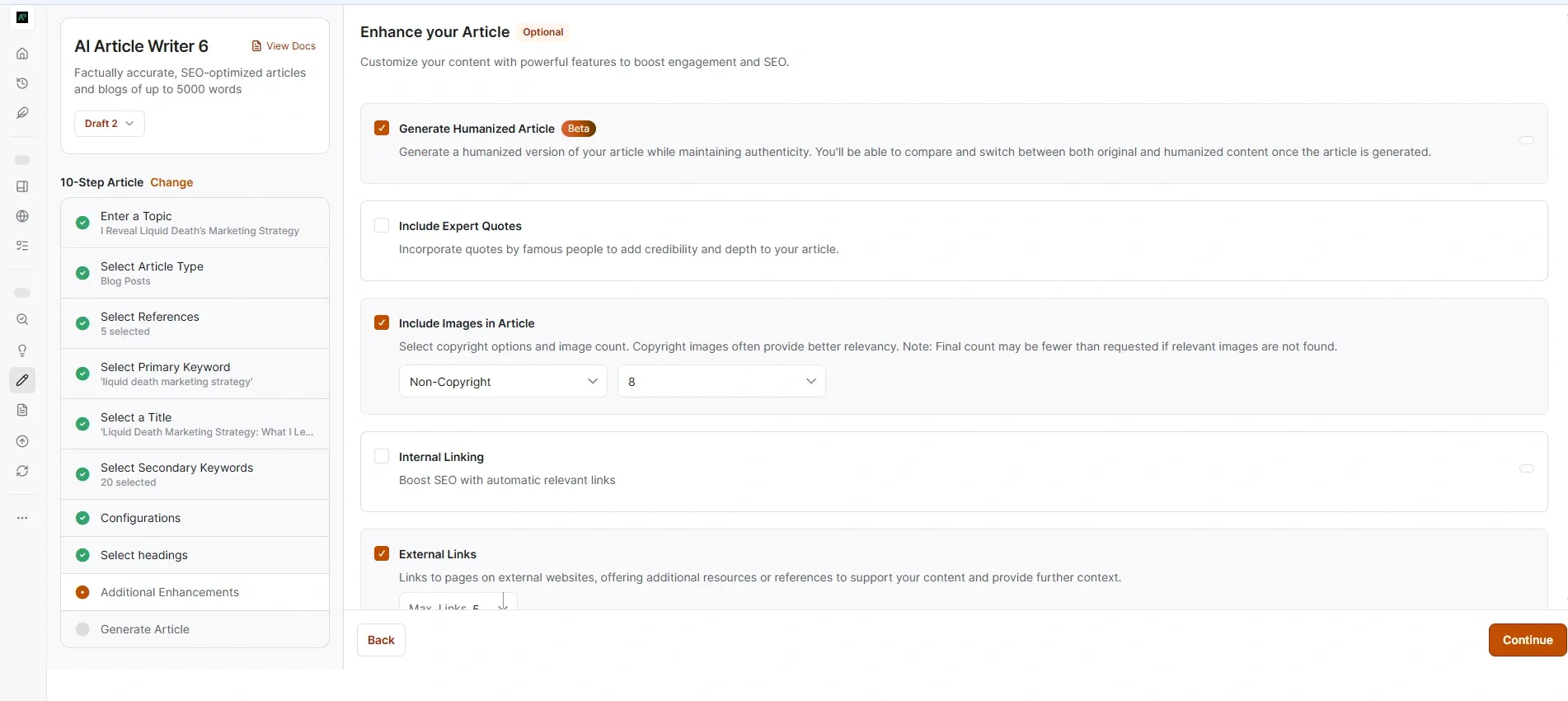
This section is actually very good because it includes almost everything needed for a proper blog post. You can add up to 25 internal links and 25 external links, include FAQs and insert up to 8 images. They also provide an option to select copyright-free images, add a cover image, call-to-action sections and key takeaways. You can even choose exactly where these sections should appear inside the article.
There is also an option to include expert quotes and most importantly, you can enable a “humanized article” option, which is one of the main highlights here. After selecting all these settings, you can continue and start generating the blog.
Related Reviews: Best AI Humanizer
However, when I tested it, the blog was generated only on the third attempt. I am not sure what the exact issue was. I waited because they mentioned it could take around 5 minutes to generate, but it kept loading and suddenly returned to the previous step asking me to select the outline again. Even after selecting the outline again, the same thing happened another time. Finally, on the third attempt, the complete blog was generated, although it was quite slow.
But the final output was genuinely good. The images were high quality and relevant and the internal/external links were added properly. You can save the article and edit it later. There are also options to regenerate images or even regenerate the full blog, although some advanced features require the Enterprise plan.
Inside the editor, they provide AI editing tools that make content editing much easier. You can also generate and insert new images directly from the editor. Another good thing is that the generated output already includes options for meta title, meta description, URL slug and schema settings right at the beginning of the article.
When downloading the article, they also ask whether you want to include citations, which can be useful depending on your needs.
What other real users say about (Writesonic)
Users praise Writesonic for quickly creating SEO-focused articles and drafts, especially with its built-in SEO tools and real-time data. However, many say the first draft can sound generic or “AI-written,” so you need to edit it to add your own voice. Pricing, credit limits, and billing issues are also common complaints.
4. Jasper AI Blog Writer
Jasper AI helps you create blog posts quickly with AI, while giving you tools to edit and refine the content.
Test 1: Without Agent
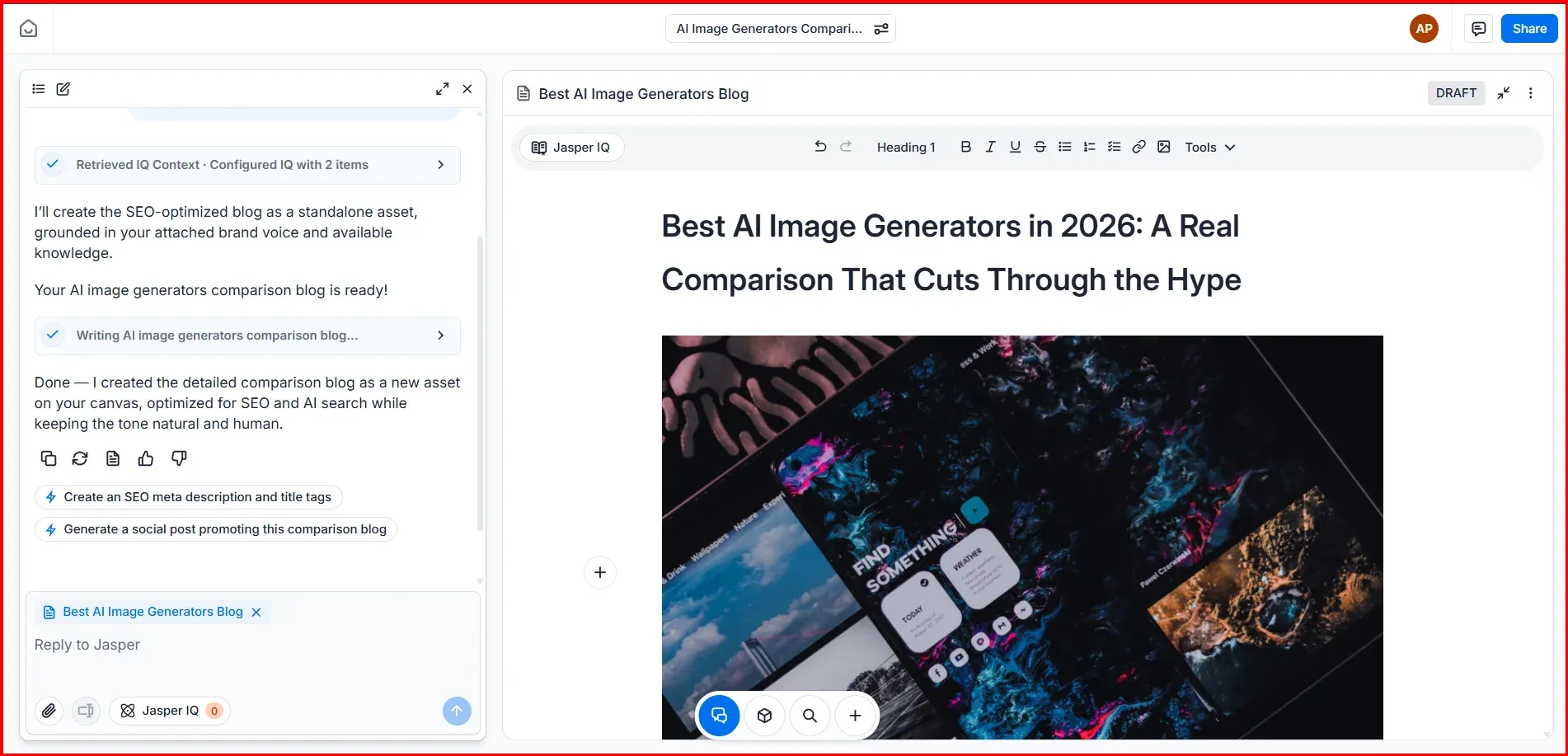
The content structure doesn't feel like typical AI-generated writing. It follows a more natural format, similar to how a human would organize and write the content.
The editor feels somewhat similar to Google Docs and gives you plenty of editing options. You can rewrite sections, regenerate content, create AI images, or upload your own images. Jasper also provides stock images that you can add if they fit your content.
If you're working with a team, you can share projects and collaborate. There are also status options to track whether a blog is in draft, in progress, or completed. You can even add links directly inside the editor when needed.
Test 2: Using Agent
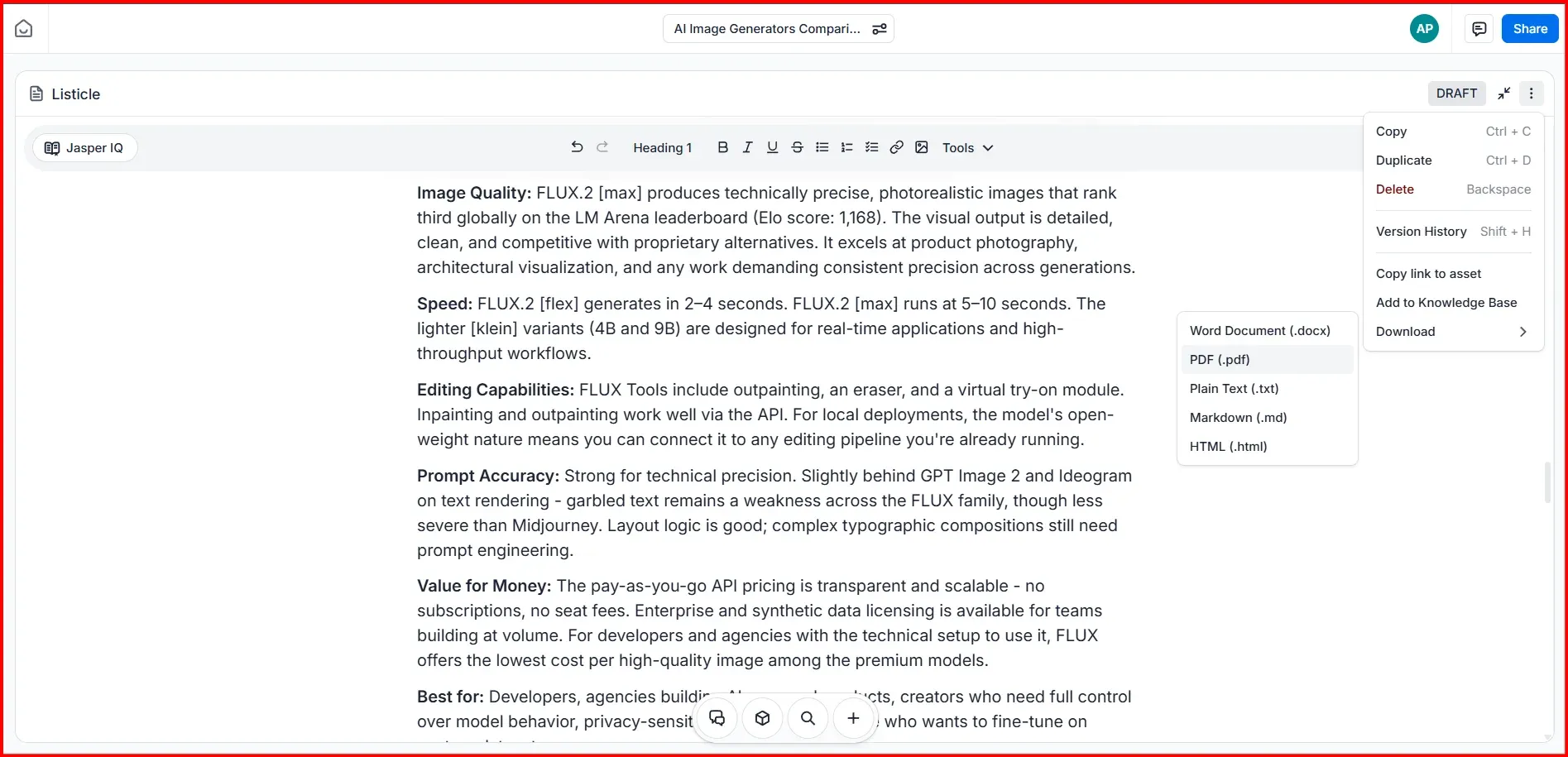
This method works a little differently. You simply enter your prompt in Chat and Jasper analyzes it before suggesting the most suitable AI agents for your request. In my case, it recommended agents like the Comparison Agent, Blog Post Agent, and Listicle Agent.
Since my article was about multiple AI image generation tools, I chose the Listicle Agent because it seemed like the best fit for that type of content. After selecting it, Jasper showed me the proposed title and outline first, which gave me a chance to review and confirm everything before generating the article.
Once I approved it, Jasper started creating the blog post. The output was more detailed than the first test and followed a natural listicle structure. It even added relevant tables automatically where they made sense. Overall, the result was better because I used an agent specifically designed for list-style articles.
The final content was easy to edit, and Jasper also lets you export it in multiple formats, including PDF, Word documents, plain text, Markdown, HTML, and more.
What other real users say about (Jasper AI)
Users like Jasper for its Brand Voice, fast content creation, and ability to handle different types of marketing content. Many say it works well when given detailed direction, but the output can still feel repetitive without human editing. Some users also question its value compared with cheaper alternatives, while billing issues have been a major complaint.
5. Frase
In Frase, you can generate a blog using AI, and they also offer a free trial. Under the Create option, click Content to create new content. Then select Generate Article, enter a prompt describing the blog post you want to write, and configure all the options shown in the images below.
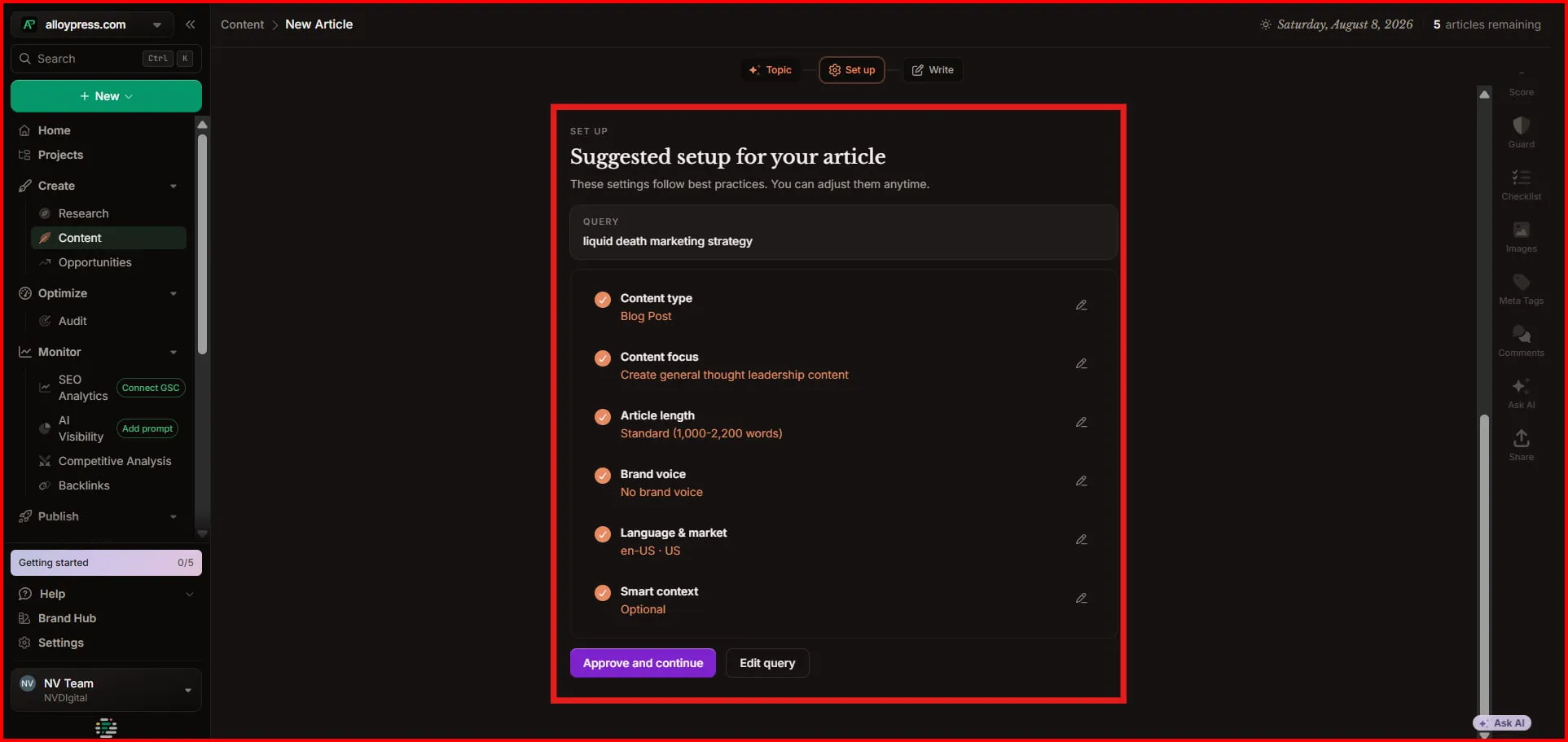
Please read the options shown below in the image. You’ll understand what I mean.
Content Type: Choose Blog Post because you are writing a normal blog article.
Content Focus: Choose Create general thought leadership content because you want to share your own experience, opinions, and useful insights with readers.
Article Length: Choose Standard (1,000–2,200 words) because it gives enough space to explain your experience without making the article unnecessarily long.
Brand Voice: Choose No brand voice for now if you haven't created a custom voice yet.
Language & Market: Keep English (US) + United States if you want your content written in standard US English and researched for the US market.
Smart Context: Leave it Optional for now; you can add reference documents later if you want Frase to use your own information or guidelines.
Quick Check: If Frase suggests Case Study, don't switch automatically. For an experience-based blog like yours, Blog Post is still fine unless the entire article is specifically about one brand's problem, process and results.
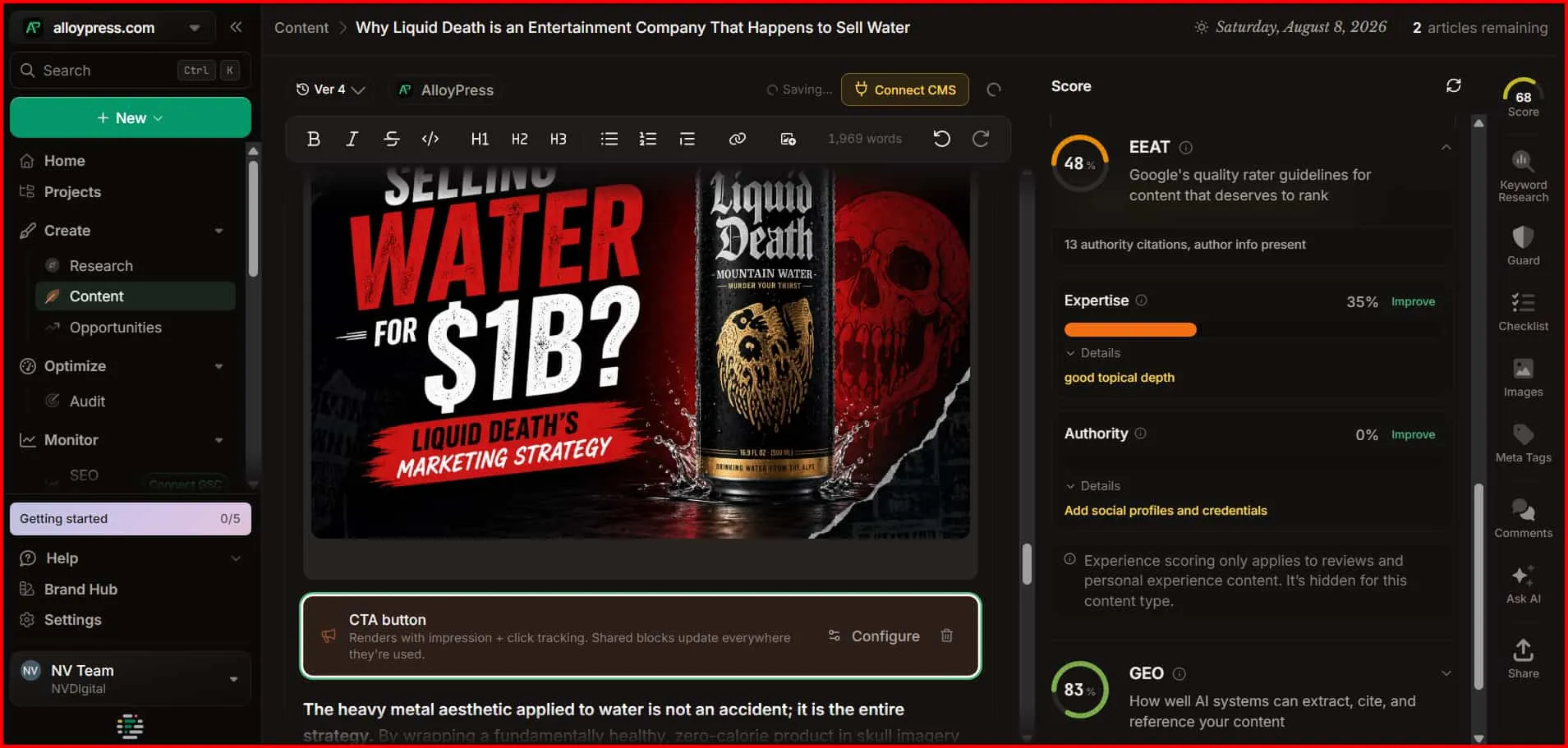
Then, if you look at the process, your blog is generated quickly and you can easily edit it. It has almost all the features you would find in a document editor, including tables, code blocks, bullet points, quotes, CTA buttons, FAQ, and more.
You can also upload images from your own gallery, but the image size must be below 2 MB. Images larger than 2 MB cannot be uploaded.
You can also generate images using AI, but with a simple prompt, the output is often irrelevant. A more detailed prompt gives better results, but even then, the AI does not always follow the prompt accurately. So, AI-generated images are not always perfect, but you can upload your own images instead.
Once the blog is completely finished, you can export it in four formats: HTML, PDF, Plain Text and Markdown. You can also share the blog with others using a link.
Another useful feature is content repurposing. You can turn your generated blog content into a LinkedIn carousel, Instagram carousel, X post, or newsletter.
The special thing is that it gives your blog different scores and there’s an option to improve your blog’s E-E-A-T. It also provides separate GEO and SEO scores. When you click on them, you get even more detailed insights and recommendations.
What other real users say about (Frase AI)
Frase users especially value its SEO research, SERP analysis, content scoring and ability to find content gaps and keywords in one place. Many say it makes article planning and optimization much faster, but its AI writing is not the main strength and often needs human input to sound natural. Some users also report billing, support, and subscription issues, which affects the overall experience.
6. Simplified
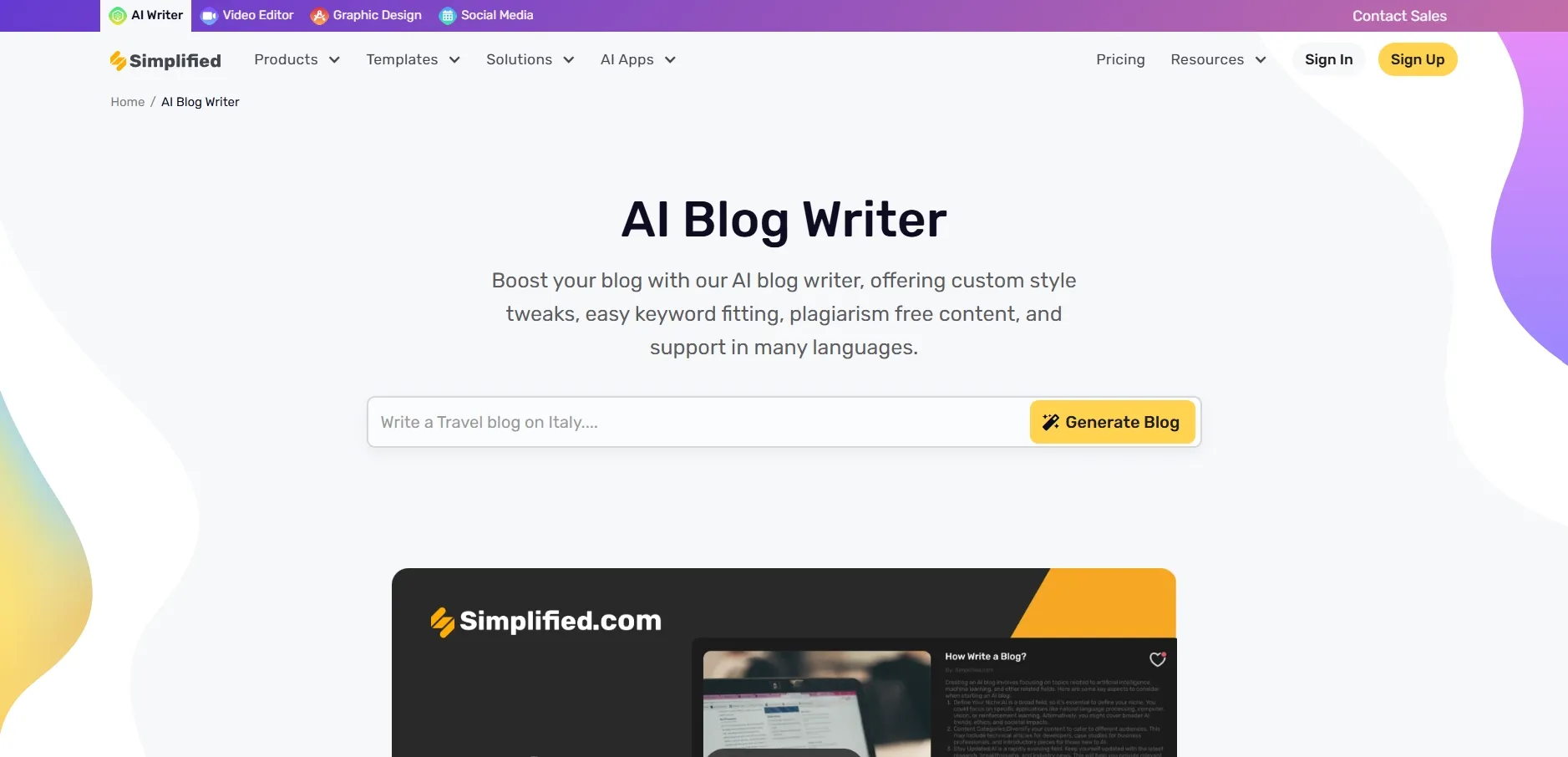
Simplified AI is an all-in-one AI content creation platform that helps users write blog posts, generate marketing copy, create social media content, design visuals, edit videos and manage workflows from a single dashboard. It’s mainly popular among bloggers, marketers, freelancers, and small teams because of its beginner-friendly interface and built-in AI writing tools.
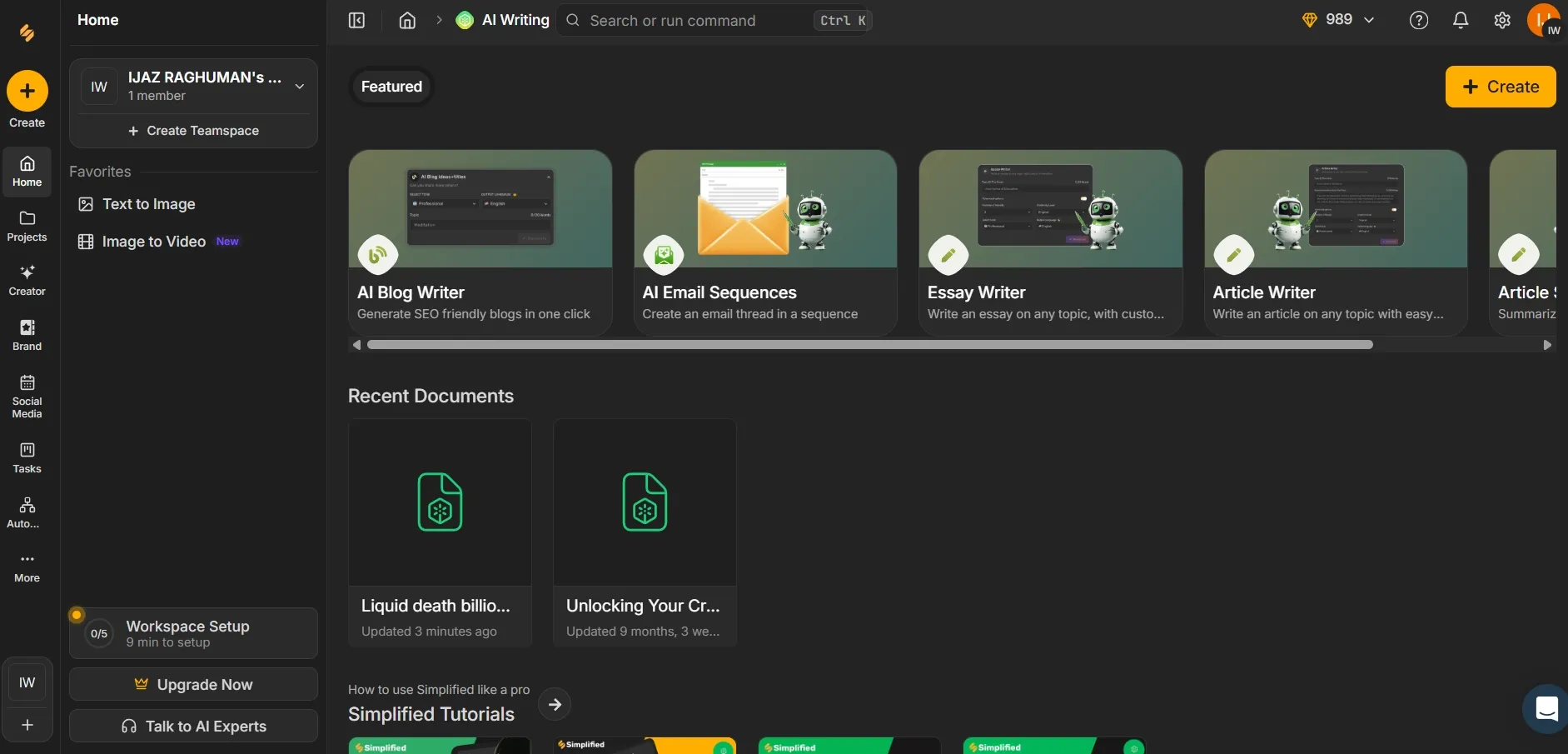
When you first login they give 1000 free credits. You can try the tool for free until those credits finish. I am also sharing the page that opens when you click AI Blog Writer.
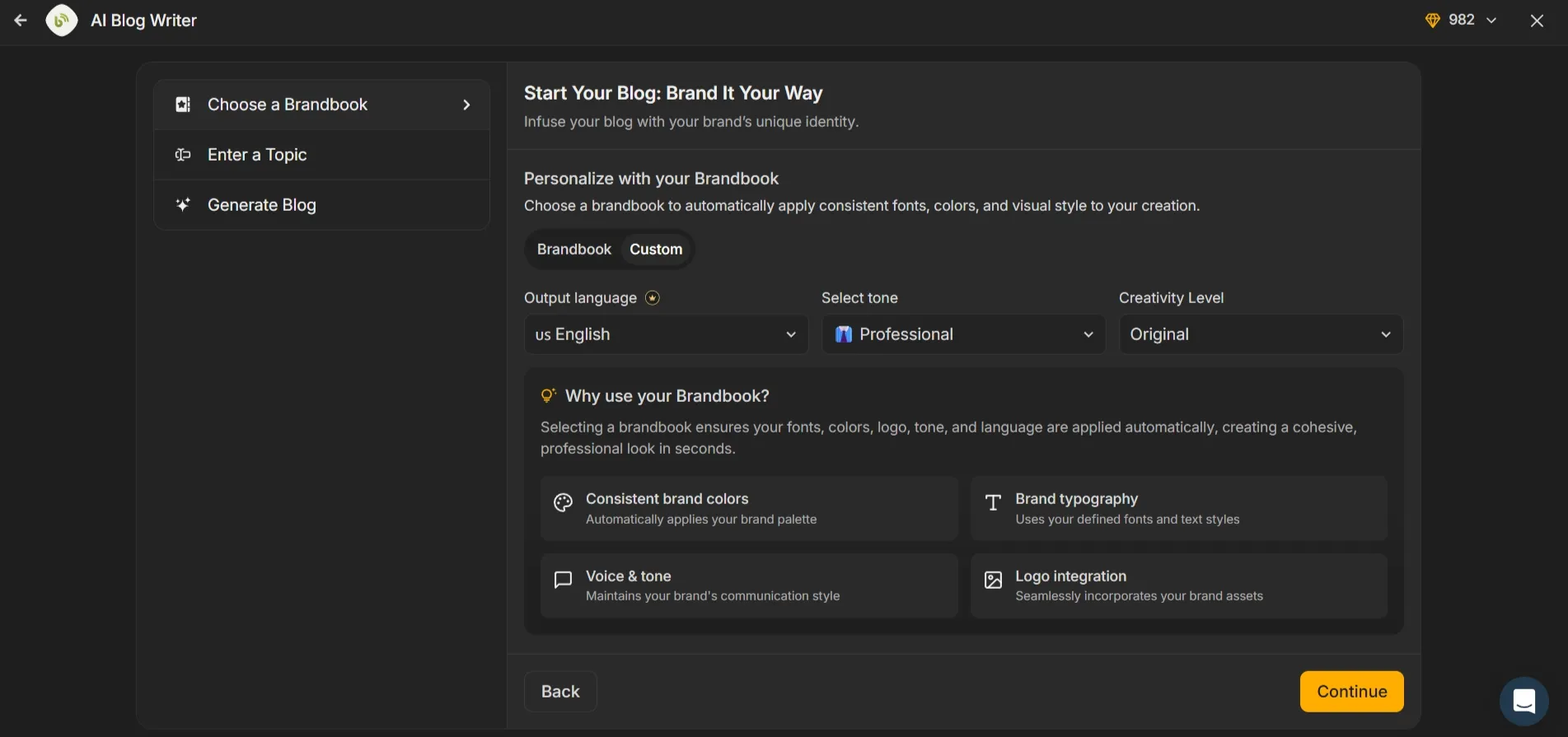
You cannot change the tone creativity level or language in the free version. Those options are only available for paid users.
First you need to choose a topic and enter it. Then the tool will show two blog outlines. You can edit them based on what you need and continue. After entering your primary and secondary keywords the blog will be ready in a few minutes.
You can easily edit the blog later, add images add paragraphs, insert links, set a cover image and finally export it as a DOC or PDF file based on your needs.
Another useful thing is they already provide keyword shortcut suggestions on the side. So even a completely new user can use those shortcuts and work faster.
You can also connect and publish directly to Shopify or WordPress.
Only one thing I personally felt missing was AI image generation inside the tool. They provide templates and image upload options but not proper built in AI image generation like some other AI tools.
What other real users say about (Simplified)
Overall, Simplified gets mixed reviews. Users like the all-in-one platform, especially the AI tools, social media scheduling, and beginner-friendly interface. However, many Trustpilot and G2 reviews complain about poor customer support, auto-renewal charges, cancellation issues and bugs. Reddit users also say the AI writing is useful for ideas and structure, but the output can feel generic and needs heavy editing to make it original and SEO-friendly.
Can Google Detect AI-Written Blogs?
This is one of the biggest questions bloggers have right now. The simple answer is that Google does not ban content just because it was written using AI. What actually matters is the quality, usefulness, originality and accuracy of the content. If an AI-generated blog is helpful, well-edited and written for real people, it can still rank well in search results.
The real problem starts when people publish low-quality AI content without editing it properly. Thin articles, repetitive paragraphs, keyword stuffing and inaccurate information can hurt rankings over time. That’s why successful creators usually combine AI writing with human editing, fact-checking and specialized AI detection tools to improve trust and content quality.
How to Make AI Content Sound More Human?
AI-generated content often sounds robotic because many people use simple prompts and publish the output without improving it. The best way to make AI writing sound more human is by editing the tone, adding personal insights, simplifying sentences and making the content feel conversational instead of overly formal.
Many writers also rewrite introductions, add real examples and remove repetitive phrases that AI tools commonly generate. Small changes like adding emotions, opinions, storytelling and natural transitions can make a huge difference. Today, many creators also use dedicated AI humanizer tools to make AI-generated text sound more natural and authentic.
Can AI Writers Replace Human Writers?
AI writing tools are becoming extremely powerful, but they still cannot fully replace human writers. AI is excellent for speeding up research, generating ideas, creating outlines and writing first drafts quickly. However, human creativity, emotions, storytelling, experience and critical thinking still play a major role in high-quality content.
The future will likely be a combination of both. Writers who understand how to work with AI tools can produce content faster and more efficiently, while still keeping the originality and human touch that readers trust. Instead of replacing writers completely, AI is changing how modern content creation works.
Common Mistakes People Make With AI Blog Writing
One of the most common mistakes people make is copying AI-generated content directly without editing it. This usually leads to robotic writing, repetitive wording, weak introductions and generic information that does not provide real value to readers.
Another major mistake is using poor prompts. The quality of AI output heavily depends on the instructions you give. Many beginners also forget to fact-check AI responses, which can sometimes include outdated or incorrect information. Privacy is another growing concern because many users don’t realize how some AI platforms collect and store prompts. That’s why creators and businesses are increasingly exploring more privacy-focused AI tools for safer workflows and better control over their data.
Conclusion
Pick Bloggr AI if you're starting out and want the cheapest, all-in-one option. Pick GravityWrite if you want real-time research and direct WordPress publishing built in. Pick Frase if SEO research matters more to you than the writing itself. Pick Jasper only if you're a team, since solo use isn't worth the price. And know that Writesonic isn't just a blog writer anymore, it's now a pricier AI search visibility tool, so only pick it if you actually need that.