

Table of Contents
Quick Summary of This Cursor AI Review
After testing Cursor AI properly for a few weeks on real tasks, I can say this: it’s genuinely one of the best AI coding tools right now, but it’s not magic.
It shines when you give it clear instructions for building UIs, refactoring old code, debugging, and fixing actual website problems. In my tests, it created a full working landing page, turned ugly old HTML into a beautiful animated table, fixed bugs with explanations, and even solved a real floating header issue on a live blog.
It has a strong Agent mode and understands your whole project really well (better than GitHub Copilot in most cases). I gave it 9.6/10 overall.
But here’s the honest part, it still needs you to guide it. If you’re a complete beginner and expect it to build full apps without any input, you’ll get disappointed. For developers who already know coding, it saves a lot of time and makes repetitive work much faster.
Bottom line: Worth using (and paying for) if you code regularly. Just don’t treat it like a “type once and forget” tool.
How We Tested Cursor AI
To keep this review honest, I didn’t just read about Cursor AI. I actually used it on real tasks that developers face every day.
I tested four main things. First, I asked it to build a complete modern SaaS landing page with hero, features, pricing, testimonials, FAQ, contact form, dark and light mode and smooth animations. Then I gave it some old basic HTML code and asked it to turn it into a clean modern design with nice animations and hover effects. After that, I shared broken code to check how well it finds errors, fixes them and explains what went wrong. Finally, I used it on a real issue from my own website where the header was floating on some blog pages and it quickly spotted the problem and fixed it by removing unnecessary tags.
I also compared Cursor AI with GitHub Copilot and Windsurf on things like Agent mode, multi-file editing, and codebase understanding.
This way I could see how it actually performs on practical work instead of just theory.
Test 1 – Build a Landing Page
Goal: Check UI generation and code quality.
Prompt:
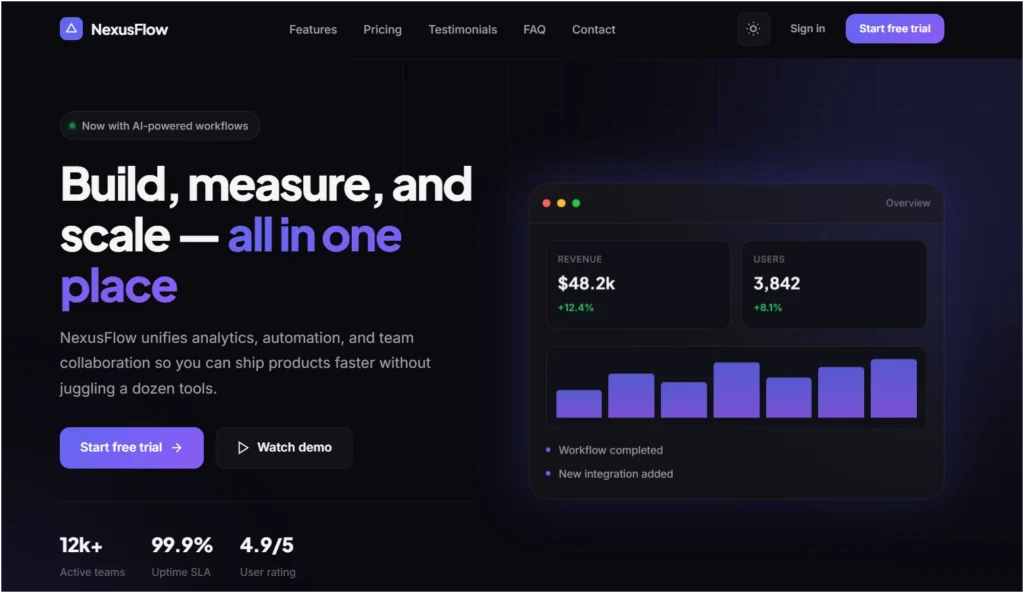
Create a modern responsive SaaS landing page using HTML, CSS, and JavaScript. Include a hero section, features section, pricing section, testimonials, FAQ, and a contact form. Add dark and light mode toggle, smooth animations, and make sure everything is mobile responsive. Generate clean, production-ready code with a proper folder structure.
View the Output
My Experience
The landing page turned out really well. Everything is working properly, including the dark and light modes, contact form and all the links. I created it as a sample landing page to test the prompt and it followed the instructions very well. The FAQ section is also accurate. Overall, it generated a solid and fully functional landing page.
Test 2 – Customize the Old HTML Code
Goal: Check new codes. And the final preview design
Example Old HTML Code
Premium 3D Neon Glow Table – (Code + Preview)
| Feature | Cursor AI | GitHub Copilot | Windsurf |
|---|---|---|---|
| AI Chat | ✅ Available | ✅ Available | ✅ Available |
| Agent Mode | ✅ Yes | ❌ No | ✅ Yes |
| Multi-file Editing | ✅ Excellent | ⚠️ Limited | ✅ Excellent |
| Codebase Understanding | ⭐⭐⭐⭐⭐ | ⭐⭐⭐⭐ | ⭐⭐⭐⭐⭐ |
| Ease of Use | ⭐⭐⭐⭐⭐ | ⭐⭐⭐⭐⭐ | ⭐⭐⭐⭐ |
| Overall Rating | 9.6 / 10 | 9.1 / 10 | 9.3 / 10 |
<!-- Premium 3D Neon Glow Table -->
<style>
.premium-table {
    width: 100%;
    overflow-x: auto;
    margin: 20px 0;
    border-radius: 18px;
    background: linear-gradient(145deg, #ffffff, #f3f4f6);
    border: 3px solid #111111;
    box-shadow: 0 0 0 2px rgba(34,197,94,.25),
                0 15px 40px rgba(0,0,0,.18);
}
.premium-table table { width:100%; border-collapse:collapse; }
.premium-table thead th {
    background: linear-gradient(180deg, #16a34a, #0f7a39);
    color: #fff;
    padding: 18px 20px;
    font-size: 17px;
    font-weight: 700;
    text-align: left;
    border: 2px solid #111111;
}
.premium-table tbody td {
    padding: 16px 20px;
    font-size: 15px;
    color: #1f2937;
    border: 2px solid #111111;
}
.premium-table tbody tr:nth-child(even) { background: #fafafa; }
.premium-table tbody tr:hover td {
    background: #ecfdf5;
    transform: translateY(-2px);
}
</style>
<div class="premium-table">
<table>
    <thead>
        <tr>
            <th>Feature</th>
            <th>Cursor AI</th>
            <th>GitHub Copilot</th>
            <th>Windsurf</th>
        </tr>
    </thead>
    <tbody>
        <tr><td>AI Chat</td><td>✅ Available</td><td>✅ Available</td><td>✅ Available</td></tr>
        <tr><td>Agent Mode</td><td>✅ Yes</td><td>❌ No</td><td>✅ Yes</td></tr>
        <tr><td>Multi-file Editing</td><td>✅ Excellent</td><td>⚠️ Limited</td><td>✅ Excellent</td></tr>
        <tr><td>Codebase Understanding</td><td>⭐⭐⭐⭐⭐</td><td>⭐⭐⭐⭐</td><td>⭐⭐⭐⭐⭐</td></tr>
        <tr><td>Ease of Use</td><td>⭐⭐⭐⭐⭐</td><td>⭐⭐⭐⭐⭐</td><td>⭐⭐⭐⭐</td></tr>
        <tr><td>Overall Rating</td><td><strong>9.6 / 10</strong></td><td><strong>9.1 / 10</strong></td><td><strong>9.3 / 10</strong></td></tr>
    </tbody>
</table>
</div>
Cursor output code
My Experience
It completely transformed the HTML code I provided. The animations are smooth, the table responds to mouse hover with subtle movement and the neon glow gives it a futuristic look. Overall, it turned the table into a clean, modern and visually impressive design.
Test 3 – Find and Fix Bugs
Goal: Test debugging.
Error Code:
<!DOCTYPE html>
<html>
<body>
<h1>Welcome to My Website</h1>
<p>This is a sample paragraph
<img src="logo.png">
<button onclick="showMessage()">Click Me</button>
<script>
showmessage();
</script>
</body>
</html>
Cursor Corrected the Error Code
<!DOCTYPE html>
<html lang="en">
<head>
  <meta charset="UTF-8">
  <title>My Website</title>
</head>
<body>
  <h1>Welcome to My Website</h1>
  <p>This is a sample paragraph</p>
  <img src="logo.png" alt="Logo">
  <button onclick="showMessage()">Click Me</button>

  <script>
    function showMessage() {
      alert("Hello! You clicked the button.");
    }

    // Remove this line if you only want the alert when the button is clicked
    // showMessage();
  </script>
</body>
</html>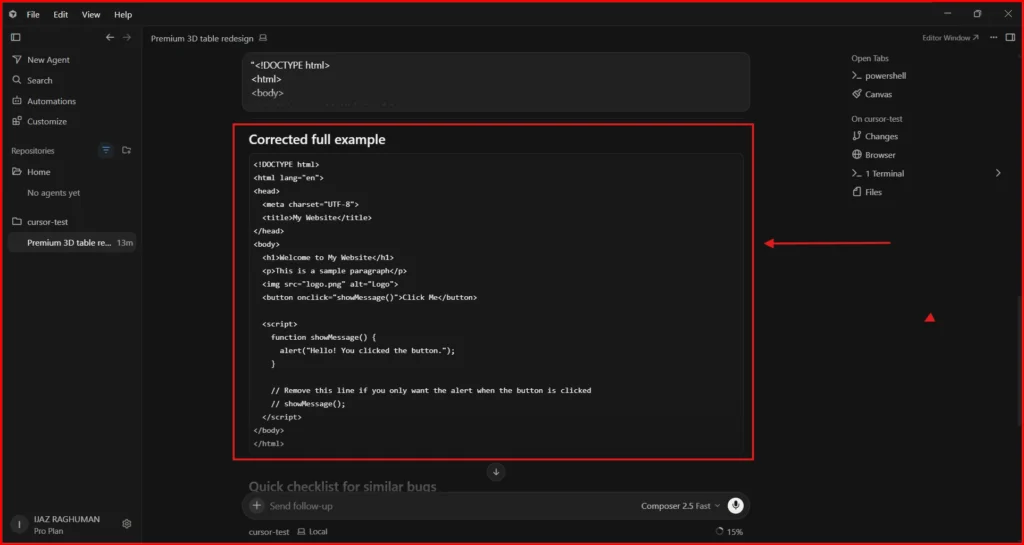
My Experience
It quickly analyzed the code, identified the errors and fixed them. It also provided a simple, easy-to-understand explanation of what went wrong and why. This makes it much easier for developers to learn from their mistakes while saving time on debugging.
Test 4 – Real website issue
While working on one of my websites, I noticed that the header was floating, but only on the last two blog pages I had published. The rest of the website was working perfectly.
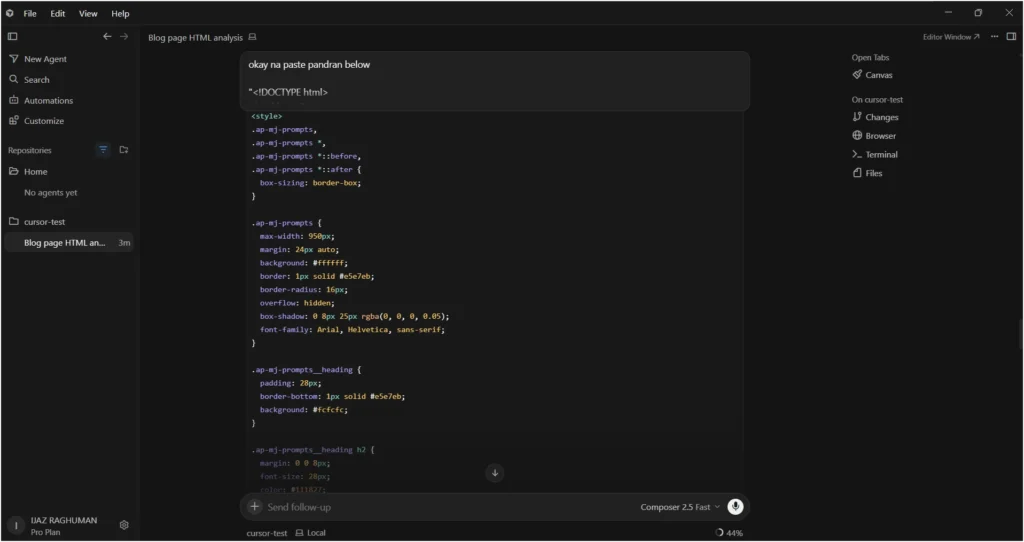
To find the cause, I used Cursor AI. I explained the issue and shared my code for analysis. It quickly identified the problem. The HTML code I had added for a table included unnecessary tags like <!DOCTYPE>, <html>, <head> and <body>. Since I was adding the code inside a blog post, those tags weren’t needed and were causing a conflict with the page layout.
Cursor AI removed the unnecessary code and generated a clean version. After replacing the old code with the corrected version in my blog, the header stopped floating and everything worked perfectly again.
Cursor AI Pros and Cons
Pros
- Excellent codebase understanding (best in class)
- Powerful Agent mode that can edit multiple files intelligently
- Generates clean, modern, production-ready UI code very well
- Great at debugging + explains issues in simple language
- Tops comparison tables (9.6/10 overall rating)
- Transforms basic/old code into beautiful, animated designs
- Huge productivity boost for repetitive tasks and refactoring
Cons
- Not ideal for absolute beginners (you still need to guide it)
- Cannot build complete production apps 100% autonomously
- Heavy Agent usage requires a paid plan (credit system)
- Sometimes needs small manual corrections (“not perfect”)
- Advanced features have usage limits on lower plans
Cursor AI Pricing Details (July 2026)
Cursor uses a credit-based system for heavy AI model usage (especially in Agent mode).
| Plan | Price | Best For | What’s Included | Limits & Notes |
|---|---|---|---|---|
| Hobby | Free | Trying Cursor / Beginners | • No credit card required • Basic access to Cursor | Limited Agent requests Limited Tab completions |
| Individual | $20 / month | Individual developers | • Everything in Hobby • Extended Agent limits • Access to frontier models • Cloud agents • MCPs, skills & hooks • Bugbot | Extended limits Usage-based credits included (extra usage billed on-demand) |
| Teams | $40 / user / month | Small to medium teams | • Everything in Individual • Centralized team billing • Team marketplace • Shared team context • Usage analytics • Team privacy mode • SAML/OIDC SSO | Same as Individual + full team features |
| Enterprise | Custom | Large companies / Organizations | • Everything in Teams • Pooled usage • Invoice/PO billing • SCIM seat management • Advanced security & controls • Audit logs • Priority support | Fully customizable + enterprise-grade features |
Free Tip – Most developers find the Pro plan ($20/mo) sufficient. Only heavy Agent users upgrade to Pro+ or Ultra.
5 Useful Prompts You Can Directly Use with Cursor AI
Copy-paste these prompts. They work really well based on what I tested.
| No | Use Case | Prompt You Can Copy-Paste | Why It Works Well |
|---|---|---|---|
| 1 | Build a full landing page | Create a modern responsive SaaS landing page using HTML, CSS and JavaScript. Include: Hero section, Features, Pricing, Testimonials, FAQ, Contact form, Dark/light mode toggle, and smooth animations. Make it production-ready with clean code. | Cursor followed every instruction perfectly in my test and gave working code. |
| 2 | Refactor old code into modern design | Here’s my old HTML table code. Refactor it into a clean, modern, futuristic design with smooth hover animations, neon glow effects, subtle 3D depth and responsive behavior. Keep the same functionality but make it look premium. | It completely transformed basic code into something beautiful and interactive. |
| 3 | Debug code + get explanation | This code has bugs. Find the errors, fix them and explain in simple language what was wrong and why. Also give me the corrected full code. | It not only fixed the code but explained the mistakes clearly, great for learning. |
| 4 | Fix real website layout issues | I’m adding this HTML code inside a blog post and the header is floating only on these pages. Analyze the code and tell me what’s causing the issue. Remove unnecessary tags and give me clean fixed code. | It correctly identified extra <!DOCTYPE>, <html>, <head> tags causing conflicts. |
| 5 | Add a new feature across files (Agent mode) | I want to add a dark mode toggle to my entire project. Check all relevant files, update the necessary components, CSS and make sure it works across the site. Explain what you changed. | Uses Cursor’s Agent mode strength for multi-file changes intelligently. |
Common Mistakes Developers Make with Cursor AI (and How to Avoid Them)
Even good developers fall into these traps. Here’s what I noticed and how to avoid them:
1. Giving vague prompts
Example: “Make this page better” or “Fix the code”.
How to avoid: Be very specific. Mention exactly what sections you want, what design style, what functionality and any constraints. The more details you give, the better the output.
2. Not reviewing the code it generates
Many people just copy-paste whatever Cursor gives without checking.
How to avoid: Always read the code. Test it. Cursor is smart but it can still make small logical mistakes or use outdated patterns.
3. Expecting it to build everything alone
Some developers think “I’ll just tell it once and it will finish the whole app”.
How to avoid: Treat Cursor like a very smart junior developer. Break big tasks into smaller steps and guide it. Use Agent mode for bigger changes but still review.
4. Not giving enough context about the project
If you just paste one file without explaining the tech stack or existing code style, results suffer.
How to avoid: In Composer or Agent mode, mention your framework (React, Next.js, plain HTML, etc.), design system or coding standards you follow.
5. Using it only for small autocomplete instead of bigger tasks
A lot of people only use Tab autocomplete and miss the real power.
How to avoid: Try Agent mode and Composer for bigger jobs like “add authentication”, “refactor this module” or “create this feature from scratch”. That’s where the biggest time savings happen.
6. Ignoring performance and best practices
Cursor sometimes generates code that works but isn’t optimized.
How to avoid: After it generates code, ask follow-up prompts like: “Optimize this for performance” or “Make this more accessible and follow best practices”.
FAQs (People Actually Ask)
1. Can Cursor AI build a complete modern SaaS landing page with hero, features, pricing, testimonials, FAQ, contact form, dark/light mode and smooth animations?
Yes. In the review’s Test 1, Cursor AI generated a fully functional, responsive landing page that included every section mentioned. Dark/light mode, contact form, FAQ and animations all worked perfectly without extra fixes.
2. How good is Cursor AI at refactoring old HTML code into a modern, beautiful design?
Extremely good. When given old basic table code, it completely transformed it into a futuristic, animated table with neon glows, smooth hover effects, 3D depth and responsive behavior, while keeping the functionality intact.
3. Can Cursor AI find and fix bugs in HTML/JavaScript code?
Yes, very effectively. It quickly spotted missing tags and misplaced scripts, fixed them and gave a clear explanation of what went wrong. This makes it great for both fixing issues and learning from mistakes.
4. Can Cursor AI solve real website problems (like a floating header on specific blog pages)?
Yes. In one real case, it identified that unnecessary <!DOCTYPE>, <html>, <head> and <body> tags inside a blog post were breaking the layout. It removed them and gave clean code that immediately fixed the issue.
5. Is Cursor AI better than GitHub Copilot or Windsurf?
According to the detailed comparison in the review, Cursor AI scored the highest overall (9.6/10). It wins in Agent Mode, multi-file editing, codebase understanding and ease of use. GitHub Copilot scored 9.1/10 and Windsurf 9.3/10.
Conclusion
Cursor AI is not just another AI autocomplete tool, it’s a full AI-powered code editor that genuinely changes how developers work.
After testing it on real tasks (building landing pages, modernizing old code, debugging and fixing live website bugs), the review shows that Cursor AI significantly boosts productivity for developers who already understand coding. It excels at understanding your entire project, making intelligent multi-file changes through Agent mode and producing clean, modern code.
However, it is not magic. It still needs guidance and review from the developer. Complete beginners who expect it to build full production-ready apps with zero supervision will likely be disappointed.
Final Verdict: If you’re an intermediate or advanced developer who wants to code faster, refactor better and debug quicker, Cursor AI is currently one of the best options available in 2026 (rated 9.6/10 in direct comparison). It’s worth paying for if you code regularly.


0 Comments