InVideo AI Video Generator Review (2026): Is It Worth It?

invideo AI Video Generator Review

Quick Blog Summary

InVideo AI Video Generator gives you access to many popular AI models like Seedance 2.0, Kling, PixVerse and HappyHorse, all in one place. So you don’t have to pay for separate tools. During testing, the quality changed a lot depending on which model was used. Seedance 2.0 gave the best and most reliable results, while Kling 3.0 Turbo was disappointing most of the time. Each video takes around 3 minutes to generate, and credit usage depends on the resolution and model you pick. It also comes with useful extras like upscaling, easy editing and watermark free downloads on paid plans. Overall, it’s a good all in one option if you want flexibility, but you need to choose the right model and settings so you don’t waste credits.

In this review, I’m focusing only on InVideo’s AI Video Generator. I tested how it works, how easy it is to use and whether it actually delivers good results. Using the same set of prompts, I evaluated its output quality, prompt accuracy, consistency, generation speed, editing experience and how many credits each video costs to generate. By the end, you’ll have a clear idea of what the tool does well, where it falls short and whether it’s worth using. Let’s quickly dive in.

If you want to learn more about InVideo, check out this detailed InVideo review blog.
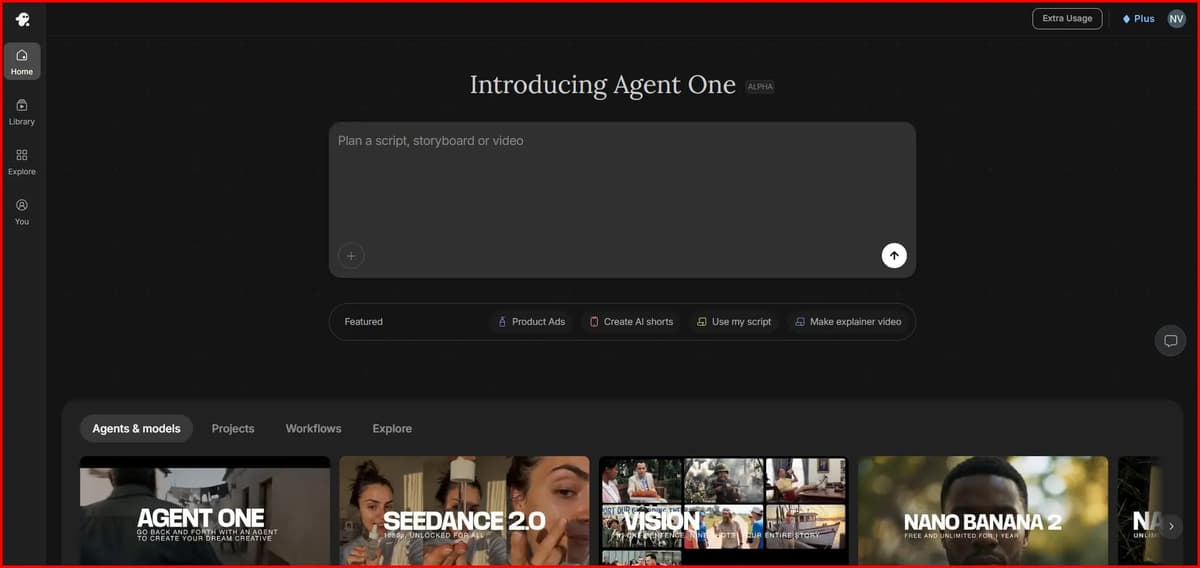
Screenshot Image of Invideo AI Workspace Area

After signing up, you’ll see a screen similar to the one above. One thing I found a bit frustrating is that you can’t generate a video immediately after entering your prompt and uploading your reference images. Instead, InVideo first asks you to create a project by entering a project name. After that, it takes you through a few setup questions. I simply skipped those to get to the actual video generation screen.

From there, select Video and choose the AI video generation model you want to use. InVideo offers several models and each one has different capabilities, supported settings, and credit costs. The more advanced the model and the higher the quality settings you choose, the more credits you’ll spend. To avoid wasting credits, it’s best to pick a model and settings that match your specific needs rather than always choosing the highest-quality option.
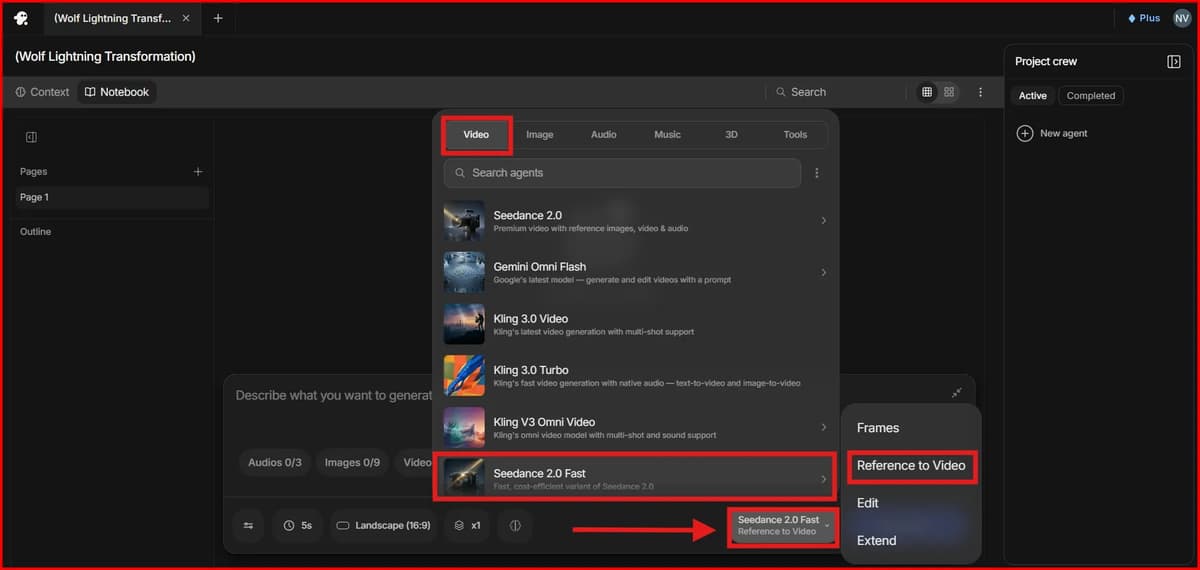
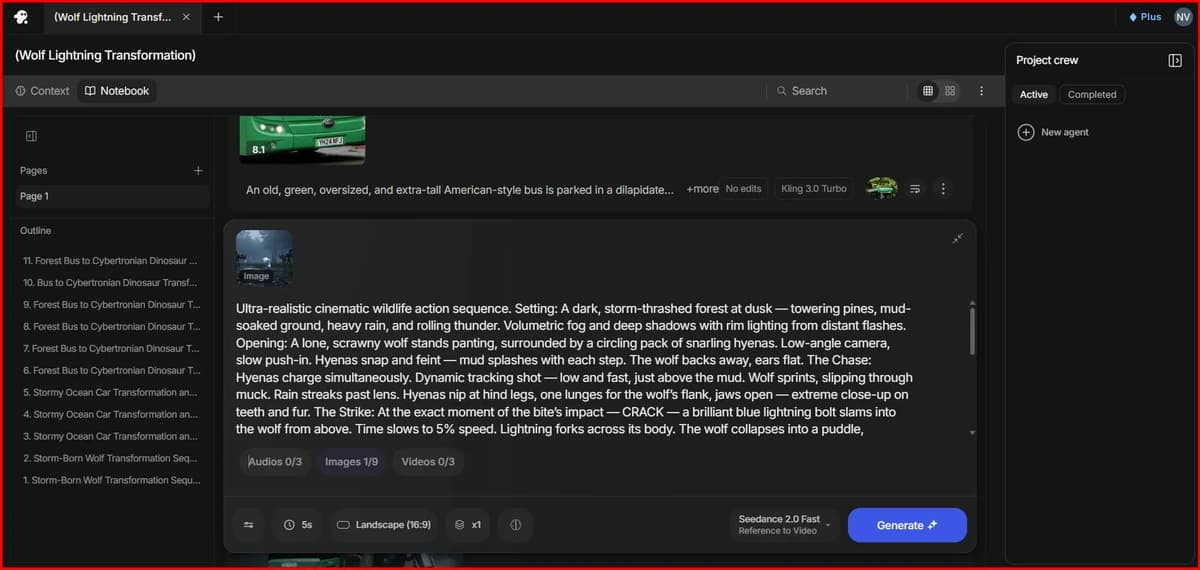
Screenshot Image of InVideo AI Video Generator WorkSpace Area.

Screenshot Image of InVideo AI Vidoe Generator workspace area

I selected the Seedance 2.0 Fast model for this test. It lets you add up to 9 reference images, 3 reference videos and 3 audio references. You can generate videos up to 15 seconds long, choose from five aspect ratios and the maximum output resolution is 720p.

Before generating, make sure Audio is turned on if you want sound in the final video.

For my test, generating one video cost 8.7 credits and took about 3 minutes. The result was genuinely impressive. Right from the first attempt, the video quality exceeded my expectations. The only weak point was the audio. I’d rate it 4/10 because the sound wasn’t synced very well with the visuals.

Next, I tested the upscaling feature to see how many credits it uses and whether it’s worth it. Clicking Upscale takes you to InVideo’s collection of upscaling tools. I used the BytePlus VOD Video Upscaler, which took around 3 minutes to process the video. The upscaling cost 0.5 credits. The file size increased from 8.0 MB to 19.3 MB, and the upscaled version looked noticeably sharper with better overall image quality.

Test -1 (Reference Image + Text)

Wolf transformation scene

FULL PROMPT

Ultra-realistic cinematic wildlife action sequence. Setting: A dark, storm-thrashed forest at dusk — towering pines, mud-soaked ground, heavy rain, and rolling thunder. Volumetric fog and deep shadows with rim lighting from distant flashes. Opening: A lone, scrawny wolf stands panting, surrounded by a circling pack of snarling hyenas. Low-angle camera, slow push-in. Hyenas snap and feint — mud splashes with each step. The wolf backs away, ears flat. The Chase: Hyenas charge simultaneously. Dynamic tracking shot — low and fast, just above the mud. Wolf sprints, slipping through muck. Rain streaks past lens. Hyenas nip at hind legs, one lunges for the wolf’s flank, jaws open — extreme close-up on teeth and fur. The Strike: At the exact moment of the bite’s impact — CRACK — a brilliant blue lightning bolt slams into the wolf from above. Time slows to 5% speed. Lightning forks across its body. The wolf collapses into a puddle, convulsing. Blue electric arcs spiderweb across its fur, illuminating rain droplets in midair. Transformation: The wolf rises slowly — paws glowing, eyes igniting into blazing cyan. Electrical energy pulses outward in a shockwave, rippling mud and shaking the camera. Fur bristles with static strands, each hair visible. Volumetric light rays from the wolf’s glow cut through the storm. Retaliation: Hyenas hesitate, ears back, but it’s too late. The wolf opens its jaws and unleashes a concentrated beam of blue plasma energy — sweeping across the frame. Beam impacts hyenas: slow-motion of fur singeing, bodies ragdolling, mud exploding. Debris and rain vaporize on contact. Final shot: The wolf stands amid smoking ground, energy fading, eyes still glowing. Camera pulls back to reveal the stormy forest. Fade to black with fading electrical hum. Technical specs: Photoreal CG fur dynamics, muscle sim, wet maps. Dynamic camera: drone-style chase, handheld shake, crash zooms, speed ramps. Lighting: blue electric key light, dark ambient fill, rain backlit by lightning. Particles: rain, mist, mud spray, smoke, electrical arcs. Depth of field: shallow on action beats, deep on wides. Audio cues implied: thunder, snarls, crackling energy, slow-mo bass drop. Render: Ultra HD (4K+), movie-level VFX, 24fps with slow-motion interpolation.

Lets see the output

I Generated an AI Video Using InVideo AI Video Generator Seedance 2 0 Fast and Upscaled It

Note: I used this same testing process to compare the top AI video generators. If you’re looking for the best overall option, check out my Best AI Video Generators comparison with real test results.

Test -2 (Reference Image + Text)

Car and shark transformation scene

FULL PROMPT

A live-action, ultra-photorealistic cinematic scene set in the North Atlantic at dusk during a violent storm. A real racing car moves low and fast just above the ocean surface, straight toward the audience, skimming the waves using ground-effect airflow. Water sprays violently beneath it, leaving a heavy, churning wake. A powerful lightning strike hits directly on the car. The impact causes visible damage—carbon-fiber panels shatter and tear away, metal parts rip loose and fly backward, sparks and debris scattering into the rain. The vehicle looks momentarily broken and unstable. Immediately, the damaged structure reconfigures into an advanced futuristic form, new reinforced components locking into place. A controlled neon green technological glow appears from internal power systems, reflecting naturally on the wet body—clearly advanced tech, not fantasy. As the transformation completes, a massive, anatomically accurate great white shark erupts from the water from behind, mouth wide open, attempting to bite the car. At the last possible second, the vehicle releases a brutal rear hyper-blast thrust—intense fire and pressure blasting backward through rain and spray. The car surges forward at extreme speed, staying low above the water. The shark narrowly misses, snapping at empty air, then crashes back into the ocean and disappears beneath the surface as water explodes around it. Lighting is strictly natural: dark storm ambience, lightning flashes, heavy rain. Motion is raw and mechanical with real weight and inertia. Textures are wet, damaged, and gritty. No cartoon, no stylization, no smooth CGI motion, no AI artifacts. Everything obeys real-world physics and scale. High-tension, survival-driven adventure. Ultra-realistic, live-action cinematic quality, 4K.

For my second test, I used a different prompt and reference image. This time, Seedance 2.0 Fast completely missed the mark and the output wasn’t close to what I expected.

I then switched to Kling 3.0 Turbo and generated a 15-second video. It used 6.75 credits, took about 3 minutes, but the result was still disappointing.

Finally, I reduced the video length to 10 seconds and used Kling 3.0 Turbo again. This time, the output was much better and matched my prompt far more accurately. It cost 4.5 credits and the generation time was still around 3 minutes.

Lets see the output

I Generated an AI Video Using InVideo AI Video Generator (Kling 3.0 Turbo)

Note: I used this same testing method to compare several Kling AI alternatives. If you’re looking for the best AI video generator overall, that comparison includes real test results and should help you choose the right tool.

Test -3 (Reference Image + Text)

Bus to mechanical dinosaur transformation scene

FULL PROMPT

An old, green, oversized, and extra-tall American-style bus is parked in a dilapidated parking lot in a forest. Suddenly, the bus begins to transform into a giant, mechanical, Cybertronian dinosaur. The transformation starts from the inside out as panels shift, parts rotate, and mechanical components emerge and lock into place. The front of the bus reshapes into the dinosaur’s head, with the windshield forming its eyes, the bumper forming its jaw, and the grille forming sharp metallic teeth. The sides of the bus unfold and rearrange to form powerful legs, while the wheels and undercarriage reconfigure into a strong, mechanical tail for balance. The entire body is constructed from the bus’s parts, including doors, windows, tires, seats, handrails, and engine components. Sparks fly, dust rises, and hydraulic systems hiss as the transformation completes. The robotic dinosaur stands tall and roars, shaking the ground. The camera moves dynamically from different angles, capturing the full transformation in a realistic, cinematic visual style with intense lighting and dramatic atmosphere.

For this comparison, I tested five different AI video generation models available inside InVideo using similar prompts and settings. Here’s how each one performed.

PixVerse V6 generated a 15-second video in 1080p with audio enabled. It cost 5.55 credits for a single output and took about 3 minutes to generate. The overall video quality looked good, but it didn’t follow my prompt very accurately. PixVerse also offers a lot of advanced video generation options. If you want to try the tool then click this and try pixverse ai video generation

Next, I tested HappyHorse 1.0. A 15-second video in 1080p with audio cost 17.25 credits and took around 3 minutes to generate. The result wasn’t bad  and the audio was synced much better than some of the other models. However, the visuals had a dramatic, over-the-top cinematic style that reminded me of a Power Rangers Megazord scene, which may not suit every type of project.

My third test was Seedance 2.0 Fast. It generated a 15-second video in 720p since higher resolutions aren’t available for this model. It used 8.7 credits and the output looked good overall. However, I noticed a few logical inconsistencies in the generated scenes, even though the visual quality was solid.

Finally, I tested the standard Seedance 2.0 model. This model supports resolutions up to 4K with audio, but it’s also the most expensive. A 15-second 4K video costs 55.95 credits. For my test, I generated a 720p video instead, which used 10.95 credits. Out of all the models I tested, this one delivered the best results. The video followed my prompt accurately, had fewer logical errors and produced the most consistent overall output.

I also tried Kling 3.0 Turbo, but the results were disappointing, so I didn’t include it in the final comparison. That said, Kling offers several other video generation models, and some of them perform much better. If you’d like to see detailed testing with real outputs, check out my Kling AI review

I Generated an AI Video Using InVideo AI Video Generator (Seedance 2.0)

I Generated an AI Video Using InVideo AI Video Generator (Seedance 2.0 Fast)

I Generated an AI Video Using InVideo AI Video Generator (HappyHorse 1.0)

I Generated an AI Video Using InVideo AI Video Generator (Pixverse V6)

Looking for videos like the examples above? See my best Sora alternatives comparison, where I tested the top replacements using the same prompts and compared their real outputs. 

My Overall Experience

Overall, I think InVideo AI is worth using. What I liked most is that you can access multiple AI video generation models from one platform instead of paying for each tool separately. It also includes useful features like video upscaling, editing, background removal and several other AI tools, making it a convenient all-in-one option.

One thing I learned during testing is that your settings matter just as much as your prompt. Choose the model that best fits the type of video you want to create and make sure your scene count matches the video duration. Too many scenes for a short video or too few scenes for a long one usually leads to weaker results.

Finally, write prompts that clearly explain what you want to see in the final video. Be specific, but don’t make them unnecessarily long. A concise prompt with clear details consistently produced better results in my tests.

InVideo Pros and Cons

✅ Pros❌ Cons
Access multiple AI video generation models in one platform Video generation can take around 3 minutes
Built-in video upscaling Doesn’t have its own proprietary AI video generation model
Downloads are easy and watermark-free (on eligible plans) High-quality outputs consume a lot of credits
Simple and beginner-friendly interface Built-in editing and AI tools increase credit usage

InVideo AI Video Models (2026) 

Video ModelKey FeaturesMaximum Output Resolution
Seedance 2.0Frames, Reference to Video, Edit, Extend4K
Gemini Omni FlashStart Frame, Reference to Video, Edit720p
Kling V3 Omni VideoIngredients, Frames, Transformation, Reference to Video4K
Seedance 2.0 FastFrames, Reference to Video, Edit, Extend720p
Seedance 2.0 MiniFrames, Reference to Video, Edit, Extend720p
Luma Ray 3.2Generate, Edit, Reframe1080p
Kling Video O1Transformation, Frames, Video Reference, Ingredients1080p
PixVerse V6Frames, Ingredients1080p
Veo 3.1 FastFrames, Ingredients, Extend4K
Happy Horse 1.0Ingredients, Start Frame, Video Edit1080p
PixVerse C1Frames, Ingredients1080p
PixVerse 5.6Frames, Ingredients1080p
LTX 2.3 ProFrames, Audio to Video, Retake Video, Extend, Reframe4K
Wan 2.7Image to Video, Extend Video, Reference to Video, Video Edit1080p
Grok Imagine VideoText to Video, Image to Video, Video Editing720p

InVideo AI Pricing Plans (July 2026)

PlanBest ForPrice (Annual Billing)Credits / MonthAI Avatars & Voice ClonesStorageiStock AssetsConcurrency
PlusExploring$17/moBilled $200/year75420 GB100Limited
Max Occasional Use$85/moBilled $1,000/year39016100 GB2002× more than Plus
Generative Daily Use$170/moBilled $2,000/year800402 TB1,00010× more than Plus
ElitePower Creators$900/moBilled $10,800/year4,25020010 TB5,00020× more than Plus

Frequently Asked Questions


1. Is Invideo AI completely free to use?

Yes, you can use it for free, but it has limits. The free plan lets you generate videos and test the tool. However, your videos will have watermarks and you cannot download them to your device. To remove watermarks, export in high quality and get sharing rights, you need to buy a paid monthly or yearly plan.


2. Can I use Invideo AI videos for YouTube monetization?

Yes, you can monetize these videos, but you need a paid subscription. If you use the free version, the watermarks and copyrighted stock media might trigger copyright claims on YouTube. Paid plans give you the proper licenses for the music, photos and video clips used, making it safe for YouTube, TikTok or business ads.


3. How does the text-to-video feature work?

It is very straightforward. You type a prompt explaining your idea, just like talking to a person. For example: “Create a 60-second video about the top 3 travel spots in Italy with a friendly voiceover.” The AI then writes the script, selects matching stock footage, adds a voiceover and applies background music automatically.


4. Can I edit the video after the AI generates it?

Yes, you have full control. If you do not like a specific clip, image or text line, you can change it. You can edit the video by typing simple commands like “change the background music to upbeat jazz” or “make the voiceover sound more professional.” There is also a manual timeline editor if you prefer to drag and drop elements yourself.


5. Do I need video editing experience to use it?

Not at all. The platform is designed for beginners, content creators, and business owners who do not know how to edit videos. The AI does 90% of the heavy lifting. If you can type a text message, you can easily create a video using this tool.

Final Thoughts

There are many excellent AI video generation tools available today, but purchasing and testing each one individually can quickly become expensive. That’s where InVideo AI stands out. Instead of paying for multiple subscriptions, you get access to a wide range of leading AI video models in a single platform, along with powerful editing and workflow features.

The main downside is that video generation can take around 3-4 minutes, depending on the model and complexity of your prompt. Aside from that, InVideo AI offers great value for creators who want to experiment with different AI models without managing multiple tools. If you regularly create AI videos, it’s a worthwhile investment.


Tags:

AlloyPress Team

AlloyPress Team combines SEO, AI, digital marketing, web management & deep research to simplify tech and empower creators, marketers, and businesses with actionable insights.

You May Also Like

0 Comments

Submit a Comment

Your email address will not be published. Required fields are marked *