You’ve recorded your video, and you’re happy with how it turned out. Then you notice the messy background. Do you really have to record it all again?
Canva’s video background remover could save you that extra take. We tested it on a green-screen video to see how clean the result would look. Below, we’ll walk you through the steps, share the before-and-after videos, and show you the small detail we noticed when we looked closely.
Original video
1. Canva Video Background Remover
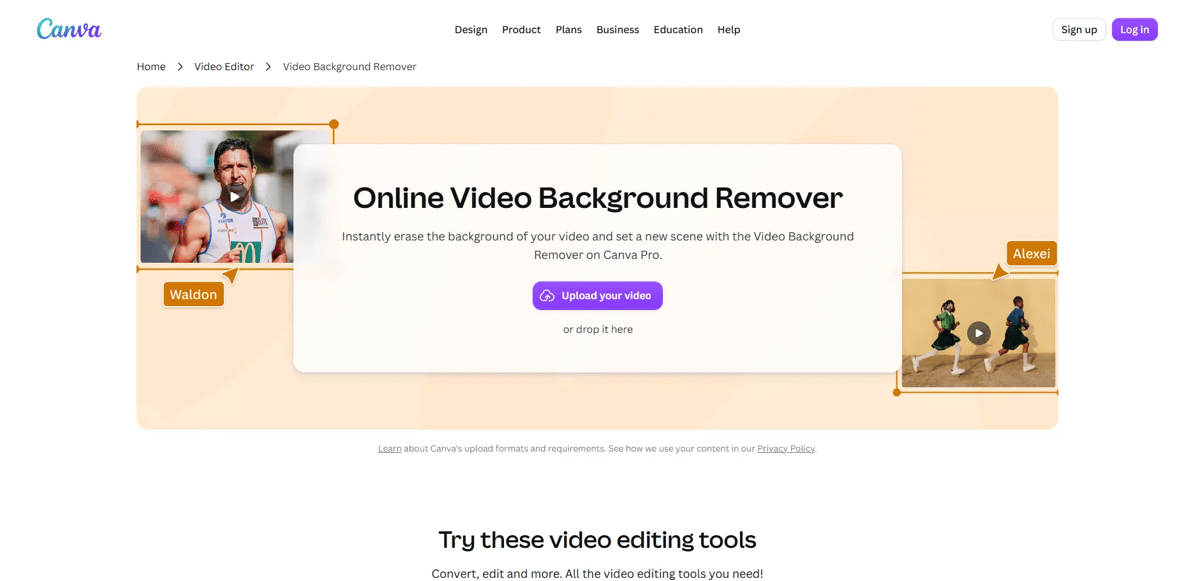
Canva lets you remove the background from your video and add a new one. You’ll need Canva Pro to use this feature.
How to Remove a Video Background Using Canva
Step 1: Open the Canva Video Background Remover page.
Step 2: Click Upload your video or drag and drop and sign in to your Canva account.
Step 3: Background removal isn't available on free accounts. You need a paid plan or can use the 30-day free trial by adding your card details. Cancel before the trial ends to avoid being charged.
Step 4: If you have a paid account, upload your video. Canva will automatically remove the background within a few seconds.
Step 5: Click Download, select MP4 format, and download the video.
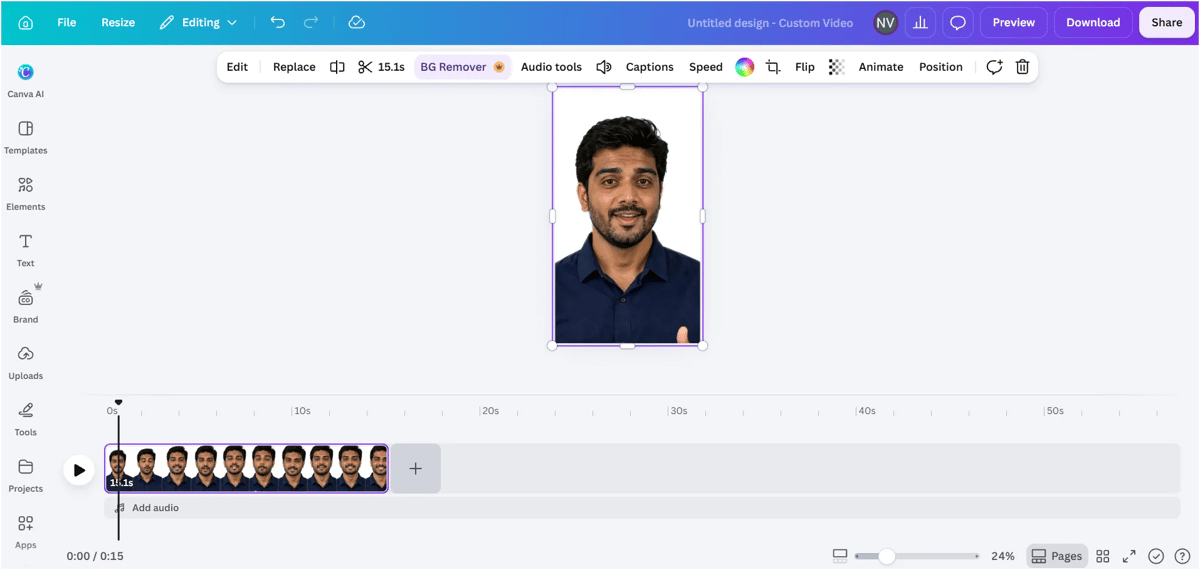
We've downloaded the video with the background removed and attached it below. Take a look at the output.
Our Experience
The background was removed quickly, and we downloaded the video to check the result. Canva did a good job overall. We noticed a very faint green tint only when we zoomed in and looked closely. During normal playback, it was barely noticeable and the video looked clean.
We've recorded the entire process from the beginning. If you have any doubts, you can watch the recording below.
Final Thoughts
Canva removed the background from our test video quickly, and the result looked clean overall. We noticed a very faint green tint only when we zoomed in and looked closely. It was barely noticeable during normal playback and did not spoil the video.
If you already use Canva Pro, it’s a simple way to remove your video’s background. Check the result before downloading, especially around the hair and edges.
FAQs
1. Can I remove a video background in Canva for free?
No. It only works on paid plans. You can try it with Canva Pro’s 30-day free trial, but cancel before it ends if you don’t want to be charged.
2. How long can my video be?
The original video has to be under 10 minutes.
3. Why isn’t BG Remover working on my video?
Usually it’s one of three reasons: you’re on a free plan, the video is longer than 10 minutes, or you trimmed it inside Canva. If you trimmed it, download it and re-upload it.
4. Can I remove a video background on the Canva mobile app?
Yes. Upload the video through the Uploads tab in the app, not directly from your gallery.
5. Do I need a green screen?
No. Canva’s AI detects the person in the video and removes everything else automatically.