All the tools mentioned in this blog allow daily background removal for free. Many of them also provide options to change or replace the background after removal using prompts or built-in editing features. The process is fast and usually takes only a few seconds.
However, the free limit depends on each tool. The usage limits for every tool are explained in detail below. If you need higher or unlimited access, you can choose a paid plan.
Free AI Background Remover Tools
All the tools mentioned in this blog allow daily background removal for free. Many of them also provide options to change or replace the background after removal using prompts or built-in editing features. The process is fast and usually takes only a few seconds.
However, the free limit depends on each tool. The usage limits for every tool are explained in detail below. If you need higher or unlimited access, you can choose a paid plan.
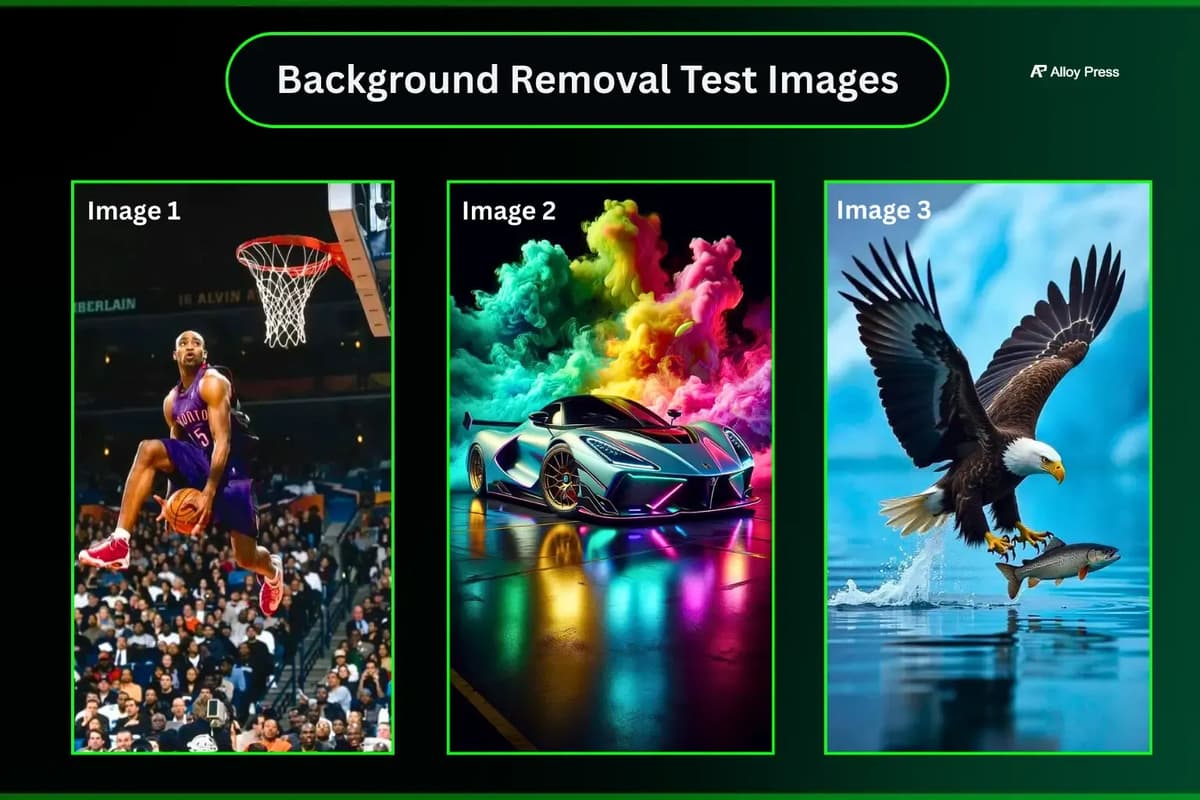
Background Removal Test Images
We tested the AI background remover tools using three different images to see which one gives the most accurate, clean results with the best speed and no errors.
Quick Comparison Table for Background Remover (Sep 2026)
| Tool | Tool Link | Speed | Accuracy (Humans) | Accuracy (Objects) | Free Option | Best For |
|---|---|---|---|---|---|---|
|
Try Now | Very Fast (~10s) | High | Very High | Energy refill system | Quick, clean removals |
|
Try Now | Fast (30–40s) | High | High | 300 daily credits | All-in-one AI workflow |

|
Try Now | Super Fast (within 5 seconds) | High | Very High | Limited free access | Complex image handling |
|
Try Now | Very Fast (~10s) | Medium | High | Limited free usage | Quick transparent PNG exports |
|
Try Now | Slow (3–4 mins) | Low | Good | Very limited in free version | Simple object edits |
Top AI Background Remover & Changer tools in 2026
1. Reve AI
Reve AI is an AI-based tool designed to help users create and edit visual content easily. It offers features like image editing, background removal and other creative tools to simplify design work without needing advanced skills.
Reve has something called Creative Energy, which works like a battery. You can use it for free as long as you have energy left. Once it runs out, you need to wait about 3 hours for it to refill. Sometimes, the refill time may vary.
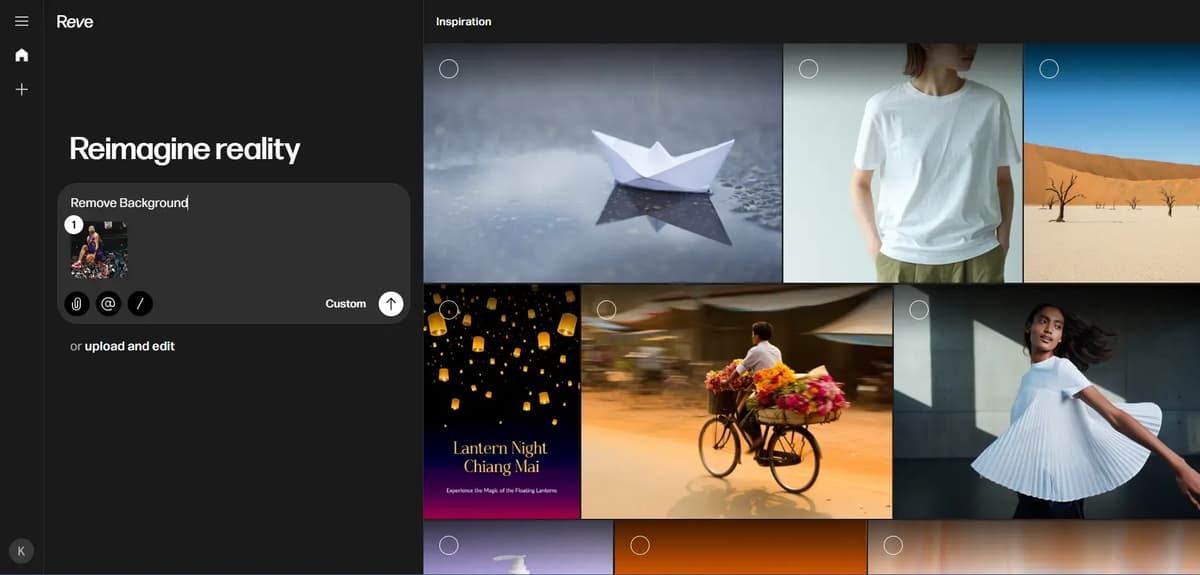
In Reve, you can simply drag and drop the image and remove the background with a single click. It usually takes around 10 seconds.
You can do many more things with Reve. If you want a full detailed review with simple explanations and real examples, check out our Reve AI review blog.
Lets check the reve ai output
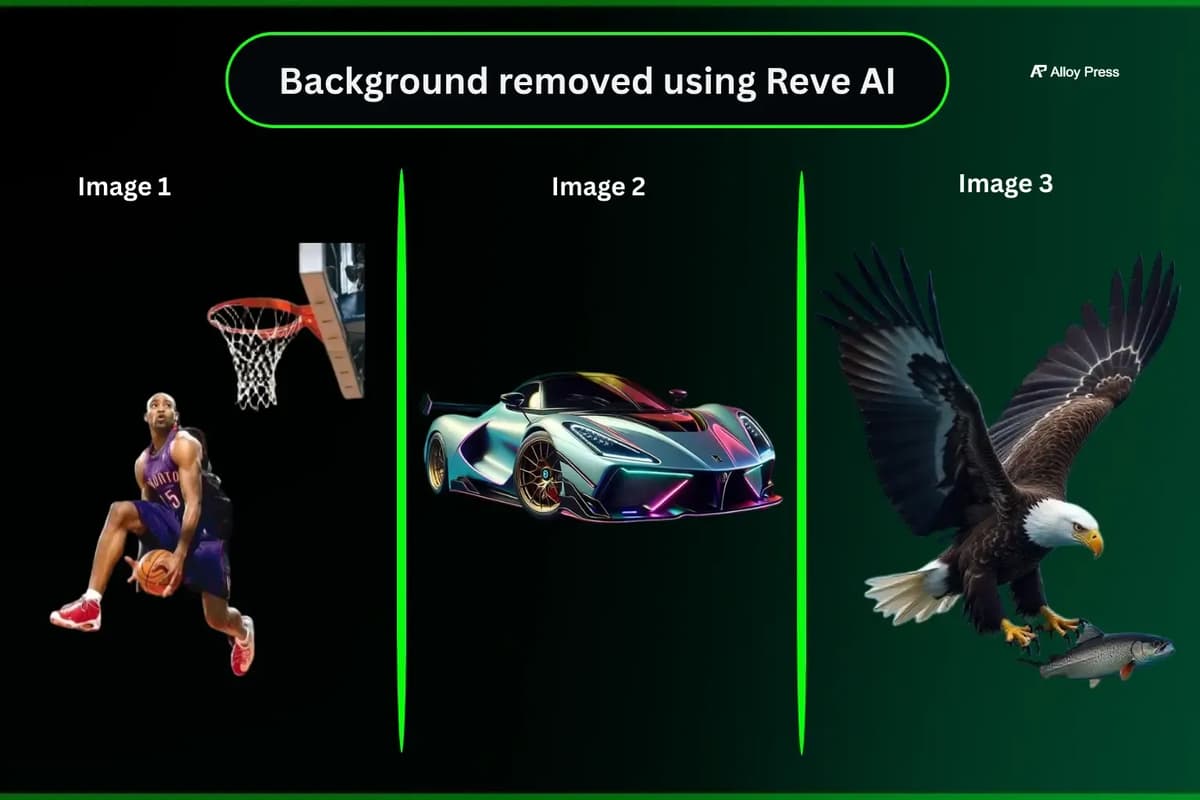
The first and second images were perfect on the first attempt and the output came within seconds. In the third image, only the fish’s tail was slightly missing, but it was not a major issue. With a second attempt and clear prompt instructions, you can get a perfect result.
Change Image Background
In Reve AI, upload your image and type a prompt like “change the image background.” It updates in seconds. If you select Custom → Image count 8, you’ll get 8 different variations in a single click.
You can also enhance the image. Check the screen recording below for reference. For custom backgrounds, just give a clear prompt.
Let’s test how Reve AI removes and changes the background using our real image.
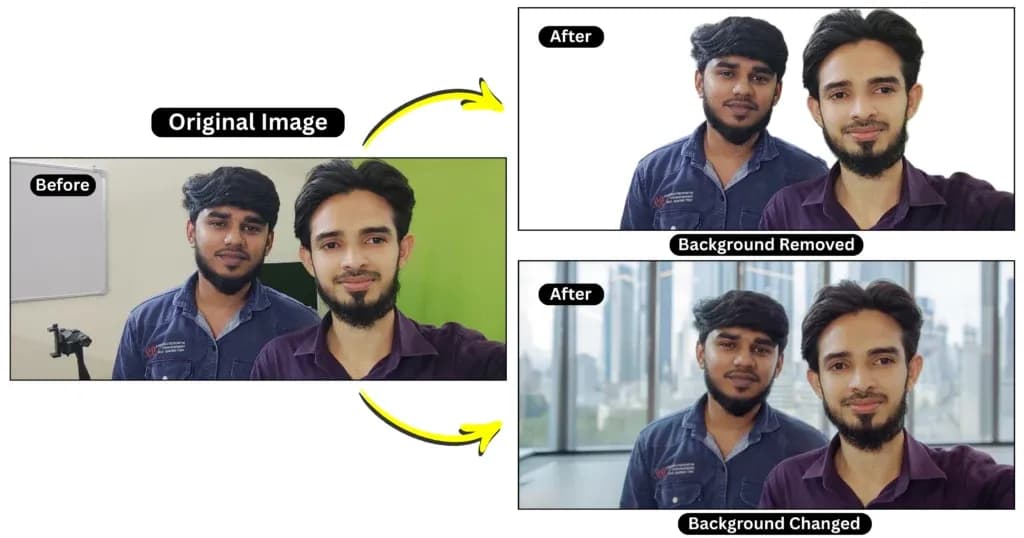
Reve AI removes the background accurately and can also change the background. However, sometimes when generating a new background, it slightly alters the face. To avoid this, include a prompt that clearly says to keep the original image unchanged and maintain the face exactly the same.
Reve AI Pricing Details
- Free plan $0 is only for beginners with limits so not reliable for regular work.
- Lite plan $7.99 per month is budget friendly and good for small creators with higher usage than free.
- Pro plan $19.99 per month is best for serious users with fewer limits video features and much higher usage capacity.
2. Manus AI
Manus AI offers an AI-powered tool that can remove image backgrounds quickly and accurately. It also includes features like image generation, upscaling, video creation, slides & etc in one platform. If you want to learn more about the platform in detail, you can check out our Manus AI review.
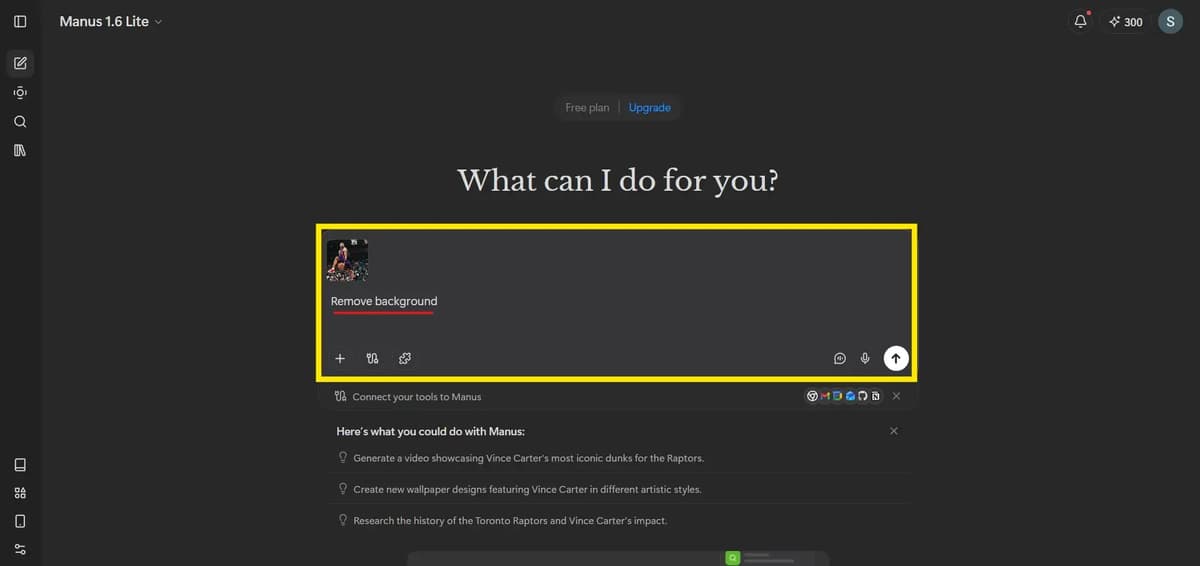
Manus AI gives 300 free credits daily when they refresh your account. Removing the background for one image costs around 17 credits. You can keep using it until the 300 credits are fully used up.
If you generate an image using Manus AI, you will see a background remove option below the image. Just one click and the background will be removed in a few seconds.
You can also upload your own image and type “remove background.” If you want to remove a specific object, clearly mention it in the prompt area.
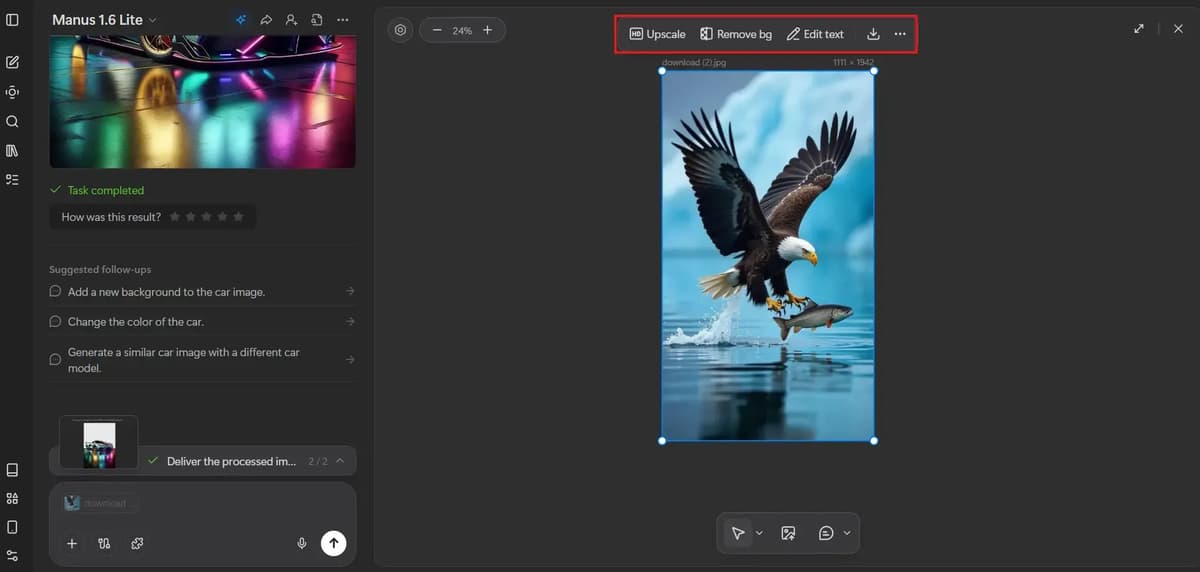
There is an Edit Canvas section where you can drag and drop an image to remove the background. You can also use the upload option below to upload the image and remove the background.
Lets Check the Manus AI Output
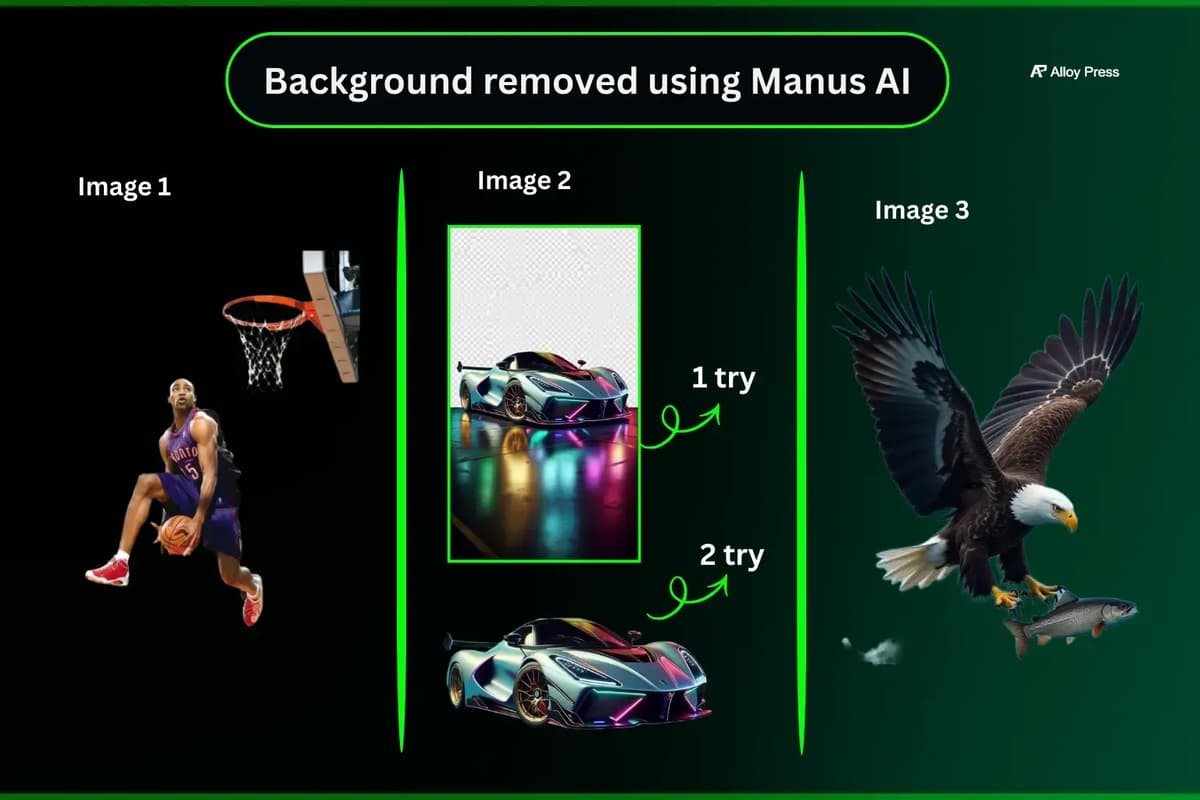
All the backgrounds were removed well. In the third image, some water at the bottom was slightly missed, but it did not affect the overall image much. If you want a cleaner result, you can give a more detailed prompt to get a better output.
Image background changer
In Manus AI, you can upload your image and simply type a prompt to change the background. Within a few minutes, the tool prepares the new background, removes the original one from your image and blends it naturally with the new scene.
You can also increase the image resolution and enhance the quality, with support for up to 8K output. For reference, I’ve attached the before and after images below.
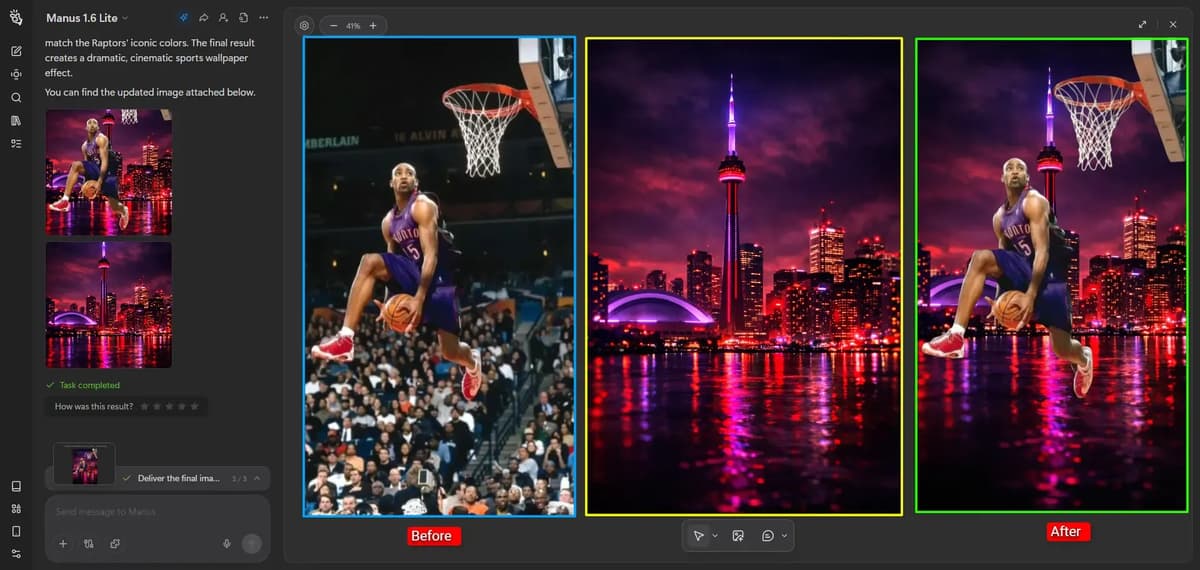
Let’s test how Manus AI removes and changes the background using our real image.
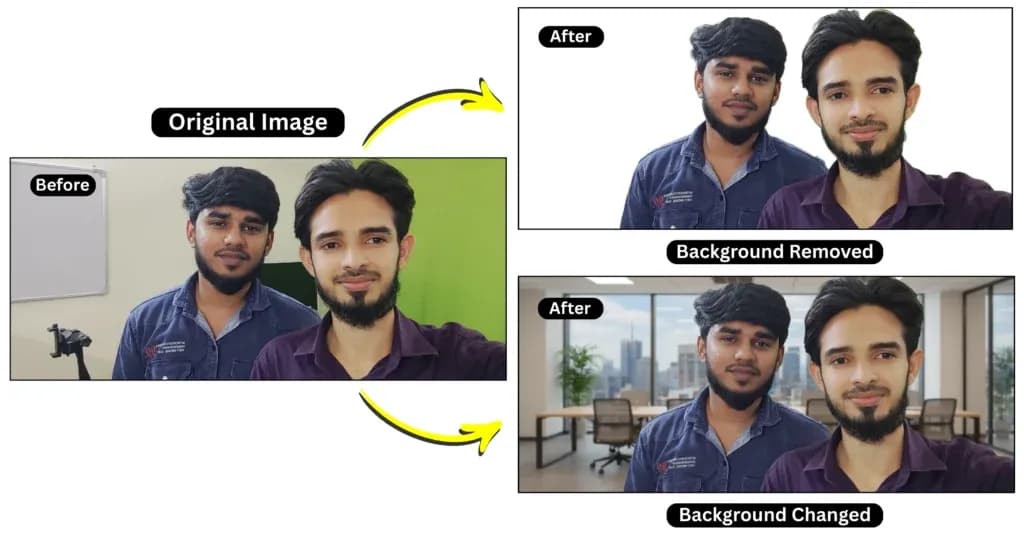
Manus AI removed the background quickly and also changed the background without any mistakes. It didn’t alter the face and handled everything well, even on the first attempt.
Manus AI Pricing Details
Straight answer:
If you’re serious about using it for real work, go with the $34 plan. It’s the most practical and cost-effective. The $17 plan is too limited, and the $167 plan only makes sense if you’re already operating at scale.
3. Adobe Express
I’m using Adobe Express to remove an image background quickly with a single click. Just select Remove Background, upload your image, and it’s done in seconds. You can also use Edit More to customize it further if needed.
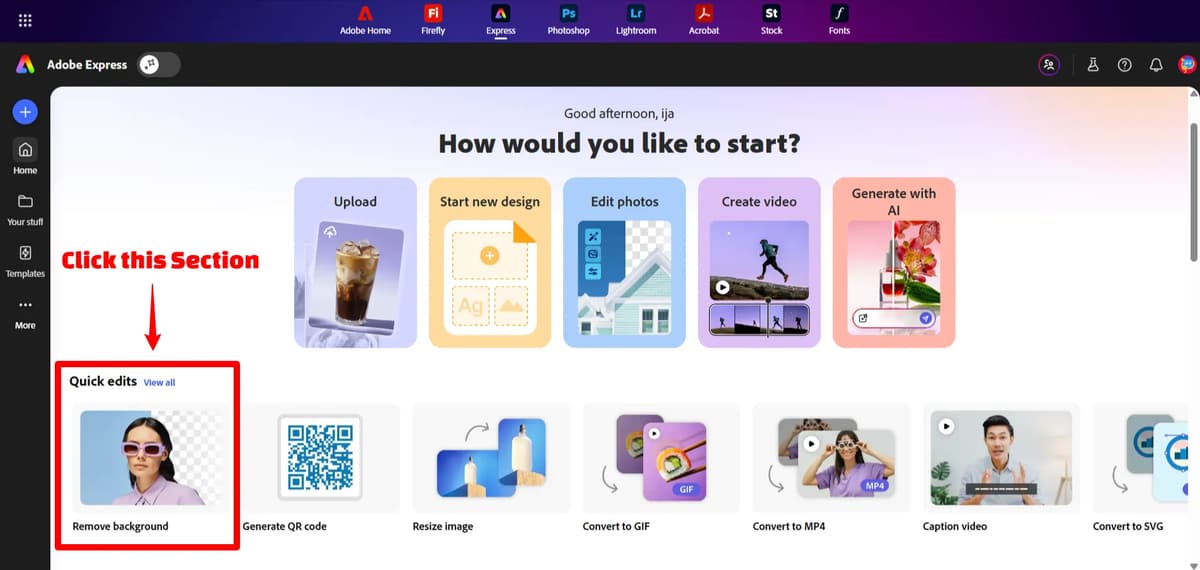
Adobe Express removes the background cleanly without affecting the main image. In the first image, only the basket was missing, but in the second and third images, it did a proper job.
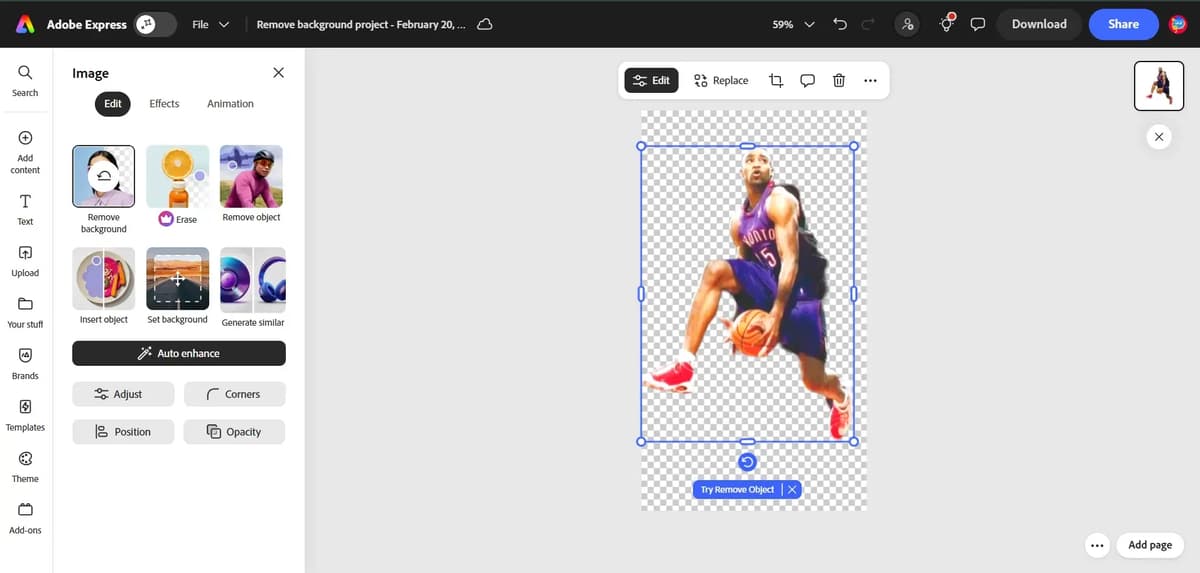
Lets check the Adobe Express Output
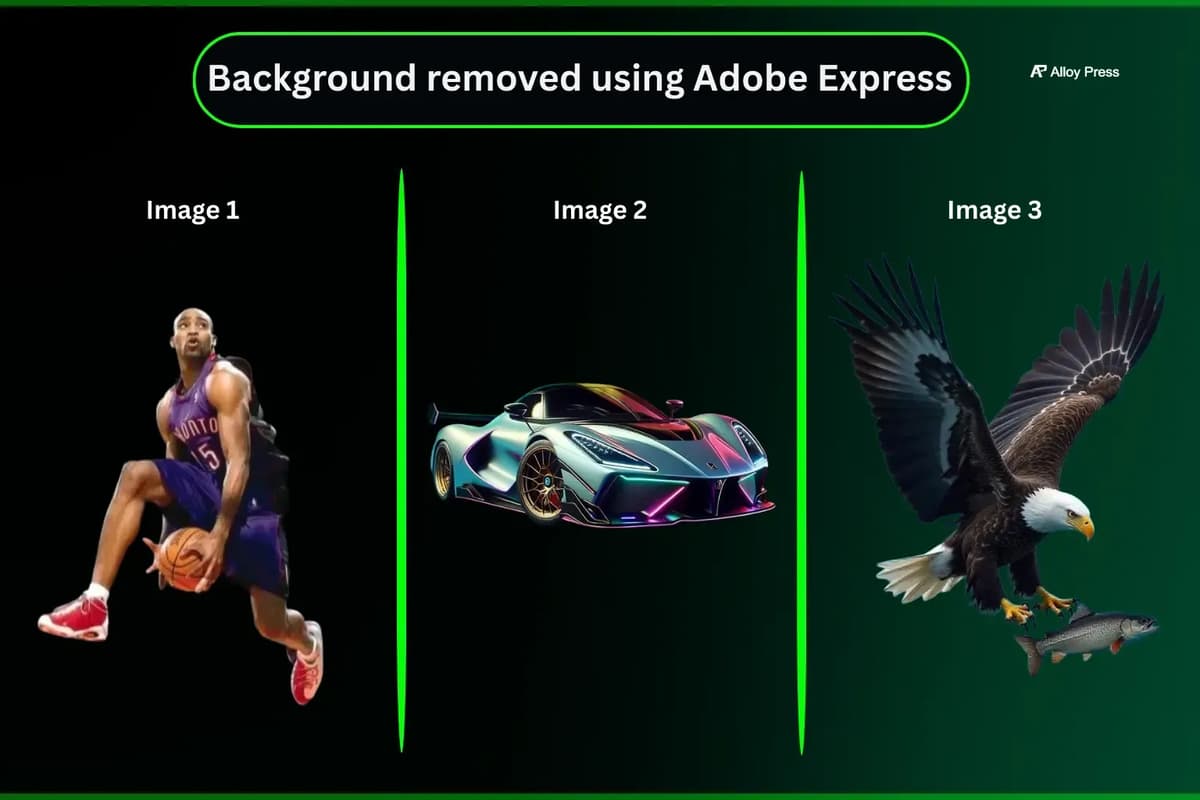
Honestly, the third image was a bit tough. Even Manus, Reve and ChatGPT didn’t handle it perfectly, but Adobe Express removed the background accurately.
Change Image Background
After removing the background, you can easily add a new one if you want. You can use simple plain colors or choose from the available templates. Just pick what fits your image and set the background in a few clicks.
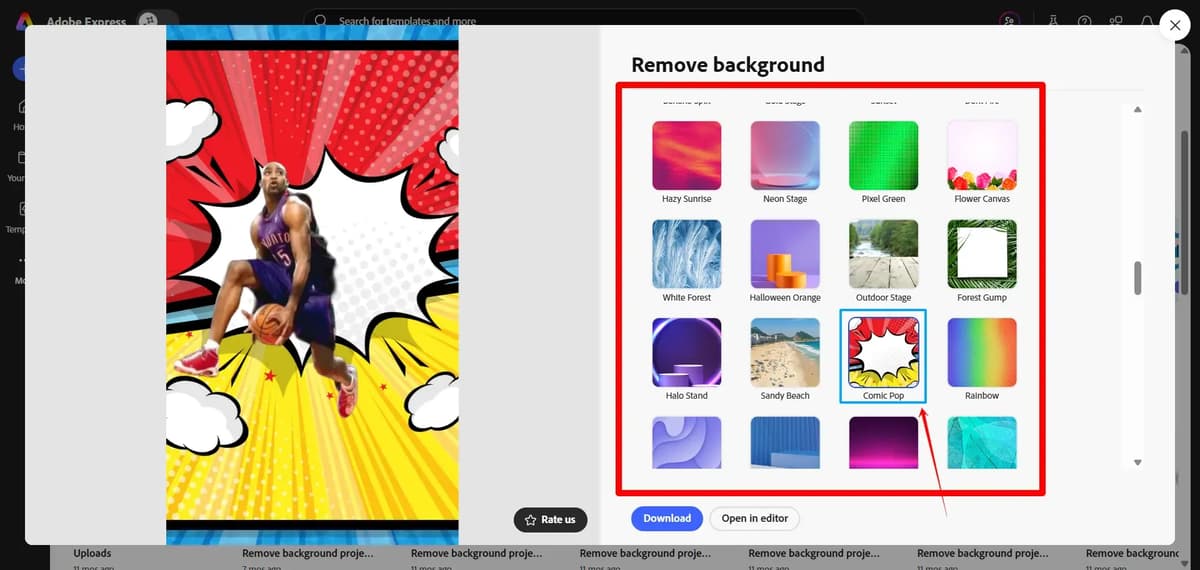
Let’s test how Adobe Express removes and changes the background using our real image.
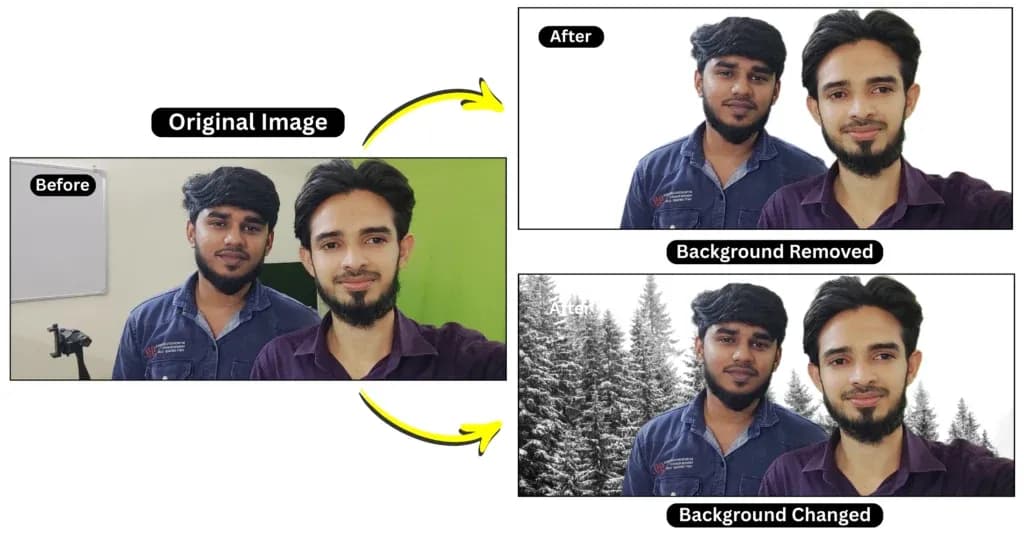
It quickly removed and changed the background with a simple drag and drop. The output looks good and the face stayed exactly the same without any changes. You can only use the templates provided or choose a color background like plain, gradient, or a custom color.
Pricing Page
Free plan $0 offers basic tools limited assets and low AI credits so it is only for beginners.
Premium plan $9.99 per month gives full templates stock assets AI features and editing tools making it best for most users.
Firefly Pro $19.99 per month adds advanced AI with thousands of credits video generation and Photoshop access for heavy creators.
Teams and Enterprise plans are built for businesses with collaboration admin control large storage and scalability features.
4. Removal.AI
This AI background remover is very user friendly. Just drag and drop or paste your image and within a few seconds the background is removed and made transparent without any delay.
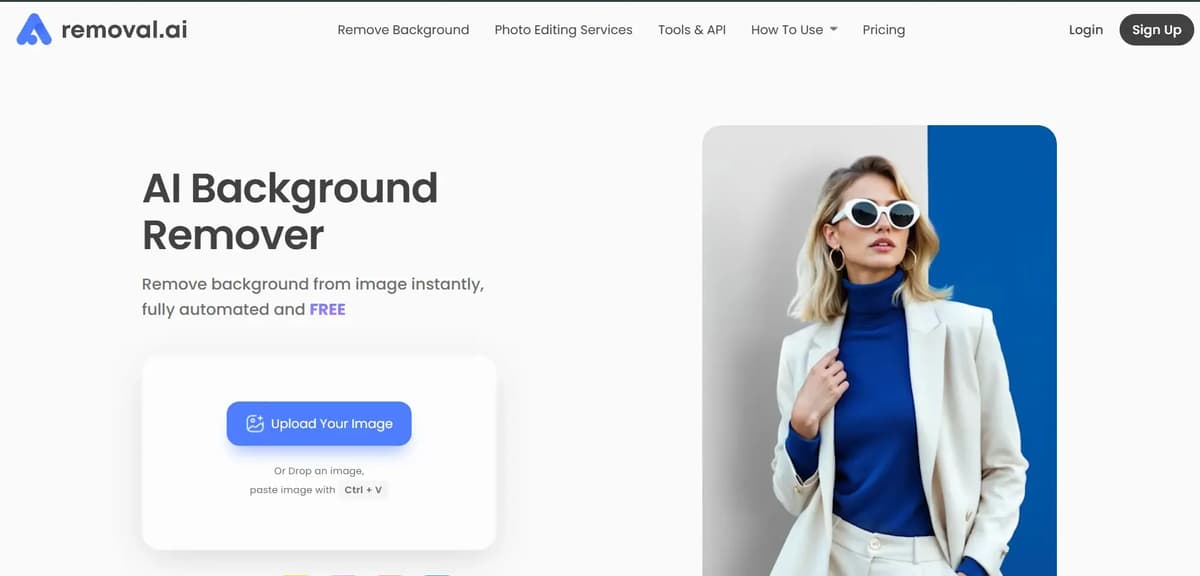
The first image wasn’t clean, like Adobe Express. But the second and third images were handled well, with the background removed quickly and properly.
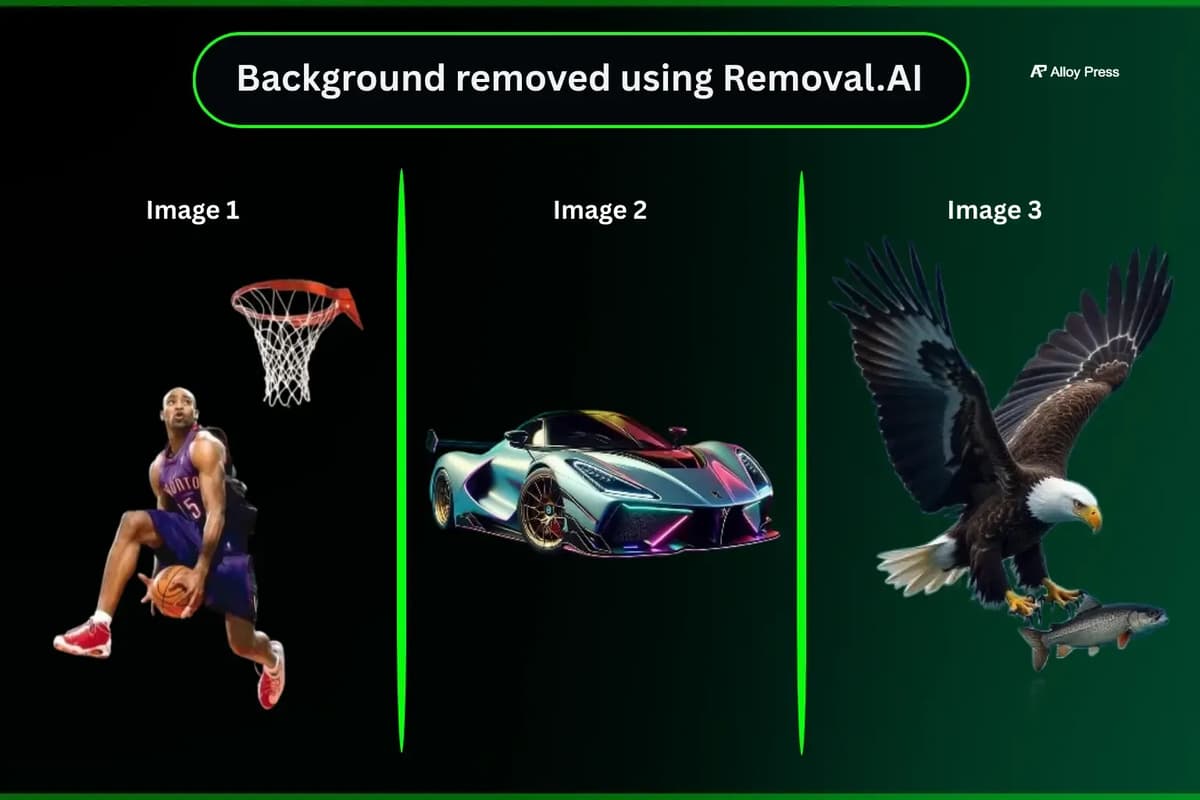
Background Changer
Using Removal.ai, you can remove the background from an image and easily add a new one. You can choose a new background or simply add a plain color.
I’ve also included a live screen recording below showing how to change the background, so you can follow the same steps and do it yourself easily.
Let’s test how removal.ai removes and changes the background using our real image.
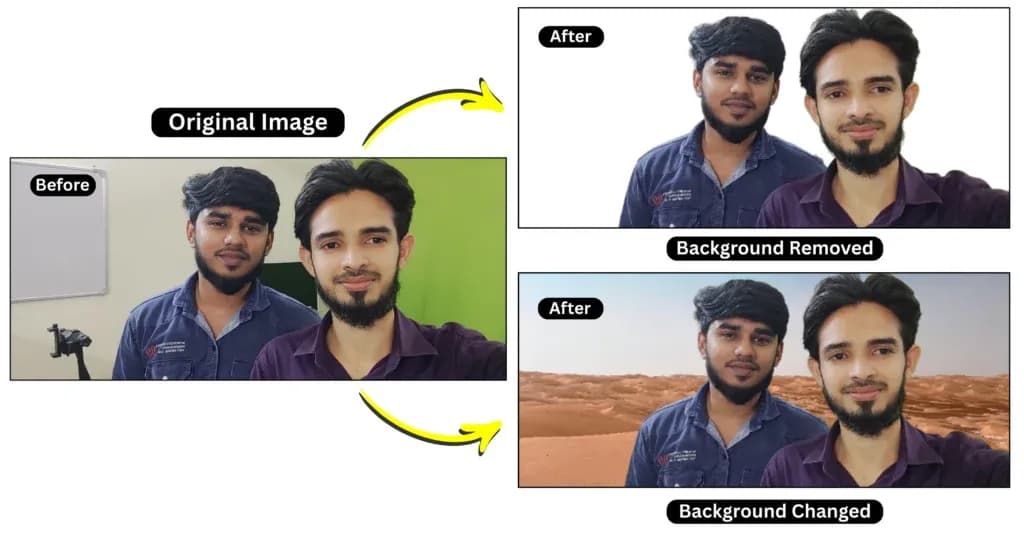
With a free account on Removal.ai, the output quality is slightly lower, while paid users get higher-quality results. When changing the background, the output comes in a square format instead of the size I provided, so I had to adjust it manually. The background change templates are also limited.
Pricing Page
Removal.ai pricing is simple, with 1 credit per image. The Free plan is limited and not suitable for real work. The Monthly plan costs $9 per month for 100 credits, offering better value for regular users, especially for eCommerce or content creation, as the cost per image decreases with more credits. The Lifetime plan costs $149 for 1000 credits, ideal for occasional use with credits valid for a long period. Businesses with high-volume needs can opt for custom pricing. Overall, the Monthly plan is best for regular use, while the Lifetime plan suits occasional work.
5. ChatGPT
ChatGPT is an AI tool that can understand and generate human-like text. It helps with writing, answering questions, creating ideas, coding and even image tasks like background removal. You can upload an image and give a clear instruction to remove the background or specific objects. It is designed to make tasks faster and easier using simple prompts.
In the free version, you can remove image backgrounds using simple prompts.
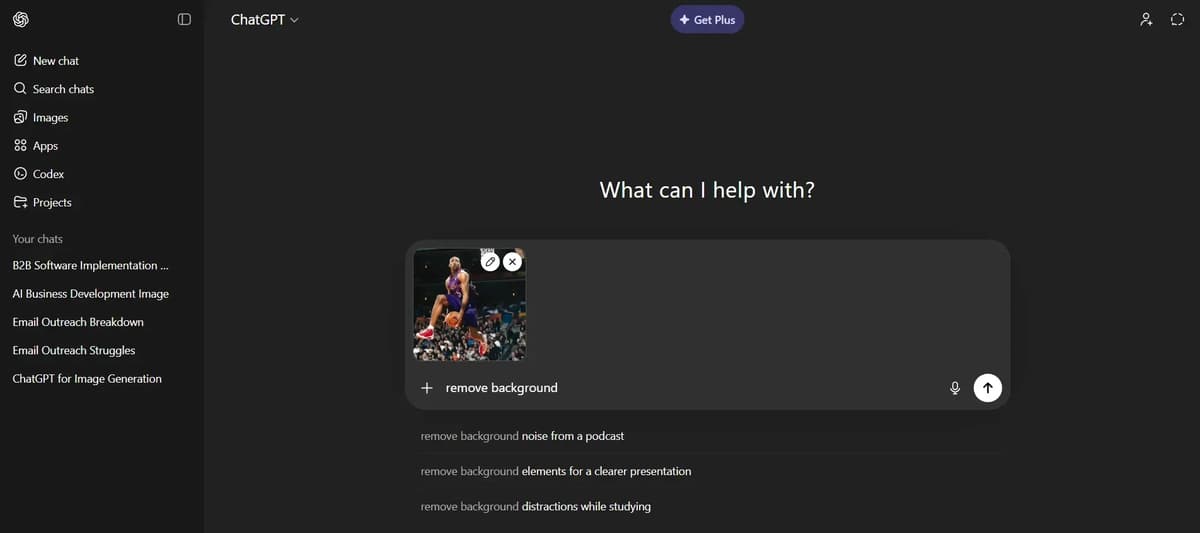
Just upload or drag and drop panni just type remove background
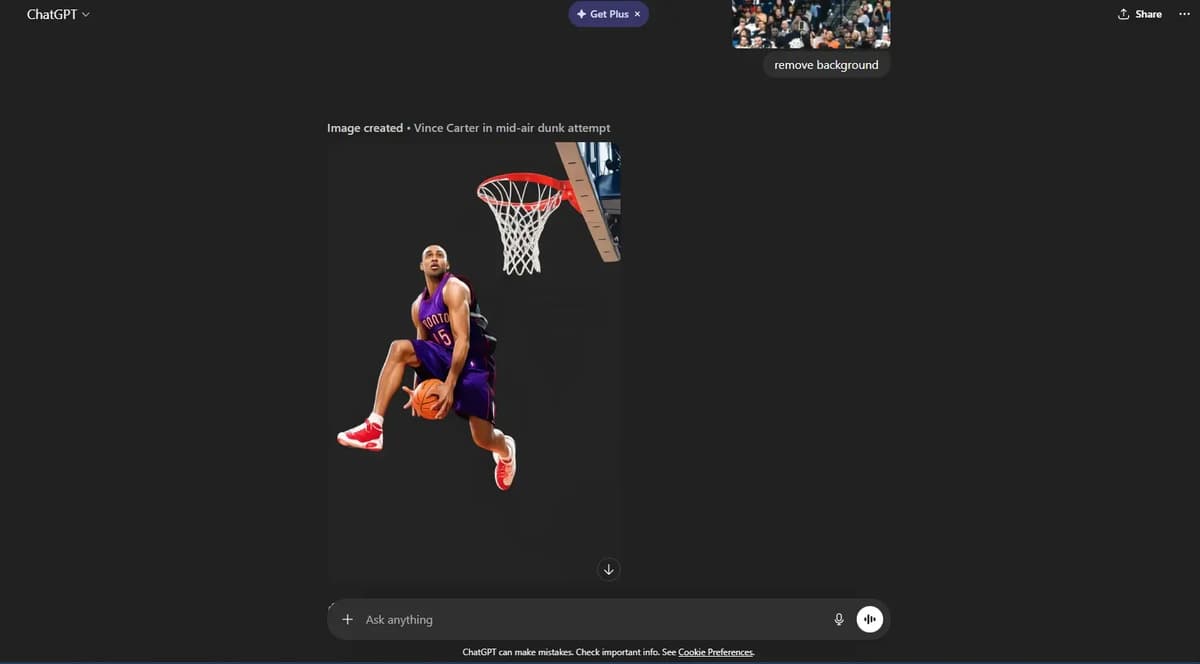
ChatGPT removed and enhanced the image clearly, but the human face accuracy was slightly off. The result felt a bit unrealistic. It works well for non-living objects, but background removal is less accurate for living subjects.
When compared to Manus AI and Reve, ChatGPT takes around 3 to 4 minutes to remove the background.
Lets check the ChatGPT Output
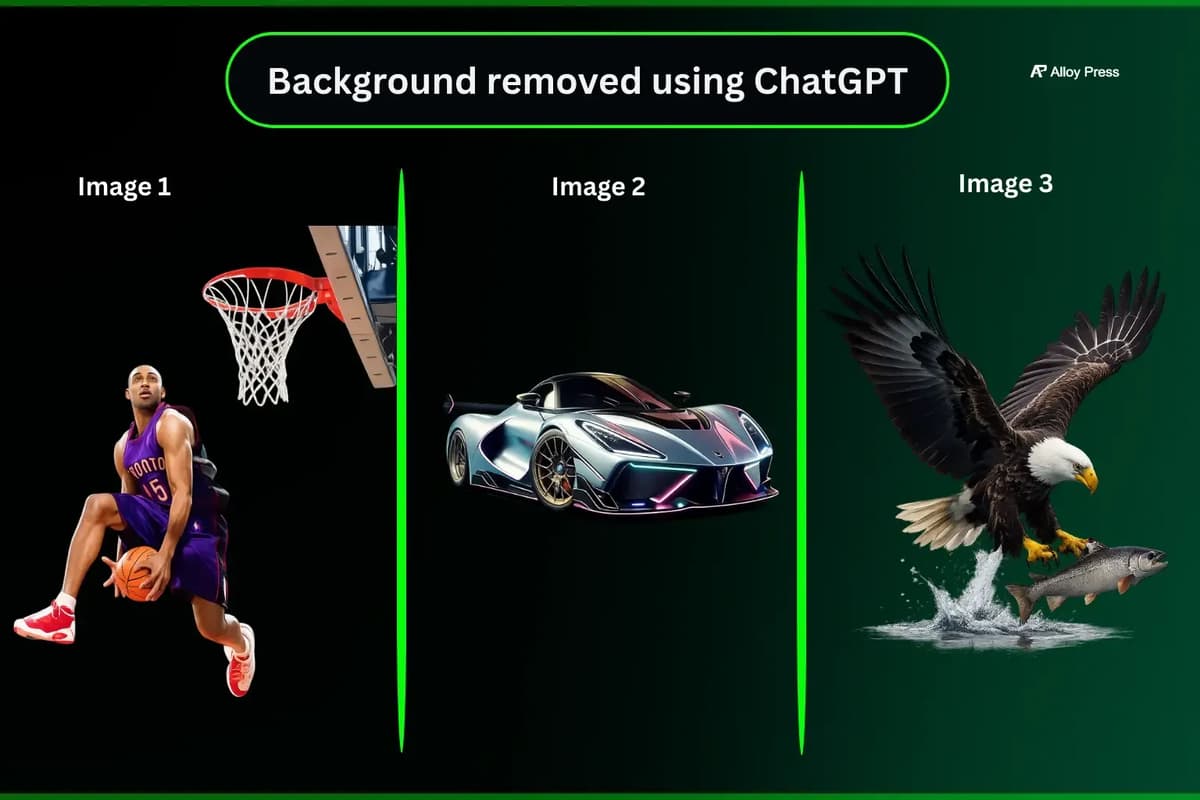
ChatGPT removes the background properly, but the image loses its natural look. It clearly feels AI-generated and the face looks slightly cartoon-like with changes in lighting.
AI Background Changer
If you have a specific background in mind, just type it as a prompt in ChatGPT and it will change the background in a few minutes. For reference, I’ve added an image below.
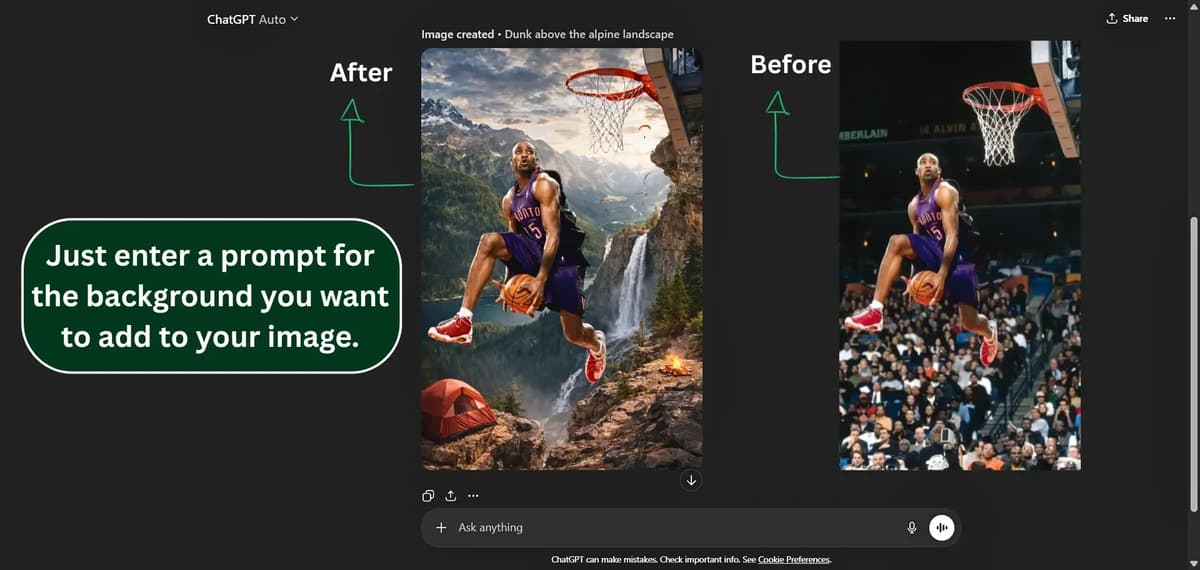
Let’s test how ChatGPT removes and changes the background using our real image.
I asked ChatGPT to remove the background from a real human image, but it made mistakes and even changed the face. The face accuracy still isn’t reliable. I used this prompt: “Remove the background only. Do not change the face appearance or any other part of the image. Keep everything 100% original.” Even with that, the result was incorrect and disappointing. It may improve with future updates.
Pricing Page
ChatGPT offers four plans, and the right choice depends on how seriously you use it. The Free plan is mainly for basic use and trying out features, but the limits are low, so it’s not reliable for regular work. The Go plan (around $5/month) is a budget-friendly upgrade that gives more usage and better access, making it suitable for students or light daily users, though it still has some limitations. The Plus plan ($20/month) is the best option for most people, as it provides faster responses, higher limits and access to advanced features, making it worth it if you use ChatGPT regularly for content, work or productivity. The Pro plan ($200/month) is designed for heavy professional use and only makes sense if you rely on AI for large projects or business-level tasks; for most users, it’s unnecessary. In simple terms, Free is for testing, Go is for light use, Plus is for serious work and Pro is only for advanced, high-level usage.
FAQ’s
1. What is the best AI background remover in 2026?
The best AI background remover depends on your needs. Based on testing, Reve AI delivered the cleanest results for human subjects, Manus AI offered balanced performance with daily credits and Adobe Express handled complex images well.
2. Can I remove image background without Photoshop?
Yes. Tools like Manus AI, Reve AI, Adobe Express and Removal.AI allow one-click background removal without needing Photoshop or technical editing skills.
3. Which AI background remover is free to use?
Most tools offer free options with limits. Manus AI provides daily credits, Reve AI uses an energy refill system and Adobe Express offers limited free background removals.
4. Which AI background remover is fastest?
Reve AI, Removal.AI & Adobe Express remove backgrounds within seconds. ChatGPT was noticeably slower in comparison, taking a few minutes per image.
5. Which background remover AI is best for product or eCommerce images?
For product images, Adobe Express and Manus AI produced clean cutouts with minimal distortion. Removal.AI is also useful for quick and simple product edits.
6. Which is the best tool to change image backgrounds?
Tools like Manus AI, Reve AI and ChatGPT allow you to change image backgrounds using prompts, while Adobe Express and Removal.ai provide templates and color backgrounds for quick edits.

Who Would Actually Benefit From These AI Background Tools?
AI background remover and background changer tools make photo editing fast and simple, even for people with no design experience. Instead of manually cutting out objects or editing layers, you can remove a background or replace it with a new one in seconds. A clean cutout is often the first step for bigger designs too, like placing a product on a sale banner and our guide to AI poster makers shows which tools handle that next step best.
From real testing, Reve AI delivered the cleanest results, especially when working with human faces. Manus AI was consistent and well-balanced across different image types. ChatGPT handled basic background removal and simple background changes, though it felt slightly slower and less precise with people. Adobe Express performed strongly with complex images and detailed edges, while Removal.AI was very quick for simple background removal tasks.
Minor errors appeared occasionally, mostly when the original image quality was low. Clearer and higher-resolution images usually produced much better background removal and background replacement results.
Final Conclusion
From the tools tested above, you can use Reve AI, Manus AI and Adobe Express to remove backgrounds quickly and accurately for most images, and also change the background easily. If you want more customizable backgrounds, Reve AI and Manus AI are better options.
If you only need simple backgrounds like plain colors or gradients, Adobe Express and Removal.ai work well. All of these tools offer free usage with daily limits, but they can still be used regularly. These limits may change in the future.
If anything changes later, this blog will be updated. Bookmark it so you can check back when needed.
You don’t need heavy software anymore. These tools get the job done. Pick the one that matches your workflow and move on.