

Quick Blog Summary
InVideo AI Video Generator gives you access to many popular AI models like Seedance 2.0, Kling, PixVerse and HappyHorse, all in one place. So you don’t have to pay for separate tools. During testing, the quality changed a lot depending on which model was used. Seedance 2.0 gave the best and most reliable results, while Kling 3.0 Turbo was disappointing most of the time. Each video takes around 3 minutes to generate, and credit usage depends on the resolution and model you pick. It also comes with useful extras like upscaling, easy editing and watermark free downloads on paid plans. Overall, it’s a good all in one option if you want flexibility, but you need to choose the right model and settings so you don’t waste credits.
Table of Contents
In this review, I’m focusing only on InVideo’s AI Video Generator. I tested how it works, how easy it is to use and whether it actually delivers good results. Using the same set of prompts, I evaluated its output quality, prompt accuracy, consistency, generation speed, editing experience and how many credits each video costs to generate. By the end, you’ll have a clear idea of what the tool does well, where it falls short and whether it’s worth using. Let’s quickly dive in.
If you want to learn more about InVideo, check out this detailed InVideo review blog.
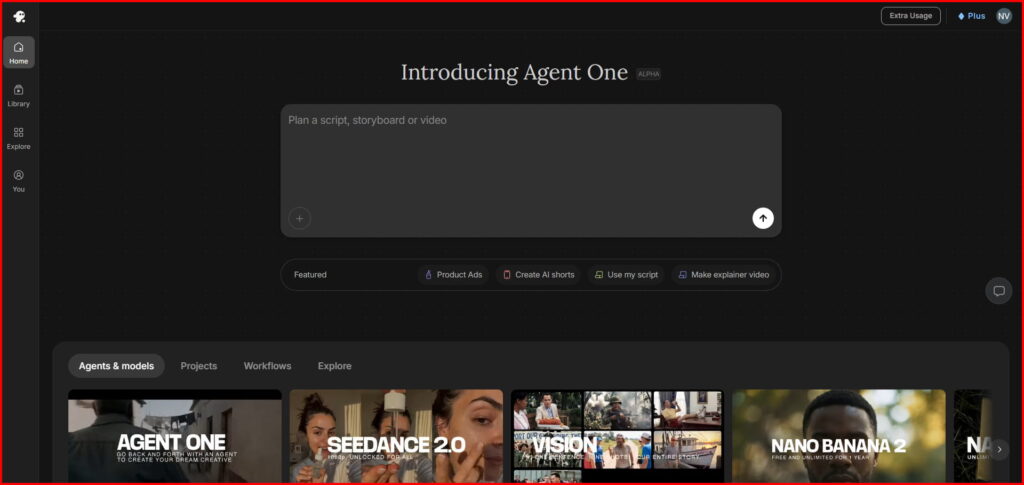
After signing up, you’ll see a screen similar to the one above. One thing I found a bit frustrating is that you can’t generate a video immediately after entering your prompt and uploading your reference images. Instead, InVideo first asks you to create a project by entering a project name. After that, it takes you through a few setup questions. I simply skipped those to get to the actual video generation screen.
From there, select Video and choose the AI video generation model you want to use. InVideo offers several models and each one has different capabilities, supported settings, and credit costs. The more advanced the model and the higher the quality settings you choose, the more credits you’ll spend. To avoid wasting credits, it’s best to pick a model and settings that match your specific needs rather than always choosing the highest-quality option.
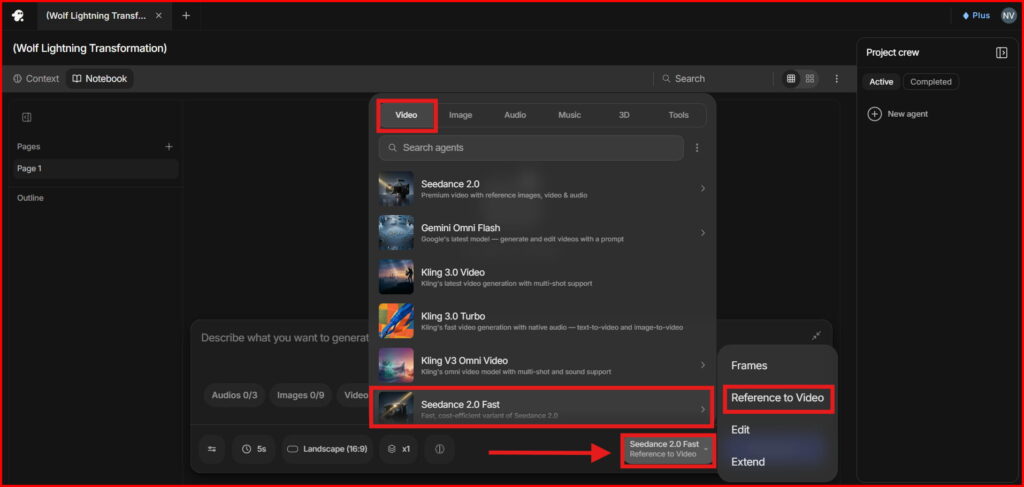
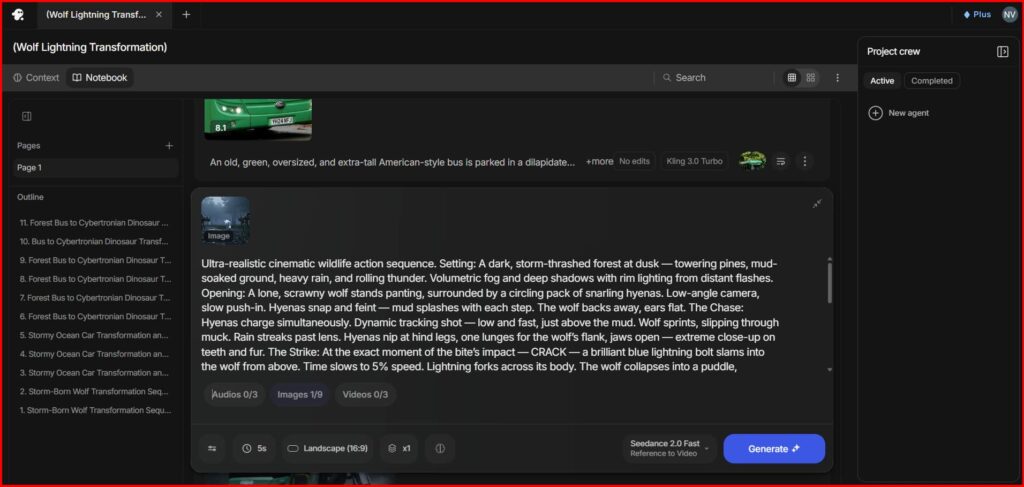
I selected the Seedance 2.0 Fast model for this test. It lets you add up to 9 reference images, 3 reference videos and 3 audio references. You can generate videos up to 15 seconds long, choose from five aspect ratios and the maximum output resolution is 720p.
Before generating, make sure Audio is turned on if you want sound in the final video.
For my test, generating one video cost 8.7 credits and took about 3 minutes. The result was genuinely impressive. Right from the first attempt, the video quality exceeded my expectations. The only weak point was the audio. I’d rate it 4/10 because the sound wasn’t synced very well with the visuals.
Next, I tested the upscaling feature to see how many credits it uses and whether it’s worth it. Clicking Upscale takes you to InVideo’s collection of upscaling tools. I used the BytePlus VOD Video Upscaler, which took around 3 minutes to process the video. The upscaling cost 0.5 credits. The file size increased from 8.0 MB to 19.3 MB, and the upscaled version looked noticeably sharper with better overall image quality.
Test -1 (Reference Image + Text)

FULL PROMPT
Lets see the output
I Generated an AI Video Using InVideo AI Video Generator Seedance 2 0 Fast and Upscaled It
Note: I used this same testing process to compare the top AI video generators. If you’re looking for the best overall option, check out my Best AI Video Generators comparison with real test results.
Test -2 (Reference Image + Text)
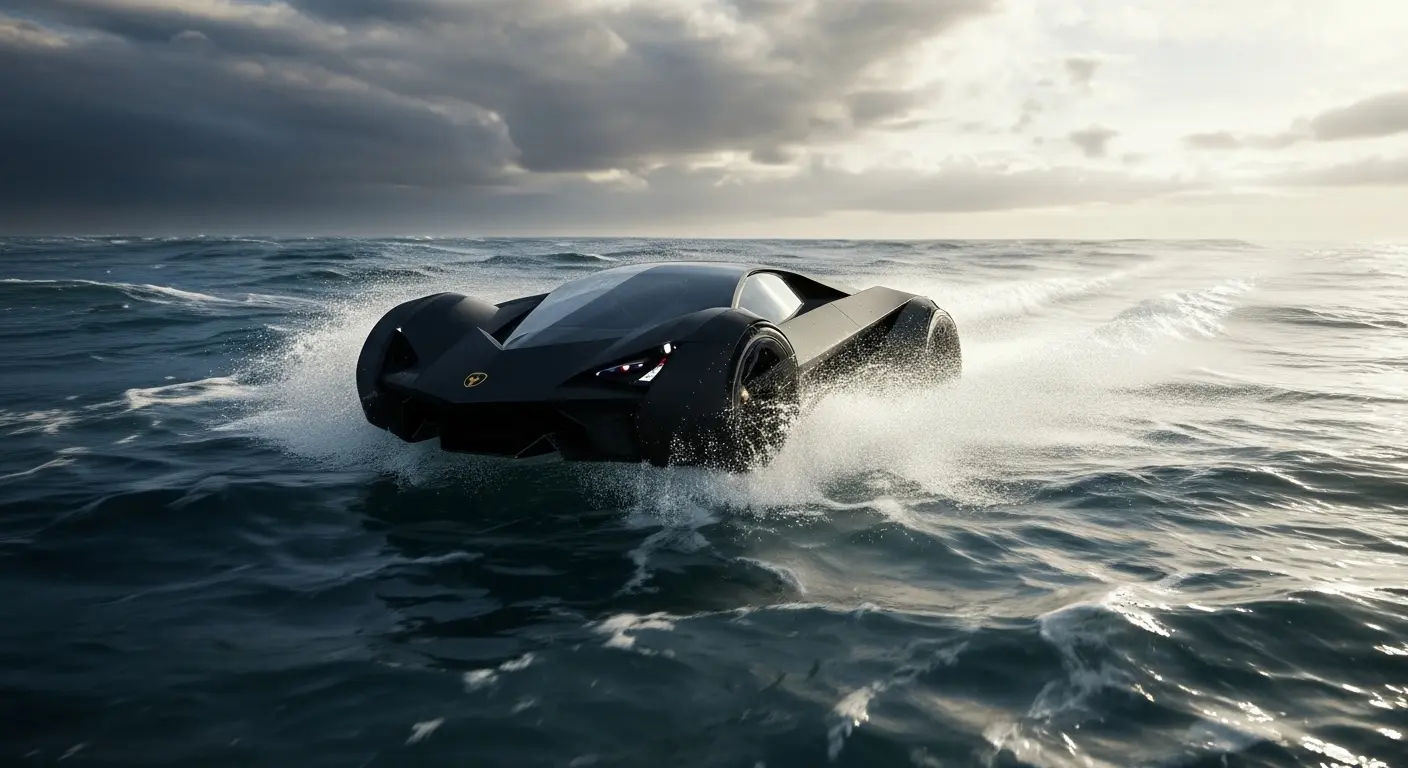
FULL PROMPT
For my second test, I used a different prompt and reference image. This time, Seedance 2.0 Fast completely missed the mark and the output wasn’t close to what I expected.
I then switched to Kling 3.0 Turbo and generated a 15-second video. It used 6.75 credits, took about 3 minutes, but the result was still disappointing.
Finally, I reduced the video length to 10 seconds and used Kling 3.0 Turbo again. This time, the output was much better and matched my prompt far more accurately. It cost 4.5 credits and the generation time was still around 3 minutes.
Lets see the output
I Generated an AI Video Using InVideo AI Video Generator (Kling 3.0 Turbo)
Note: I used this same testing method to compare several Kling AI alternatives. If you’re looking for the best AI video generator overall, that comparison includes real test results and should help you choose the right tool.
Test -3 (Reference Image + Text)

FULL PROMPT
For this comparison, I tested five different AI video generation models available inside InVideo using similar prompts and settings. Here’s how each one performed.
PixVerse V6 generated a 15-second video in 1080p with audio enabled. It cost 5.55 credits for a single output and took about 3 minutes to generate. The overall video quality looked good, but it didn’t follow my prompt very accurately. PixVerse also offers a lot of advanced video generation options. If you want to try the tool then click this and try pixverse ai video generation
Next, I tested HappyHorse 1.0. A 15-second video in 1080p with audio cost 17.25 credits and took around 3 minutes to generate. The result wasn’t bad and the audio was synced much better than some of the other models. However, the visuals had a dramatic, over-the-top cinematic style that reminded me of a Power Rangers Megazord scene, which may not suit every type of project.
My third test was Seedance 2.0 Fast. It generated a 15-second video in 720p since higher resolutions aren’t available for this model. It used 8.7 credits and the output looked good overall. However, I noticed a few logical inconsistencies in the generated scenes, even though the visual quality was solid.
Finally, I tested the standard Seedance 2.0 model. This model supports resolutions up to 4K with audio, but it’s also the most expensive. A 15-second 4K video costs 55.95 credits. For my test, I generated a 720p video instead, which used 10.95 credits. Out of all the models I tested, this one delivered the best results. The video followed my prompt accurately, had fewer logical errors and produced the most consistent overall output.
I also tried Kling 3.0 Turbo, but the results were disappointing, so I didn’t include it in the final comparison. That said, Kling offers several other video generation models, and some of them perform much better. If you’d like to see detailed testing with real outputs, check out my Kling AI review
Looking for videos like the examples above? See my best Sora alternatives comparison, where I tested the top replacements using the same prompts and compared their real outputs.
My Overall Experience
Overall, I think InVideo AI is worth using. What I liked most is that you can access multiple AI video generation models from one platform instead of paying for each tool separately. It also includes useful features like video upscaling, editing, background removal and several other AI tools, making it a convenient all-in-one option.
One thing I learned during testing is that your settings matter just as much as your prompt. Choose the model that best fits the type of video you want to create and make sure your scene count matches the video duration. Too many scenes for a short video or too few scenes for a long one usually leads to weaker results.
Finally, write prompts that clearly explain what you want to see in the final video. Be specific, but don’t make them unnecessarily long. A concise prompt with clear details consistently produced better results in my tests.
InVideo Pros and Cons
| ✅ Pros | ❌ Cons |
|---|---|
| ✓ Access multiple AI video generation models in one platform | ✕ Video generation can take around 3 minutes |
| ✓ Built-in video upscaling | ✕ Doesn’t have its own proprietary AI video generation model |
| ✓ Downloads are easy and watermark-free (on eligible plans) | ✕ High-quality outputs consume a lot of credits |
| ✓ Simple and beginner-friendly interface | ✕ Built-in editing and AI tools increase credit usage |
InVideo AI Video Models (2026)
| Video Model | Key Features | Maximum Output Resolution |
|---|---|---|
| Seedance 2.0 | Frames, Reference to Video, Edit, Extend | 4K |
| Gemini Omni Flash | Start Frame, Reference to Video, Edit | 720p |
| Kling V3 Omni Video | Ingredients, Frames, Transformation, Reference to Video | 4K |
| Seedance 2.0 Fast | Frames, Reference to Video, Edit, Extend | 720p |
| Seedance 2.0 Mini | Frames, Reference to Video, Edit, Extend | 720p |
| Luma Ray 3.2 | Generate, Edit, Reframe | 1080p |
| Kling Video O1 | Transformation, Frames, Video Reference, Ingredients | 1080p |
| PixVerse V6 | Frames, Ingredients | 1080p |
| Veo 3.1 Fast | Frames, Ingredients, Extend | 4K |
| Happy Horse 1.0 | Ingredients, Start Frame, Video Edit | 1080p |
| PixVerse C1 | Frames, Ingredients | 1080p |
| PixVerse 5.6 | Frames, Ingredients | 1080p |
| LTX 2.3 Pro | Frames, Audio to Video, Retake Video, Extend, Reframe | 4K |
| Wan 2.7 | Image to Video, Extend Video, Reference to Video, Video Edit | 1080p |
| Grok Imagine Video | Text to Video, Image to Video, Video Editing | 720p |
InVideo AI Pricing Plans (July 2026)
| Plan | Best For | Price (Annual Billing) | Credits / Month | AI Avatars & Voice Clones | Storage | iStock Assets | Concurrency |
|---|---|---|---|---|---|---|---|
| Plus | Exploring | $17/moBilled $200/year | 75 | 4 | 20 GB | 100 | Limited |
| Max | Occasional Use | $85/moBilled $1,000/year | 390 | 16 | 100 GB | 200 | 2× more than Plus |
| Generative | Daily Use | $170/moBilled $2,000/year | 800 | 40 | 2 TB | 1,000 | 10× more than Plus |
| Elite | Power Creators | $900/moBilled $10,800/year | 4,250 | 200 | 10 TB | 5,000 | 20× more than Plus |
Frequently Asked Questions
1. Is Invideo AI completely free to use?
Yes, you can use it for free, but it has limits. The free plan lets you generate videos and test the tool. However, your videos will have watermarks and you cannot download them to your device. To remove watermarks, export in high quality and get sharing rights, you need to buy a paid monthly or yearly plan.
2. Can I use Invideo AI videos for YouTube monetization?
Yes, you can monetize these videos, but you need a paid subscription. If you use the free version, the watermarks and copyrighted stock media might trigger copyright claims on YouTube. Paid plans give you the proper licenses for the music, photos and video clips used, making it safe for YouTube, TikTok or business ads.
3. How does the text-to-video feature work?
It is very straightforward. You type a prompt explaining your idea, just like talking to a person. For example: “Create a 60-second video about the top 3 travel spots in Italy with a friendly voiceover.” The AI then writes the script, selects matching stock footage, adds a voiceover and applies background music automatically.
4. Can I edit the video after the AI generates it?
Yes, you have full control. If you do not like a specific clip, image or text line, you can change it. You can edit the video by typing simple commands like “change the background music to upbeat jazz” or “make the voiceover sound more professional.” There is also a manual timeline editor if you prefer to drag and drop elements yourself.
5. Do I need video editing experience to use it?
Not at all. The platform is designed for beginners, content creators, and business owners who do not know how to edit videos. The AI does 90% of the heavy lifting. If you can type a text message, you can easily create a video using this tool.
Final Thoughts
There are many excellent AI video generation tools available today, but purchasing and testing each one individually can quickly become expensive. That’s where InVideo AI stands out. Instead of paying for multiple subscriptions, you get access to a wide range of leading AI video models in a single platform, along with powerful editing and workflow features.
The main downside is that video generation can take around 3-4 minutes, depending on the model and complexity of your prompt. Aside from that, InVideo AI offers great value for creators who want to experiment with different AI models without managing multiple tools. If you regularly create AI videos, it’s a worthwhile investment.
0 Comments