OpenAI’s Sora was meant to make AI video creation simple but it was discontinued in March 2026. OpenAI shuts down Sora Many creators who built their workflow around it suddenly lost access which made things harder especially if they had already got used to it.
When you get used to one tool, losing it always feels uncomfortable. That is normal. But the reality is nothing in tech stays permanent. Even tools and platforms change or disappear over time and the same applies to AI video tools too.
Sora is just a one generation tool. If it is not available there will always be better or different options that can do the job. So instead of getting stuck on what is gone it makes more sense to focus on what is working right now.
I have researched and listed 3 best tools below based on real usability and practical output. These are not random picks but tools that can actually help in your workflow. Try them and see what fits your work.
One more important thing is that what is working today may not stay the same tomorrow. These tools can update, change pricing or even get replaced. So whenever there is a major change or a better option comes in I will update this blog. Bookmark it or subscribe to AlloyPress so you don’t miss future updates.
How We Test AI Video Generation Tools
To keep the comparison fair we use the exact same image and the exact same prompt across every AI video generation tool. This helps us see which tool actually understands the prompt better and delivers the most consistent output.
We mainly compare:
- Video quality
- Motion smoothness
- Prompt accuracy
- Character and object consistency
- Transformation details
- Rendering speed
- Overall realism
Instead of judging tools based on hype or marketing we test them in the same conditions so the differences become clear. That way you can quickly understand which AI video tool is actually worth using for your type of work.

Lets see the top 3 best SORA alternatives (2026)
Quick Comparison of the Best SORA Alternatives (2026)
Best AI Video Generators Comparison
| Feature | Tool Link | Best For | Output Quality | Free Plan | Speed | Biggest Weakness |
|---|---|---|---|---|---|---|
| PixVerse | Try Now | Fast cinematic social media videos | Very realistic and prompt accurate | Good free credits & features | Very fast generation | Credits finish quickly |
| Flow | Try Now | Long continuous cinematic scenes | Strong scene & character consistency | Best free extend feature | Medium speed | Editing consumes many credits |
| Luma AI | Try Now | Advanced video editing workflow | Cinematic and polished look | Very limited free usage | Slow sometimes | Video generation takes long time |
1. Pixverse
Pixverse was founded in 2023 by former ByteDance executive Wang Changhu, PixVerse is owned by the Singapore and Beijing-based startup AISphere with significant backing from Alibaba and Ant Group. The platform is accessible globally in over 175 countries, offering access via its official website and mobile app.
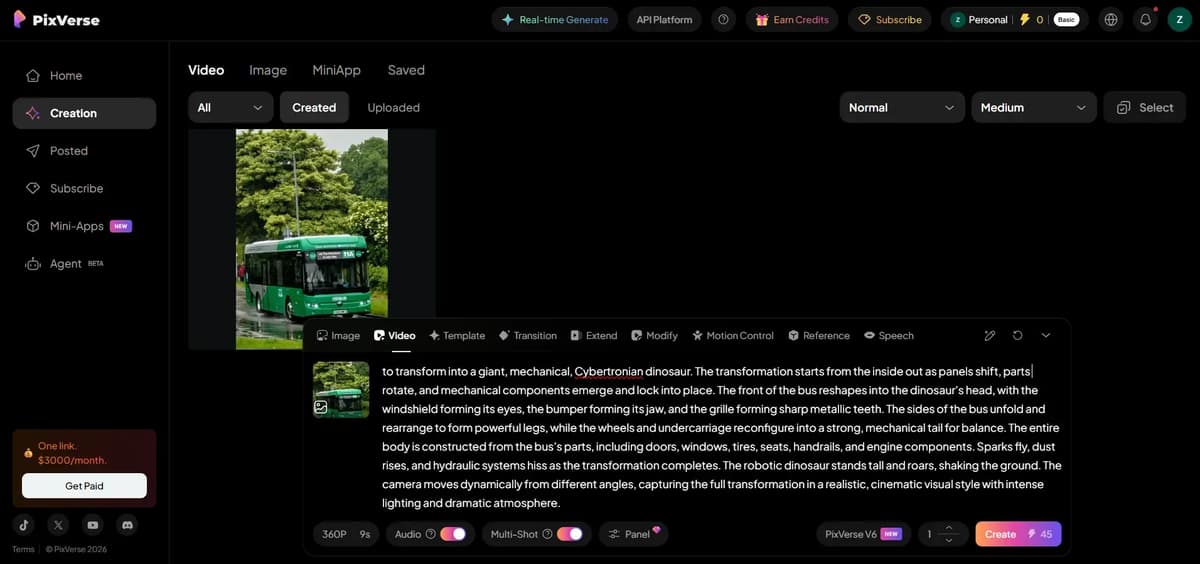
PixVerse lets you generate videos by uploading images or by using only text prompts. Right now, AI videos are trending heavily on social media and PixVerse includes popular features like motion control. You can upload up to 7 reference images to create videos. It also supports video extending, editing, templates and creating videos using first and last frame images.
You can even add character voice dubbing using the speech option. The platform allows up to 15-second videos in 1080p quality. Audio support is available and you can enable multi-shot mode if needed. There are many AI models available, including Sora, Kling, Seedance, Grok, Happy Horse, Veo and PixVerse.
The PixVerse V6 model gives especially impressive results. Free users can access this new model too. When you first sign up, you get 90 free credits and daily login rewards give 30 credits every day. Video generation is also very fast.
Advantages of Using PixVerse
- PixVerse V6 creates outputs very close to what you imagine while writing prompts.
- Video generation is fast.
- Features like extend, upscale, editing, templates and motion controls are available.
- Outputs look very realistic and cinematic.
- Multiple AI models are available in one platform.
Disadvantages of PixVerse
- Free plan downloads include a watermark.
- Credits get used up quickly.
- Sometimes the AI may make small mistakes in the generated output.
Final Opinion
After using PixVerse, one thing feels impressive: while writing prompts, you imagine how the visuals should look and when the final output is generated, it comes surprisingly close to that imagination, almost 90% similar in many cases, even on the free plan. Paid plans can give even better results with access to more features and tools.
PixVerse Pricing Details
PixVerse offers a tiered credit system starting with a Free Plan that gives 30 daily credits but includes watermarks. The Standard Plan ($10/month) provides 1,200 monthly credits and removes watermarks, while the Pro Plan ($30/month) offers 6,000 credits with 1080p resolution. For heavy users, the Premium ($60) and Ultra ($149) plans offer up to 25,000 credits and maximum processing priority.
Subscribing annually saves you 20% compared to monthly billing. Credits are consumed based on quality, a high-definition 1080p video costs significantly more credits (approx. 120) than a basic 360p version (approx. 45). Paid members also get priority rendering and the ability to run multiple video generations simultaneously, making it more efficient for professional workflows.
How Many AI Videos Can You Generate Per Month With PixVerse?
Based on the average cost of 120 credits for a high-definition (1080p) video, here is the breakdown of how many videos you can create per month.
The Standard Plan ($10) gives you 1,200 credits, allowing for roughly 10 HD videos per month. The Pro Plan ($30) offers 6,000 credits, which covers about 50 HD videos. For power users, the Premium Plan ($60) supports 125 HD videos, while the Ultra Plan ($149) allows for approximately 208 HD videos.
Keep in mind that using the daily renewal credits (30 per day) adds enough for about 7-8 extra HD videos per month across all paid plans. If you choose to render in lower 720p or 360p quality instead, you can generate 2 to 3 times more videos than the numbers listed above.
These numbers are only a rough estimate. Credit usage can change a lot depending on the video length quality settings regenerate attempts and extra features you use while generating videos. So don’t get confused if your usage looks different because it varies from person to person based on how they actually use the tool.
2. Flow
Flow (also known as Google Flow) is an advanced AI filmmaking and video creation platform developed by Google. It was officially unveiled at Google I/O 2025 as an evolution of their previous experiment, VideoFX. Built on Google’s powerful Veo video model, it allows users to generate, edit and arrange cinematic-quality video clips using simple text prompts or images.
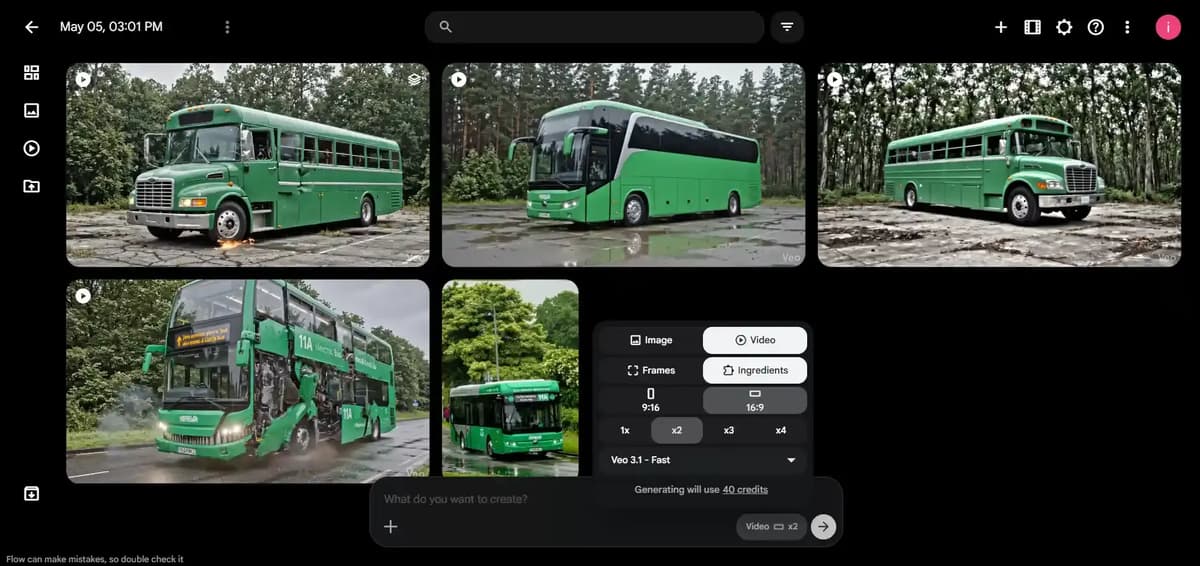
Flow has two methods called Frames and Ingredients. I used the Ingredients method by uploading an image and giving a prompt to generate videos. You can also choose the aspect ratio and set how many outputs you want.
In the free plan it give 50 free credits daily, it allows up to 2 video outputs at a time, and currently it allows around 3 video generations per day, although this may change later. One good thing is that even free users can use the extend option. I used the extend feature nearly 5 times and created a continuous 36 second video with audio and character consistency. The same scene continued smoothly, which looked very nice, but there were a few mistakes in some parts of the video.
What I Like About This Tool
- Free users can use the extend feature.
- Video outputs look realistic.
- You can mark and remove unwanted objects from videos.
- Camera angle and position can be controlled.
- Character and scene continuation work surprisingly well.
- You can easily download frame images from any part of the video.
- Generated frames are saved inside Flow for later use.
Disadvantages of Flow
- Every edit, remove action or extend option costs around 20 credits.
- Sometimes the AI makes mistakes in the output.
- Downloaded videos from the free plan include a watermark.
- In one test, I uploaded one image, but the AI unexpectedly generated a green bus in the output.
Final Opinion
Flow’s extend feature is one of the best parts of the tool. It is impressive that they allow free users to use it. The ability to continue scenes smoothly with audio and character consistency makes the tool very useful for cinematic AI videos. Even though there are occasional mistakes, the overall experience feels very good for a free plan user.
Flow Pricing details
Google Flow uses a credit-based system linked to Google One, offering a Free Tier with 50 daily renewal credits and paid AI Pro ($19.99/month, 1,000 monthly credits) or Ultra ($249.99/month, 25,000 monthly credits) tiers. The system features varied Veo model access based on tier, allowing for high-fidelity 1080p generation and credit top-ups for extra usage.
How Many AI Videos Can You Generate Per Month With Google Flow?
Google Flow uses a credit based system and the number of videos you can generate depends on the model quality you choose. Veo 3 Quality gives the best cinematic 1080p output but uses more credits while Veo 3 Fast and Veo 2 are cheaper and allow more generations. The Google AI Pro plan gives around 1,000 monthly credits which is enough for roughly 10 high quality Veo 3 videos or up to 100 Veo 2 videos. The Ultra plan includes 25,000 credits and supports much heavier usage. Free users also get 50 daily credits for testing. Keep in mind that actual usage changes based on video length quality regenerate attempts and advanced editing features.
3. Luma
Luma AI is an advanced creative platform founded in September 2021 by Amit Jain (CEO) and Alex Yu, with Amit Jain previously having worked on Apple’s Vision Pro team. Its flagship product, Dream Machine, is highly regarded for its ability to generate high-quality, physically accurate videos from text and images.
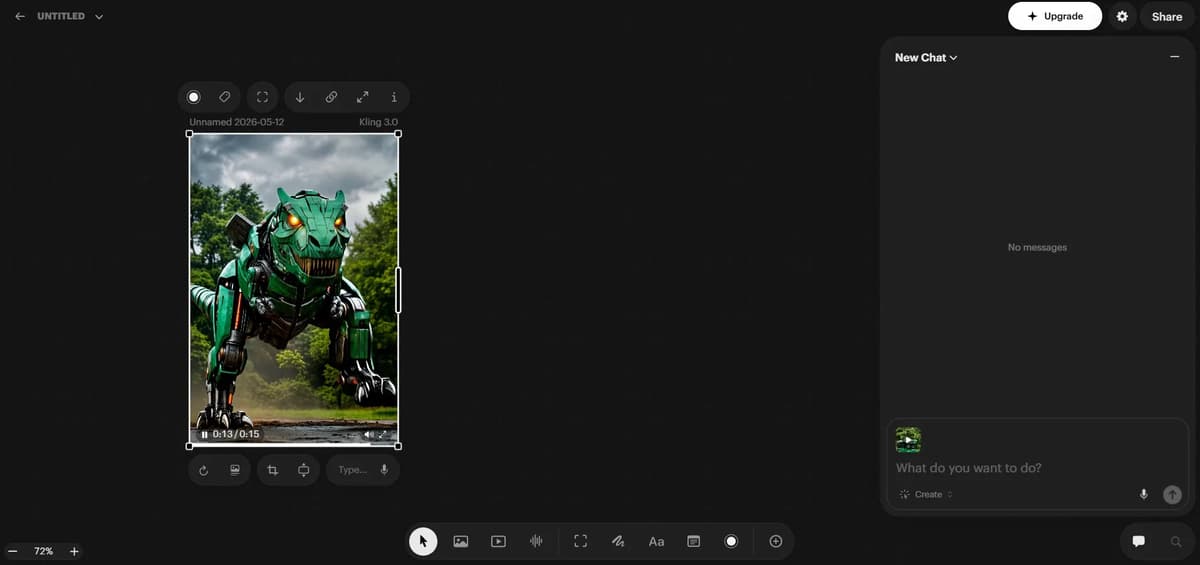
Luma AI asked for card details even to try the free version, and after logging in it also required two-step verification. Honestly, completing all those steps felt a little tiring, but after entering the platform, the interface looked very clean and modern, similar to an agent canvas workspace.
Inside the video section, models like Kling, Ray and Veo were available. Sora was available before, but it has now been removed because of the Sora shutdown. I tested the Kling 3.0 model and the free plan allowed me to generate one or two videos. I used the highest video settings and maximum quality settings to test the output properly.
What I Like in Luma
- You can adjust video frames very easily.
- Video editing tools are available inside the platform.
- You can add color borders or outlines to videos.
- Cropping, reusing, and rerunning videos are supported.
- You can add shapes, text, notes and doodles directly inside the editor.
- The interface feels unique compared to many other AI video tools.
Disadvantages of Luma
- Generating a 15-second video sometimes took nearly 20 minutes, which felt very slow. However, it is not always that slow.
- The free version is very limited.
- Paid plans feel worth it, but having more AI video models would make the platform even better.
Final Opinion
Luma offers a different experience compared to many other AI video tools because of its editing-focused features and clean workflow. The built-in editing options are genuinely useful. If the platform adds more video generation models in the future, it could become an even stronger choice for creating AI videos, and purchasing the paid plan would feel more worthwhile.
Luma Pricing Details
Luma AI’s pricing is built on three tiers: Plus ($25/month), Pro ($75/month), and Ultra ($250/month), with annual billing saving you 20%. All paid plans provide commercial use rights, high-quality video generation, and advanced tools like image upscaling and sound effect creation. The Pro plan offers 4x more credits than Plus, while the Ultra plan provides 15x more credits, making them significantly more cost-effective for heavy users by reducing the per-credit price by up to 33%.
How Many AI Videos Can You Generate Per Month With Luma?
In Luma Dream Machine a high quality 5 second video usually costs around 20 credits. Based on that estimate the Plus plan gives roughly 50 HD videos per month while the Pro plan supports around 200 videos and the Ultra plan can handle nearly 750 videos. The free plan only includes about 30 monthly credits so it is mainly useful for testing and not for serious content creation. Higher plans are more cost effective for creators who generate videos regularly because the overall credit value scales much better. Keep in mind that actual credit usage can vary depending on video duration quality settings and regenerate attempts.
Final Conclusion
After testing all three tools, PixVerse feels like the best overall choice for most creators because it is fast, cinematic, beginner friendly and gives outputs very close to the imagination even on the free plan. Flow is excellent for long cinematic scene continuation and storytelling, while Luma stands out mainly because of its editing-focused workflow and creative controls. Overall, all three tools are powerful in different ways and the best choice depends on the type of AI videos you want to create.
Things can change anytime in the AI world. A tool that is free today may become paid later, features may change, or sometimes the tool itself may even disappear. That is why staying updated is important.By subscribing to AlloyPress, you can get updated blogs, new AI tool releases, feature changes and latest AI workflows. These updates can help make your workflow easier and help you stay competitive in the fast-changing AI industry.
Related Readings
Kling AI Alternatives
Best AI Image Generator
Best AI Video Generators
Best AI Background Remover ToolsFree Grok Alternatives for Image and Video Generation
Frequently Asked Questions
1. How to choose the best AI video generation tool?
Choose based on your actual goal, not hype. If you want cinematic quality, tools like Luma or Flow work better. If your focus is Shorts, Reels, and creative effects, PixVerse is more flexible. Before paying, test the free version first and see which output style matches your content.
2. How to make AI videos look cinematic and realistic?
The biggest difference comes from the prompt. Instead of basic descriptions, use camera and lighting terms like “cinematic lighting,” “low angle shot,” “shallow depth of field,” or “tracking camera movement.” Good lighting and motion direction make AI videos look far more realistic.
3. What are the common mistakes people make in AI video generation?
Most people write overly long prompts and expect perfect results in one try. AI video generation works better with clear and focused prompts. Another mistake is using only text prompts when image-to-video often gives more stable results. Good outputs usually need multiple attempts.
4. Which AI video tool is best for YouTube Shorts and Reels?
PixVerse is one of the easiest tools for short-form content because it supports fast effects, vertical formats, and creative motion control. Luma is also strong if you want more cinematic, viral-style clips with realistic movement.
5. How to write better prompts for AI video generation?
Keep prompts structured and visual. A simple format is Subject + Action + Environment + Camera Style. Instead of saying “a car driving,” describe the full scene like “a vintage sports car drifting through a rainy neon city with cinematic camera tracking.” Specific details improve output quality significantly.