What Is Onepage, Exactly?
Onepage is a cloud-based AI website builder for websites, landing pages, funnels and Linktree-style link pages. It’s mainly built for freelancers, small agencies and business owners who want to launch something professional without touching code.
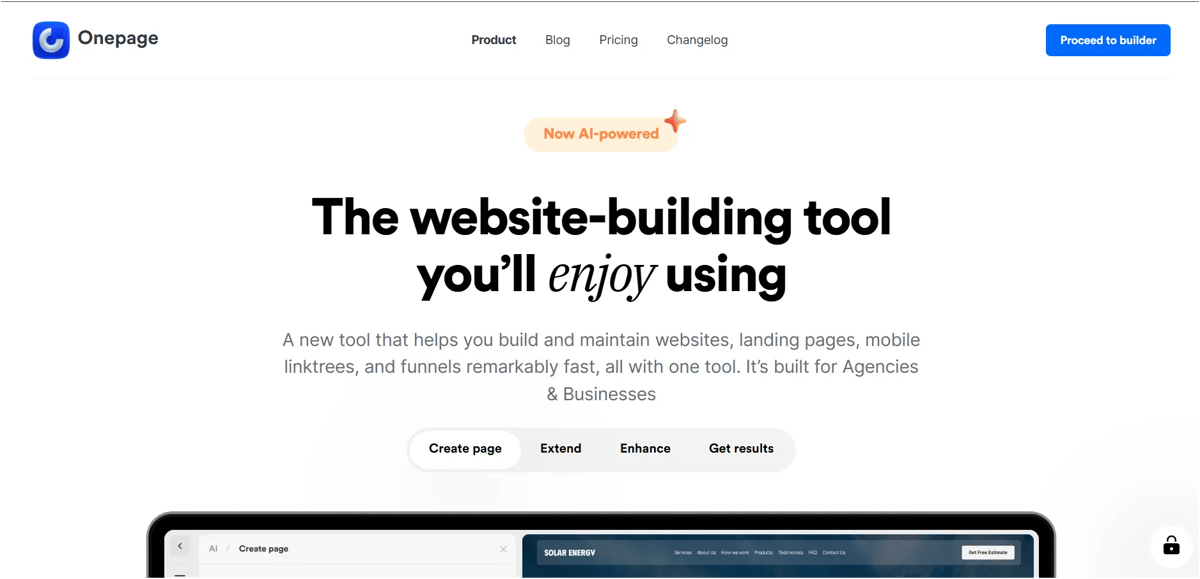
The newer Onepage AI layer lets you describe your website in plain English and get back a complete page you can then edit visually. It sits in a middle ground: more guided than a blank Webflow canvas, but less “black box” than fully automated AI site generators that give you almost no control after generation.
How the AI Actually Works
Enter a prompt like “landing page for a fitness coaching business with a booking CTA,” and Onepage AI generates the page with copy, layout and images. Here’s what to know:
It’s a starting point. The generated page usually needs edits before it’s ready to publish.
AI uses credits. The free plan includes a one time credit allowance. The Expert plan gives you 75 credits per month.
It’s built for websites and marketing pages. It’s not designed for complex apps, databases or advanced blog platforms.
You can edit with AI. The AI Assistant can rewrite, translate, fix grammar and generate HTML, CSS and JavaScript.
AI Writer doesn’t use credits. On Essential and higher plans, you can generate and rewrite copy without using AI credits.
Overall, Onepage is useful for quickly creating marketing websites, but expect to refine the AI generated result and pay extra if you use the AI Assistant heavily.
My Experience
First, I tried building a website from scratch.
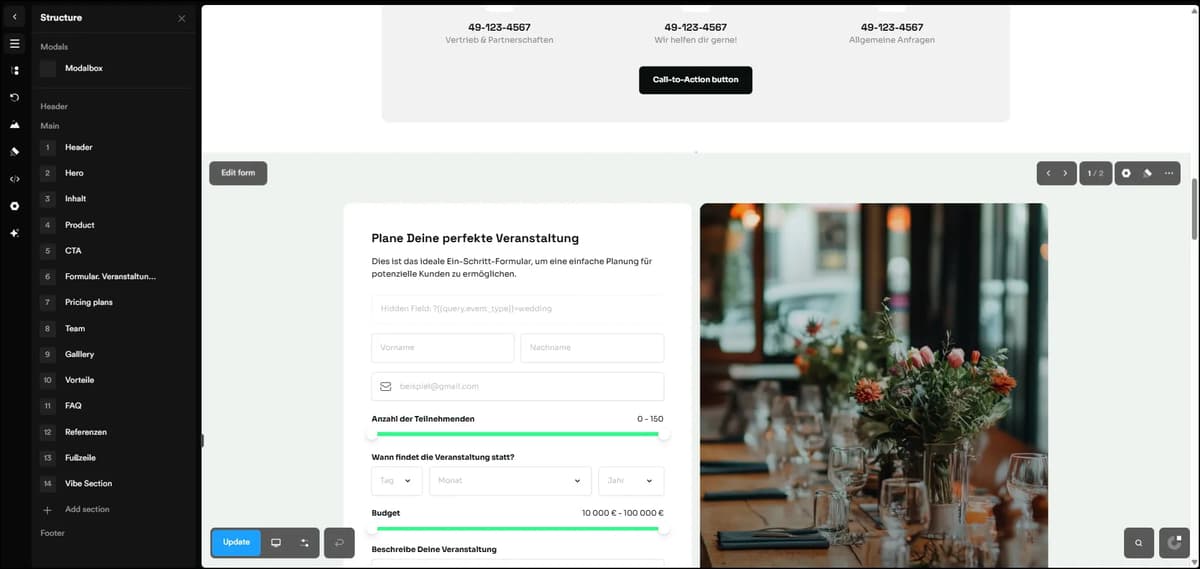
You create a project name, then use the panel on the left to customize your design. Everything is editable, so you can adjust the site however you like. Once you’re happy with it, you can publish immediately with Onepage subdomain or connect your own domain if you already have one.
See the website I created as a sample → View the sample website
Then I tried building a site with Onepage AI (create page with AI).
I gave it a detailed prompt for a premium AI tools marketplace with a dark, neon accented design, glassmorphism and specific sections including Hero, Featured Tools, Categories, Pricing, Testimonials, FAQ and CTA. The site was ready in about 7 minutes and the result was close to what I asked for, with clean sections, well placed copy and a layout that looked presentable without needing a complete rebuild.
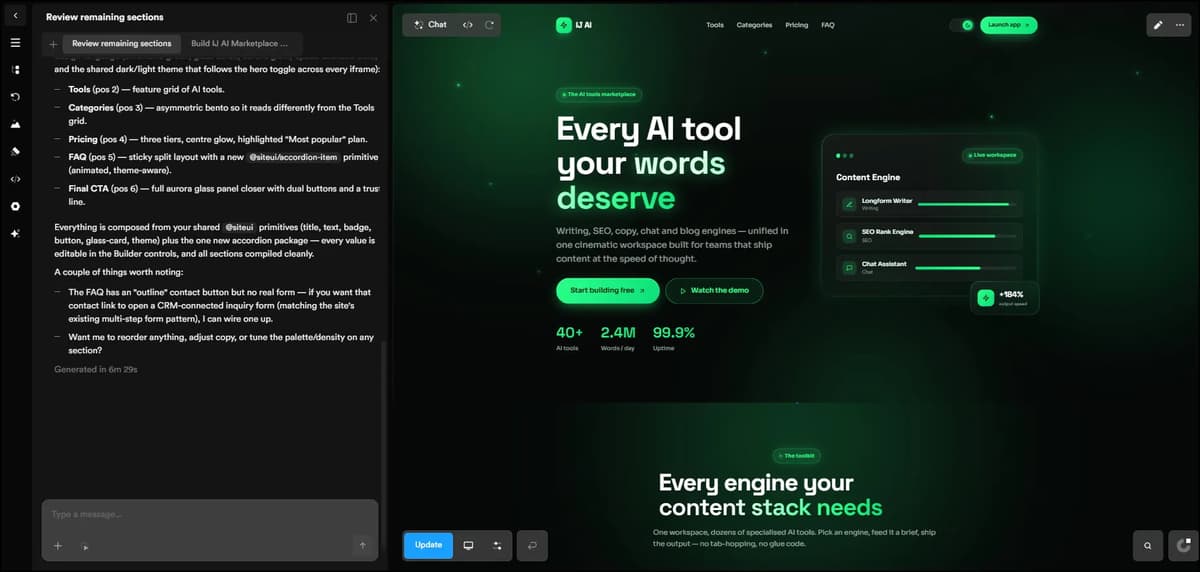
the final output looked really good with impressive quality, View the generated website
You can also start from one of the ready-made templates instead of a blank prompt, which is a faster route if you already know roughly what layout you want and just need to swap in your own content.
Every Option Onepage Offers (and Whether It’s Actually Useful)
This is the part most reviews skip. One page includes several tools in one dashboard, but not all of them are equally useful. Here’s what each option does and whether it’s actually worth using.
AI Website & Section Generator
What it does: You describe a page or section in plain English and Onepage AI generates the layout and images. If the result isn’t right, you can regenerate any section.
Is it useful? Yes, you can generate any section or an entire page in just a few minutes. One thing that takes time is to explain your design ideas in detail.
Projects, Pages & the Drag and Drop Editor
What it does: Every website you build is available under the Projects tab. Inside Pages, you’ll find all the websites you’ve created. Click on any page to open it in Edit mode. From there, you can build different sections such as the header, form, product details, CTA, and footer. Just click on any section to change the content, headings, or theme.
You can also use the AI chat option to give a prompt and customize each section quickly. The changes are usually applied within a few seconds. You can switch between desktop and mobile views to see how your page looks on different devices. If you know how to code, you can use Custom Code to make edits directly. Otherwise, you can simply use AI prompts, so coding isn’t required.
Is it useful? Yes. The editor is arguably more important than the AI generation itself. AI can get you around 60% to 70% of the way there, but the editor, especially the built in AI chat, makes it easy to refine each section and get the page ready to publish.
AI Writer (Copywriting & Translation)
What it does: Rewrites, improves or translates website text and can adjust the tone or include keywords for SEO.
Is it useful? Yes. Unlike the section generator, it doesn’t use AI credits on Essential plans and above. If you mainly need help with website copy rather than design, this feature offers good value without using your AI credits.
AI Assistant / Custom Code Generation (“Vibe Coding”)
What it does: Lets you describe a custom element or interaction and generates HTML, CSS or JavaScript for features the visual editor can’t handle.
Is it useful? Yes, if you need an occasional custom widget or interaction without hiring a developer. However, it’s not a replacement for full development and is only available on the Essential plan and above.
Custom Code Area (Manual)
What it does: Settings also has a dedicated Custom Code area where you can add your own HTML, scripts and CSS directly. It has separate sections for the <head>, <body> and Styles, so you can add code wherever you need it.
Is it useful? Yes. If you already have HTML, CSS, or a script, you can paste it directly into the Custom Code area instead of asking the AI to create it. You can also create a custom section yourself, prepare the HTML/CSS for the exact design you want and add it to your site. Just make sure the code is properly written and doesn’t conflict with the existing site styles or scripts.
Funnels & Multi-Step Forms
What it does: Builds lead generation flows with 6, 8 or 10+ steps, including qualifying questions, quizzes and booking flows instead of a basic contact form.
Is it useful? Yes, especially for lead generation. It’s a useful feature that sets Onepage apart from basic website builders. However, it’s a paid add on, so check that it’s included before purchasing.
Email Marketing Templates
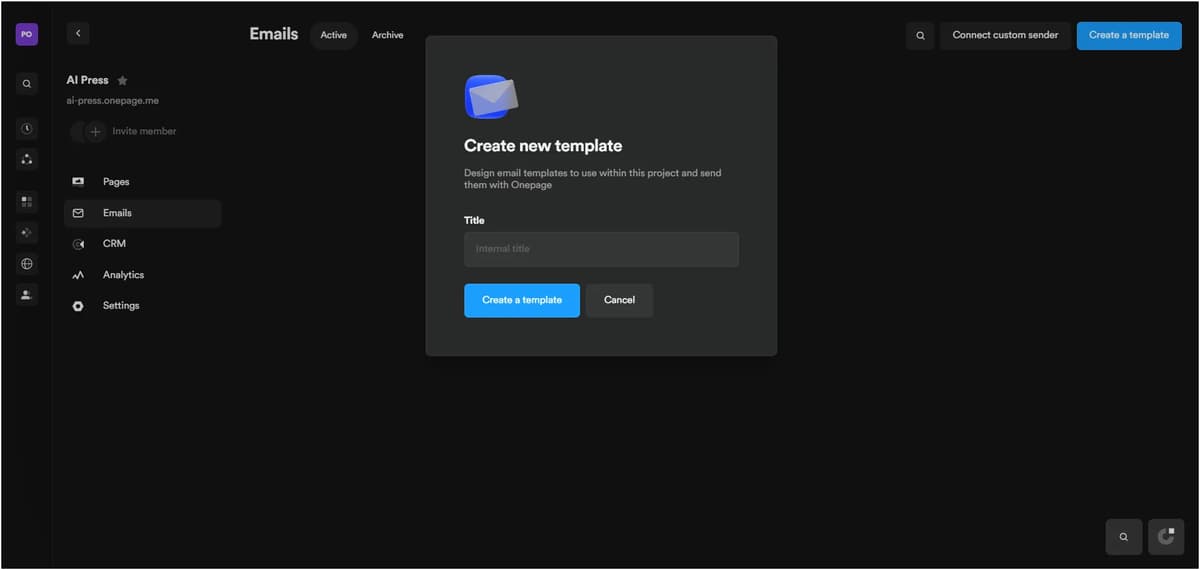
You can also connect popular email marketing and delivery services like Mailchimp, SendGrid, Mailjet, Brevo and Mailgun. This makes it easier to send and manage emails through the tools you already use.
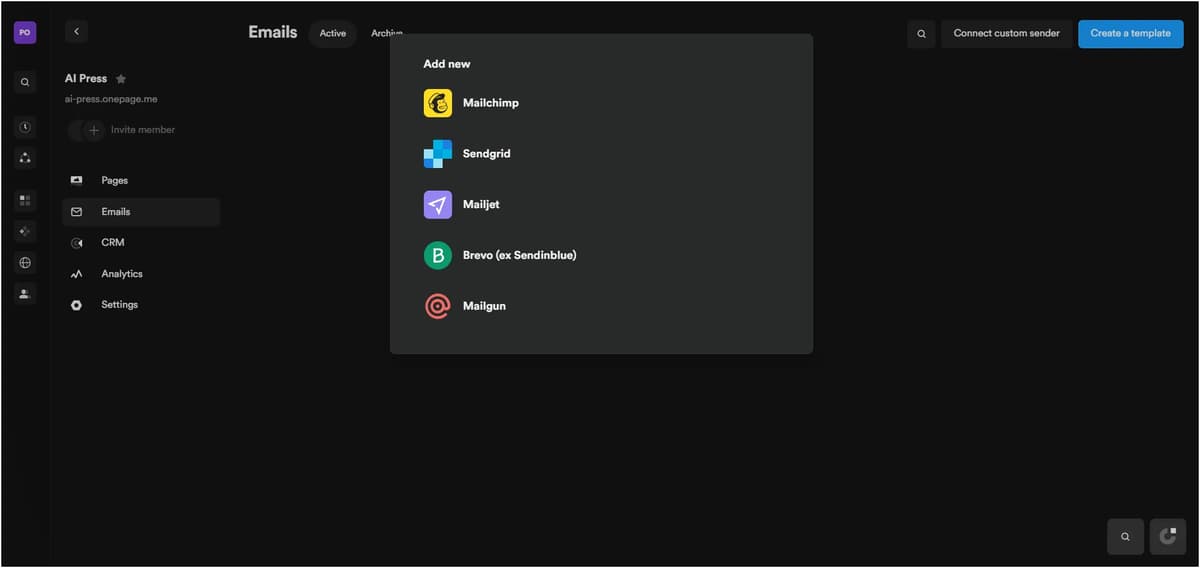
What it does: Onepage lets you create reusable email templates for communicating with leads and customers. You can personalize messages with details such as the recipient’s first name, add your own content and CTA and reuse the same template whenever you need it instead of starting from scratch every time. You can also connect email delivery services such as Mailchimp, SendGrid, Mailjet, Brevo and Mailgun.
Is it useful? Yes, especially if you regularly follow up with leads by email. It helps keep your messaging consistent and works with email tools you may already be using.
Built in CRM
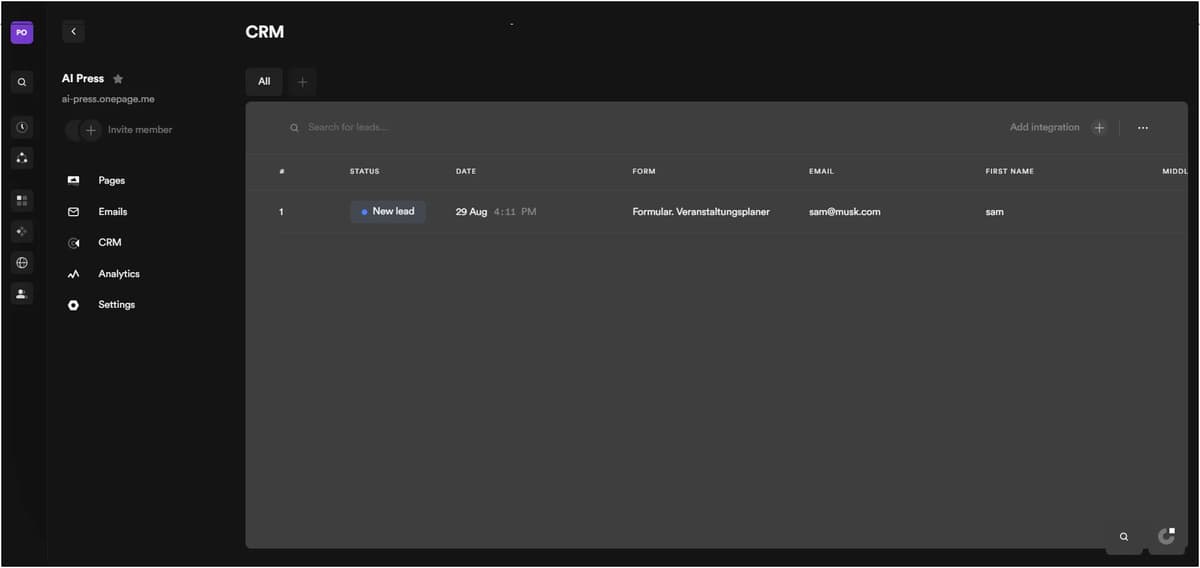
What it does: Onepage includes a built in CRM to help you manage the leads you collect through your website forms. When someone fills out a form, their details are automatically saved in the CRM, so you can keep track of your leads without connecting another tool. If you already use a CRM, you can also send your leads to tools like Zapier, Make or HubSpot.
Is it useful? Yes, especially for freelancers and small agencies that don’t already have a CRM. If you already use HubSpot or another dedicated CRM, you can simply connect it and continue managing your leads there.
Analytics Dashboard
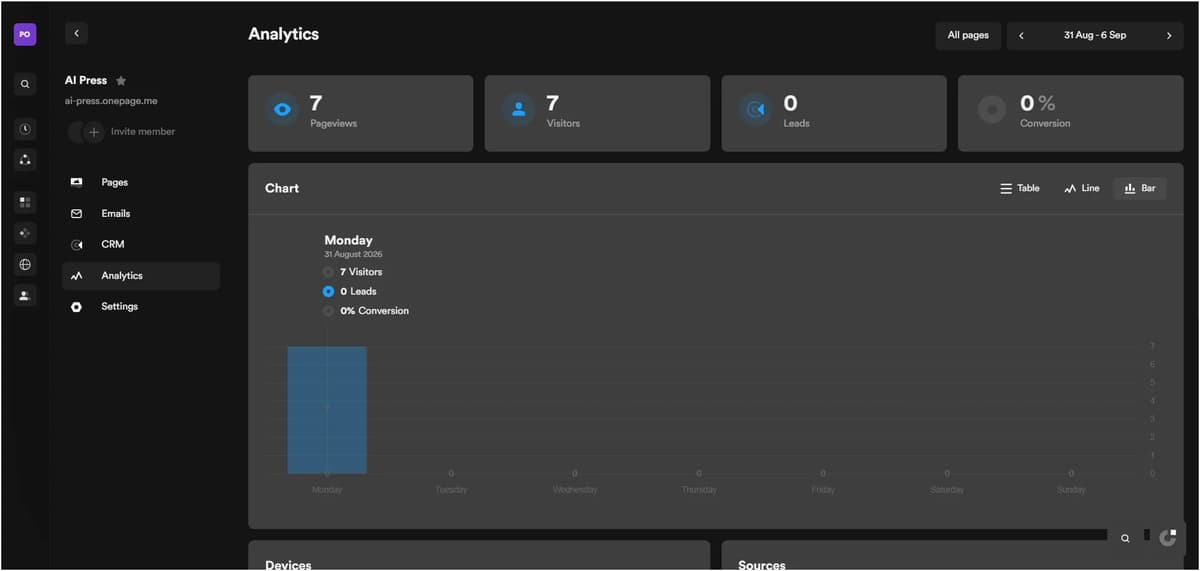
What it does: Onepage’s Analytics Dashboard shows your pageviews, visitors, leads and conversion rate, giving you a quick way to see how your website is performing without relying entirely on Google Search Console.
Is it useful? Yes. It’s useful for getting a quick overview of your website’s performance, although it doesn’t offer the same level of detail as Google Search Console when you need deeper SEO insights.
GDPR & Compliance Tooling
What it does: Onepage includes EU based hosting, a customizable cookie consent banner and other compliance features with every plan. You can customize the banner text, button, design and privacy policy link without paying extra for these features.
Is it useful? Yes, especially if you work with European clients or customers. Having these features built in can save time and means you may not need a separate cookie consent tool.
Team Collaboration & Page Locking
What it does: Invite team members, freelancers or clients to work on the project and collaborate with them, with locking to prevent editors from overwriting each other’s changes.
Is it useful? Yes, for agencies or teams working on client websites. If you’re a solo freelancer, this feature probably won’t matter much.
Templates
What it does: Offers pre-built page and funnel templates that you can use instead of starting from a blank prompt.
Is it useful? Yes. Templates are a faster option when you already know the layout you want. They’re also useful for seeing what you can create with Onepage before building a site from scratch.
SEO Tools (Meta Titles, Descriptions, Alt Text via AI)
What it does: Onepage can generate meta titles, meta descriptions and image alt text using AI. This feature is available on the Essential plan and above. In the Settings panel, you can also manage indexing, page title patterns, Google Search Console and Tag Manager connections, structured data, sitemap and robots.txt.
Is it useful? Yes, especially if you’re new to SEO. It makes basic on page SEO much easier, but it won’t replace a proper SEO strategy or things like keyword research and link building.
Custom Domains & Branding Removal
What it does: Available on the Essential plan and above, Onepage lets you connect a custom domain or subdomain to your website. You can manage the primary and internal domain settings, configure SSL and remove Onepage branding from your published pages.
Is it useful? Yes, especially for business or client websites. The free onepage.me subdomain is fine for testing, but a custom domain looks much more professional and is a better choice for any serious website.
Redirects, Integrations & Password Protection
What it does: Onepage also gives you options to redirect visitors from an old URL to a new one, which is useful when changing page URLs and helps preserve SEO value. You can connect external tracking tools such as Google Tag, Facebook Pixel, TikTok Pixel, LinkedIn Insight Tag and Hotjar. You can also protect your entire website or specific pages with a password.
Is it useful? Yes. These features might not stand out in a quick demo, but they become really useful once you’re managing a live website.
Pricing: What You Actually Get
Onepage runs a free-forever plan (not a trial), then four paid tiers. Rough breakdown at monthly billing:
Plan | Price | Websites | Pages | AI Credits | Best For |
|---|---|---|---|---|---|
Free | $0 | 1 | 3 | 20 one time | Quick landing page launch |
Essential | $19.9/mo | 1 | 7 | 25/mo | Personal & small business sites |
Standard | $39.9/mo | 2 | 50 | 35/mo | Growing businesses |
Advanced | $69.9/mo | 5 | 150 | 50/mo | Agencies & multiple sites |
Expert | $179.9/mo | 20 | Unlimited | 75/mo | Large agencies & teams |
Annual billing saves around 17%.
One important thing to know is that AI credits are not included with the website plans. If you want to use the AI Assistant regularly, you need a separate paid AI plan. Unused AI credits roll over for one month before they expire and larger credit packs offer a lower cost per credit.
Multi step Forms & Funnels are also a separate paid add on. Custom code generation is available from the Essential plan and above.
So, if you need a website plan plus regular AI use and funnels, your actual monthly cost will be higher than the advertised website plan price. Keep this in mind when comparing Onepage with other website builders.
Custom domains, removing Onepage branding, and advanced SEO features are available from the Essential plan. The Advanced plan costs $69.90/month for 5 sites, which can still be good value for agencies compared with managing multiple WordPress sites, hosting and plugins. Just remember to include the extra AI and funnel costs when comparing prices.
Onepage AI Pros and Cons: What I Like and What I Don’t Like
Onepage AI
Pros
- Fast setup: Creates a usable page in minutes.
- Fully editable: You can change AI generated layouts, texts, colors and images.
- Built in compliance: GDPR tools and EU hosting are included.
- Agency friendly: Easy for teams with limited design or coding skills.
- AI Writer saves credits: From the Essential plan, you can generate and rewrite copy without using AI credits.
Cons
- Credits aren’t visible in the workspace: Your remaining AI credits aren’t shown on the homepage or main working area, so you have to go elsewhere to check your balance.
- Not ideal for ecommerce: Onepage is better suited to landing pages and marketing websites than large ecommerce stores with lots of products and features.
- Limited for complex websites: It works best for focused websites and landing pages rather than web apps or sites with complex functionality.
Who Onepage AI Is Actually For
- Small agencies building landing pages and funnels for multiple clients who want one dashboard instead of a WordPress-per-client mess.
- Solo founders and freelancers who need a professional site fast without hiring a designer or developer.
- Anyone prioritizing GDPR compliance, since EU hosting and consent tools are default, not bolted on.
- Teams that want funnels, forms and a website in the same place and are comfortable budgeting separately for AI credits and the funnels add-on
- If you want hosting, domain, designing, developing and AI all in one place, you can consider using this tool.
Who Should Skip It
- Anyone needing a blog, membership site or e-commerce store with complex backend logic.
- Developers who want full code ownership and easy portability.
- Anyone expecting AI credits and funnels to be fully included at the base plan price without extra spend.
Onepage vs. WordPress: The Real Difference
WordPress gives you more flexibility with plugins and themes, but you also have to manage updates, security and plugin issues yourself. Onepage is more hands off, with hosting, SSL, GDPR tools and AI features built in, but you get less flexibility and may need to pay extra for AI and funnel features.
For landing pages, marketing websites, and funnels, Onepage can save you a lot of maintenance work. For blogs, online stores or complex websites, WordPress is still the better choice.
Final Verdict
Onepage AI does what it promises. It takes you from an idea to a working website quickly without requiring coding or design skills. You’ll still need to refine the AI generated output and regular AI use and multi step funnels come with additional costs on top of the base plan.
It’s best suited for agencies and freelancers creating landing pages, funnels and lead generation websites. If you need a content heavy site or custom backend features, you’ll be better off with another platform. Otherwise, the free plan is worth trying before upgrading. Just check the AI credit and funnel pricing before you commit.
Frequently Asked Question
1. Is Onepage AI free to use?
Yes. The free plan gives you 1 website, 3 pages, and 20 AI credits. You don’t need a credit card, and there’s no trial expiration.
2. Can Onepage AI replace a web developer?
For landing pages, marketing sites, and funnels, it can handle a lot of the work. But for blogs, custom apps, or complex backend features, you’ll still need a developer or another platform.
3. How many AI credits do I get?
It depends on your plan. Essential gives 10 credits/month, Standard 20, Advanced 40, and Expert 80. The free plan gives you 20 credits once, not every month.
4. Is Onepage good for agencies?
Yes. Its multi site plans, team features, and reusable templates make it a good fit for agencies managing multiple client websites.
5. Is Onepage GDPR compliant?
Yes. Onepage uses EU based servers and includes GDPR consent and cookie tools across all plans.