Our verdict: HeyGen is worth it if you regularly make explainers, training videos, or multilingual content. Just keep an eye on your credits, because they go faster than the “600” number suggests.
In this HeyGen review, we share what you can create, how well its features work and what the outputs look like. We also cover credit usage, generation times, who the tool is useful for, and its pros and cons. You’ll find our actual outputs and honest experience to help you understand what to expect.
We used the Creator plan for our tests, which gave us 600 credits.
What is HeyGen AI
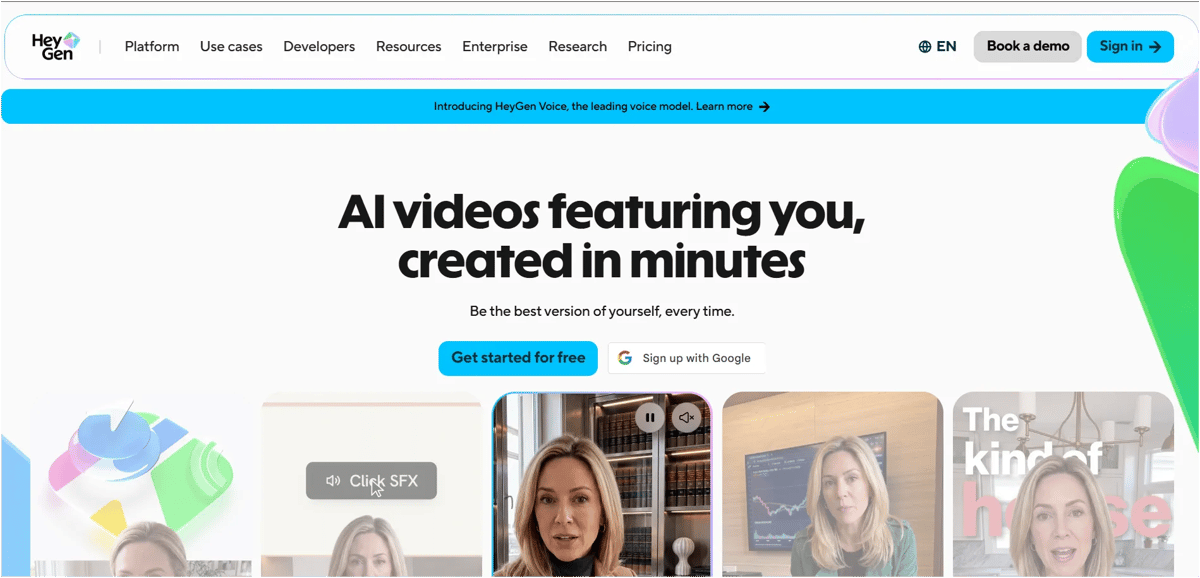
HeyGen AI is a video creation tool that turns your script into a video with a talking AI avatar. You choose a presenter and voice, add your text, and generate the video without filming yourself. It’s useful for explainers, tutorials, training videos, and social media content.
Why You Can Trust Our HeyGen AI Review
We know how frustrating it is to pay for a tool and find out it doesn’t do what you expected. That’s why we bought our own HeyGen subscription and tested it ourselves. This review isn’t sponsored or part of a collaboration or affiliate promotion. We share the videos we created, the problems we faced, and what worked for us so you can make a more informed choice before spending your time and money.
Which HeyGen Features Did We Test?
- HeyGen AI Studio
- HeyGen Video Agent
- HeyGen Video Podcast
- HeyGen AI Video Translator
How We Tested the Tools
We tested each feature using the inputs it needed, such as prompts, images, or voice recordings. We also tried templates where relevant to see what we could create with them. In this review, we share the actual outputs, what worked, and the issues we faced so you can see what to expect from our experience.
HeyGen AI: Quick Overview Table
Feature | What It Does | Our Test Input | Generation Time | Credits Used | Our Verdict |
|---|---|---|---|---|---|
AI Studio | Script-to-video with an AI avatar | 21-sec English script, pre-made avatar, 1080p | ~2 minutes | 17 | Fast, natural, easy to use |
AI Studio – Translate | Translates script + on-canvas text | English → Spanish (Latin America) | ~2 minutes | 23 | Good lip-sync, auto-adjusted length (28 sec) |
Video Agent | Turns a prompt into a full video | 30-sec, voice-over only, Seedance on | ~9 minutes | 22 | Impressive output from a single prompt |
Video Podcast | Two-avatar podcast conversation | 1-min script, 720p | ~9 min preview + ~5 min final | 80 (50 + 30) | Great quality, but strict script rules |
AI Video Translator | Translates uploaded videos into 175+ languages | English → Tamil | ~5–6 minutes | 3 | Very cheap, lip-sync decent but not perfect |
Upscale | Upscales to 4K | Same Studio video | Up to ~1 hr 14 min (Precise) | 14 (Standard) / 71 (Precise) | Useful, but slow and credit-heavy on Precise |
Heygen AI Studio
HeyGen AI Studio is an editor where you can create videos with an AI presenter. You write a script, choose an avatar and voice, and the avatar speaks your words in the video. You can also add backgrounds, images, text and captions to explain your topic without recording yourself on camera.
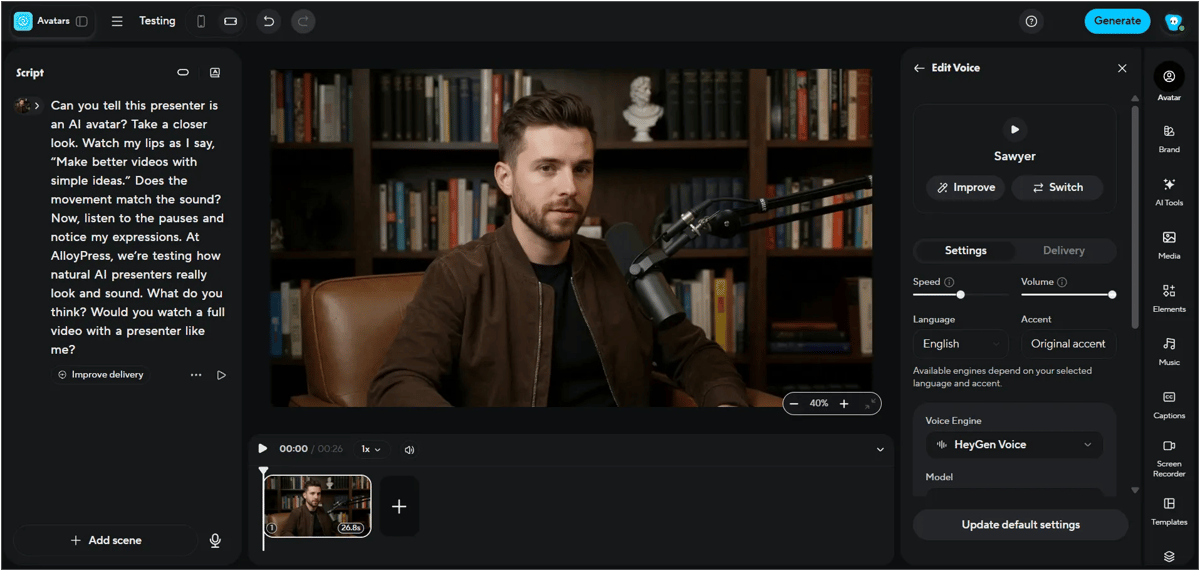
We used HeyGen's pre-made avatar and voice templates, then pasted our script into the left-side panel. We named the video "Testing," selected 1080p resolution and MP4 format, and turned off the HeyGen watermark.
Our 21-second video took about two minutes to generate and used 17 credits. The downloaded file was 20 MB.
Downloading was easy. We could change the video resolution before downloading or download just the captions separately. There was also an option to connect Google Drive, and HeyGen showed the video’s view count.
For sharing, we could make the video accessible to anyone with the link or limit access to team or project members. Other options included password protection, embedding the video and copying its thumbnail image to the clipboard.
Watch our video below and judge how natural the avatar looks and sounds.
After downloading the video, we explored HeyGen’s editing options and tried translating our output into Spanish (Latin America).
There are two translation options. “Translate script” changes the spoken script into the selected language. “Translate text on the canvas” also translates text added in the editor, but it won’t translate text inside images or videos. You only need to select both if you want to translate both the speech and the text added in the editor.
We selected both options and clicked Translate. The script translated quickly. We played the preview to check the Spanish audio, then clicked Generate. The video was ready in about two minutes.
The translated video’s duration changed to 28 seconds to fit the Spanish script. The output looked good, and the lip movements matched the speech well. The downloaded file was 25.9 MB and the translation used 23 credits.
Watch the same video translated from English to Spanish below
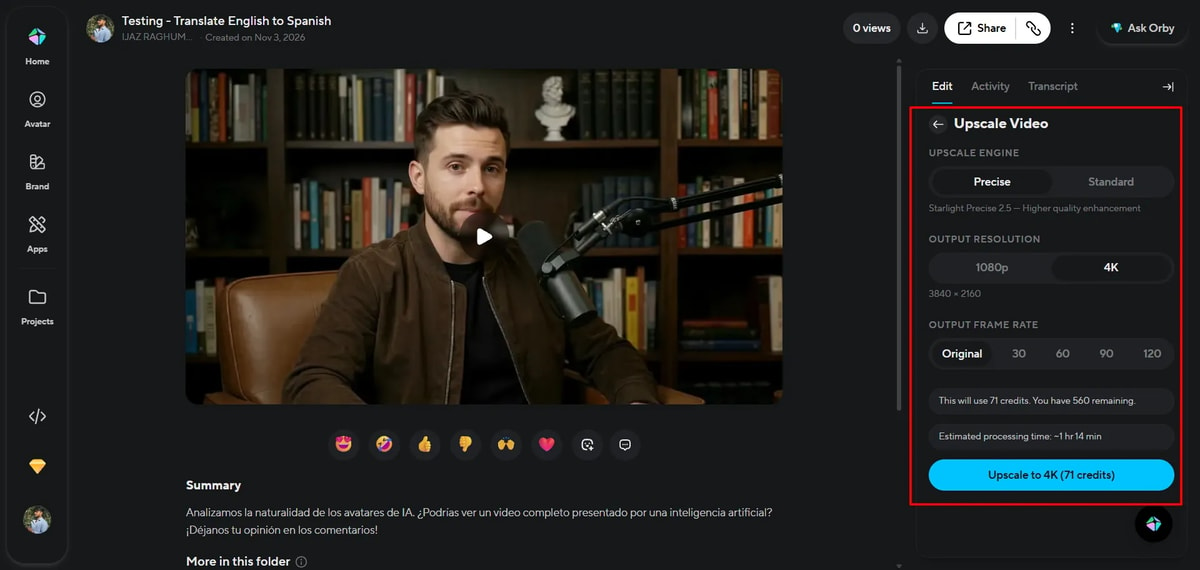
HeyGen also offers options to change your video thumbnail, upscale your video or turn it into short clips.
For upscaling, choose Standard for faster results or Precise for sharper details, such as faces and textures. For our video, Standard showed a cost of 14 credits, while Precise showed 71 credits with an estimated processing time of 1 hour and 14 minutes.
If you have a long podcast, interview, or tutorial, AI Clipping can turn it into short highlights for Reels or Shorts. You can describe the parts you want to highlight, choose the clip length and format and add captions.
HeyGen Video Agent
HeyGen Video Agent turns your idea into a video. You describe what you want, choose an avatar, voice, language and the AI writes the script and builds the scenes for you. It’s useful for creating explainers, tutorials and social media videos without putting every scene together yourself.
Prompt used to test the feature
Create a 30-second landscape video (16:9) for AlloyPress about “3 practical ways to use AI at work.” Use only voice-over and visuals, with no avatars or on-screen presenters. Write a simple English script with this opening: “Too much busywork? Try these three ways to use AI.” Cover drafting emails, summarizing meeting notes, and brainstorming content ideas. Show relevant visuals for each task, including an email draft, meeting notes turning into a short summary, and ideas appearing on a planning board. Use a natural, friendly English voice, accurate captions, and short on-screen headings. Keep the design clean with a black background, emerald green accents, and readable white text. Use smooth transitions and quiet background music that doesn’t overpower the narration. Avoid clutter and unsupported claims. End with: “Start with one task, and always check the result.”
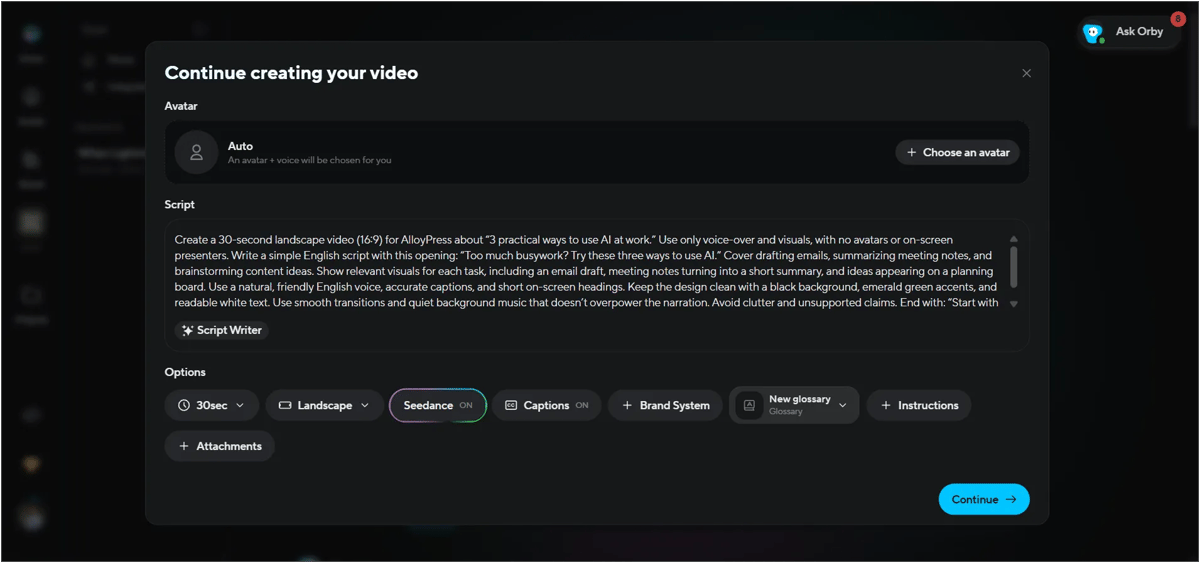
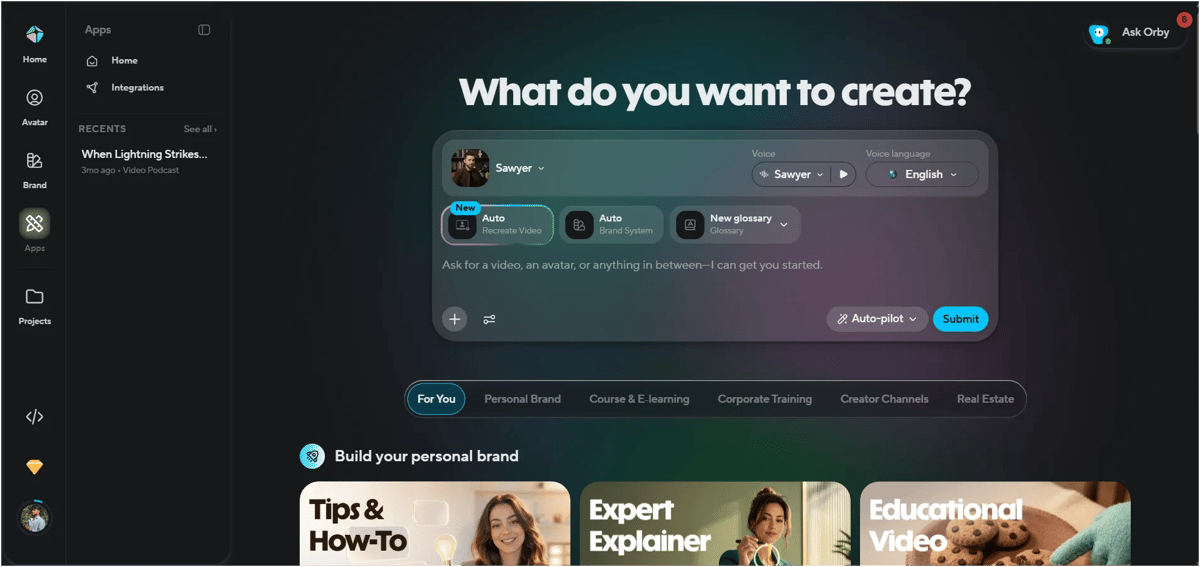
We entered our prompt for a video using only voice-over and visuals, then explored the settings. Recreate Video lets you upload a reference video up to three minutes long, while Brand System offers saved brand kits and style presets. There was also a Glossary option for specific terms and brand names, but we didn’t use it.
The voice menu lets us preview library voices, create or design a voice, or import one from a third-party service. We could also compare engines such as HeyGen Voice, ElevenLabs, Fish, Cartesia and Starfish, depending on the selected language and accent.
For our test, we chose a 30-second duration, Landscape format and captions on. We enabled Seedance after its information note explained that it adds cinematic movement but uses more credits. The avatar setting remained on Auto, although our prompt requested no presenter. We then clicked Continue and Generate.
The video took nine minutes to generate and used 22 credits. We were happy with how the output turned out.
HeyGen Video Podcast
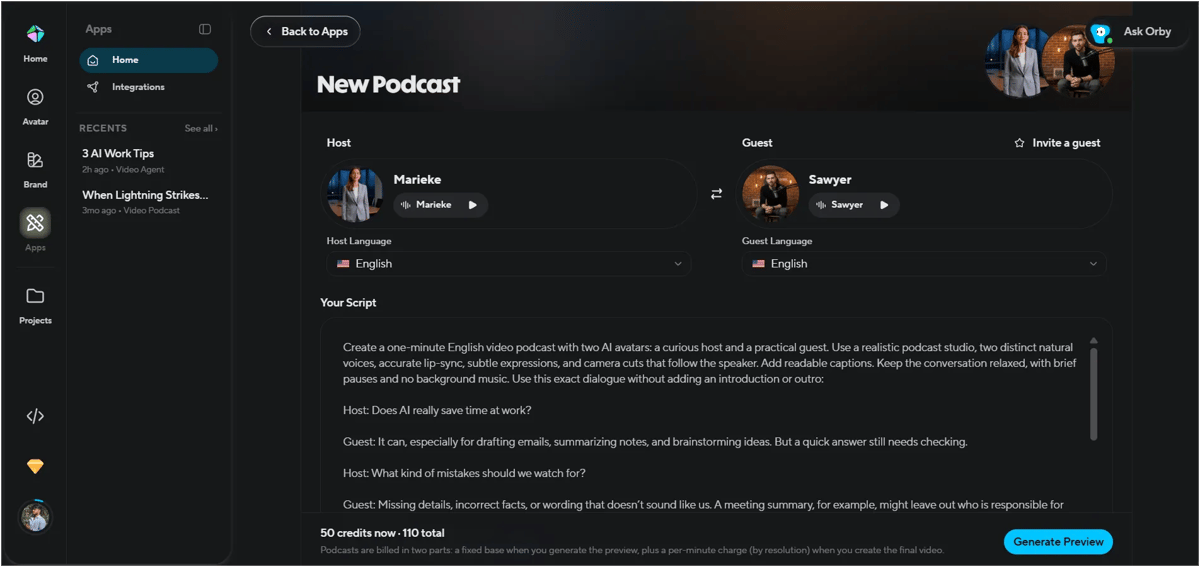
First, we selected the host and guest, chose the language, and pasted our script. We set the duration to one minute and the quality to 720p. The preview used 50 credits, and generating the final podcast used another 30 credits, bringing the total to 80 credits.
For a two-minute video at 1080p, HeyGen showed 100 credits for the preview and another 80 credits for the final generation, totalling 180 credits. You can set the duration up to three minutes, with credit usage varying based on the duration and quality you choose.
Issues We Faced:
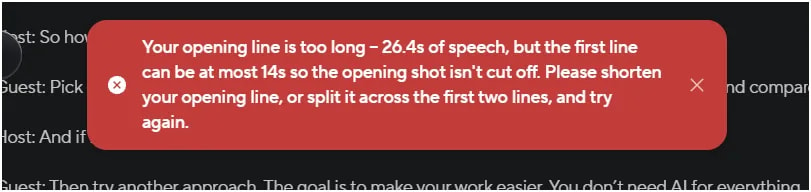
When we pasted the podcast script and clicked Generate, we encountered an error. The problem was with the opening line. HeyGen requires the opening line to be within 14 seconds, but ours was 26.4 seconds long.
We shortened the opening line and tried again, but HeyGen made it too short. After adjusting it again and submitting it, the preview finally generated successfully. This took around 9 minutes. Once the preview was ready, we clicked Generate to create the final podcast.
The 48 secs podcast video was ready in around 5 minutes. When we selected a 1-minute duration, the generated podcast was 48 seconds long. The downloaded video was 5.7 MB, and the output quality was really good.
The camera angle also changes depending on who is speaking, which makes the conversation feel a little more realistic. We've attached our generated podcast video below so you can check the actual output and judge the quality yourself.
HeyGen AI Video Translator
HeyGen’s AI Video Translator offers translation into 175+ languages. We could upload a video from our computer, select an existing HeyGen project, or paste a YouTube or Google Drive link.
On our Creator plan, the upload screen allowed videos up to 30 minutes long and 5 GB in size, supporting MP4, MOV, and WEBM files.
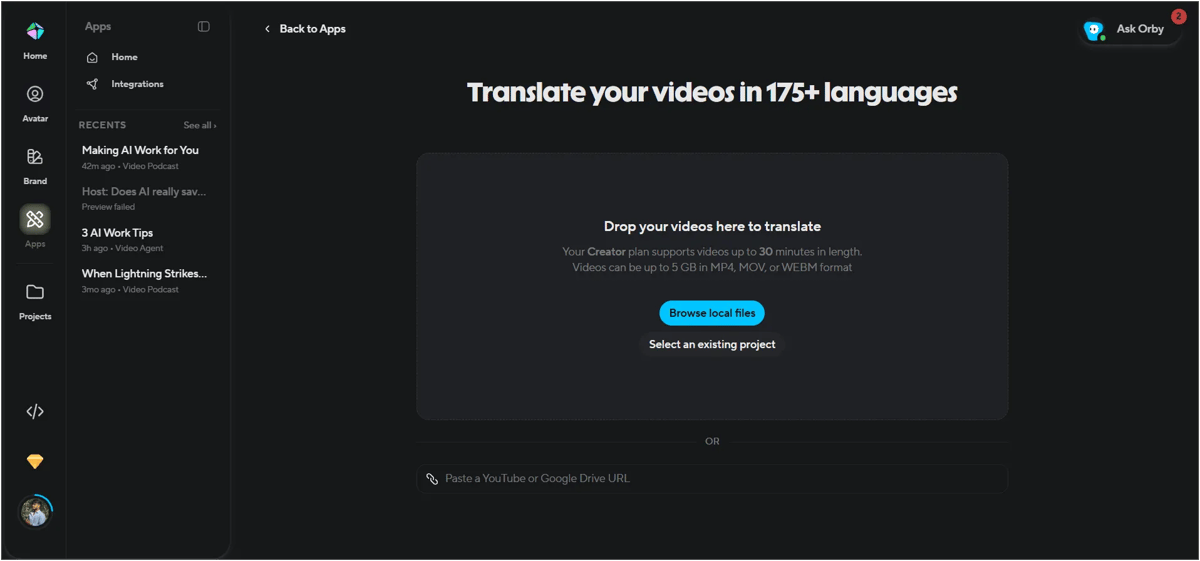
The English video took around 5–6 minutes to translate. We also tested the Tamil translation to check how well the lip-sync worked. The lip movements matched the Tamil audio reasonably well. We wouldn't call it 100% perfect, but the lip-sync was not bad. The content was also successfully translated into Tamil and the entire process used only 3 credits. The downloaded video file was 19.5 MB.
HeyGen pros
HeyGen Pros | Our Experience |
|---|---|
Quick generation | Our short avatar video was ready in about two minutes. |
Natural avatars | Lip movements and expressions looked convincing, including in Spanish. |
Built-in translation | Translate speech and editor text, with duration adjusting to the new script. |
Low translation cost in our Tamil test | The translation used 3 credits. |
Automated video creation | Video Agent handled the script, scenes, captions, and music from one prompt. |
Flexible voice options | Preview, clone, design, or use different voice engines. |
Podcast camera switching | Camera angles followed the speaker. |
Sharing and downloads | Passwords, restricted access, embeds, caption downloads, and Google Drive connection. |
Large translation uploads | Our Creator plan supported videos up to 30 minutes and 5 GB in MP4, MOV, or WEBM. |
HeyGen Cons
HeyGen Cons | Our Experience |
|---|---|
High podcast credit usage | A one-minute podcast used 80 credits at 720p; 1080p showed 180 credits. |
Strict opening-line limits | The podcast opening needed several adjustments to meet the length requirements. |
Prompt and settings mismatch | Avatar stayed on Auto despite our request for no presenter. |
Long upscaling estimate | Precise 4K showed 71 credits and an estimated 1 hour 14 minutes for a short clip. |
Imperfect Tamil lip-sync | Lip movements didn’t always match the speech accurately. |
Inexact duration | Our one-minute podcast setting produced a 48-second video. |
Limited text translation | Text inside images and videos wasn’t translated. |
No Creator credit top-ups in our account | Buying extra credits wasn’t available; an upgrade was required to continue before renewal. |
HeyGen Pricing Table (Nov 2026)
Plan | Monthly Price | Annual Price | Credits | Key Features | Best For |
|---|---|---|---|---|---|
Free | $0 | – | Limited | 3 videos/month, up to 1 min each, watermarked | Trying the tool |
Creator | $29/month | $24/month | 600/month | 1080p export, videos up to 30 min, voice cloning, 175+ languages, no watermark | Solo creators |
Pro | From $49/month | Contact sales | 1,000+/month | Everything in Creator + 4K export, translation script editing, scalable credit tiers | Power users |
Business | $149/month + $20/extra seat | Contact sales | 1,500/month (shared) | Videos up to 60 min, team collaboration, SSO, SCORM, LMS integrations | Teams & L&D |
Enterprise | Custom | Custom | Custom | Custom limits and security | Large organizations |
Mistakes to Avoid When Using HeyGen
Mistake | What to Do Instead |
|---|---|
Making the podcast opening too long or short | Keep it under 14 seconds, with enough dialogue to introduce the topic. |
Choosing 1080p before testing | Start at 720p to save credits, then increase the resolution once satisfied. |
Relying only on your prompt | Check the avatar, format, and duration settings before generating. |
Enabling premium options every time | Use Seedance and Precise upscaling when the extra quality justifies the credits and wait. |
Skipping the translation preview | Listen first and have someone who knows the language check the wording. |
Expecting image text to translate | Replace it with translated images or add the text in the editor. |
Not tracking credits | Check each generation’s cost and plan ahead. Our Creator account had no top-up option. |
Expecting an exact video length | Check the finished duration. Our one-minute podcast came out at 48 seconds. |
Who Should Use HeyGen?
Best For | Why It Works |
|---|---|
Content creators | Faceless explainers and social videos, no camera needed |
Marketers & small businesses | Quick product and promo videos with captions |
Educators & course creators | Update lessons by editing the script, not re-recording |
Training & L&D teams | Scalable training videos with SCORM and LMS support |
Global brands | 175+ languages with lip-sync, our Tamil test cost 3 credits |
Who Should Skip This Tool?
Might Skip It | Why |
|---|---|
Tight credit budgets | Podcasts and 4K upscaling use credits fast |
Perfect lip-sync needs | Tamil lip-sync wasn’t fully accurate in our test |
Filmmakers | Built for speed, not detailed creative control |
Final Conclusion
After testing HeyGen with our own paid Creator plan, we found it to be a genuinely useful tool for creating avatar videos quickly. AI Studio delivered natural-looking results in minutes. Video Agent turned a single prompt into a polished explainer. The AI Video Translator stood out for its value, translating a full video into Tamil for just 3 credits.
The main things to watch are credit usage and a few rough edges. Video Podcasts are impressive but expensive and picky about script formatting. Some settings, like the avatar in Video Agent, don’t always follow your prompt.
If you create explainers, training content, social videos, or multilingual content regularly, HeyGen is worth the investment. The Creator plan is enough for most solo creators. Move to Pro only if you need 4K or more credits. Start small, test one feature at a time, and always review your output before publishing.
Frequently Asked Questions
1. Is HeyGen worth it in 2026?
Yes, if you make an avatar or translate videos regularly. In our tests, it produced natural-looking videos in minutes. It’s especially good value for translation. Just plan your credits carefully, because some features use them quickly.
2. How much does HeyGen cost?
HeyGen has a free plan with 3 watermarked videos per month. Creator is $29/month(24/month annually) with 600 credits. Pro starts at $49/month with 1,000 credits. Business is $149/month plus $20 per extra seat. Enterprise pricing is custom.
3. How many credits does a HeyGen video use?
It depends on the feature. In our tests, a 21-second AI Studio video used 17 credits, a Video Agent video used 22, and a 1-minute podcast used 80 credits at 720p. Translating a video into Tamil used just 3 credits.
4. How accurate is the HeyGen AI video translator?
It’s quite good. Our Spanish translation had well-matched lip movements. Tamil lip-sync was decent but not perfect. HeyGen supports 175+ languages. It translates the script and editor text, but not text inside images.
5. Can I use HeyGen without showing an avatar?
Yes. Video Agent can create voice-over videos with visuals only. In our test, though, the avatar setting stayed on “Auto” even when the prompt asked for no presenter. Check that setting manually before generating.