We all know Canva as a design tool, right? But have you ever explored what you can actually do with its AI features? Canva has added quite a few AI tools, but are they really useful? Can you use them for free, or do you need a paid plan? We tried these tools ourselves, tested different features, and generated real outputs. In this Canva AI review9.0, we'll share what worked, what didn't, what you can use for free, and whether Canva AI is actually worth your time and money. No hype, just our real experience
Quick overview
Tool | Canva Free | Canva Pro |
|---|---|---|
AI images | ~40 a month | ~400 a month |
AI videos | 3–4 a month, no 4K | ~3 a month, longer clips |
Magic Layers | ~11 a month | Works even after limit |
Image upscaler | ~20 a month | Works even after limit |
Magic Edit | Not tested | Fast, works after limit |
Note: All Canva AI tools share one monthly AI limit. The numbers above show what you get if you use that limit on just one tool. Example: on Canva Free, if you make ~40 images, your limit is over. No videos or Magic Layers left that month.
Canva pricing Table
Plan | Monthly | Yearly | AI allowance | Best for |
|---|---|---|---|---|
Free | $0 | $0 | Up to 200 Standard or 20 Premium AI uses | Trying Canva AI |
Pro | $18/month | $144/year (1 person) | About 10x Free (up to 2,000 Standard, 200 Premium or 20 Ultra uses) | Solo creators, bloggers, freelancers |
Business | $25/person/month | $250/person/year | About 20x Free | Teams that need shared brand kits |
Enterprise | Custom | Custom | Custom | Large organisations |
Prices exclude tax and vary by country. Need more AI? Canva sells an AI Pass add-on for Pro and Business. Checked on canva.com/pricing in November 2026.
Canva Free vs Canva Pro: AI Image Generation Test
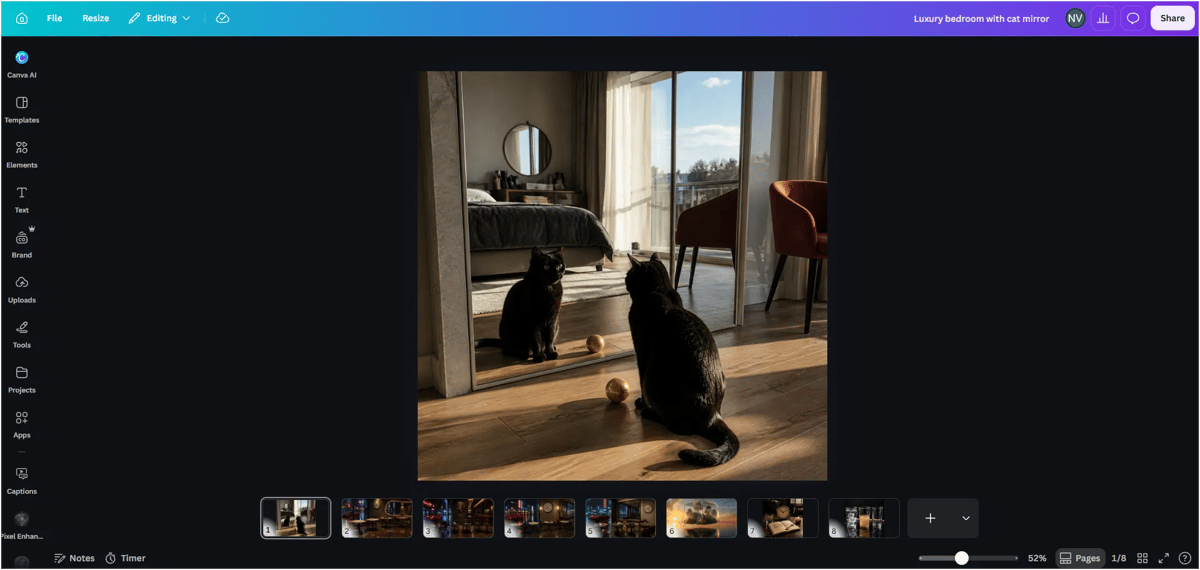
We tested Canva AI image generation using the same five challenging prompts on both Free and Pro accounts to compare image quality, prompt accuracy, usage limits, and generation speed.
1. Image Quality and Prompt Accuracy
Test | Canva Free Account | Canva Pro Account |
|---|---|---|
Mirror Reflection | 6/10 | 8/10 |
Glass and Water Physics | 6/10 | 7/10 |
Clock and Text Accuracy | 8/10 | 8/10 |
Floating Glass Cube | 7/10 | 7/10 |
Futuristic Café | 3/10 | 4/10 |
Average Prompt Accuracy | 6/10 | 6.8/10 |
Overall Image Quality | 8.8/10 | 9/10 |
Scores are based on our visual review of five generated images per account, not an official benchmark. Need more accurate results for complex prompts? See our list of the best AI image generators
Canva’s images looked realistic enough that you can’t always tell they’re AI-made. You can check any image with an AI image detector. .
2. AI Image Generation Usage and Limits
Feature | Canva Free Account | Canva Pro Account |
|---|---|---|
AI usage consumed | 2–3% per image | 1% per 4 images |
Estimated monthly images | Around 40 | Around 400 |
Generation time | For one image 25 seconds | For one image 18 seconds |
Usage allowance | Limited | Higher |
Testing basis | Our hands-on test | Our hands-on test |
Note: The monthly image counts are estimates based on the usage percentages we observed, not confirmed official Canva limits. Actual usage may vary by AI feature, model and account.
Canva Free vs Canva Pro: AI Video Generation Test
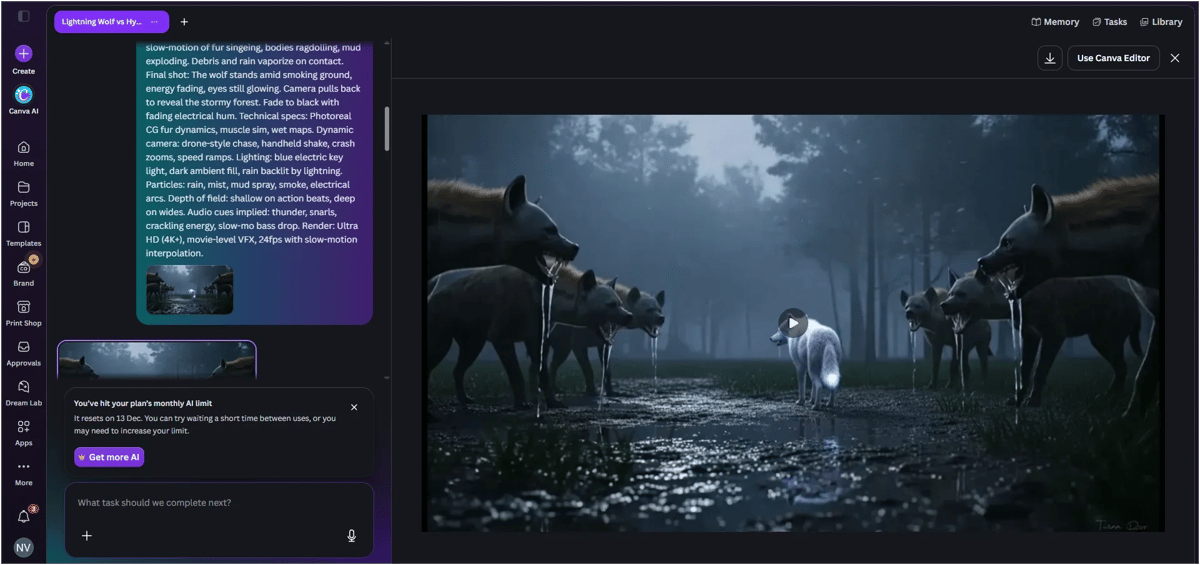
We tested Canva Free and Pro using the same three challenging image-to-video prompts to compare video quality, prompt accuracy, audio, generation speed, and usage limits.
Prompt and Video Output – HTML Code
1. Video Quality and Prompt Accuracy
Test | Canva Free Account | Canva Pro Account |
|---|---|---|
Wolf Transformation | 6/10 | 7/10 |
Racing Car and Shark Attack | Not generated (4K restriction) | 8/10 |
Bus to Robotic Dinosaur | 5.5/10 | 6.5/10 |
Average Prompt Accuracy | 5.8/10 | 7.2/10 |
Overall Video Quality | 7.5/10 | 8.2/10 |
Audio | No audio in 2 videos | Audio in 1 of 3 videos |
Scores are based on our review of two Free videos and three Pro videos, not an official benchmark.
Pro videos used more allowance because they ran on Ultra AI with 4K output, so Pro’s 10x allowance doesn’t mean 10x more videos.
2. AI Video Generation Usage and Limits
Feature | Canva Free Account | Canva Pro Account |
|---|---|---|
AI usage consumed | 24–32% per video | 32% per video |
Estimated monthly videos | Around 3–4 | Around 3 |
Video duration | 5.88 seconds | 8 seconds |
Generation time | 1 min 18 sec (wolf test) | 1 min 18 sec |
Video file size | 2.9–3.1 MB | 7.8–10.8 MB |
4K requests | Offered HD instead | Accepted |
Ultra AI | Not available in our test | Available |
Generation restrictions | Some prompts failed | All 3 videos generated |
Note: Monthly video counts are estimates based on our observed AI usage, not official Canva limits.
3. Our Experience
Both Canva Free and Pro created good-looking videos with rain, lightning, action effects and transformations. Pro generated longer videos and followed more instructions, but both missed some details in complex prompts.
Canva Free couldn't generate some videos when our prompts requested 4K, audio, or specific durations. It also showed that Ultra AI wasn't available on our plan.
Audio was inconsistent. Both Free videos had no sound, while only one of our three Pro videos included audio.
Canva Free used 24–32% of our AI allowance per video, while Pro used 32%. Three Pro videos consumed 96% of our monthly allowance.
Overall, Canva Pro performed better in our tests, but both accounts had limitations. Free is useful for testing short videos, while Pro produces more complete results. However, high AI usage, missing audio and incomplete prompt accuracy were the main problems we found.
If you create AI videos regularly, compare Canva with the best AI video generators.
Canva Magic Layers: Free vs Pro
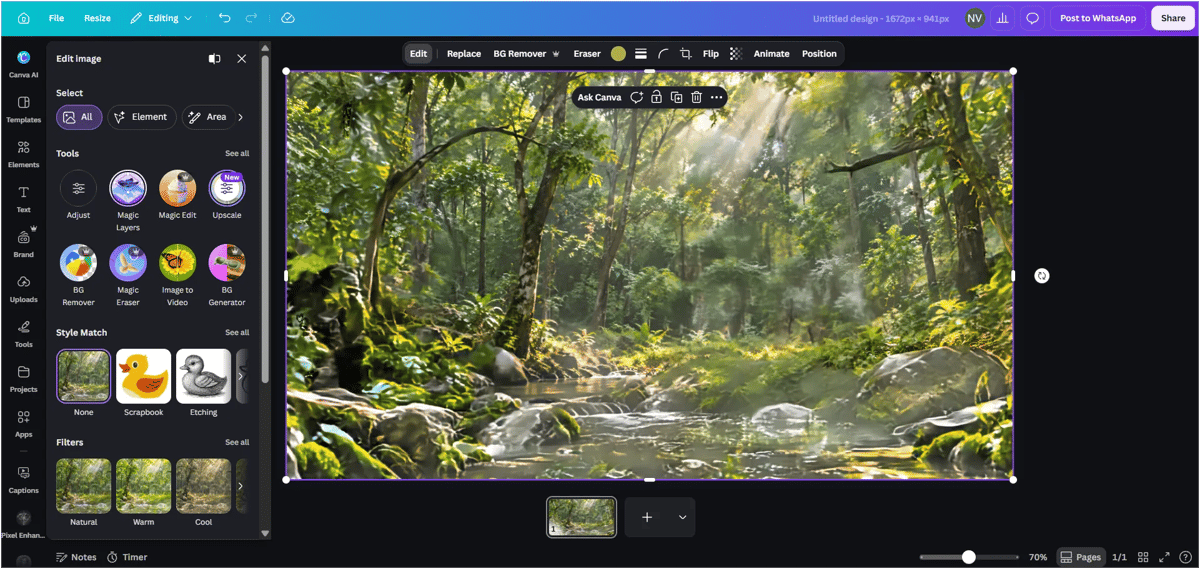
We tested Canva Magic Layers on both Free and Pro accounts to see how well it separates an image into editable layers and how much AI usage it consumes.
Canva Free vs Pro: Magic Layers Test Results
Feature | Canva Free | Canva Pro |
|---|---|---|
AI usage per image | 8–9% | No AI usage remaining during our test |
Estimated monthly uses | Around 11 | Not confirmed |
Processing time | 10–12 seconds | 10–12 seconds |
Layers created | Based on image | Based on image |
Main limitation | AI usage allowance | Increasing wait time |
Monthly usage is estimated from our tests, not Canva's official limit.
Our Experience
Canva Free: Magic Layers consumed 8% or 9% of our AI usage allowance per image. We tested five images and saw similar usage each time, regardless of the uploaded image.
Based on this, we estimate around 11 Magic Layers uses per month if the full allowance is available. Once the AI usage limit is reached, Canva prompts users to upgrade to a paid plan.
Canva Pro: Magic Layers separated our image into 19 editable layers in around 10–12 seconds, even though we had already used our AI allowance.
However, after using it once, Canva showed a waiting timer before we could try again. The wait ranged from 2 minutes 30 seconds to 3 minutes 20 seconds and increased with repeated use. We didn't find a fixed waiting time.
Overall, Canva Free lets us separate existing images into editable layers, but each use consumes 8–9% of the AI allowance. Canva Pro also worked after our AI allowance was exhausted, although repeated use required longer waits.
Canva AI Image Upscaler: Free vs Pro
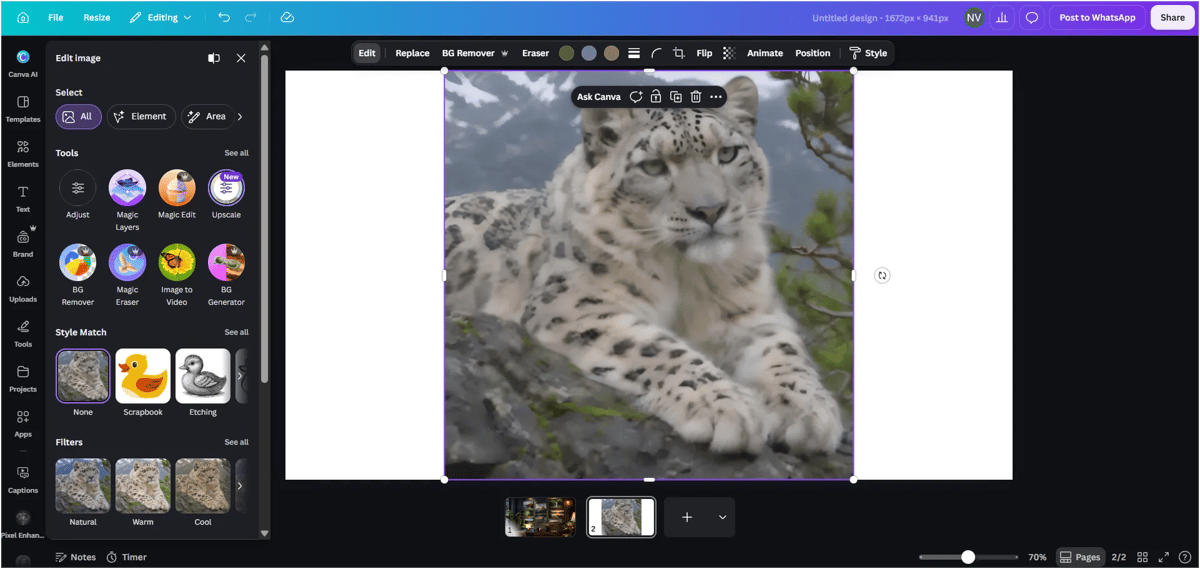
Feature | Canva Free | Canva Pro |
|---|---|---|
AI usage per image | 5% | Not recorded |
Estimated monthly upscales | Around 20 | Not confirmed |
After AI usage limit | Requires more allowance | Still worked in our test |
Our Experience
Canva Free: Upscaling one image consumed 5% of our AI usage allowance. Based on this, we could upscale around 20 images per month if we used the entire allowance only for upscaling.
Canva Pro: We could still use the image upscaler even after our AI usage allowance was exhausted.
Overall, Canva Free is useful for occasional image upscaling, but each image consumes part of the AI allowance. Canva Pro allowed us to continue upscaling after reaching our displayed AI usage limit.
For bulk or high-resolution upscaling, try one of the best AI photo enhancers.
Note: The 20-image estimate is based on our observed usage, not an official Canva monthly limit.
Canva Magic Edit: Our Experience with Canva Pro
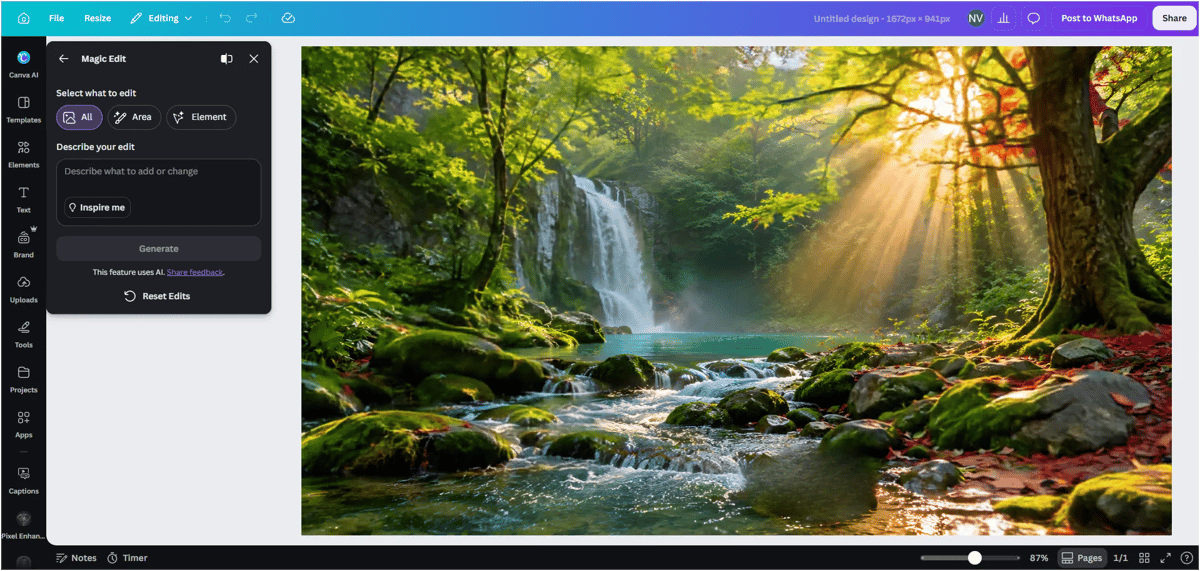
We tested Canva Magic Edit to change and remove objects from existing images.
Area Selection: We selected the part of an image we wanted to edit. Canva showed options to duplicate or delete the selected object. We could also deselect it if we selected the wrong area.
Element Selection: Canva scanned the image and showed its elements separately. We could select an object, enter a prompt, and change only that part without editing the entire image.
We could also choose where to place an object and edit it separately using a text prompt.
Our Experience: Magic Edit completed edits within a few seconds. Even after our Canva Pro monthly AI usage allowance was exhausted, we could continue using Magic Edit multiple times during our test.
Want more editing control than Magic Edit? Check out the best AI image editors.
Canva AI pros
Pro | Why it matters |
|---|---|
Free plan covers every major AI tool | You can test images, video, Magic Layers and upscaling before paying |
Realistic image quality | Free images scored 8.8/10 for overall quality in our test |
Pro is faster with far more generations | 18 sec vs 25 sec per image, ~400 vs ~40 images a month |
Editing tools keep working on Pro after the limit | Magic Layers, Upscaler and Magic Edit still ran after our allowance hit 0 |
Magic Layers is genuinely useful | Split one image into 19 editable layers in about 10–12 seconds |
Everything in one editor | Generate, edit, upscale and design without switching apps |
Canva AI cons
Con | Why it matters |
|---|---|
AI video eats your allowance | 3 Pro videos used 96% of the month's AI allowance |
Audio is unreliable | No audio in both Free videos, and in only 1 of 3 Pro videos |
Complex prompts miss details | Our "Futuristic Café" prompt scored just 3/10 (Free) and 4/10 (Pro) |
Free plan blocks 4K and Ultra AI | Some Free prompts failed or were downgraded to HD |
Wait timers on repeated use | Pro's Magic Layers wait grew from 2 min 30 sec to 3 min 20 sec |
Usage shown as percentages | Hard to know how many generations you have left |
Final conclusion: Is Canva AI worth it?
Stay on Canva Free if you need a few AI images or photo edits a month. It's enough to make social posts and test every tool.
Upgrade to Canva Pro ($144/year) if you design every week. You get about 10x more AI images and faster results, and the editing tools kept working for us even after the allowance ran out. That alone makes Pro worth it for bloggers, creators and small businesses.
Look elsewhere if AI video is your main need, or you need complex scenes rendered exactly as written. Canva's video tools use up the allowance quickly and audio is hit-or-miss.
Our verdict: Canva AI is best as a fast design assistant, not a replacement for dedicated AI image or video tools.
FAQs
1. Is Canva AI free?
Yes. Canva Free includes a limited monthly AI allowance. In our test it was enough for about 40 AI images, 3–4 short videos or 11 Magic Layers uses, not all of them together.
2. Is Canva Pro worth it for AI features?
For regular users, yes. Pro gave us about 10x more AI images, faster generation and longer videos, and editing tools like Magic Edit kept working after the allowance ran out.
3. Can Canva AI generate videos with sound?
Sometimes. Neither of our Free videos had audio, and only 1 of our 3 Pro videos did. Videos were short: about 6 seconds on Free and 8 seconds on Pro.
4. What happens when you reach Canva's AI limit?
On Free, Canva asks you to upgrade. On Pro, generation tools stop until the monthly reset, but in our test Magic Layers, the Upscaler and Magic Edit still worked, with a waiting timer between uses.
5. How much does Canva Pro cost?
Canva Pro costs $18 a month or $144 a year for one person. Canva Business is $25 per person a month or $250 per person a year.