Quick verdict
Best for | Developers, students, researchers and curious users who want to try open AI tools for free |
|---|---|
Not ideal for | People who want one polished, all-in-one AI app with customer support |
Price | Free to join. Paid plans start at $9 per month (PRO). Extra computing power is billed separately. |
Coding needed? | No for trying apps in Spaces. Yes for building with models. |
What we liked
- A huge free catalogue of AI models, datasets and ready-to-use apps
- Most AI apps run in the browser with no setup
- Clear license tags make it easier to check what you are allowed to do
What could be better
- It can feel overwhelming for first-time users
- App quality varies a lot because anyone can publish
- Free usage comes with daily limits and queues
What is Hugging Face?
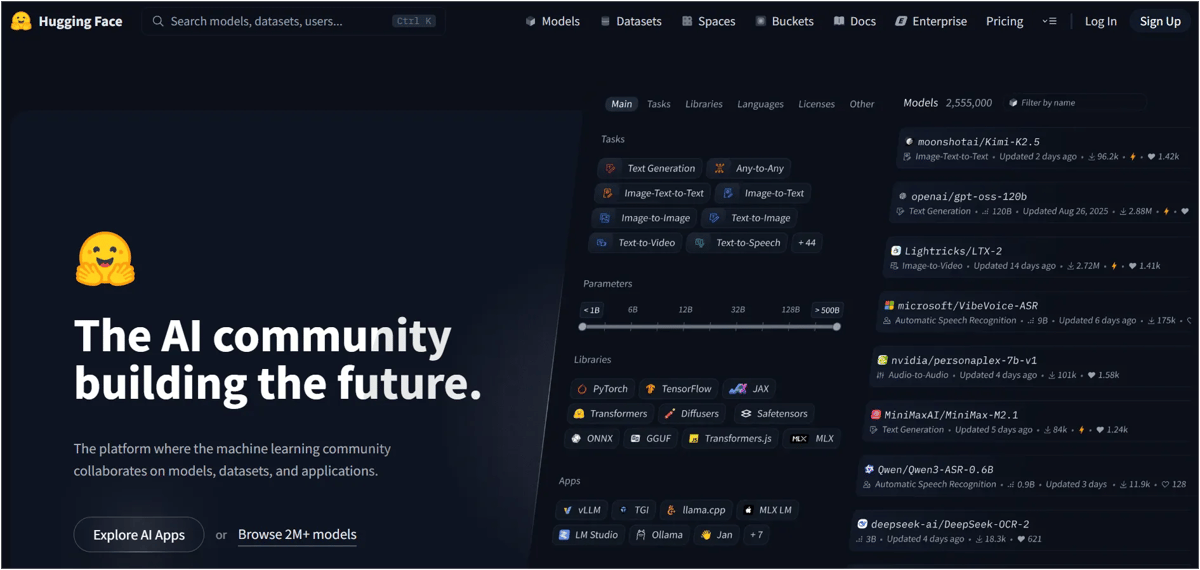
Hugging Face is an AI company and an open platform, often called "the GitHub of AI". It started in 2016 as a chatbot app, then shifted to building tools that help people share and use AI models. When we checked on 10 November 2026, the site listed 3,226,993 models and 1,122,547 datasets, and the Spaces directory listed 1,524,184 AI apps.
Everything on the site falls into three main sections. Once you understand these three, the rest of Hugging Face makes sense.
Section | What it is | What you can do | Coding needed? |
|---|---|---|---|
Models | Trained AI "brains" that do one job, like writing text or removing image backgrounds | Search, compare, try in the browser, download | Only to build with them |
Datasets | Collections of text, images or audio used to train and test AI | Preview, search, filter, download | No to browse |
Spaces | Small AI apps built by the community that run in your browser | Upload a photo or type a prompt and get a result | No |
A model is the part of an AI that does the actual work. One model might turn speech into text. Another might write a story, translate a sentence, or create an image from a description.
On the Models page, you can filter by:
- Task, such as text generation, image-to-image or speech recognition
- Size, measured in parameters. Smaller models can run on a laptop. Bigger ones need powerful hardware.
- Language, which helps if you need a model that understands Tamil, Hindi or another language
- License, which tells you what you are allowed to do with the model
Two more filters are worth knowing. Apps shows models that run in free desktop tools such as Ollama, LM Studio, llama.cpp and Jan. Inference Available shows only models you can try instantly, with nothing to download.
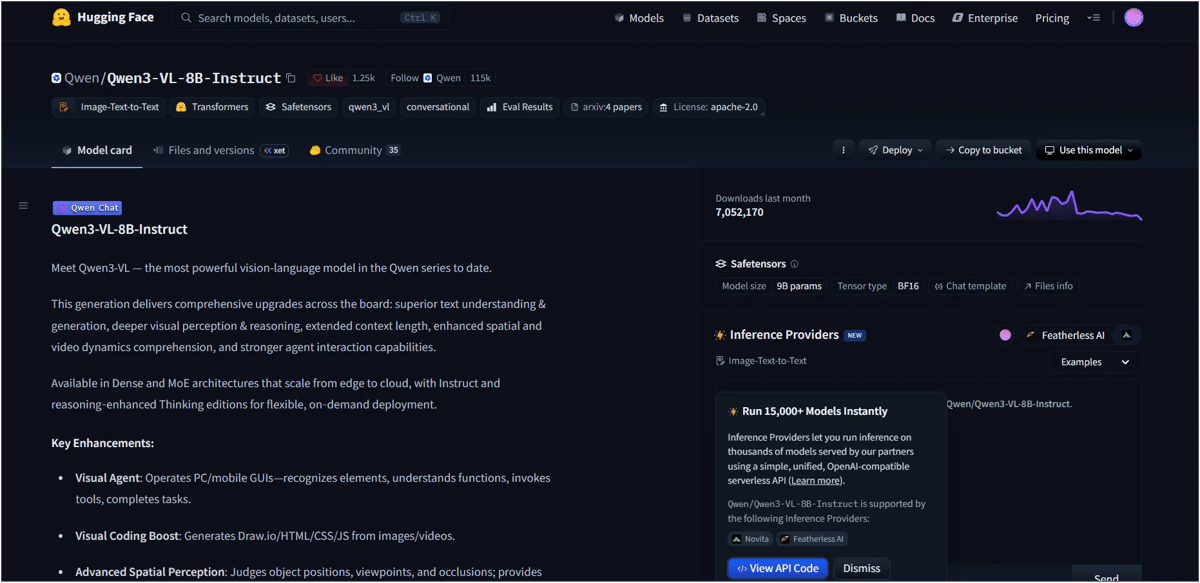
Each model has a model card. This is like a product page. A good model card explains what the model does, how it was trained, its limits and its license. Many cards also have a small test box where you can try the model right on the page.
Tip: how to read a model name. Names look confusing, but they follow a pattern. In a name like Qwen/Qwen3-8B-Instruct, "Qwen" is the publisher, "Qwen3" is the model family, "8B" means 8 billion parameters (its size), and "Instruct" means it was tuned to follow instructions.
Datasets: the training material
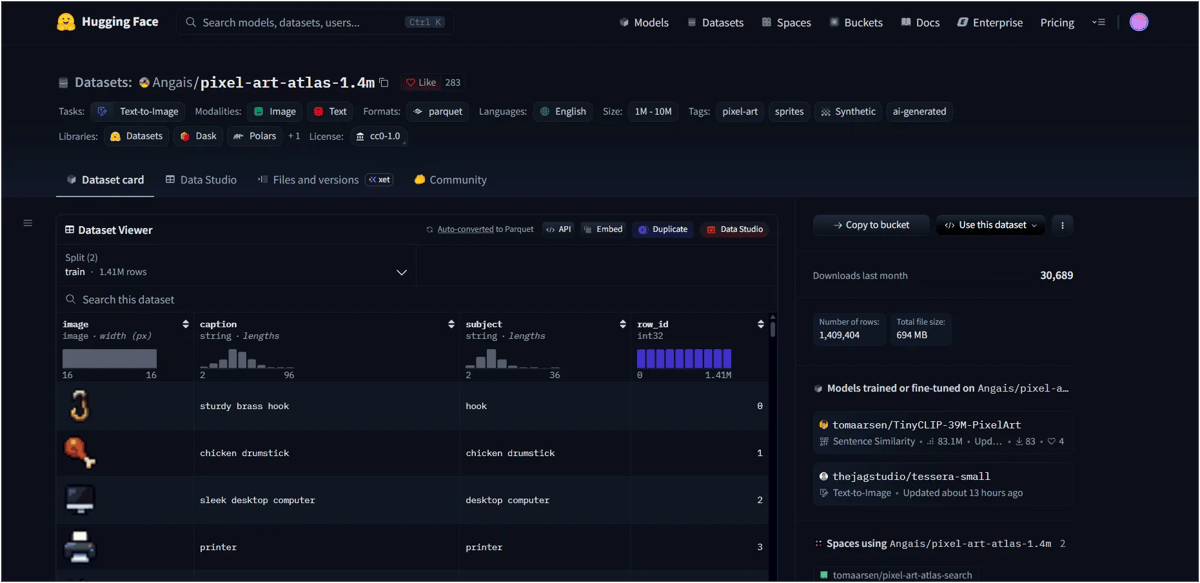
AI models learn from examples. A dataset is a large collection of those examples. It might be millions of product reviews, thousands of labelled photos, or hours of recorded speech.
Most people will never train a model. But datasets are still useful to browse. The Dataset Viewer lets you look at the data like a spreadsheet, search it and filter rows without downloading anything. Researchers and students use it to find data for projects. Developers use it to test how a model performs.
You can filter datasets by type (text, image, audio, video, 3D, documents, tabular data and more), by size and by file format, such as CSV, JSON or Parquet.
Spaces: AI apps you can try right now
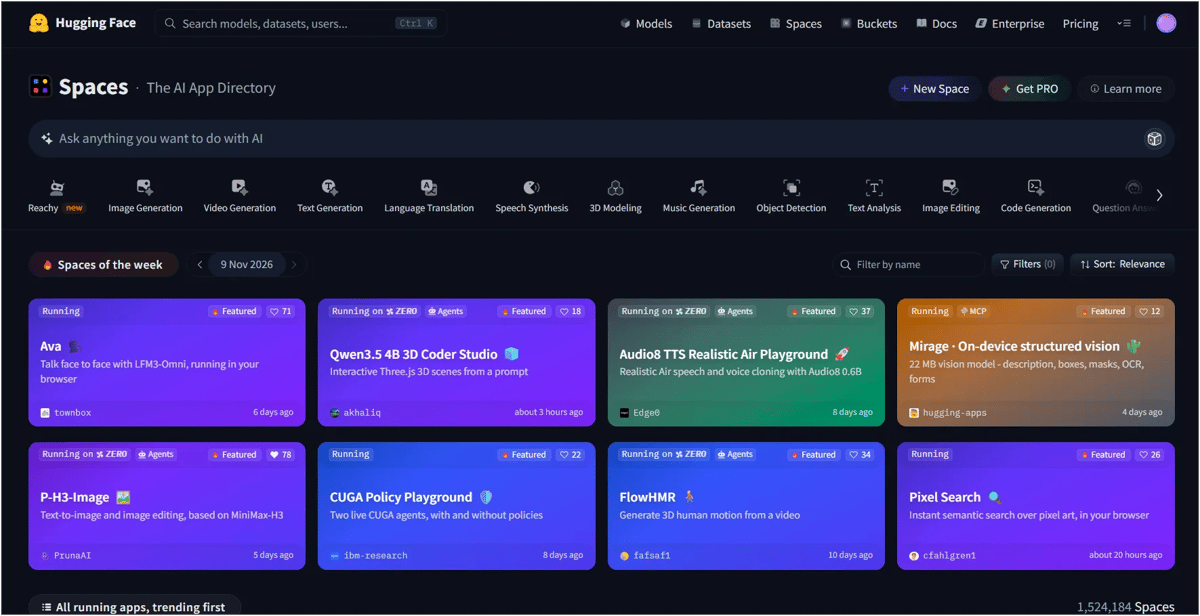
Spaces are the friendliest part of Hugging Face for beginners. Each Space is a small web app that someone has built around a model. You open it, upload a photo or type a prompt, press a button and get a result.
There are Spaces for almost every kind of AI tool you can think of. Here are the most popular types you'll come across.
Hugging Face Spaces offer a range of AI tools that you can try directly in your browser. You can generate images by typing a short description, and many free image generation models are available to explore. If you want to compare more options, check out our guide to the best AI image generators.
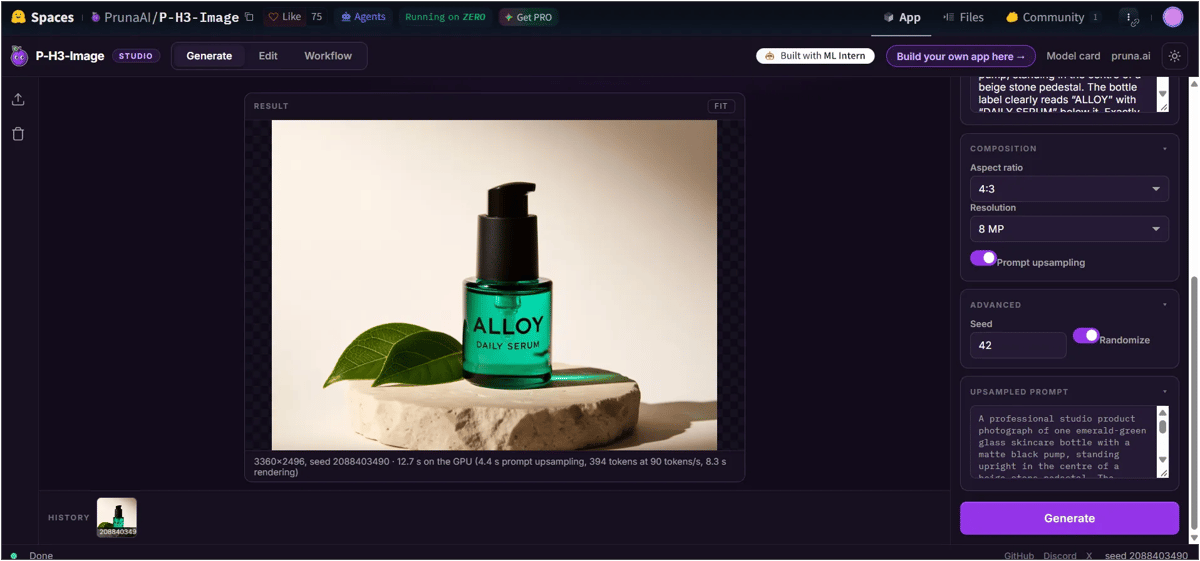
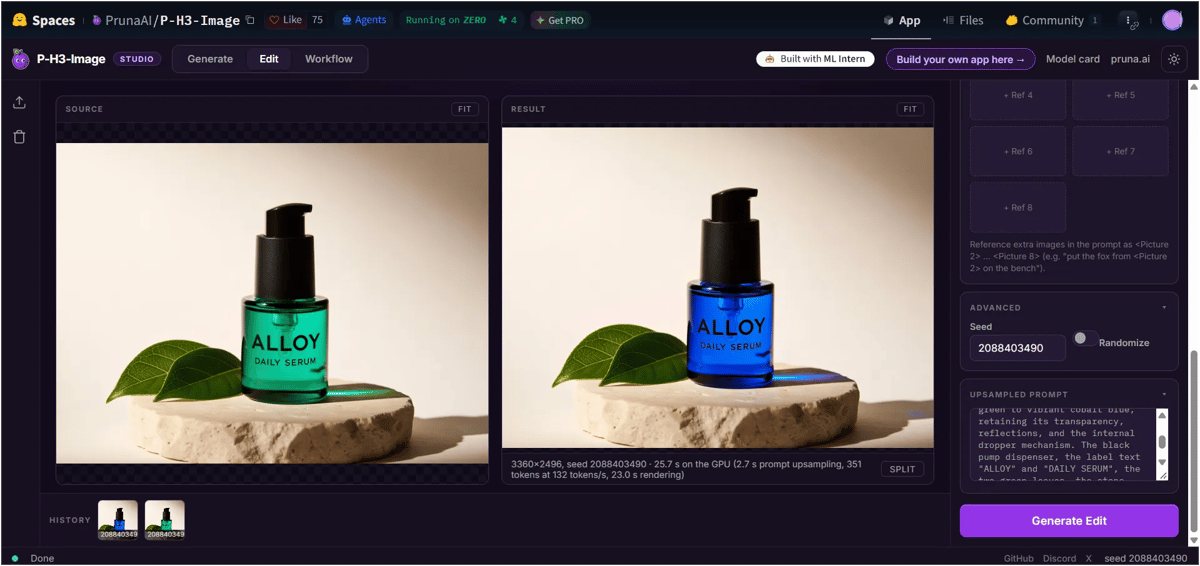
You can also use Spaces to edit existing images. Depending on the tool, you can change backgrounds, adjust lighting, swap clothes or create different views of a product. For more advanced editing options, see our guide to the best AI image editors.
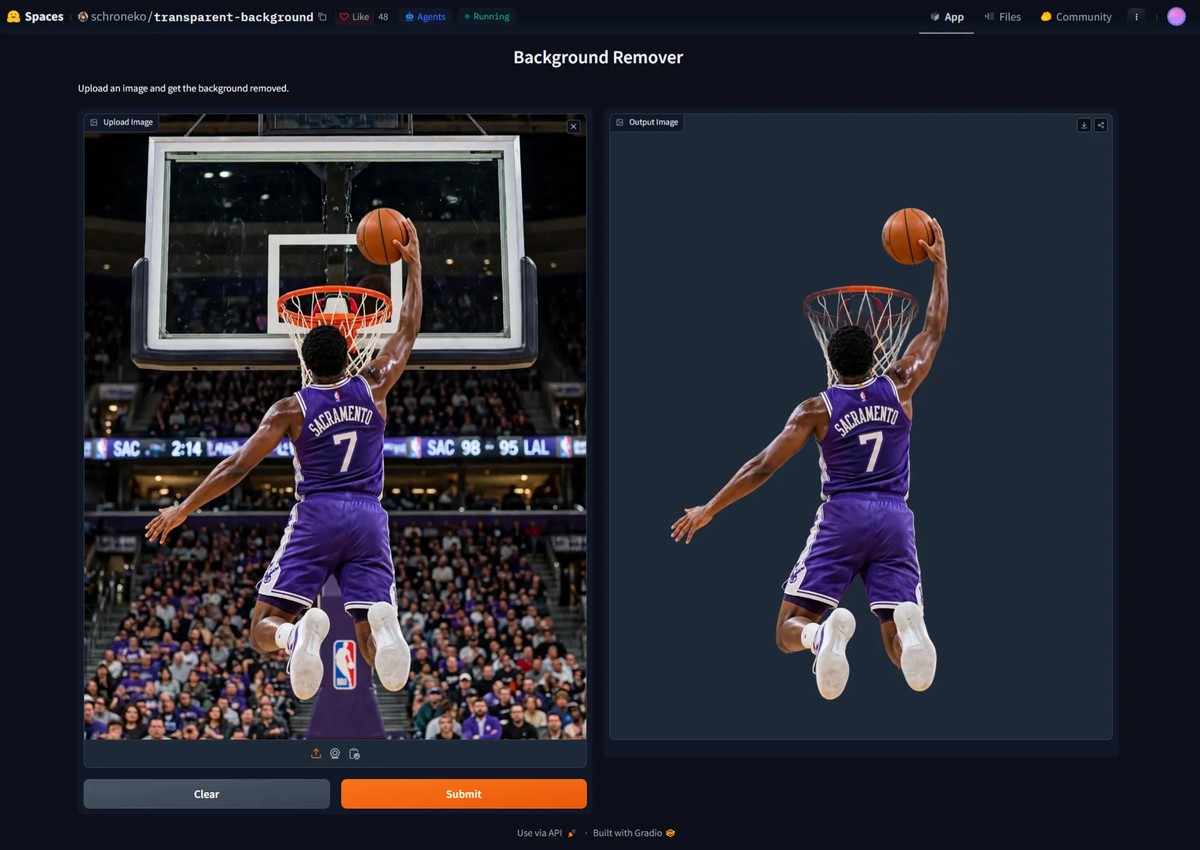
Removing an image background is another useful feature. Just upload a photo, and some Spaces can remove the background and give you a clean cut-out for product images or thumbnails. If you need tools with one-click removal and bulk editing, take a look at our best AI background remover tools.
Some Spaces can also turn text prompts or still images into short videos. They're useful for trying out different video models, but free GPU access is often limited. For tools designed to create longer, higher-quality videos, read our guide to the best AI video generators.
You can find photo enhancement tools that sharpen blurry images, restore old photos and increase image resolution. There are also text-based tools for summarising articles, translating content and extracting text from scanned documents. If summarising is your main requirement, we've tested the best AI text summarizers.
Other parts you may notice
- HuggingChat: a free chat assistant, similar to ChatGPT, that runs on open models
- Inference Providers: a paid API that lets developers call many models with one access key
- Docs and Learn: free documentation and courses on AI and machine learning
How developers use Hugging Face
Developers use GitHub to find code, copy it and build on it. Hugging Face works the same way, but for AI. Instead of starting from zero, a developer can find a model that already does most of the job, test it, and plug it into their own app.
Every model, dataset and Space on Hugging Face lives in its own repository, just like a GitHub project. That means each one has a file list, version history, a discussion tab and a way to suggest changes. If you have used GitHub, you will feel at home.
Finding a model to build on
A typical search looks like this:
- Pick a task filter, for example "Text Generation" or "Automatic Speech Recognition".
- Narrow it down by size, language and license.
- Sort by "Most downloads" or "Trending" to see what others trust.
- Open the model card and read what the model is good and bad at.
- Click Use this model to get ready-made code for popular tools.
Three common ways to use a model
1. Run it on your own computer. You download the model and run it with a library such as Transformers, or with apps like Ollama, LM Studio or llama.cpp. This keeps your data private and costs nothing per use, but you need a good enough computer.
2. Call it through an API. With Hugging Face's Inference Providers, you get one access token and can send requests to many models run by partner companies such as Groq, Cerebras, Together AI, Fireworks, Novita and fal. You pay for what you use. [TEST: how long setup took, response time, and cost per call in our test.]
3. Copy a Space and change it. If you like a Space, you can click Duplicate this Space to make your own copy, then edit the code. This is the fastest way to build a working demo. [TEST: how long it took our copy to go live.]
Sharing your own work
Developers can also upload their own models and datasets, or build a Space to show off a project. Repos can be public, so anyone can use them, or private, so only you or your team can see them.
A simple developer workflow: find a model, try it in the browser, check the license, then build it into your project. That third step is the one people skip most often, so let's look at it closely.
How to check a license before you use a model or code
Here is the most important thing to know: free to download does not always mean free to use in a business. Every model and Space has its own license, and those licenses differ a lot. Checking takes two minutes and can save you from serious trouble later.
Where to find the license
- The license tag near the top of the model page, for example "license: apache-2.0".
- The model card, which often explains the license and any extra rules.
- The Files tab, where you may find a file called LICENSE with the full legal text.
If the tag says "other", always open the full license text. That label usually means a custom license with its own rules.
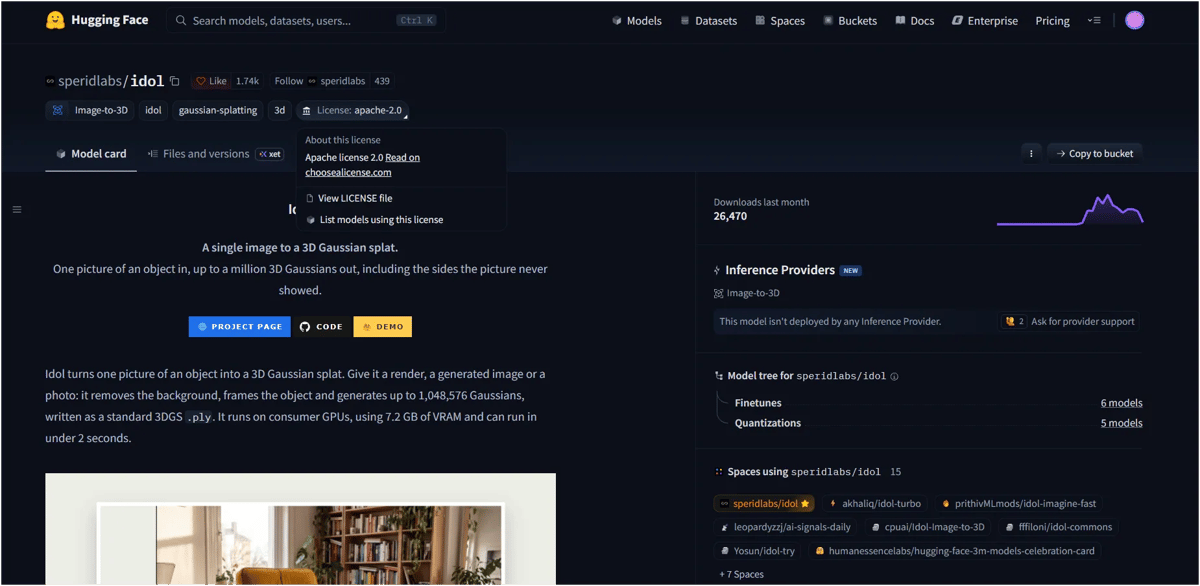
Three questions to ask every time
- Can I modify it? Are you allowed to fine-tune the model or change the code?
- Can I redistribute it? Can you share your changed version or upload it somewhere else?
- Can I use it commercially? Can you use it in a paid product, a client project or anything that makes money?
Common license types at a glance
License type | Examples | Modify | Redistribute | Commercial use |
|---|---|---|---|---|
Permissive | Apache 2.0, MIT (used by Gemma 4 and many Qwen and Mistral models) | Yes | Yes, keep the license and copyright notice | Yes, but you can't use the creator's name or logo as if they endorse you |
Responsible AI (RAIL) | OpenRAIL-M, CreativeML OpenRAIL-M (early Stable Diffusion) | Yes | Yes, and you must pass on the same use restrictions | Yes, except for the banned uses listed in the license |
Custom company license | Llama Community License, Gemma Terms of Use (Gemma 1, 2 and 3) | Yes, within the terms | Yes, with the original terms and notices included | Usually yes, with conditions (see below) |
Non-commercial | CC BY-NC 4.0 and similar | Usually yes, but not under "no derivatives" (ND) versions | Yes, with credit, for non-commercial use only | No |
No license listed | — | No | No | No, normal copyright applies |
How to use Hugging Face Spaces: a beginner's guide
You don't need to know anything about AI to use Spaces. If you can upload a photo to social media, you can use a Space. Here is how to find a good one and try it.
Step 1: Find a Space
Click Spaces in the top menu. You will see a grid of apps. Use the search bar to describe what you want, such as "remove background" or "text to speech". You can also sort by Trending to see what people are using this week.
Step 2: Pick a reliable one
Anyone can publish a Space, so quality varies. Before you click, check:
- Likes. More likes usually means more people found it useful.
- Last updated. Recently updated Spaces are less likely to be broken.
- Who made it. Spaces from well-known companies or official model teams tend to be more stable.
- Status. Look for "Running" on the card.
Step 3: Try it
Open the Space, add your input and press the run button. Popular Spaces often have a queue, so you may see a message showing your place in line. Most simple tasks finish in seconds. Video and 3D tasks can take a few minutes.
Step 4: Save your result
Most Spaces give you a download button for the output. Before you use the result publicly, check the Space's description for any usage terms, and remember that the model's license applies too.
What the status labels mean
Label | What it means | What to do |
|---|---|---|
Running | Ready to use | Go ahead |
Building | The app is starting up | Wait a minute and refresh |
Sleeping | Paused after no one used it for a while | Open it; it will wake up, which may take a minute |
Paused | The owner turned it off | Find another Space |
Runtime error | Something is broken | Find another Space |
Stay safe while you try things
- Don't upload private photos, ID cards or confidential documents. Your files are processed on someone else's app.
- Be careful if a Space asks for your own API key or password. Only enter keys into Spaces you trust, and never share passwords.
- Prefer Spaces from known creators, especially for anything sensitive.
- Some community Spaces are labelled "uncensored". These skip normal safety filters, so be cautious, especially if children use the same device.
Is Hugging Face free? How to check limits and costs
Yes, Hugging Face is free to join, browse and use for most everyday things. But "free" comes with limits, and some tools lead to paid features. Here is how to tell what you are getting before you start.
Check the hardware badge on a Space
Every Space shows the hardware it runs on, usually near the top of the page. This one detail tells you most of what you need to know.
Badge | Free to try? | What to expect |
|---|---|---|
CPU | Yes | Free, but slow for heavy tasks like images or video |
ZeroGPU | Yes, with a daily limit | Fast, shared GPUs. You get a set amount of GPU time per day. |
Paid GPU (T4, A10G, L40S and others) | Yes for visitors | The Space owner pays. If you duplicate it, you pay. |
Understand ZeroGPU daily limits
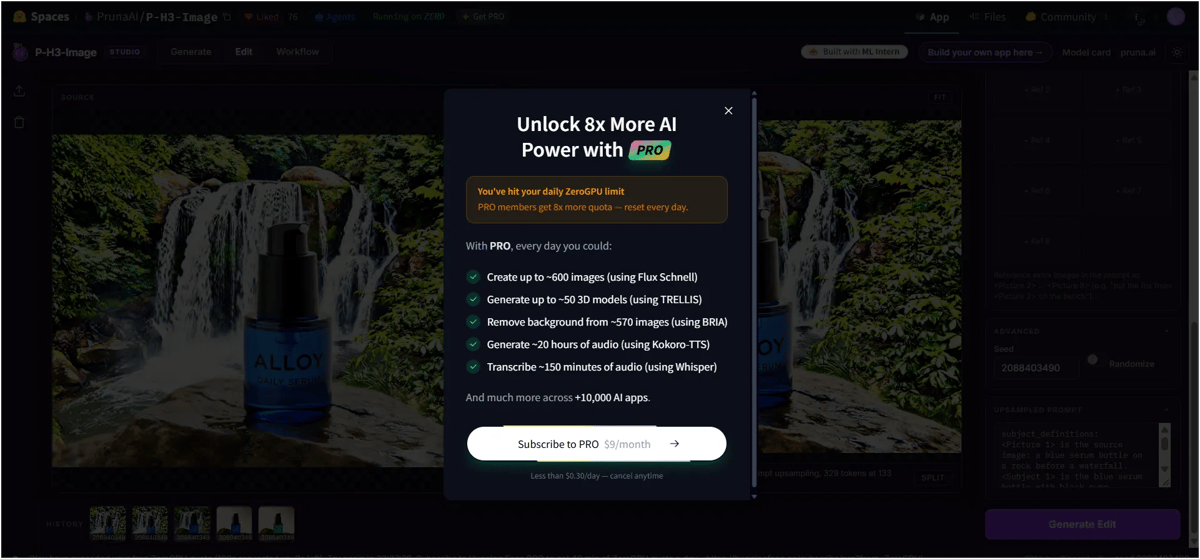
Many of the best free Spaces run on ZeroGPU. It's free, but your GPU time per day depends on your account. Hugging Face's ZeroGPU documentation currently lists these daily amounts:
Account | Daily GPU time | Queue priority |
|---|---|---|
Not logged in | 2 minutes | Low |
Free account | 5 minutes | Medium |
PRO ($9/month) | 40 minutes | Highest |
The pricing page backs this up: PRO users get 8× the daily ZeroGPU quota of a free account, plus the highest queue priority.
Two minutes sounds short, but it's GPU time, not total time. A quick image may use only a few seconds. A video can use a minute or more in one go. Your quota resets 24 hours after your first use, and PRO users can buy more time with credits.
Quick tip: log in before using a Space. Logged-out visitors get the smallest quota.
Signs that a tool will cost money
- The Space asks for your own API key, for example from OpenAI or another paid service. You pay that service for each use.
- The Space links to an outside website that has its own pricing.
- You click Duplicate this Space on paid hardware. The bill then goes to you.
- You call models through the Inference Providers API beyond your monthly free credit.
Hugging Face pricing in brief
Plan | Price | What you get |
|---|---|---|
Free | $0 | Browse and download public models and datasets, use Spaces within the free daily ZeroGPU quota, host Spaces on free CPU hardware |
PRO | $9/month | 10× private storage, 2× public storage, $2 of inference credits each month, 8× ZeroGPU quota with highest queue priority, host your own ZeroGPU Spaces, Spaces Dev Mode, a PRO badge |
Team | $20/user/month | Everything for groups: single sign-on, audit logs, storage regions, access controls and usage analytics. Every member gets PRO-level ZeroGPU and inference benefits. |
Enterprise | $50/user/month | Highest storage, bandwidth and API limits, automated user management, advanced security, annual billing, legal and compliance support, dedicated support |
Prices from huggingface.co/pricing, checked on 10 November 2026.
What paid hardware costs
If you build or copy a Space, you choose the hardware it runs on. Free options are fine for light demos. Bigger AI apps need a paid GPU, billed by the hour while the Space is running.
Hardware | GPU memory | Price per hour |
|---|---|---|
CPU Basic (2 vCPU, 16 GB RAM) | — | Free |
ZeroGPU (shared Nvidia RTX Pro 6000 Blackwell) | Up to 96 GB | Free, within daily quota |
CPU Upgrade (8 vCPU, 32 GB RAM) | — | $0.03 |
Nvidia T4 small | 16 GB | $0.40 |
Nvidia L4 | 24 GB | $0.80 |
Nvidia A10G small | 24 GB | $1.00 |
Nvidia L40S | 48 GB | $1.80 |
Nvidia A100 large | 80 GB | $2.50 |
Nvidia RTX PRO 6000 | 96 GB | $2.75 |
8× Nvidia L40S (most expensive listed) | 384 GB | $23.50 |
To put that in real terms, a T4 small GPU left running all month costs about $292 (730 hours × $0.40). Most people set their Space to sleep when no one is using it, so they only pay for active hours.
For businesses that need a private, always-on model, Inference Endpoints start at $0.033 per hour for a small CPU machine. GPU endpoints range from $0.50 per hour for one Nvidia T4 to $9.25 per hour for one Nvidia B200. Extra storage beyond your plan starts at $12 per TB per month for public files and $18 for private files, with discounts at larger sizes.
The part that confuses many people: plans and computing power are billed separately. A PRO plan gives you more quota and $2 of credits, but it doesn't include paid GPUs. For example, a PRO user who copies a Space onto a T4 small GPU pays $9 for the plan, plus $0.40 for every hour that Space runs.
Who can benefit from Hugging Face?
Hugging Face is useful for a wide range of people, but each group uses a different part of it.
Who you are | What you'll use most | Why it helps |
|---|---|---|
Curious beginner or content creator | Spaces | Try AI image, video, voice and writing tools for free, with no setup |
Student or researcher | Models, Datasets, free courses | Study real models and data, and learn AI without paying for software |
Developer | Models, API, Spaces | Build on open models instead of starting from scratch, and share demos fast |
Startup or business | Private repos, Team and Enterprise plans | Use open models you can control, and keep company work private |
Who might want something else: if you just want one polished AI app for daily work, with a support team behind it, a dedicated tool such as ChatGPT, Claude or Gemini will feel simpler. Hugging Face is more of a workshop than a finished product.
Pros and cons
Pros
- Huge free library of models, datasets and AI apps
- Many tools work in the browser with no coding
- Strong filters for task, size, language and license
- Open models give developers more control and privacy
- Active community, with new models appearing almost daily
Cons
- Can feel overwhelming and technical for first-time users
- Community Spaces vary in quality, and some are broken or paused
- Free GPU time is limited, and busy Spaces have queues
- Pricing is confusing because plans and computing are billed separately
- Licenses differ from model to model, so you must check each one
Final verdict: is Hugging Face worth using?
Yes, especially if you are curious about AI or build with it. Hugging Face is the easiest place to explore open AI models and Spaces let anyone try powerful tools in a browser for free. The trade-offs are real: daily limits, uneven app quality and a learning curve. But for a free platform, the value is hard to beat.
Start with a free account and a few popular Spaces. If you hit the daily limit often, or start building your own projects, the $9 PRO plan is the natural next step.
Frequently asked questions
1. Is Hugging Face free?
Yes. You can sign up, browse models and datasets, and use most Spaces for free. Free accounts have daily GPU limits on ZeroGPU Spaces. Paid plans start at $9 per month, and extra computing power is billed separately.
2. Do I need to know coding to use Hugging Face?
No. You can use Spaces without any coding. You only need coding if you want to download models, use the API or build your own apps.
3. Can I use Hugging Face models for commercial projects?
Sometimes. It depends on each model's license. Licenses like Apache 2.0 and MIT allow commercial use, while non-commercial licenses do not. Always check the license tag and full license text before using a model in a business.
4. Is Hugging Face safe to use?
Hugging Face itself is a well-known, widely used platform. But anyone can publish models and Spaces, so be careful with unknown creators. Don't upload private files, and only enter API keys into Spaces you trust.
5. What is the difference between a model and a Space?
A model is the AI engine that does the work. A Space is an app built around a model so you can use it easily in your browser.
6. Why does a Space say I have no GPU quota left?
You have used up your daily ZeroGPU time. Log in if you were not logged in, wait for the quota to reset after 24 hours, or upgrade to PRO for more time.
7. What are the best alternatives to Hugging Face?
For developers, Replicate and Google AI Studio offer hosted models through an API. For everyday users who just want a chat assistant, ChatGPT, Claude and Gemini are simpler options. None of them match Hugging Face's range of open models.