A blurry photo doesn't have to stay blurry, and you don't need expensive editing software to fix it. We tested several AI tools that unblur images online and found that Meta AI gave us the best results. It's free, easy to use, and works in seconds. In this guide, we'll show you how to unblur an image in just (10-12) seconds.
This is not a paid promotion. Everything here comes from our own testing.
Quick answer: how to unblur an image with AI
- Go to Meta AI (meta.ai) and log in with Facebook, Instagram, phone number or email.
- Click the + icon, choose Add media and files, and upload your blurry image.
- Type the prompt, remove the blur and press Enter.
- Wait 10–12 seconds, compare the before/after slider, then download the result.
Short on time? This under-a-minute screen recording shows the whole process:
How we tested AI tools to unblur images
We tested 15 AI tools, including ChatGPT, Gemini, Claude, Perplexity, Kimi, Mistral, Canva, Qwen and Grok. ChatGPT and Gemini gave good results, though we noticed a few minor changes in the images. Perplexity, Kimi and Claude were average, while Qwen didn't perform well. Grok was much faster than Meta AI and also gave good results. However, it requires a paid plan, so it's worth trying if you don't mind paying.
We also tested several tools where you can upload an image directly without writing a prompt, including Picsart, Unblur Image, PicWish and Artguru. After comparing all these tools, Meta AI gave us the best overall results.
Why we picked Meta AI to unblur images
Many "unblur image online" tools either watermark the result, cap free uses, or push you to a paid plan after one try. Meta AI did none of that in our tests. Here's what stood out:
- It’s free. You can unblur images for free, with no credits, no trial and no watermark on the output.
- It's fast. Each image came back sharp in about 10–12 seconds.
- It shows a before/after slider. You can drag across the result to compare it with your original. None of the other AI chat tools we tested offered this, and it makes judging the fix much easier.
- It's simple. One short prompt is enough. No sliders, masks or settings to learn.
How to unblur an image with Meta AI: step by step
Step 1: Open the official Meta AI site
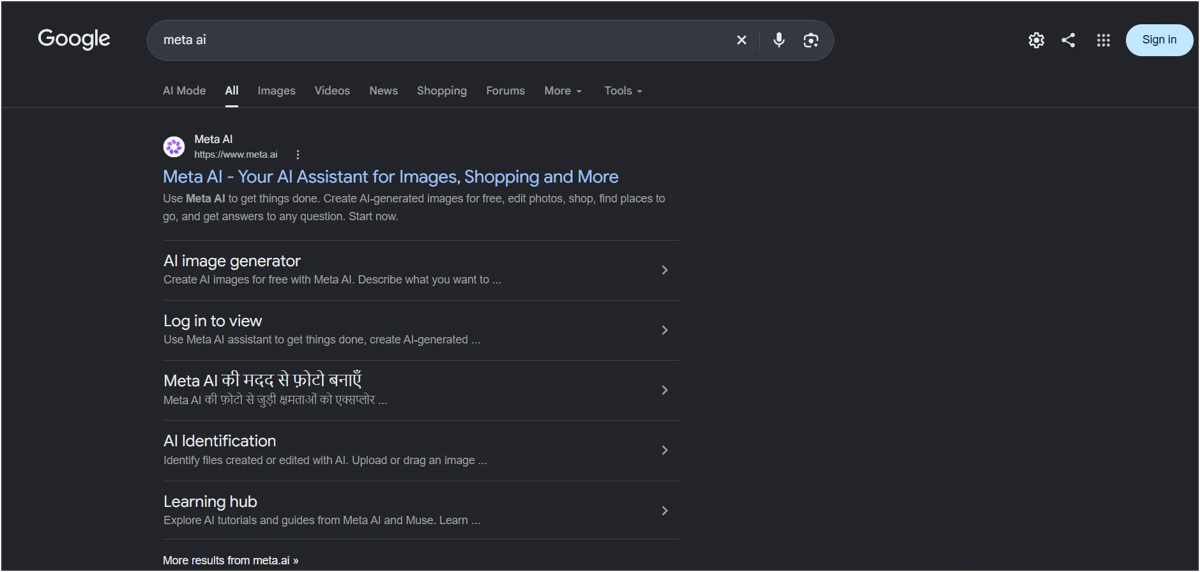
Search "Meta AI" on Google and open the official result (meta.ai). Before clicking, check that the result shows the Meta AI logo, so you don't land on a look-alike site.
Step 2: Log in or sign up
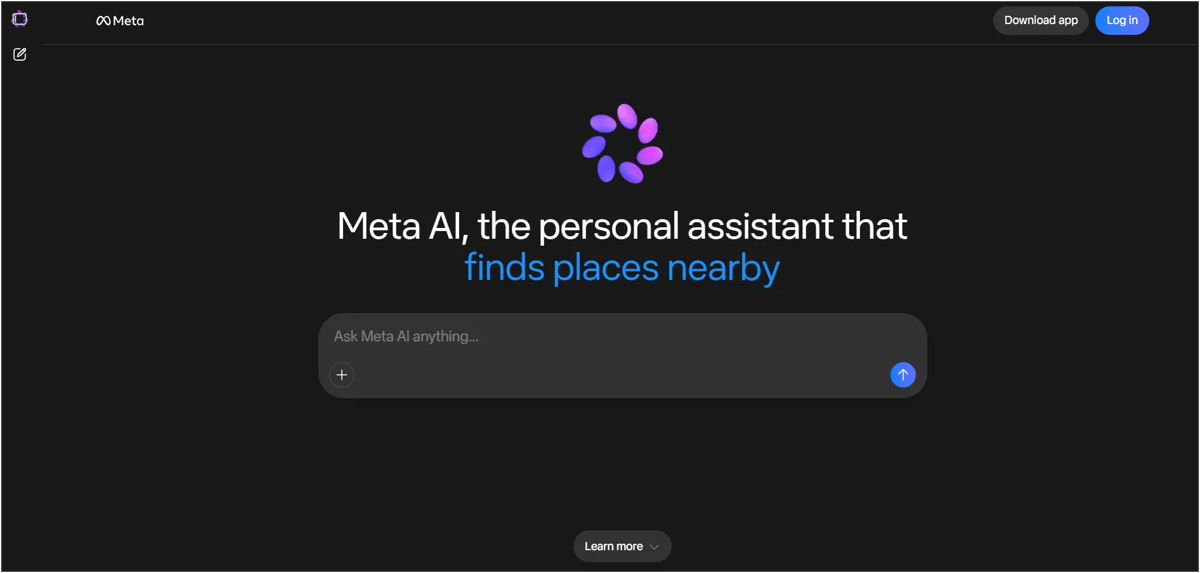
When the page opens, you'll be asked to log in. You can use your Facebook or Instagram account, or sign up with a phone number or email address. We used Instagram and it took a few seconds.
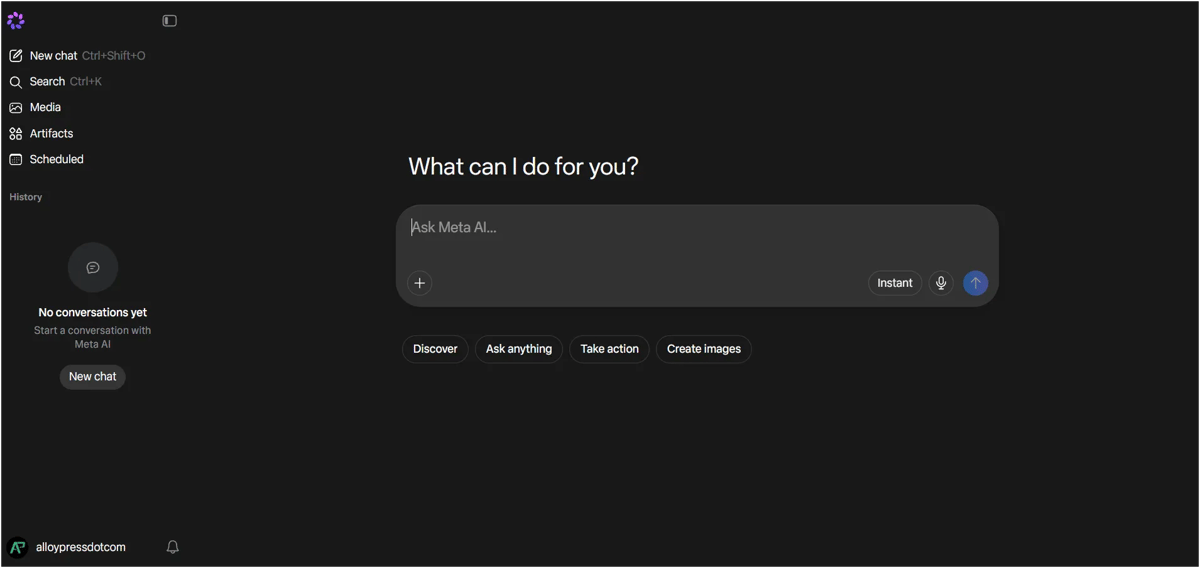
Once you're in, you'll see the main chat screen with a prompt box that asks what it can do for you.
Step 3: Upload your blurry image
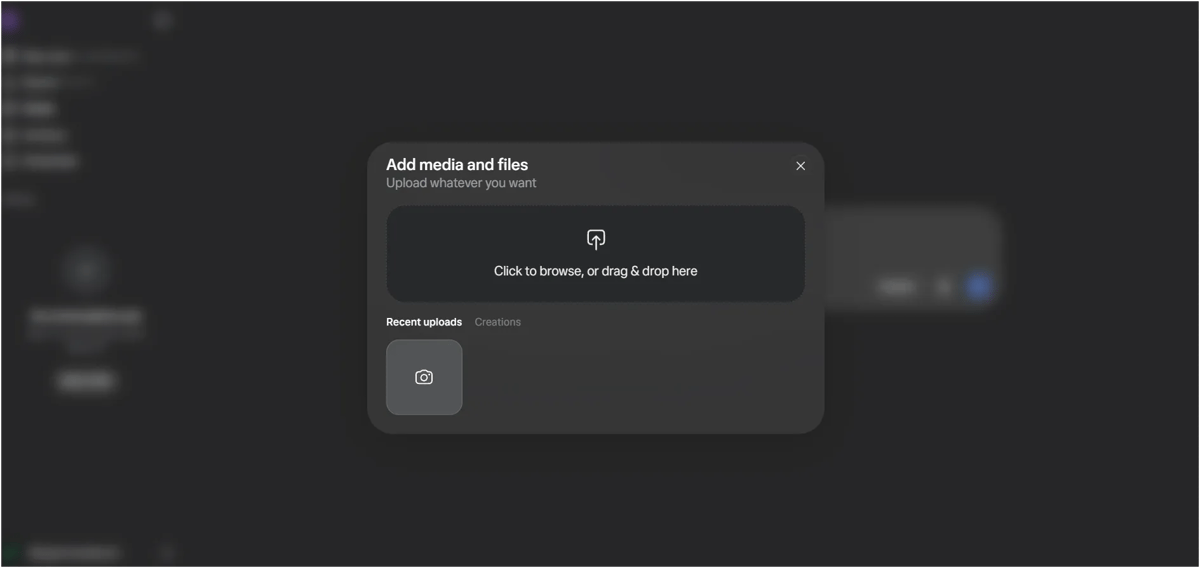
Click the + icon in the prompt box, then choose Add media and files. Pick your blurry photo from your device. You can also drag and drop the image straight into the chat window.
Step 4: Type the prompt and press Enter
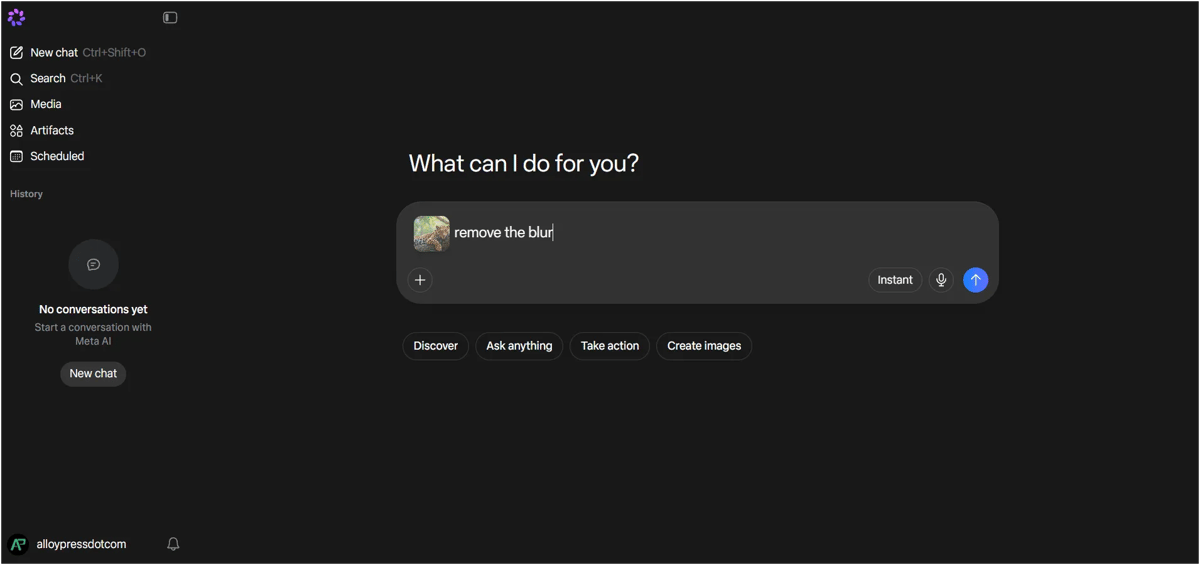
With the image attached, type:
remove the blur
Press Enter, In about 10–12 seconds, Meta AI deblurs the photo and returns a sharper version with a before/after comparison slider. Drag the slider to check fine details like edges, hair, fur and text.
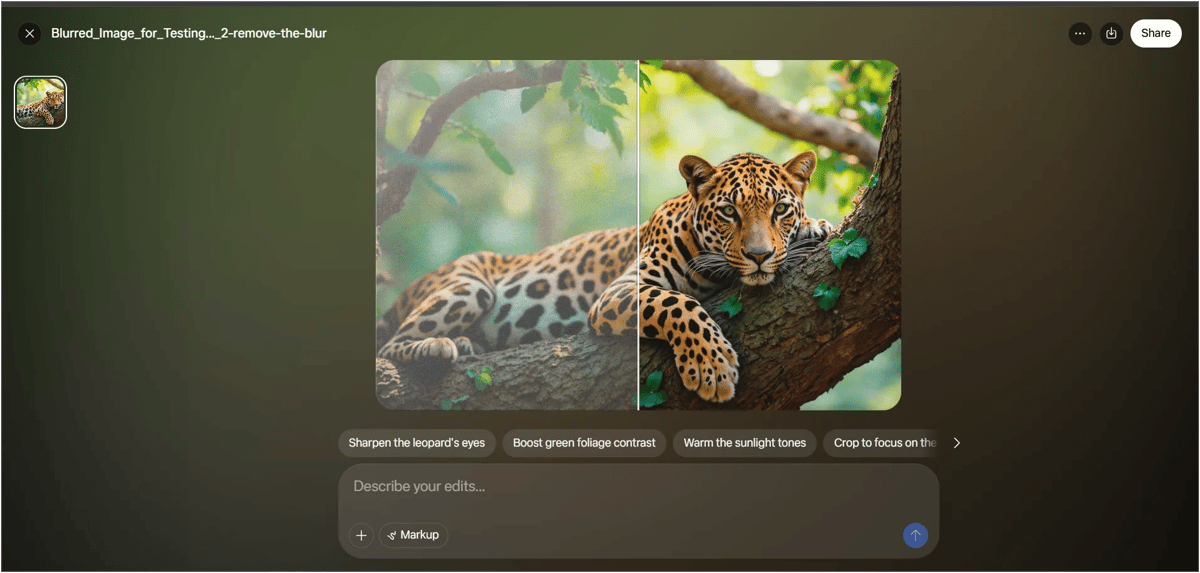
Step 5: Download the sharp image
Hover over the output image. A download icon appears at the top right, next to the plus icon. Click it to save the image. The file downloads as a JPG. Our leopard image came out at 1920 × 1280 pixels and about 260 KB.
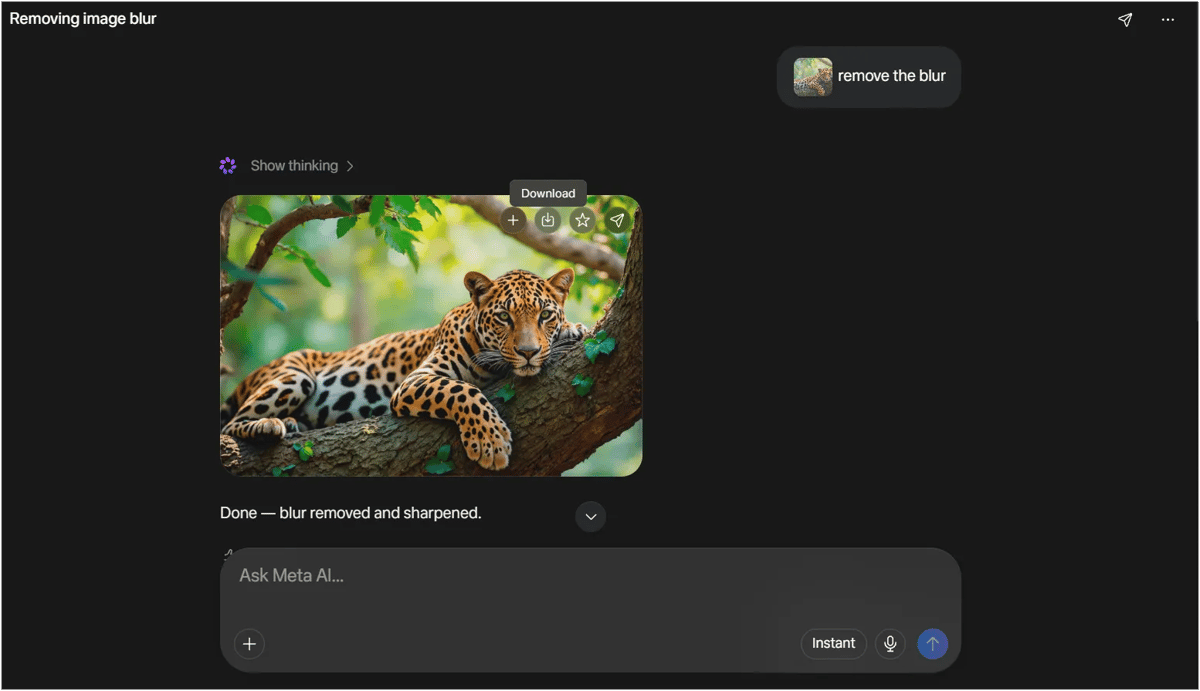
Our test results: two blurry images
We ran two very different images through Meta AI to see how it handles detail.
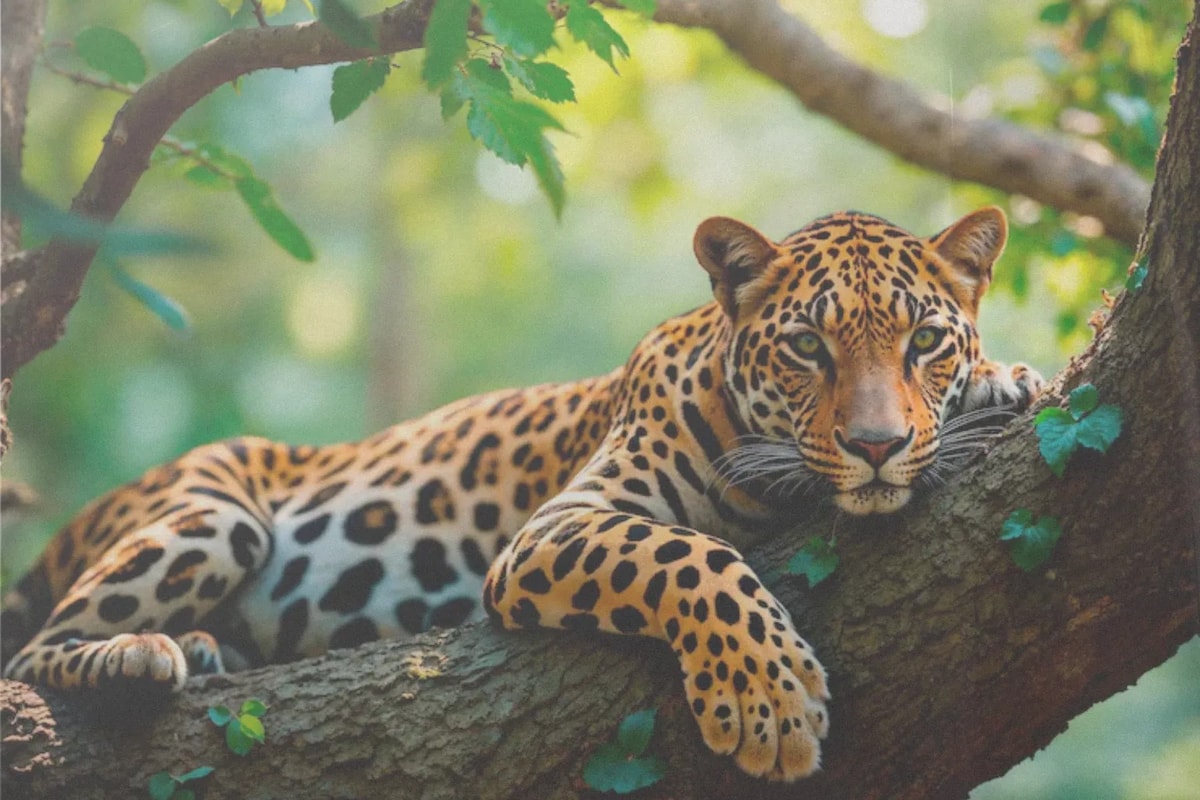
Test 1: A blurry wildlife photo
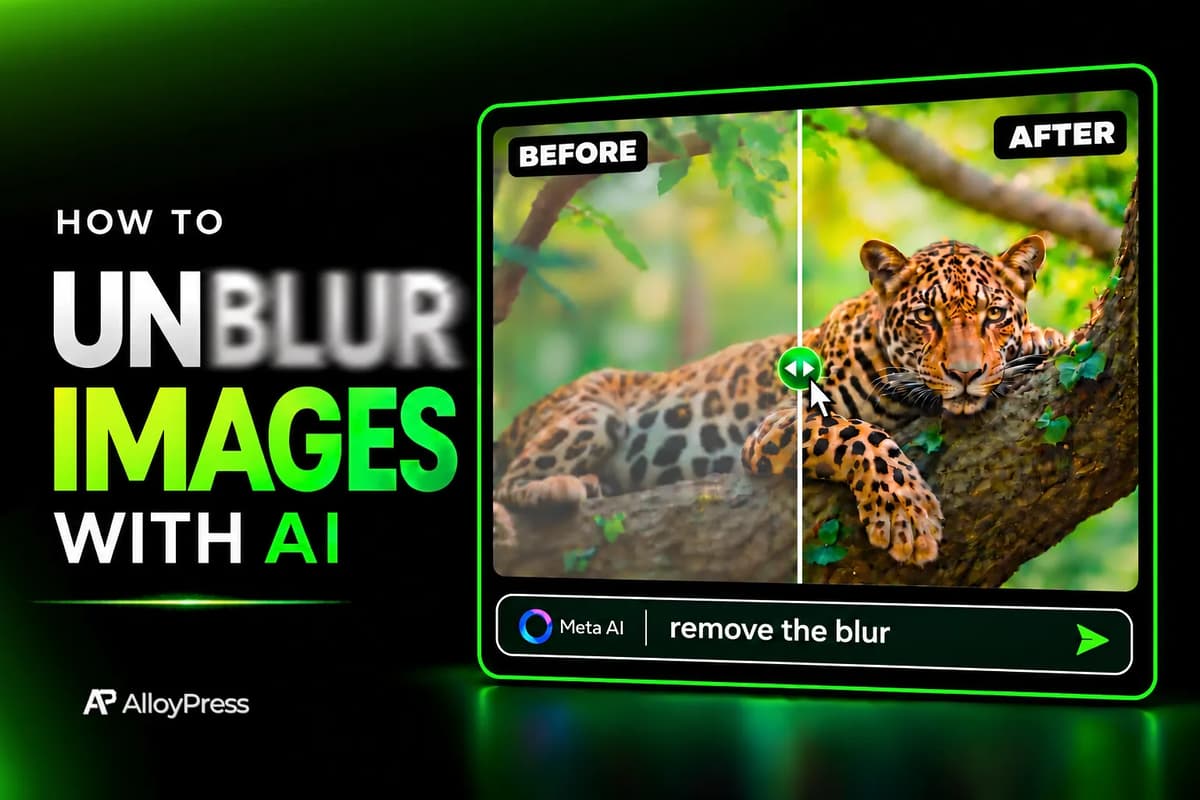
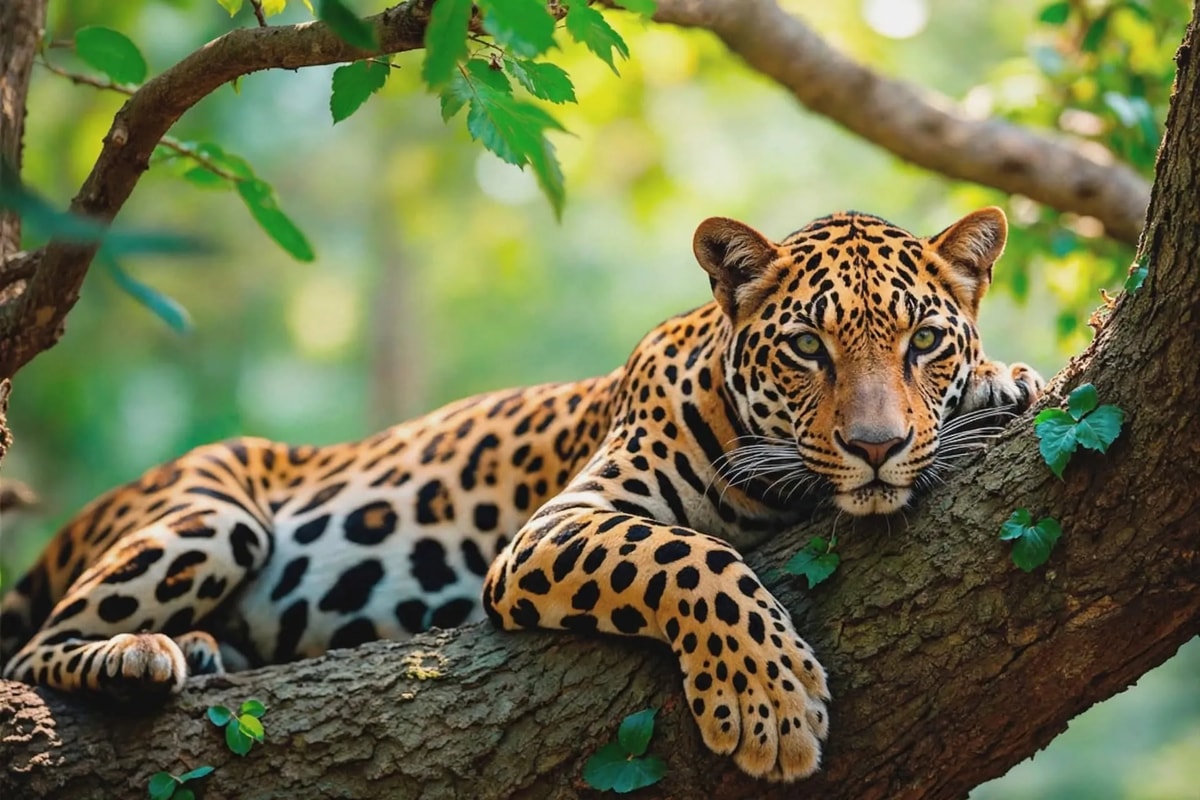
Our first sample was a soft, out-of-focus photo of a leopard. After one "remove the blur" prompt, the fur pattern, whiskers and eyes came back crisp, and the background stayed natural. The before/after slider made the difference obvious within a second of dragging.
Test 2: A blurry portrait (with a surprise)
Next, we tried a blurry photo of a man standing on a street. The image had empty white space on the left and right, with the person in the center. Meta AI sharpened the face, shirt and background in about 10 seconds. It also filled both white strips with matching street background, so the whole frame looked like one natural photo. The result looked realistic, not over-processed.
That's a nice bonus if you want a clean, full-frame photo. But it also means the AI may add things that weren't in your original. If you need the exact framing, see the prompts below.
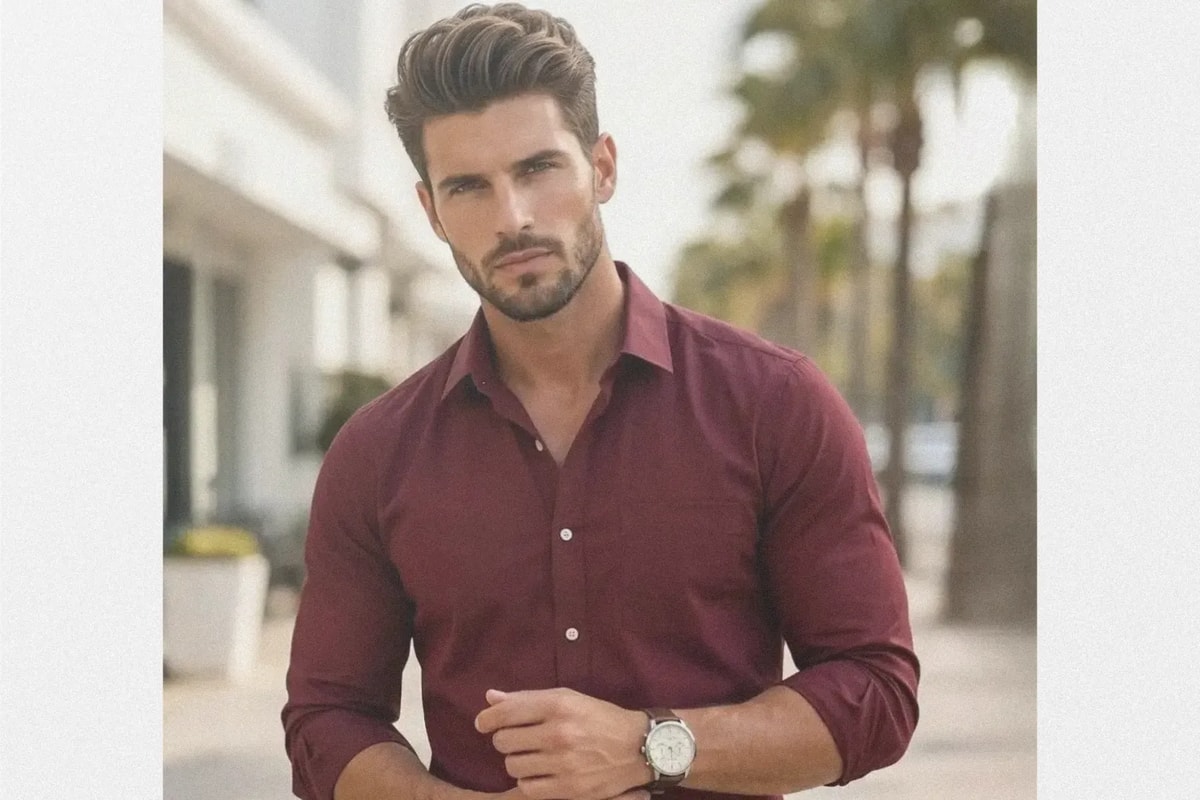
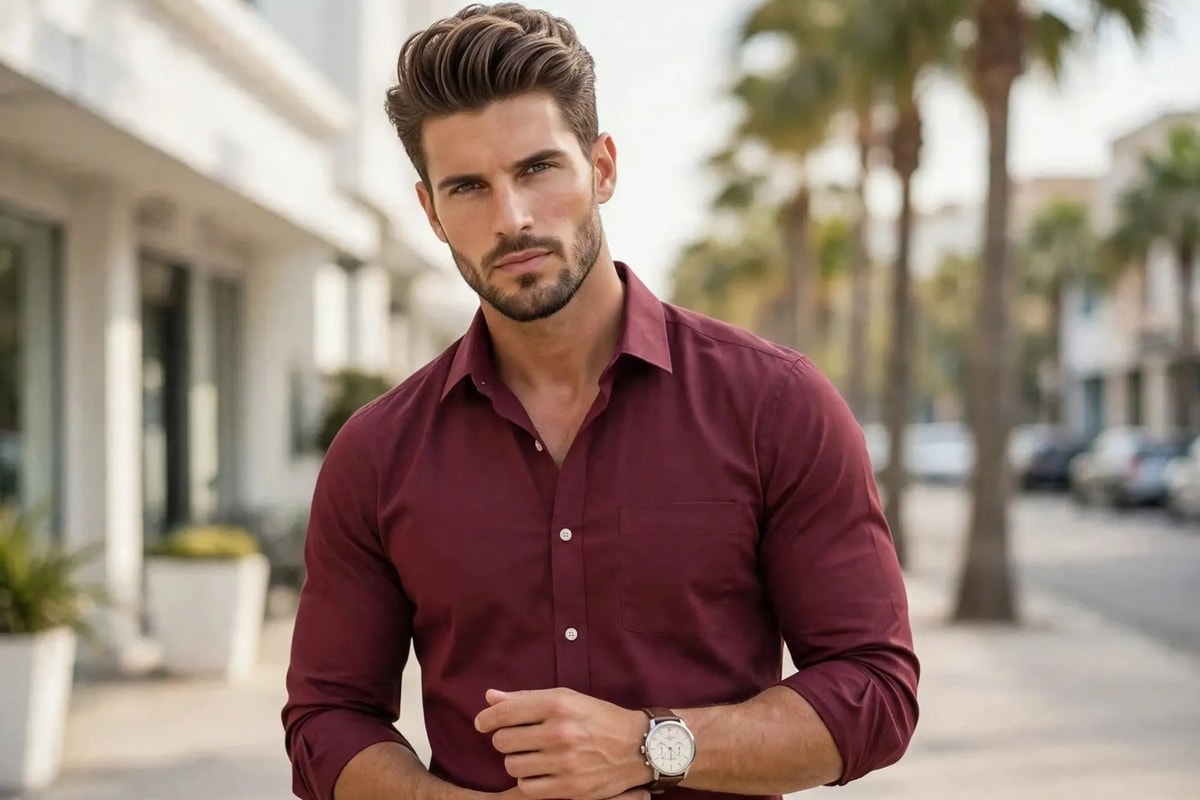
Compare the two and the difference is clear: sharper edges, cleaner skin texture and a complete background.
Prompts to get better results
"Remove the blur" worked well in our tests. When you need more control, these more specific prompts are worth trying:
Your situation | Prompt to try |
|---|---|
General blurry photo | remove the blur |
Want the exact same framing | remove the blur, keep the original size and framing, don't add anything |
Portrait or selfie | remove the blur and keep the face exactly the same |
Shaky or moving shot | fix the motion blur and sharpen the details |
Old or low-quality photo | remove the blur and improve the clarity, keep it natural |
If the first result isn't right, reply in the same chat with a tweak (for example, "make it look more natural") instead of starting over.
Things to know before using Meta AI
Meta AI can make blurry photos clearer, but keep a few things in mind.
Meta AI isn’t available in every country yet, and some image editing features may vary by region. If you don’t see the option to upload images, the feature may not be available where you are.
Like any AI unblur image tool, Meta AI recreates missing details instead of recovering the original ones. So, don't rely on the results for ID photos, legal documents or evidence where accuracy matters.
Check faces carefully after editing. AI may slightly change facial features, so zoom in and compare the result with the original.
The downloaded JPG files are small, which is fine for social media and websites but may not be suitable for large prints. If you need higher resolution, try one of the best AI photo enhancers.
Heavily blurred images are harder to deblur and may not improve much. AI might also add details that weren’t in the original
Also, avoid uploading private or sensitive photos, as your images are processed on Meta's servers.
Beyond unblurring: what else you can do in Meta AI
The same chat that fixed our blurry photos can also edit images further, create new images from a text prompt and generate short videos, all for free. So once your photo is sharp, you can keep going in the same window: change the background, adjust the lighting or turn it into something new.
If you need more control than a chat prompt gives you (layers, precise retouching, batch edits), a dedicated editor is the better fit. We cover the options in our guide to the best AI image editors.
And if you'd rather create visuals from scratch than fix existing ones, these two guides will help you pick a tool:
- Best AI image generators — for turning text prompts into images
- Best AI video generators — for turning prompts or photos into short clips
Final thoughts
Unblurring an image with AI now takes one upload, one short prompt and about (10 - 12) seconds. Meta AI handled both a detailed wildlife shot and a portrait well in our tests, for free, with a handy before/after slider to check the result. Start with "remove the blur", check the details up close and use a more specific prompt when you need the original framing kept exactly as it was.
FAQ
1. Can I unblur an image for free?
Yes. Meta AI unblurred both of our test images for free, with no watermark and no credit limit that we ran into.
2. How long does it take to unblur an image with AI?
In our tests, about 10–12 seconds per image after pressing Enter.
3. Do I need to install an app?
No. Meta AI works in your browser. You only need a Facebook, Instagram, phone number or email login.
4. Can AI unblur a face?
Yes. Our portrait test came out sharp and realistic. Check the eyes and facial features closely, since the AI regenerates detail rather than restoring the exact original.
5. Why did my image get extra background added?
Meta AI may fill empty or white areas around the subject so the photo looks complete. To avoid this, add "keep the original size and framing, don't add anything" to your prompt.
6. What format is the downloaded image?
A JPG file, usually in the KB range.