You no longer need to be a professional designer to edit images. Whether you want to change text, replace the background, remove or add objects, or improve image quality, AI image editors can help you do it quickly with just a smart edit option.
Smart editing means saving time while getting great results.
After testing many AI image editing tools, I found three standout options. Even beginners with no editing experience can use these tools easily. In this article, I’ll show you how each tool works, the fair testing process I used, which tool performed best and what you get with their free and paid plans.
Sample Test Image
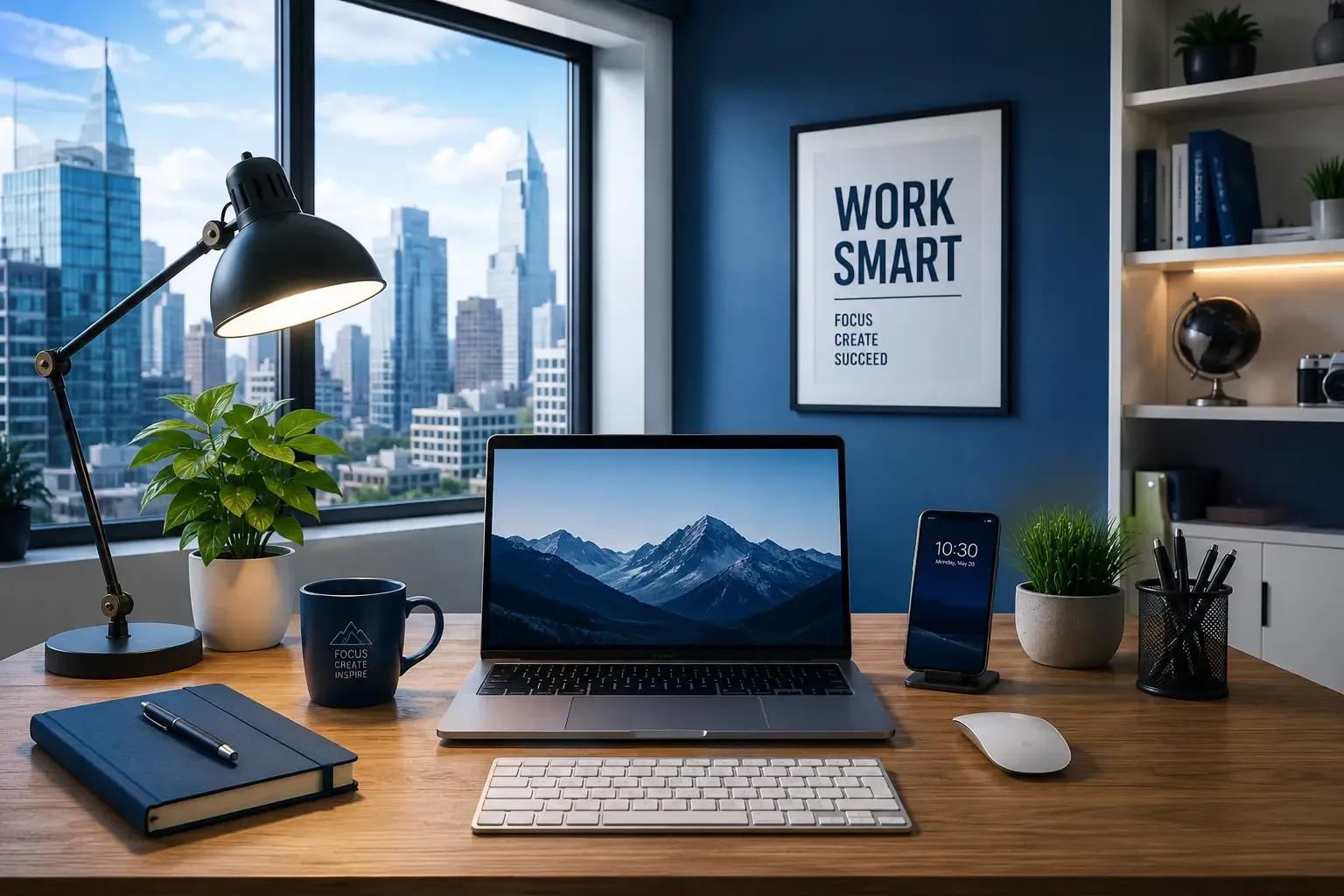
I’ll use the image below to test and edit with all three image editing tools.
How I Tested and Compared These AI Image Editors
I used the sample image above and applied the same editing tasks to each tool to fairly evaluate their performance and identify which AI image editor delivers the best results.
- How well it can change, add or remove text in an image.
- How effectively it can modify the background design or change background colors.
- Whether it can remove existing objects and add new ones naturally.
- How easy the tool is to use, even for beginners.
- How accurately it follows prompt instructions and delivers the requested edits.
This approach helped me compare the tools under the same conditions and identify which one performs best in real-world editing tasks.
Quick Comparison Table of AI Image Editing Tool: Manus AI vs Reve AI vs Canva
The ratings below are based on my personal experience using each tool. I rated them based on how accurately they followed my instructions, the quality of the edits, the number of mistakes made, and how quickly they completed the image editing process.
In the sample image, we will make the following exact changes:
1. Manus AI
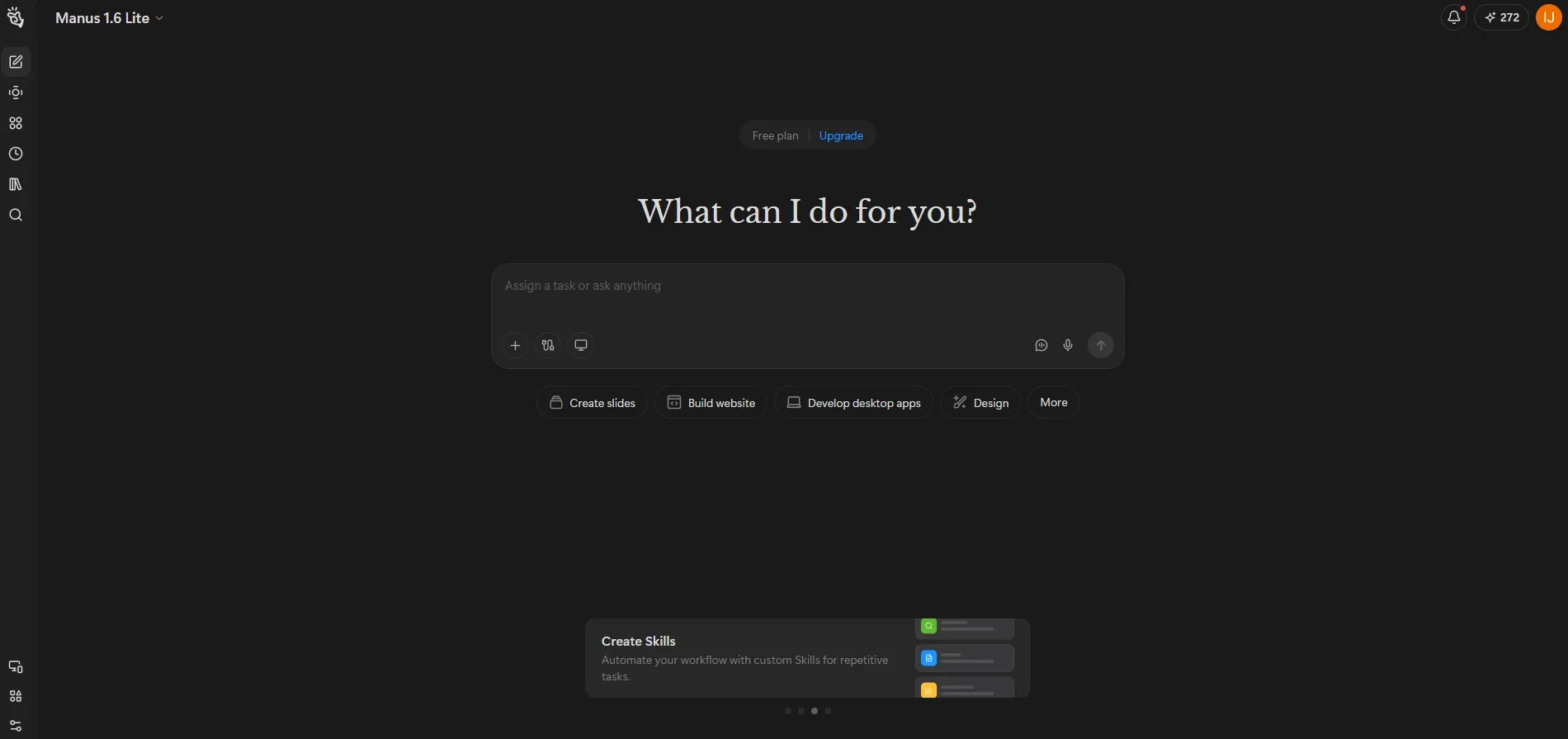
Manus AI can be used for many different tasks, but in this guide, we’re focusing on image editing. The good thing is that it’s very user-friendly, so anyone can use it without any technical skills.
To get started, simply drag and drop the image you want to edit and press Enter. Once the image is uploaded, click on it. You’ll see an option called Edit Canvas below the image. Click that option and the Edit Canvas will open with your image loaded, just like in the screenshot below.
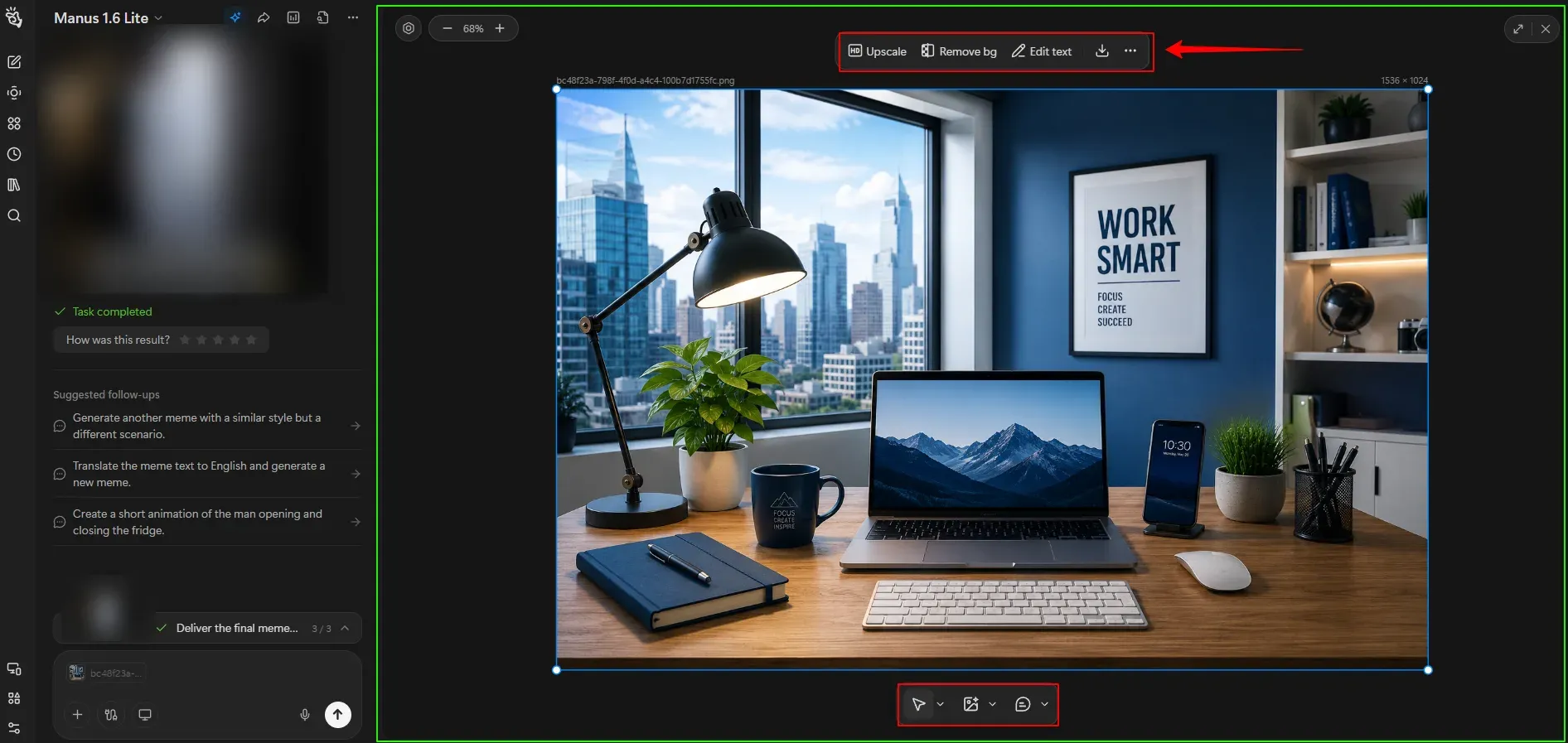
Below the image, you’ll see a box with three options. Select the option on the right that has the comment icon.
Then, simply click on any area of the image you want to edit, add your comment or instruction and press Enter. Repeat this process for all the changes you want to make.
In my case, I added 10 comments across different parts of the image. Once everything was marked, I clicked Apply and all the edit instructions were added successfully, just like in the screenshot below.
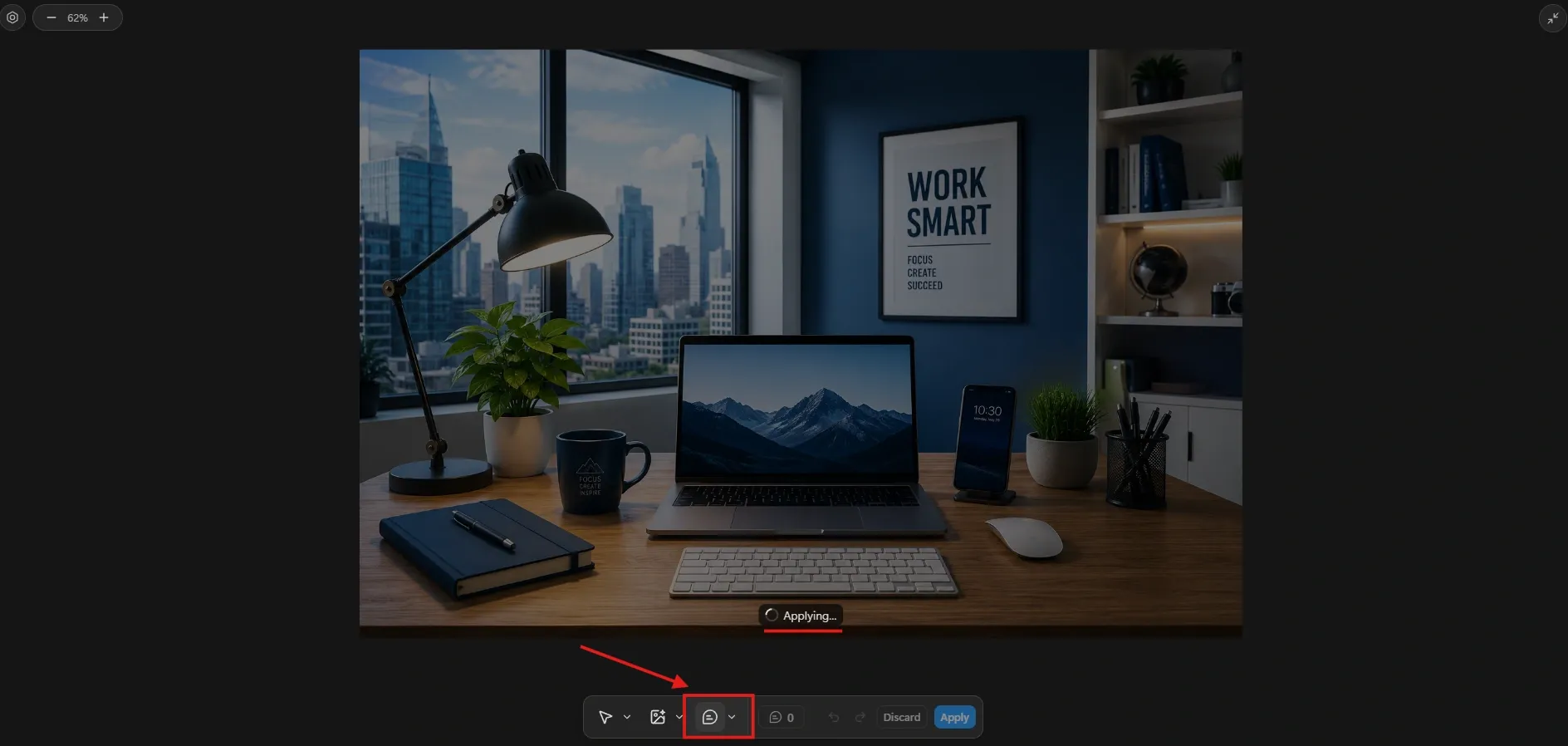
Within a minute, your edited image will be ready. I’ve also included a Full View option, allowing you to see the entire image clearly while editing without any distractions.
Once the edit is complete, you can compare the original image with the final result side by side. This makes it easy to check the changes and see how the image has been improved, as shown in the screenshot below.
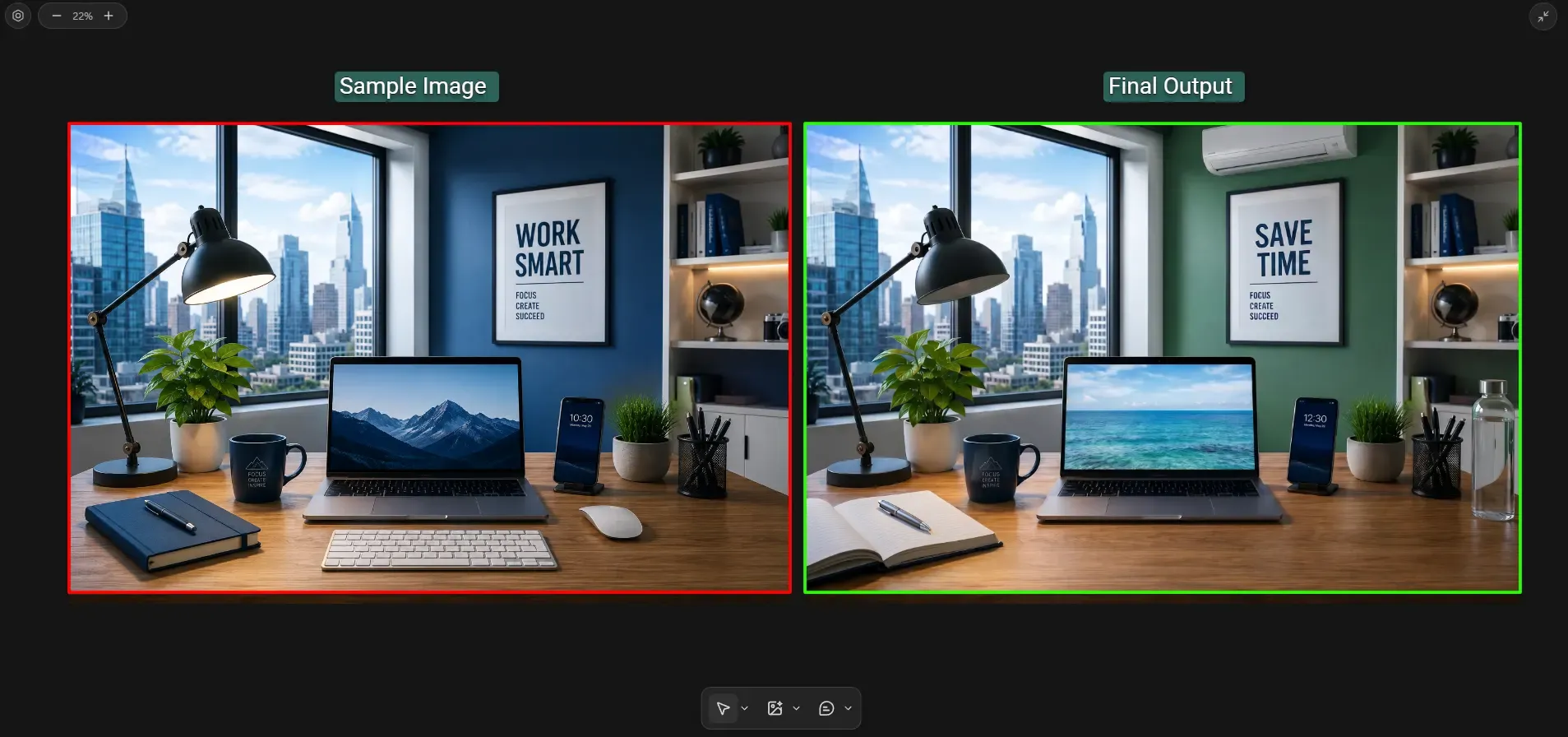
In just a few minutes, Manus AI made all the changes I requested. It followed my instructions perfectly without making any mistakes or changing the original design. The final image looked exactly the way I wanted.
No matter what type of image or photo you have, you can easily edit it in less than a minute. This can save you a lot of time and effort. I’ve shared the full-size final output image below so you can see the result yourself.
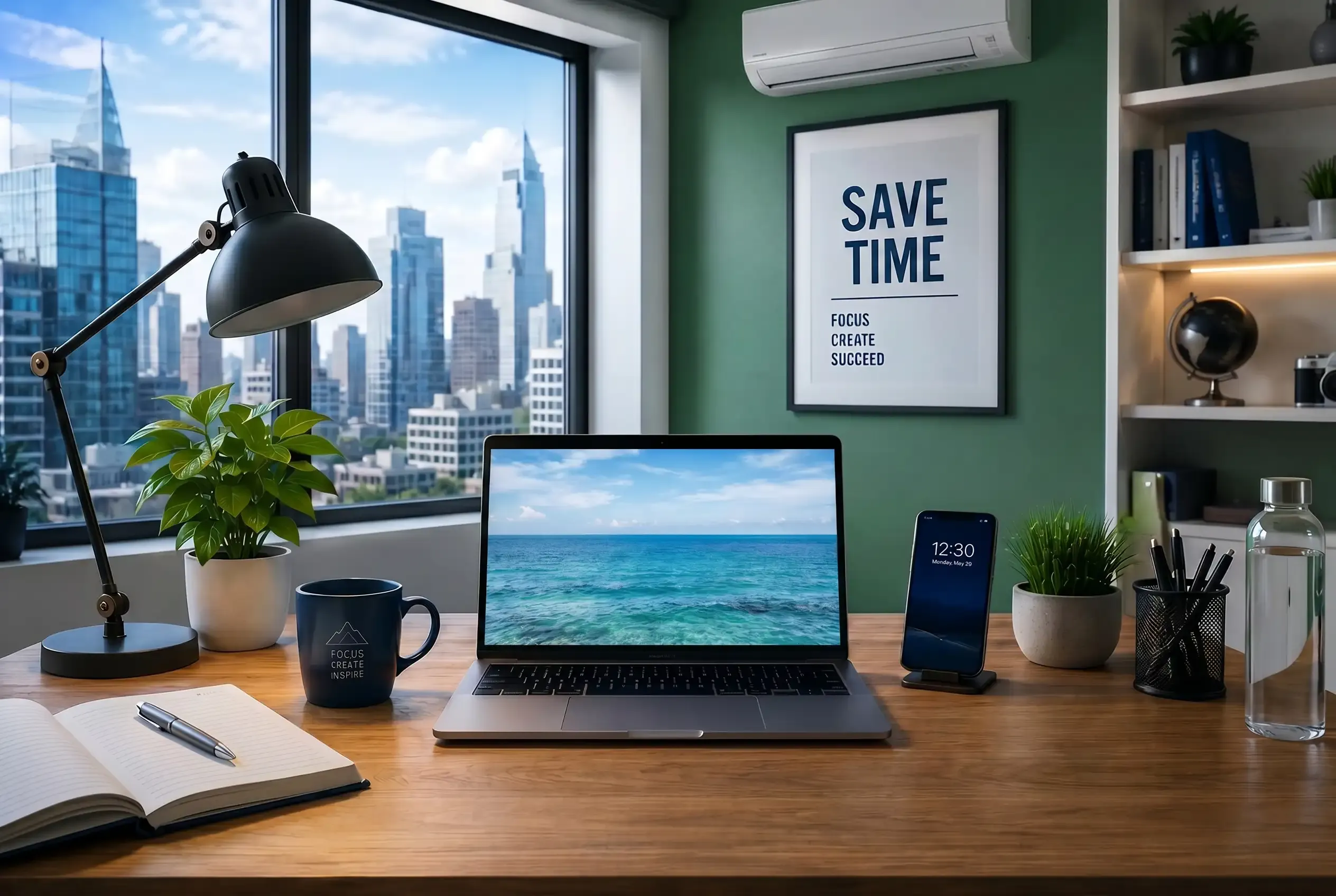
My Experience
Overall, Manus AI took only about a minute to complete all the changes I requested. The most impressive part was that it got everything right on the very first attempt without making a single mistake. Every instruction was followed perfectly and the entire editing process was fast and effortless.
That’s why I placed Manus AI in the first position. It saved me a lot of time and delivered the best results with the least amount of effort. If you ask me for the best AI image editing tool right now, Manus AI would be my top recommendation.
Manus AI Image Editing – Quick Overview
Category | Details |
|---|---|
Image Upscaling | Upscale images up to 2K, 4K and 8K resolution. |
Background Removal | Yes, remove image backgrounds with a single click. You can check the best AI background removal tools list for dedicated usage. |
Text Editing | Edit any text inside an image using the Edit Text option. |
Comment Tool | Add comments to specific areas of the image and describe the changes you want. |
Mark Tool | Highlight or mark specific parts of the image to clearly indicate where edits should be made. |
What Are the Keyboard Shortcuts Available in the Manus AI Edit Canvas?
Manus AI includes several keyboard shortcuts that help you switch between tools quickly while working in the Edit Canvas. Using these shortcuts can speed up navigation, annotations and overall editing workflows.
Manus AI Pros & Cons
Manus Pricing Plan Details
Plan | Credits |
|---|---|
Free Plan | 300 credits per day |
Standard Pro Plan | $17/month (billed annually) – 4,000 credits/month |
Custom Pro Plan | Starting at $34/month (billed annually) – 8,000+ credits/month |
Extended Usage Plan | $167/month (billed annually) – 40,000 credits/month |
Key Takeaway: Manus AI makes image editing simple with features like upscaling, background removal, text editing, and AI-assisted editing tools. The free plan is generous for casual users, while the paid plans are better suited for creators and businesses that require higher credit limits.
2. Reve Image
The main goal of Reve is to make professional image creation and editing easy for everyone using AI. Instead of needing complex design software, Reve wants to let you bring your imagination to life just by typing or doing simple edits.
Just click “Start Creating” in the top-right corner, sign in to your account and drag and drop your image to upload it. Once uploaded, you can start editing the image immediately.
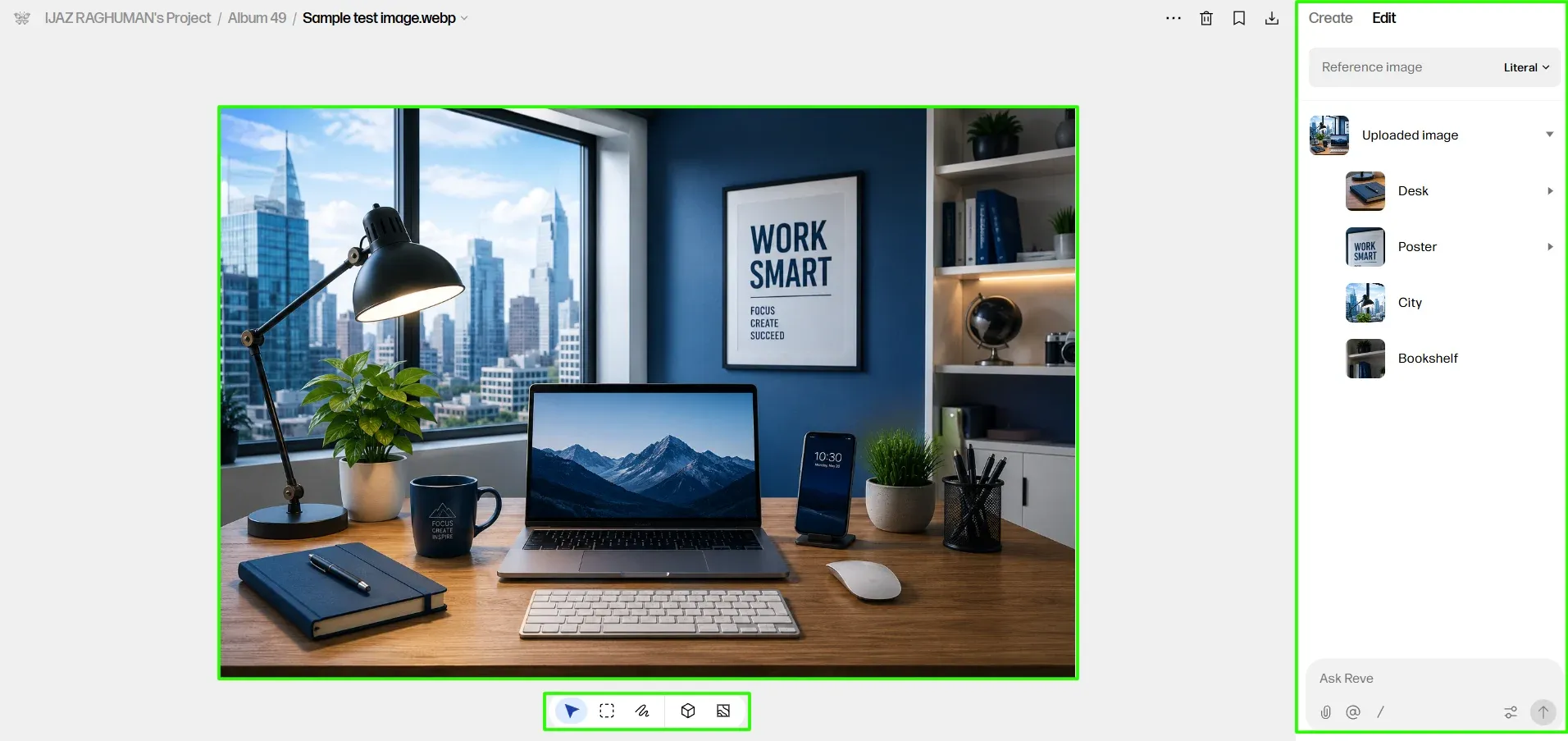
One unique feature of Reve AI is that it automatically analyzes the entire image and separates every element into individual layers. Even small details are detected and listed separately on the right side. For each layer, Reve AI automatically generates a prompt, so you can simply edit the prompt to make changes. If you don’t need a particular object, you can remove it using the delete option available next to each layer. You can also resize objects, move them to different positions, modify them or make changes by simply adding comments, similar to the editing workflow in Manus AI.
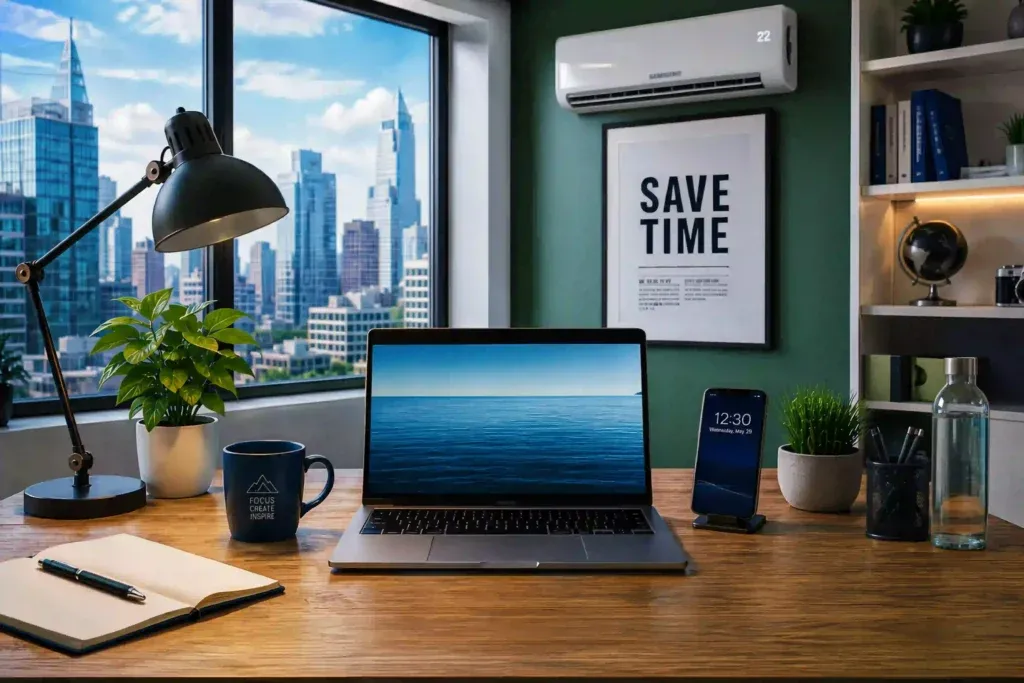
My Experience
I needed three attempts to get the final output from Reve AI. In the first attempt, almost all the requested changes were completed except the lamp was still turned on. In the second attempt, the lamp was turned off correctly, but some of the text below the wall text was changed unexpectedly. Apart from that, the rest of the edits were done very well. One thing I particularly liked was that Reve AI generated a realistic digital display on the AC, which made the final image look more natural and visually appealing.
Reve AI Features
Category | Details |
|---|---|
Background Removal | Remove image backgrounds with a single click. |
Image Upscaling | Upscale images instantly to improve image quality. |
Image Variations | Generate up to 8 different variations of an image with a single click within minutes. |
Add Objects | Add new objects to specific areas of an image using AI. |
Image Editing | Edit images quickly using built-in tools and shortcut keys. |
These Reve AI Shortcut Keys used inside the image editing area
Reve AI Pros & Cons
Reve AI Pricing Plan Details
Plan | Price | Included Features |
|---|---|---|
Free | $0/month | Generate images, edit images by asking, brainstorm ideas in chat and basic storage. |
Lite | $7.99/month | Everything is Free, plus 5× more image generations and 5× more storage. |
Pro | $19.99/month | Everything in Lite, plus video generation, 100× more image generations, 100× more storage and PDF & audio uploads as context. |
Key Takeaway
Reve AI offers a beginner-friendly image editing experience with useful tools like background removal, image upscaling, object addition, image variations and text editing. One standout feature is its ability to automatically generate prompts for both individual objects and the entire image, making it easier to understand and recreate designs. While some editing options are slightly hidden in the interface, the overall workflow is fast, simple and watermark-free.Since Reve can both create and edit images, it can also serve as a lightweight alternative to many popular AI image generators.
3. Canva
There’s no need for a long introduction when it comes to Canva. It offers almost every tool you could need for image editing. Canva is also useful for branding projects, though businesses looking for dedicated brand creation workflows may prefer specialized AI logo generators. You might be wondering why Canva is included in this list when there are already many dedicated image editing tools available. The main reason is Canva’s new Magic Layers feature.
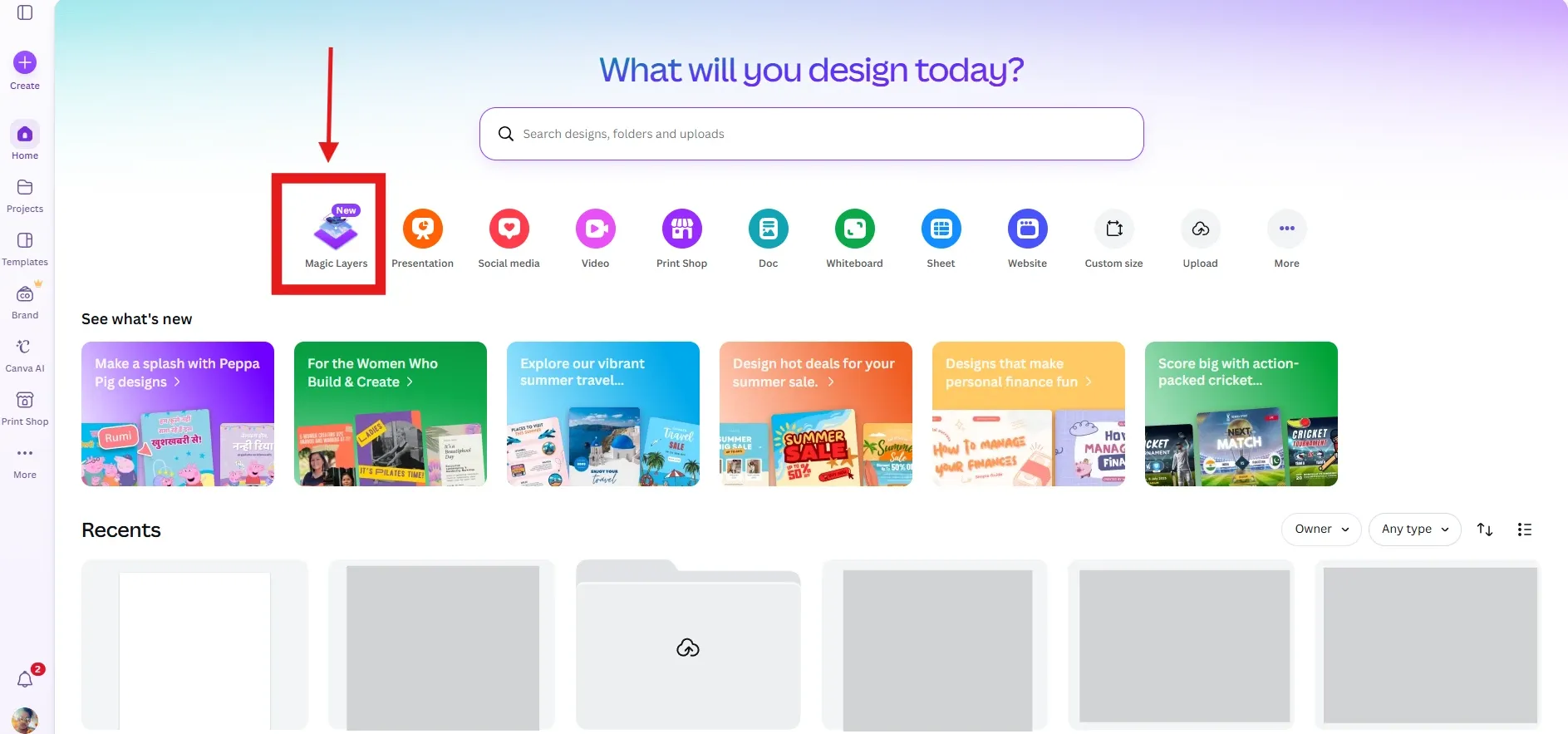
With Magic Layers, you can simply drag and drop any image, whether it’s an AI-generated image or a regular photo. Canva will automatically scan the image and separate elements such as text, objects and effects into editable layers.
This makes editing much faster and easier, as you can modify individual parts of the image without affecting the rest. Below, I’ve shared the screenshot image of the final result of our sample test image after all the edits were completed.
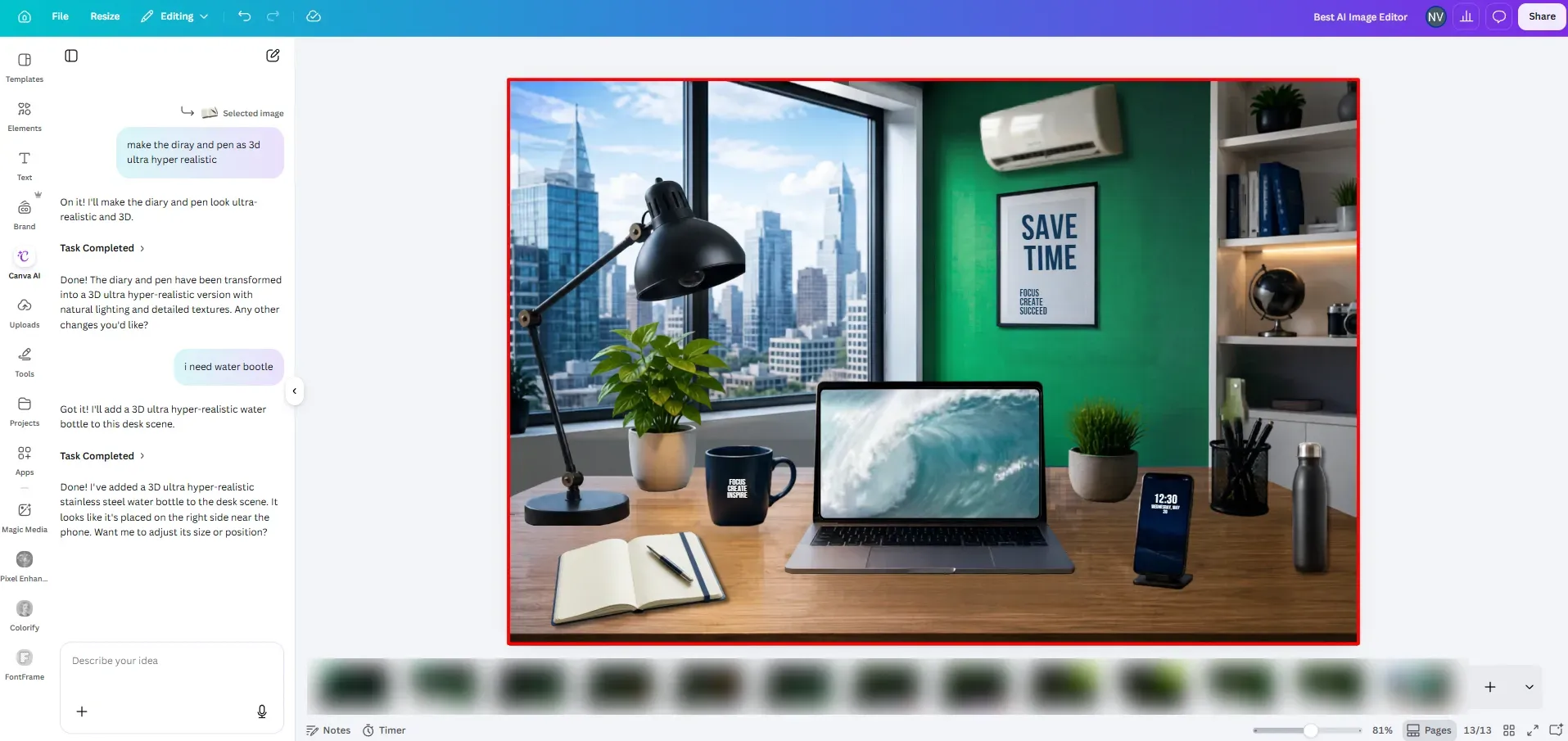
However, compared to Manus AI and Reve AI, Canva takes a bit more time to process and apply the changes. That’s the main reason I placed it in third position. Okay lets see the final output
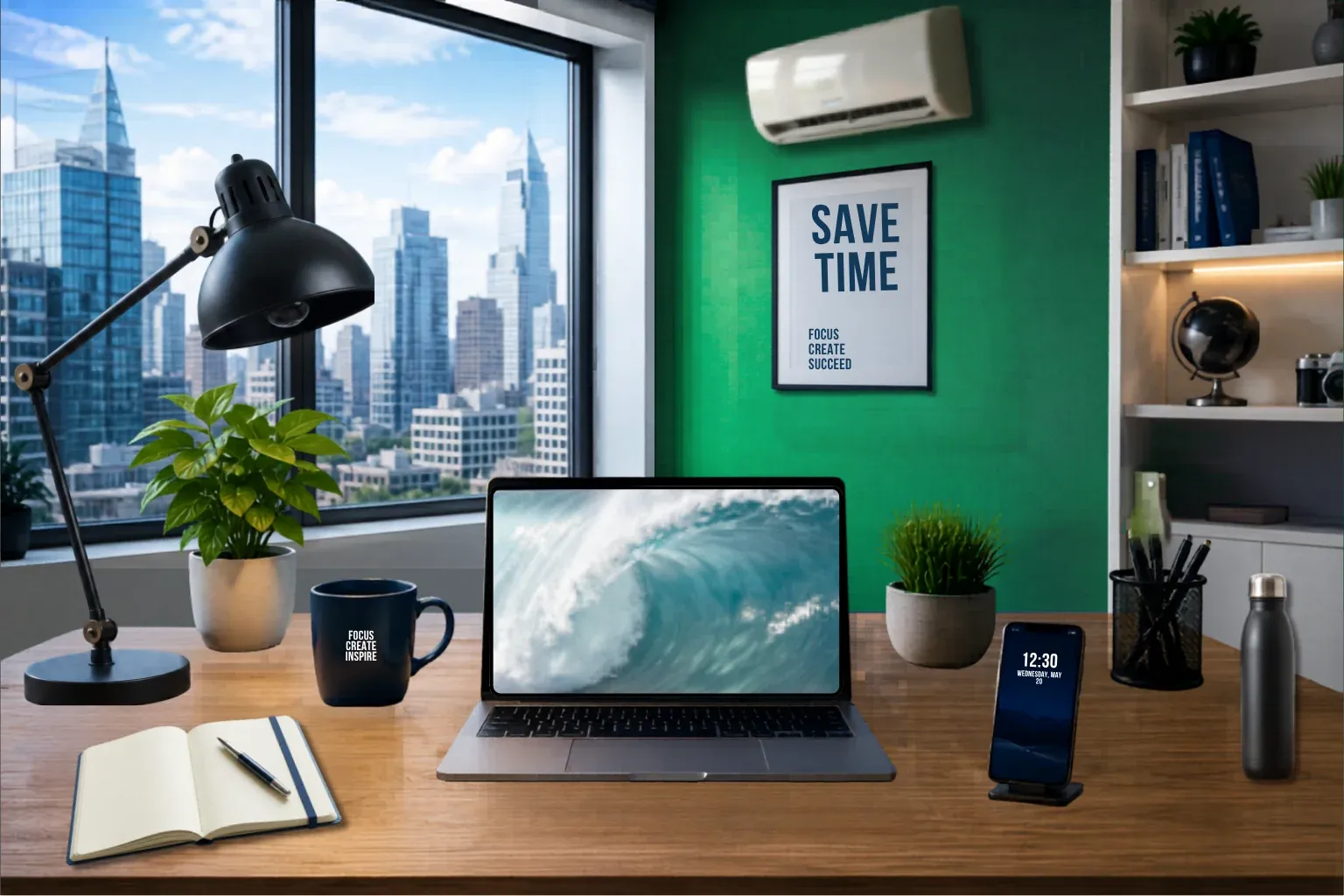
My Experience
I easily changed all the text, updated the wall color and removed unwanted objects. To add new objects or modify existing ones, I used the Ask Canva AI feature. Simply select an object, click Ask Canva AI and enter a prompt in the chat window. Canva AI can generate new objects and customize existing ones based on your instructions. However, it sometimes made mistakes and required multiple prompts to get the desired result, so the overall editing process took more time compared to Manus AI and Reve AI.
Canva Features
Category | Details |
|---|---|
Background Remover | Remove image backgrounds with a single click. |
Image Upscaling | Improve image quality and resolution quickly. |
Magic Edit | Select an area and describe the changes you want using AI. |
Magic Grab | Separate objects from the image and move or edit them easily. |
Magic Expand | Extend image backgrounds beyond their original boundaries. |
Ask Canva AI | Generate designs, images, content and editing suggestions using AI. |
Customizable Editing | Access a wide range of manual editing tools for precise control. |
Templates & Assets | Millions of templates, photos, videos, graphics and design elements. |
Canva Pros & Cons
Canva Pricing Plan Details
Plan | Price | Included Features |
|---|---|---|
Free | $0/year | Drag-and-drop editor, 1M+ templates, 4.7M+ photos/videos/graphics, 5GB storage, basic AI tools and 1 Brand Kit. |
Canva Pro | $144/year per person | Premium templates and assets, Background Remover, Magic Studio AI tools, 100GB storage, 5 Brand Kits, social content scheduling and 10× more AI usage than Free. |
Canva Business | $250/year per person | Everything in Pro, plus team collaboration tools, 100 Brand Kits, approvals, 500GB storage, advanced team management and 20× more AI usage than Free. |
Canva Enterprise | Custom Pricing | Enterprise security, SSO & SCIM provisioning, custom apps, priority support, 1TB storage, advanced brand management and enterprise-level collaboration features. |
Canva AI Allowance
| Plan | AI Usage |
|---|---|
| Free | Up to 200 standard AI uses or 20 premium AI uses |
| Pro | 10× more AI usage than Free |
| Business | 20× more AI usage than Free |
| Enterprise | 20× more AI usage than Free with enterprise controls |
Key Takeaway
Canva is one of the most complete AI design platforms available today. It combines image editing, graphic design, presentations, video editing, AI image generation and content creation in a single workspace. If video production is a major part of your workflow, you may also want to compare dedicated AI video generators that focus specifically on AI video creation. While some AI features may require a few attempts to achieve the perfect result, Canva’s huge template library, powerful editing tools and beginner-friendly interface make it an excellent choice for creators, marketers and businesses. Paid plans unlock the full potential of Canva’s AI tools and significantly improve the overall workflow.
Which AI Image Editor Offers the Best Value?
| Tool | Recommended Plan | Price | Yearly Cost | Free Plan Available? | Best For |
|---|---|---|---|---|---|
| Manus AI | Standard Pro | $17/month (billed yearly) | $204/year | ✅ Yes | Users who want the most accurate AI image editing results. |
| Reve AI | Lite | $7.99/month | $95.88/year | ✅ Yes | Budget-conscious users who need AI image editing and object-level controls. |
| Canva | Canva Pro | $144/year | $144/year | ✅ Yes | Creators who need image editing, graphic design, presentations, and video editing tools. |
My Recommendation
If image editing is your primary goal, Manus AI Standard Pro ($204/year) is the best choice because it delivered the most accurate results and required the fewest retries during my testing. If you’re looking for the most affordable paid option, Reve AI Lite ($95.88/year) provides excellent value, while Canva Pro ($144/year) is ideal for users who need a complete design platform that includes image editing, presentations, videos and social media design tools. For casual users, the free plans of all three tools are more than enough to get started and test their capabilities before upgrading.
Users exploring additional AI creative platforms can also check out some popular Grok alternatives for image and video generation.
What Is the Difference Between Human Image Editing and AI Image Editing?
Feature | Human Editing | AI Image Editing |
|---|---|---|
Speed | Minutes to hours | Seconds to minutes |
Skill Needed | High | Low |
Ease of Use | Learning required | Beginner-friendly |
Object Removal | Manual work | One-click or prompt-based |
Background Changes | Time-consuming | Fast and automated |
Consistency | Depends on editor skill | Depends on AI accuracy |
Best For | Professional design work | Quick everyday edits |
So, Which Editing Method Is Better?
Human editing provides maximum control and precision, while AI image editing focuses on speed and simplicity. For most users who want fast results without advanced editing skills, AI image editors are often the more practical choice.
What Mistakes Should You Avoid When Using AI Image Editing Tools?
| ✕ Common Mistake | ! Why It Matters |
|---|---|
| Using vague prompts | AI may misunderstand your request and generate inaccurate edits. |
| Ignoring image quality | Low-resolution images can produce lower-quality editing results. |
| Not reviewing AI outputs carefully | AI can occasionally change details that weren't meant to be edited. |
| Expecting perfect results on the first try | Some edits may require prompt refinements or multiple attempts. |
| Skipping manual adjustments | Small touch-ups can significantly improve the final image. |
| Using the wrong tool for the task | Different AI editors excel at different types of image editing. |
AI image editing tools can save a significant amount of time, but the quality of the results often depends on how clearly you communicate your edits. Using detailed instructions, making changes step by step and reviewing the final output carefully can help you achieve more accurate and professional-looking results.
Frequently Asked Questions
Q1. Which is the absolute best AI image editor overall?
Based on my testing, Manus AI is the best AI image editor overall. It followed instructions accurately, completed all edits in a single attempt, and delivered the most realistic results with the least amount of effort.
Q2. Can I use AI image editors completely for free without watermarks?
Yes. All three tools I tested, Manus AI, Reve AI and Canva offer free plans. You can edit and download images without watermarks in many cases, although some premium features may require a paid plan.
Q3. Which is the best AI image generator?
If you’re looking for the best AI image generator, the answer depends on your needs. Some tools focus on realistic images, while others are better for artistic styles, product photos, or design work. If you want a detailed comparison of the top AI image generation tools along with their features, pricing, pros and cons, check out our complete guide on the best AI image generators.
Q4. What is the best AI tool for removing backgrounds easily?
Several AI tools can remove backgrounds but the best option depends on the type of images you’re editing and the level of accuracy you need. Some tools are designed specifically for background removal, while others include advanced object removal and image editing features. For a detailed comparison, take a look at our guide to the best AI background remover tools.
Q5. Can AI fix blurry or low-resolution photos?
Yes. Tools like Manus AI, Reve AI and Canva include image upscaling features that can improve image quality and increase resolution. This is useful when working with old, blurry or low-quality images.
Q6. Which AI Image editing is easy to use?
Based on my testing, Manus AI is the easiest AI image editor to use. Simply upload an image, add comments to the areas you want to edit, and let the AI handle the rest. The workflow is straightforward, beginner-friendly, and requires very little learning compared to other image editing tools.
Q7. Which AI Image editor gives the fastest results?
In my testing, Manus AI was the fastest. Most edits were completed within about a minute and it usually got everything right on the first attempt.
Q8. Do I need image editing experience to use these tools?
No. All three tools are designed for beginners. You can edit images using simple prompts, comments or AI-powered editing options without needing professional design skills.
Final Solution
If you want to edit images quickly while keeping the original design and layout intact, I would recommend using Manus AI or Reve AI. Both tools can save a lot of time and deliver good results.
If you’re already familiar with Canva, you’ll probably find it easy to edit images there as well. However, if your goal is to get the best result in the shortest amount of time, my strongest recommendation is Manus AI, followed by Reve AI.