How We Tested
We gave all three tools the same avatar image and the same script, then watched each video closely. We checked how accurate the lip-sync was and how naturally the avatar delivered the lines. We also looked at whether its expressions and reactions felt real, and whether it got through without mistakes. Finally, we compared which tool had the most useful features and which was the fastest and easiest to use.
Sample avatar image used in all tools

The above prompt was used for Synthesia, while the prompts below for Clips 1 and 2 were used for Grok and Flow.
Quick Comparison Table
Feature | Synthesia | Grok | Google Flow |
|---|---|---|---|
Best for | Beginners, business explainers | Quick social clips | Realistic, multi-clip videos |
Generation time | 3–4 min (up to 10 min stated) | A few seconds | About 1 min per clip |
Max clip length | Script-based (full video) | 15 sec + 10 sec extension | 15 sec per clip |
Resolution tested | Standard | 720p | 720p (1080p for +5 credits) |
Avatar input | Prompt-generated avatar (14 credits each) | Uploaded reference image | Uploaded reference image (“Ingredients”) |
Built-in editor | Outline + preview | No | Yes (trim and merge clips) |
Captions | Yes | Not used | Not used |
Free download | No | Paid plan only | Yes |
Main weakness | Avatar sometimes swapped | Voice changed between clips | Slight audio mismatch when joining clips |
Realism (our test) | Good | Very high | Very high |
Pricing Comparison Table
Plan tier | Synthesia | Grok (Imagine) | Google Flow |
|---|---|---|---|
Free | $0 – 500 credits, watermarked, no downloads | No video generation | 50 credits/day |
Entry | Starter – $19/mo | SuperGrok Lite – $10/mo | Google AI Plus – $4.99/mo (200 credits) |
Mid | Pro – $89/mo | SuperGrok – $30/mo | Google AI Pro – $19.99/mo (1,000 credits) |
Top | Enterprise – custom | SuperGrok Heavy – $300/mo | Google AI Ultra – $99.99/mo (10,000) / $199.99 (25,000) |
1. Synthesia
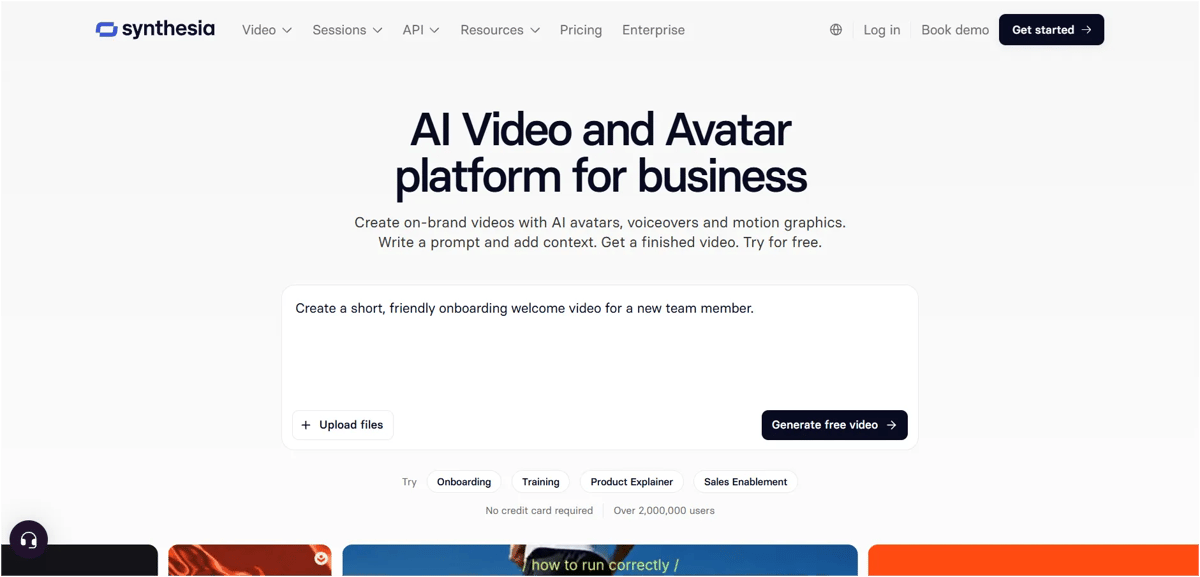
Synthesia offers 500 free credits on its free plan. We used these credits to test avatar generation. Creating one avatar using a prompt costs 14 credits. You can also generate up to four avatars at once, which uses 56 credits in total.
The avatar was ready in one minute. Next, click the “Create Video” option at the top right of the image and use the script to turn it into a talking avatar video.
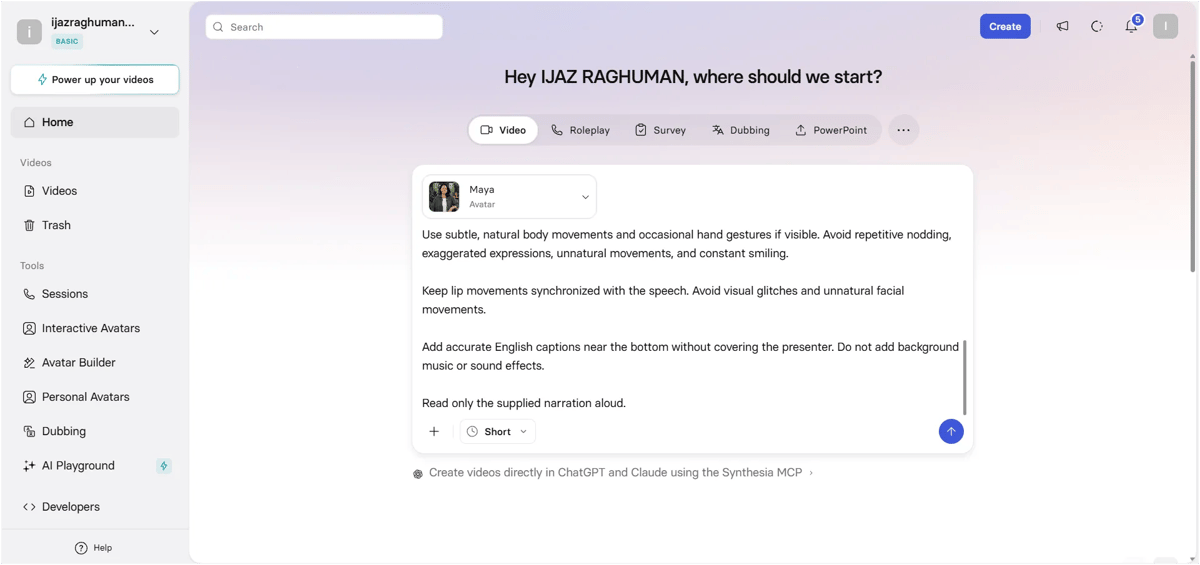
Just click the plus icon in the chat box, select your avatar under the "Use Avatar" option, enter your prompt, and press Enter. The next steps will appear automatically.
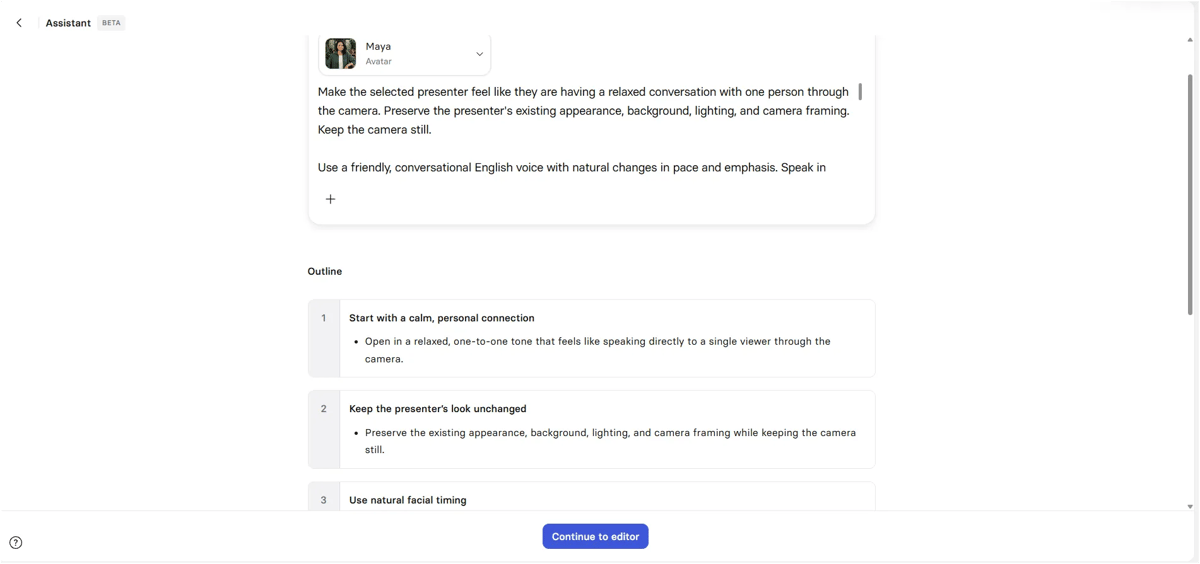
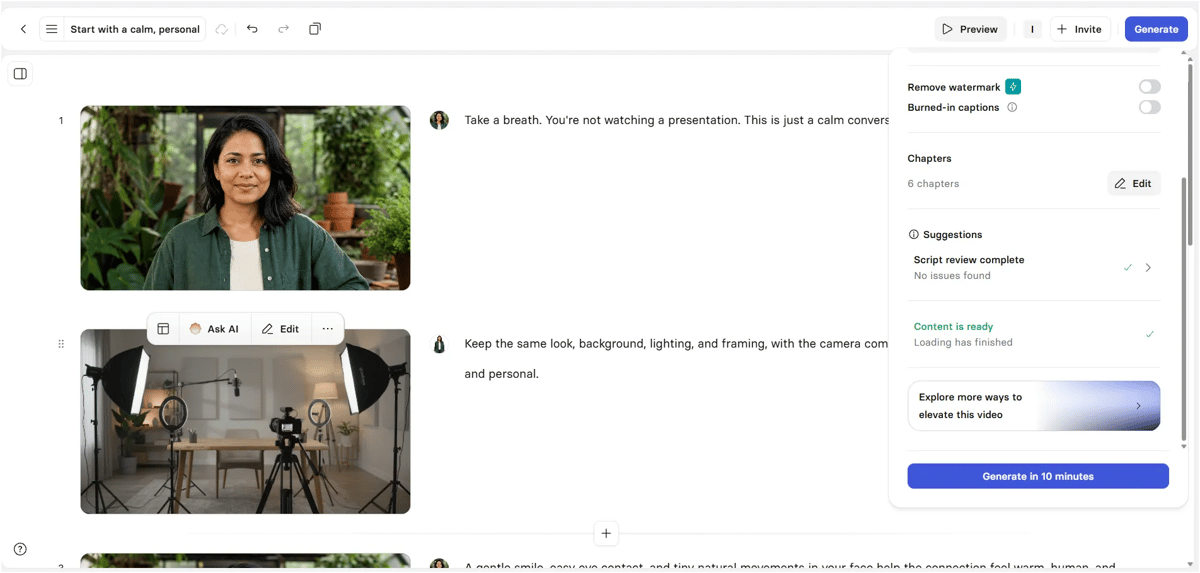
The video was generated in just 3–4 minutes, although they mentioned it could take up to 10 minutes. It was much faster than expected. Please check the output video below.
Pros
- Very simple workflow with only a few steps
- Can generate up to four avatars at once
- Faster than its stated 10-minute wait
- Built-in captions and a script-to-video flow suit business and training videos
Cons
- Sometimes replaced the avatar we’d picked with a random one, which we had to fix by hand
- The free plan doesn’t allow downloads
- Each prompt-generated avatar uses 14 credits, so the free credits go quickly
Our Experience
Synthesia is definitely one of the best alternatives to HeyGen. It's very easy to use. We can create an avatar video by selecting an avatar, entering a single prompt, generating an outline, reviewing the preview, and then generating the final video. The process only takes a few steps.
However, we faced one frustrating issue. After selecting an avatar image and entering the prompt, the selected avatar sometimes disappeared in the next step and was replaced with a randomly selected one. We had to manually change it back. Sometimes, improving the prompt and making it more specific helped retain the avatar we had selected.
Another limitation is that the free version doesn't allow video downloads. You need a paid plan to download your videos, so Synthesia is much more useful if you’re willing to pay. If its avatars feel too stiff for you, we’ve also compared the best Synthesia alternatives for more natural-looking presenters.
2. Grok
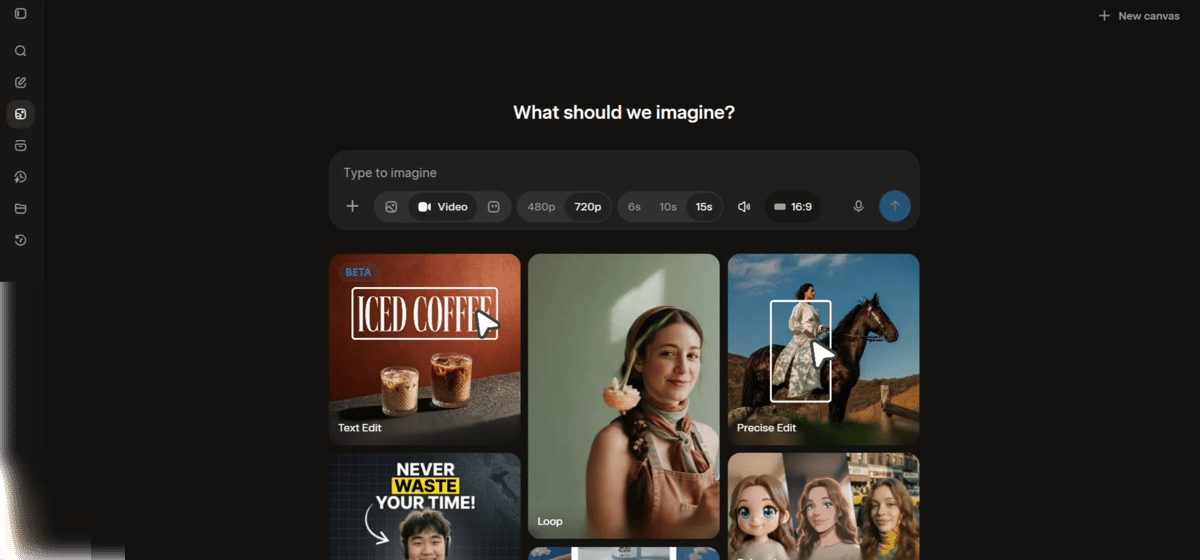
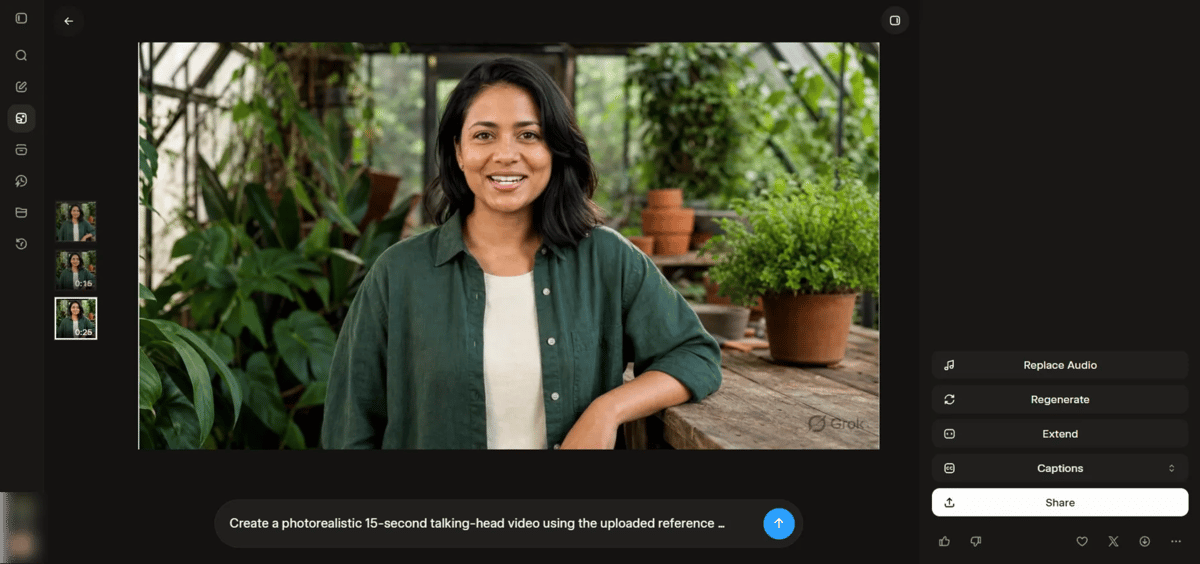
We can easily create AI avatar videos using Grok. We’ve already tested its image and animation tools in our Grok AI review, so here we focused only on talking avatars. The videos are generated quickly, usually within a few seconds. We can generate videos up to 15 seconds long and extend them by another 10 seconds if needed. It also lets us set the resolution to 720p and choose the aspect ratio. We selected 16:9 and uploaded a reference image for the avatar.
Pros
- Very fast, with results in seconds
- Highly realistic faces and natural delivery
- Lets you choose the aspect ratio and set 720p resolution
- Easy to make a video from one reference image
Cons
- The voice sounded slightly different after we extended into a second clip
- Clips are limited to 15 seconds (plus a 10-second extension)
- No built-in editor for joining clips
- Video generation now needs a paid plan
Our Experience
The avatar's facial expressions looked very realistic, and it felt like a real person speaking naturally. However, when we extended the video and generated a second clip, the voice sounded slightly different from the first clip. Apart from that, the process was quick and easy, and we were able to generate an avatar video without much effort. I was able to generate an avatar video without much effort. Just keep in mind that video generation now needs a paid plan. Our Grok AI pricing guide breaks down which plan you need.
3. Google Flow
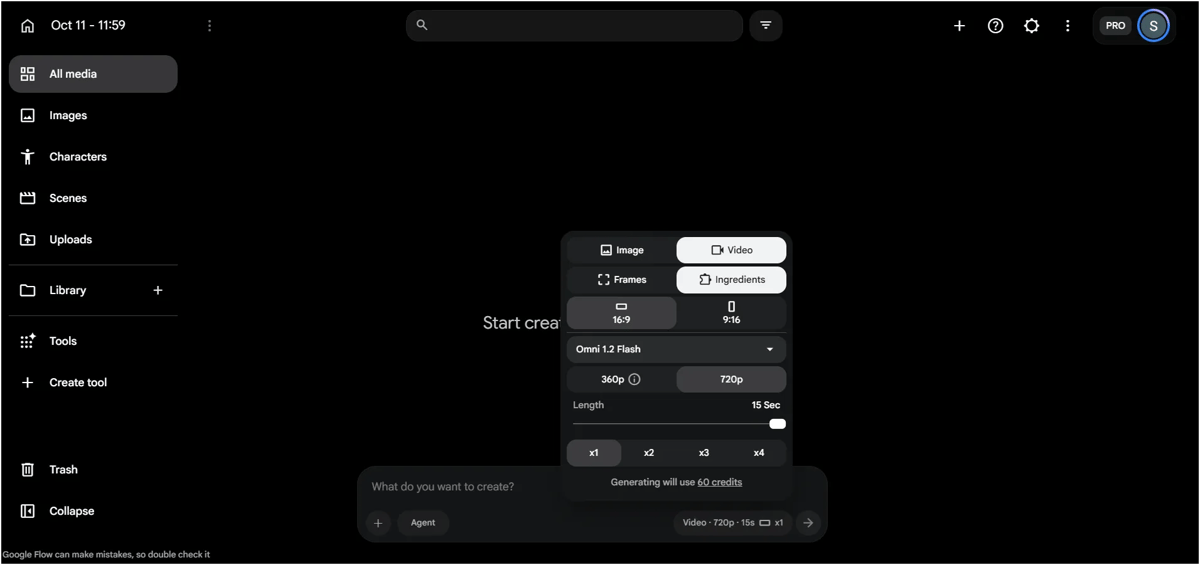
Flow is Google's AI video generation tool. We used the Omni 1.2 Flash model, which allows us to generate videos up to 15 seconds long in 720p quality. We can generate between 1 and 4 videos at a time.
We selected the Ingredients option, uploaded the reference avatar image, and entered the prompt for the first clip. The video was ready in just one minute and used 60 credits. We then entered the second clip's prompt and generated it, which also used 60 credits.
The credit usage may vary depending on the model, video duration, and number of videos selected.
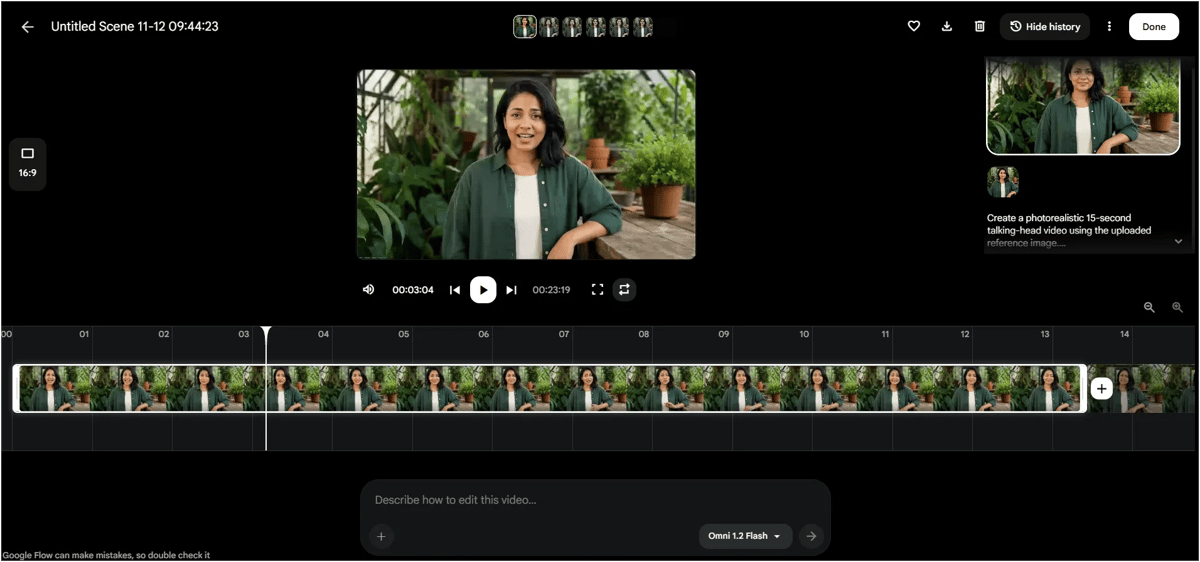
One advantage of Flow is its built-in video editor. When you click on a generated video, the editing area opens, as shown in the screenshot below. You can trim unwanted sections and combine multiple clips into one video. We added Clips 1 and 2 together and downloaded the final video. Flow’s editor is great for quick trims and merges. For bigger edits, see how the best AI video editors handled a raw green-screen video in our test.
One more thing: When downloading the video in 1080p resolution, it uses an additional 5 credits and takes only a few extra seconds to process.
Pros
- Very realistic expressions, reactions, and movement
- Built-in editor to trim and merge clips
- Can generate 1–4 videos at a time
- 1080p export costs only 5 extra credits and takes a few seconds
Cons
- A slight audio difference where the two clips were joined
- Each 15-second clip used 60 credits, so longer videos get expensive
- Credit costs change by model, length, and number of videos, which makes budgeting harder
Our Experience
The video output looked very realistic and impressive. The facial expressions, reactions, and movements all felt natural. However, when joining the two clips, there was a slight difference in the audio flow between them.
You can check the combined output video below.
Final Conclusion
None of these tools is a perfect copy of HeyGen, but each one does something better than the other two. For the most realistic avatar, and the ability to edit inside the same tool, Google Flow is our top pick. For short clips in seconds, Grok is hard to beat, as long as you keep each video to one clip so the voice doesn’t change. For a guided workflow with no learning curve, especially for training or business videos, Synthesia is the safest choice, One problem showed up in all three: keeping things consistent across clips. Whether it was the voice in Grok, the joins in Flow, or the swapped avatar in Synthesia, longer videos still need a careful human check before you publish. And if you need more than talking avatars, like cinematic scenes or product clips, explore our tested list of the best AI video generators.
FAQs
1. What is the best free HeyGen alternative?
Google Flow is the most generous, with free daily credits, and it lets you download your videos. Just note that one 15-second clip used 60 credits in our test, so you may need a Google AI plan for regular use. Synthesia’s free plan doesn’t allow downloads, and Grok’s video tool is now paid-only.
2. Which HeyGen alternative creates the most realistic AI avatars?
In our test, Google Flow and Grok made the most lifelike expressions and movement. Flow’s final video was a little more polished.
3. Can I make videos longer than 15 seconds with Grok or Flow?
Yes. Generate several clips and join them. Flow has a built-in editor for this. With Grok you’ll need a separate editor, and the voice may change slightly between clips.
4. Is Synthesia good for beginners?
Yes. It took the fewest steps of the three tools. Pick an avatar, add a prompt, review, and generate.
5. Why does the voice or audio change between AI video clips?
Each clip is generated separately, so the model doesn’t fully remember the earlier voice. Using the same reference image and a detailed voice description in every prompt helps, but it doesn’t fix the problem completely.