AI Posters: What They Are and Why People Use Them
An AI poster is a poster made by an AI tool from a few lines of text. You describe the style, colours and message, and the tool gives you a design in seconds. If you’re curious about what happens behind the scenes, here’s how AI image generators work.
People use them because they save time and money and you don’t need design skills. But AI still invents or gets wrong names, dates and small details, a problem known as AI hallucinations. In our test, two of the three tools printed the wrong weekday for a date…
Who Should Use AI Posters?
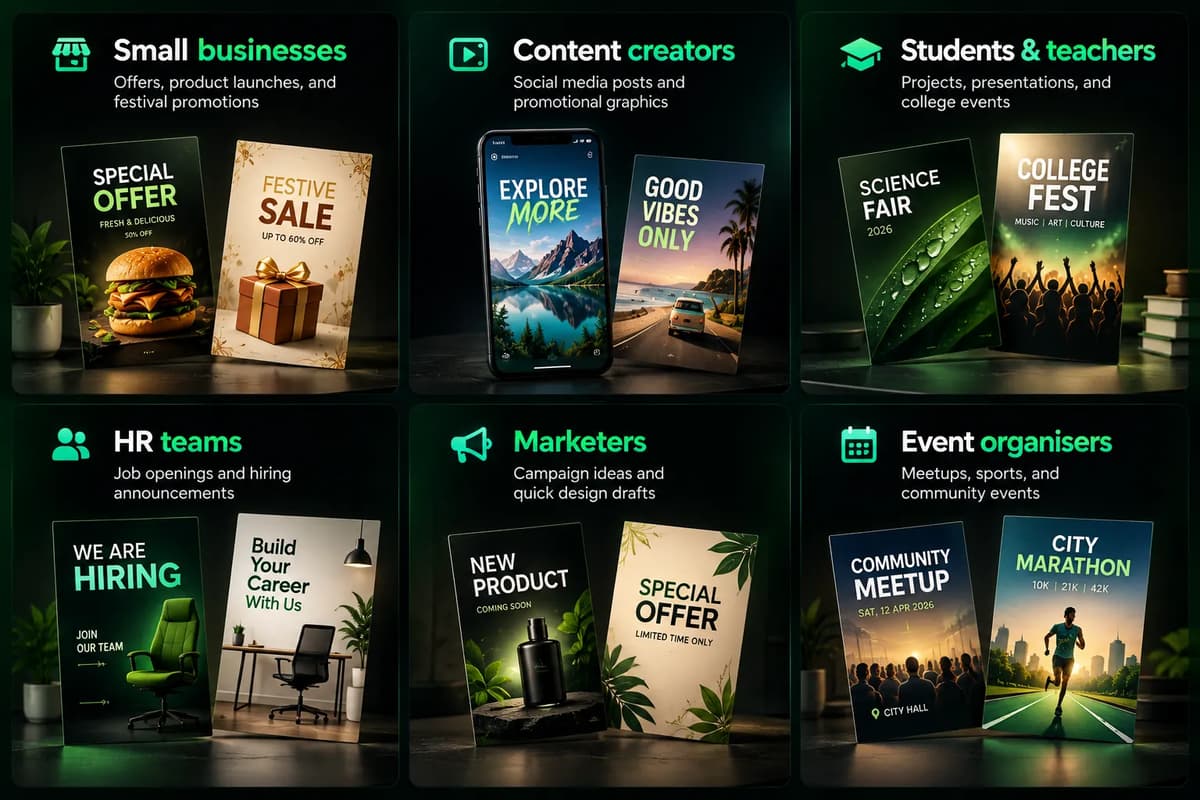
AI posters are a good fit for anyone who needs a decent design quickly and doesn't have a designer or a big budget:
- Small business owners: sale offers, product launches and festival greetings.
- Content creators and bloggers: social media posts and quick promo banners.
- Students and teachers: projects, presentations and college events.
- HR teams and recruiters: job openings and hiring announcements.
- Marketers and agencies: campaign ideas and fast first drafts, often alongside other AI tools for marketing.
- Event organisers and clubs: meetups, match days and community events.
Quick Overview of the Best AI Poster Generators
Point | Canva | ChatGPT | Gemini |
|---|---|---|---|
Rank | 1st | 2nd | 3rd |
Our score (average of 5 posters) | 7.8 / 10 | 7.2 / 10 | 6.6 / 10 |
Prompts won | 4 of 5 | 0 of 5 | 1 of 5 (football) |
Best for | Clean, on-brief, editable posters | Eye-catching, polished visuals | Quick, restrained drafts |
Prompt accuracy | Best | Medium (adds extra props, icons and buttons) | Medium (broke the "no humanoid AI" rule) |
Image quality | Good, clean, realistic | Excellent, cinematic | Good, but flatter lighting |
Speed in our test | A few seconds | About 1 minute (slowest) | About 10 seconds |
Text mistakes | Placeholder text on 2 posters; no hiring headline | Wrong weekday on football poster | Misspelled website URL; wrong weekday on football poster |
Watermark | None | None visible | Small Gemini sparkle on every image |
Output size we got | 1080 x 1350 (exact 4:5) | 1122 x 1402 (about 4:5) | 928 x 1152 (close to 4:5, lowest resolution) |
Editing after generation | Edit text, colours and layout yourself | Chat edits plus select-an-area edits | Chat edits and local edits |
None of the three tools produced a print-ready resolution, even though every prompt asked for it. Upscale or rebuild the poster before printing.
Pricing Comparison
Plan | Canva | ChatGPT | Gemini (Google AI plans) |
|---|---|---|---|
Free | $0 | $0 | $0 |
Budget paid | None | Go: $8/month | AI Plus: $7.99/month |
Main paid | Pro: US$144/year | Plus: $20/month | AI Pro: $19.99/month |
Power tier | Business: US$250/year per person | Pro: $100 or $200/month | AI Ultra: from $99.99/month |
Free AI limit | Up to 20 AI uses per month | Limited image generations; varies | Limited daily images; varies |
Prices checked on 21 October 2026 (Canva pricing, ChatGPT plans, Google AI plans). For a full breakdown of every ChatGPT tier, see our guide to ChatGPT pricing plans. Plans and limits change often, so check each tool’s website before you buy.
The 5 Prompts We Used for the Test
We wrote five detailed prompts, each with a style brief, a colour palette, an "Avoid" list and a 4:5 format. None of the prompts gave real names, dates or prices, so we could see whether each tool left placeholders or made details up.
How we tested
We used the exact same five prompts in each tool, which gave us 15 posters to compare fairly.
We scored each poster out of 10 on four things:
- Prompt accuracy: did it follow the brief, the palette and the "Avoid" list?
- Image quality: is it realistic, sharp and well lit?
- Text accuracy: are spelling, dates and details correct?
- Ready to use: could you publish it without fixing anything?
A tool's final score is the average of its five poster scores. We judged image editing separately, because it decides how easily you can fix the mistakes we found.
This is not a sponsored test. We are sharing what we actually saw so you can pick the right tool and save time.
1. Canva
Canva AI turns a prompt into a finished poster design in a few seconds. The text and shapes come as separate, editable layers on top of the image, so you can change the wording, colours and layout yourself. There is no watermark, and you can download the poster directly.
My experience with Canva
Canva followed the briefs best. It added no clutter, kept the green soft and made the main subject obvious in every poster. Its problem is unfinished text: placeholders on the football poster, an empty box and no hiring headline on the hiring poster. Because the text is editable, those are also the easiest problems to fix.
Canva: Pros and Cons
No. | Pros |
|---|---|
1 | Follows "clean and minimal" briefs best, with no extra icons or clutter. |
2 | Restrained colours. The fashion poster used only black, off-white and one burgundy accent. |
3 | A clear hero in every poster: the laptop, the outfit, the human profile, the ball and the phone. |
4 | Bold, readable headlines that feel part of the design. |
5 | Did not make up names or dates. It left placeholders instead. |
6 | No watermark, and an exact 4:5 size (1080 x 1350). |
7 | Text, colours and layout can be edited directly after generation. |
No. | Cons |
|---|---|
1 | Placeholder text on the football poster and an empty role box on the hiring poster. |
2 | The hiring poster has no "We’re hiring" message and no company name. |
3 | Some text is hard to read, like the dark red "Up to 50% off" on black. |
4 | A green line cuts through the text on the awareness poster. |
5 | A bright green light strip on the hiring poster and small, blurry laptop-screen text. |
6 | Less dramatic and cinematic than ChatGPT. |
In short: Canva is the best choice for clean, on-brief, editable posters. Just fill in the real details before you share them.
2. ChatGPT
ChatGPT creates posters inside the chat. Each poster took about one minute in our test, which made it the slowest of the three tools. After a poster is made, you can ask for changes in the chat or select an area of the image and describe the edit. Free users get a limited number of images; paid plans give more.
My experience with ChatGPT
ChatGPT made the most polished, eye-catching posters and its spelling was correct every time. But it over-designed almost every poster, adding props, icons and buttons even when we asked for a clean, simple look. It also used bright neon green instead of soft emerald and invented details, including a wrong weekday.
ChatGPT: Pros and Cons
No. | Pros |
|---|---|
1 | Excellent image quality: sharp, realistic and cinematic. |
2 | Follows the black, charcoal and green mood well. |
3 | All text was spelled correctly. |
4 | Strong headline hierarchy. The football and awareness posters look close to real campaigns. |
5 | Select-an-area editing lets you change one part of the image. |
No. | Cons |
|---|---|
1 | Adds too many extras, such as props, icons and buttons, even on minimal briefs. |
2 | Uses bright neon green instead of soft emerald. |
3 | Breaks "Avoid" rules: clutter on the hiring poster, holographic panels on the awareness poster, extra colours on the fashion poster. |
4 | Invents details and can get them wrong, like "Sat" for 18 October 2026. |
5 | The football looks scratched, with an odd pattern. |
6 | The slowest tool in our test, at about one minute per poster. |
In short: ChatGPT gives the most eye-catching visuals, but expects to remove extras and check every date and detail.
3. Gemini
Gemini made each poster in about 10 seconds, the fastest of the three tools in our test. You can generate images on the free plan with a daily limit and paid Google AI plans give more. Every image has a small Gemini sparkle logo in the bottom-right corner, so you may need to remove it before using the poster.
My experience with Gemini
Gemini was fast and mostly avoided neon and clutter and its football poster was the best match for that brief. But it made the most text mistakes, broke the clearest "Avoid" rule with a humanoid AI figure, and produced the lowest-resolution images (928 x 1152). Check the text and details before you use its posters.
Gemini: Pros and Cons
No. | Pros |
|---|---|
1 | The fastest tool in our test, at about 10 seconds per poster. |
2 | Calm, restrained colours that avoid bright neon green. |
3 | Realistic scenes, especially the fashion model and the stadium. |
4 | Adds useful details, like a brand and collection name on the fashion poster. |
5 | No buttons, and fewer icons than ChatGPT. |
No. | Cons |
|---|---|
1 | Spelling mistakes, like the URL "ateliereuise.com" for its own brand "Atelier Élise". |
2 | Wrong weekday on the football poster ("Wednesday, 25 Oct" is a Sunday in 2026). |
3 | Broke the "no humanoid AI characters" rule on the awareness poster. |
4 | Text placed over the main subject, like the sale text over the trousers. |
5 | Crowded text blocks, and a stock-photo look on the hiring poster. |
6 | A Gemini sparkle logo on every image and the lowest resolution of the three. |
In short: Gemini is fast and good for quick drafts, but check the text, dates and "Avoid" rules before you use its posters.
Which tool won each prompt?
Canva won four of the five prompts. Gemini narrowly won the football poster because it was the most restrained.
Prompt | Canva | ChatGPT | Gemini | Winner | Why |
|---|---|---|---|---|---|
1. Hiring | 7.0 | 6.5 | 6.0 | Canva | Closest to the clean, laptop-led brief; needs a headline and role details added |
2. Fashion | 8.5 | 7.0 | 7.0 | Canva | Exact palette (black, off-white, one accent) and one clear hero outfit |
3. Awareness | 8.5 | 7.5 | 5.5 | Canva | One clear concept; Gemini broke the "no humanoid AI" rule |
4. Football | 6.5 | 7.5 | 7.5 | Gemini (narrowly) | Most restrained and realistic; ChatGPT added crests, icons and a scratched ball |
5. Product | 8.5 | 7.5 | 7.0 | Canva | Minimal, with the product clearly dominant and no extra props |
Average | 7.8 | 7.2 | 6.6 | Canva |
Image editing: how easy is it to fix the mistakes?
Every tool makes mistakes, so editing matters. Canva is clearly the easiest to fix, because its text sits on separate, editable layers.
Editing feature | Canva | ChatGPT | Gemini |
|---|---|---|---|
Edit text directly | Yes, the text is a separate layer | No, the text is part of the image | No, the text is part of the image |
Change the layout and colours yourself | Yes | No | No |
Edit by describing the change | Yes, with Canva AI tools | Yes | Yes |
Edit only one part of the image | Yes, with Magic Studio tools | Yes, select an area and describe the edit | Yes, local edits by prompt |
Risk of other details changing during an edit | Low | Medium, because the image is regenerated | Medium, because the image is regenerated |
Watermark to remove | None | None visible | Gemini sparkle logo |
Editing rank | 1st | 2nd | 3rd |
For example, fixing Canva’s “Team A vs Team B” takes a few clicks. Fixing ChatGPT’s wrong weekday or Gemini’s misspelled URL means asking the AI to redraw the text and other parts of the image can change too. If you edit images often, a dedicated tool from our list of the best AI image editors gives you more control.
Tips for writing better poster prompts
A good prompt is the difference between a poster you can use and one you have to redo. These tips come straight from what went wrong in our test. For prompt ideas beyond posters, see our AI writing prompts for every task.
No. | Tip | What to do | Example |
|---|---|---|---|
1 | Say the purpose first | Start with the poster type so the tool knows the goal | "Create a hiring poster..." |
2 | Choose one main subject | Ask for one hero object, not many | One laptop, one outfit or one phone |
3 | Name your colours | Give exact colours and say "no neon" if needed | "Black, charcoal and soft emerald green" |
4 | Write the exact text | Give the headline, date, time, venue and website yourself or the tool will invent them | "Sun, 18 Oct 2026, 7:30 PM, City Stadium" |
5 | Keep the text short | Use one headline and one supporting line | "We're Hiring" + one short line |
6 | Use an "Avoid" list | Say what you don't want (tools don't always obey it) | "Avoid icons, clutter and robots" |
7 | Give the format | Mention the size so you don't need to resize later | "Vertical 4:5 poster" |
8 | Check and edit | Check spelling, weekdays and details, then fix them in an editor | Fix the text in Canva |
Quick example prompt:
"Create a vertical 4:5 hiring poster for a Content Writer and SEO Specialist at Brightline Media. Use black and charcoal with a soft emerald green accent. Show one laptop as the main focus. Headline: 'We're Hiring'. Supporting line: 'Join our content team.' Apply at yourwebsite.com/careers. Avoid icons, clutter and neon glow."
Final Conclusion
Canva is the best AI poster generator in our test. It scored 7.8/10, won four of five prompts and is the easiest to edit. ChatGPT came second (7.2) with the most eye-catching visuals, and Gemini came third (6.6) as the fastest tool.
- Choose Canva if you want clean, on-brief posters you can edit yourself.
- Choose ChatGPT if you want the most striking visuals and don't mind removing extras.
- Choose Gemini if speed matters most and you can check the text and remove the logo.
Our recommendation: If you want ChatGPT’s or Gemini’s visuals, generate the image there, then add and check all the text in Canva. You get strong visuals and full control over the words. If you need general images rather than finished posters, compare the best AI image generators we’ve tested.
FAQs
1. Which is the best AI poster generator?
In our test of 5 prompts, Canva was the best overall (7.8/10). It followed instructions most accurately and is the easiest to edit. ChatGPT made the most eye-catching visuals and Gemini was the fastest.
2. Can I make a poster with AI for free?
Yes. Canva, ChatGPT and Gemini all have free plans, but each limits how much you can generate. Canva's free plan includes up to 20 AI uses per month. Limits change often, so check each website before you decide.
3. Can AI write the text on a poster correctly?
Mostly, but not always. In our test we saw a misspelled website name, wrong weekdays from two different tools and leftover placeholder text like "Team A vs Team B". Always check the spelling, dates and details yourself.
4. How do I write a good AI poster prompt?
Say the poster type, choose one main subject, name your colours, write the exact text and add an "Avoid" list. Also give the size, like "vertical 4:5". If you don't give real names and dates, the tool will either leave placeholders or invent them.
5. Can I use AI-generated posters for business?
Yes, many people use them for sales, hiring and events. But the rules differ by tool and plan, so read the terms of use first. Remove any logo or watermark, avoid designs that copy real products or brands and have a person check the poster before you share it.
6. Are AI posters ready to print?
Not straight away. The posters in our test were between 928 x 1152 and 1122 x 1402 pixels, which is too small for a sharp print. Upscale the image or rebuild it at full size in a design tool before printing.