Why Is a Video Upscaler Important?
Low-resolution video looks soft, noisy and pixelated on today's large phone, laptop and TV screens, and viewers scroll past it fast. An AI video upscaler fixes this by rebuilding lost detail frame by frame, much like AI photo enhancers do for still images, so a 360p or 720p clip can be turned into sharp 1080p or 4K footage without reshooting. It is especially useful for reviving old recordings, cleaning up clips made with AI video generators, sharpening gameplay and screen recordings, and meeting the quality standards of YouTube, Instagram and client deliverables. In short, a good upscaler saves you time and money while making every video look more professional.
How We Tested These AI Video Upscalers
To keep the comparison fair, we used the same low-quality sample clip for every tool: a 6-second, 360p tiger video. We signed up for each tool's free plan, uploaded the clip, and picked the highest resolution available to us. We then compared each upscaled video side by side with the original.
We judged every tool on five things:
- Output quality: how much sharper and cleaner the video looked after upscaling
- Ease of use: how many steps it took to upload, upscale and download
- Free plan limits: credits, preview downloads and how long results are stored
- Upload limits: supported formats, file size, length and resolution
- Pricing: how much you pay once the free credits run out
Quick Comparison Table
Tool | Link | Best for | Max output | Free plan | Input limits | Standout feature |
|---|---|---|---|---|---|---|
Canva (Video Upscaler by A1D.AI) | Creators already editing in Canva | 4K (3840 × 2160) | 30 free upscaler credits, works on Canva Free | Up to 1920 × 1080, 30 MB, 60 sec, 60 FPS; MP4, MOV, MKV | 3 enhancement styles: General, Anime, Portrait | |
Vmake AI | Highest-resolution upscaling | 8K (top paid plan) | Up to 5 preview downloads | Short clips; sign-up required after upload | Multiple AI models plus content presets (Portrait, Low-light, Game, Anime, De-AI) | |
Artplayer AI | Large files and pay-as-you-go users | 4K (3840 × 2160) | 30 starter credits, valid 7 days | Up to 10 GB; MP4, FLV, TS, AVI, MOV, WMV, MKV | Credit estimate before every upscale |
1. Canva
Canva's Video Upscaler is a third-party app you open from the Canva Apps marketplace, so there's no extra software to install or new editor to learn. It suits social media creators, marketers and small businesses who want a quick quality fix as part of their everyday Canva workflow.
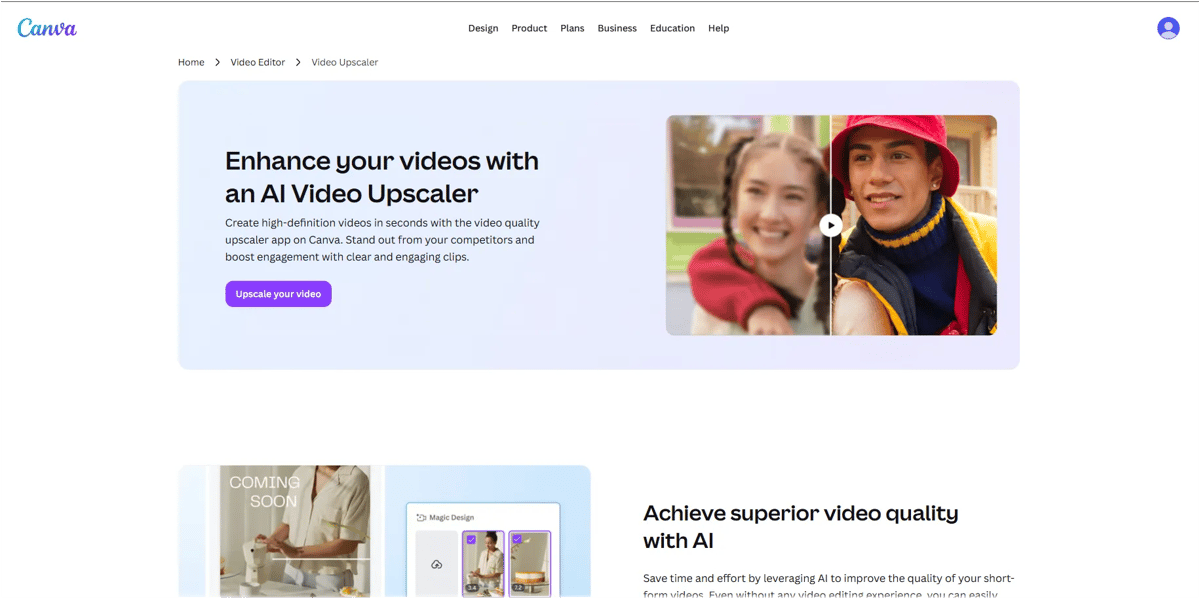
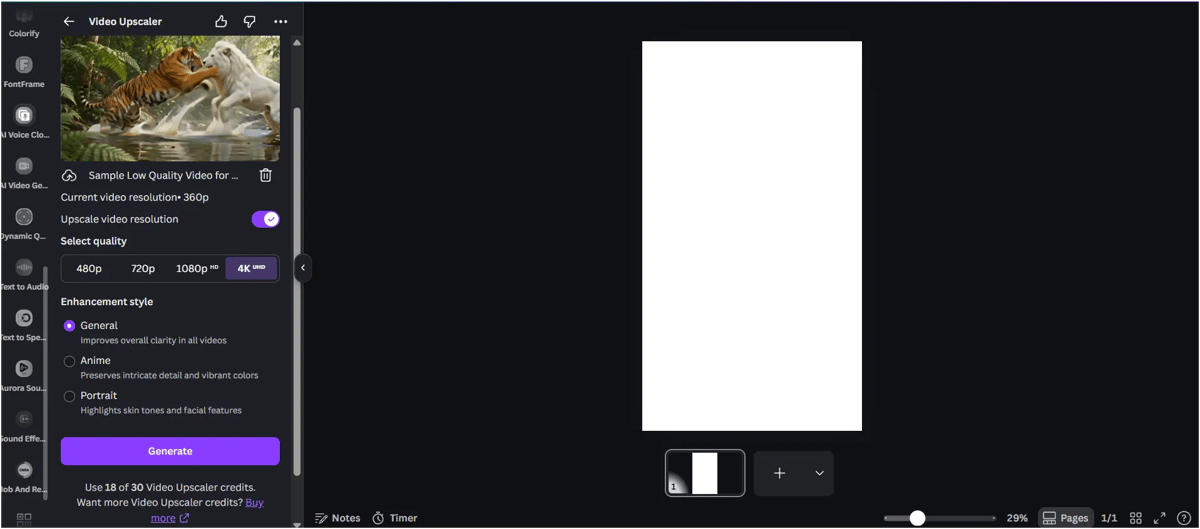
In Canva Apps, search for Video Upscaler by AID.AI and open it. Click Sign in to Generate and sign in to AID.AI using your Gmail account. Once connected, select the enhancement style, choose 4K resolution, and click Generate.
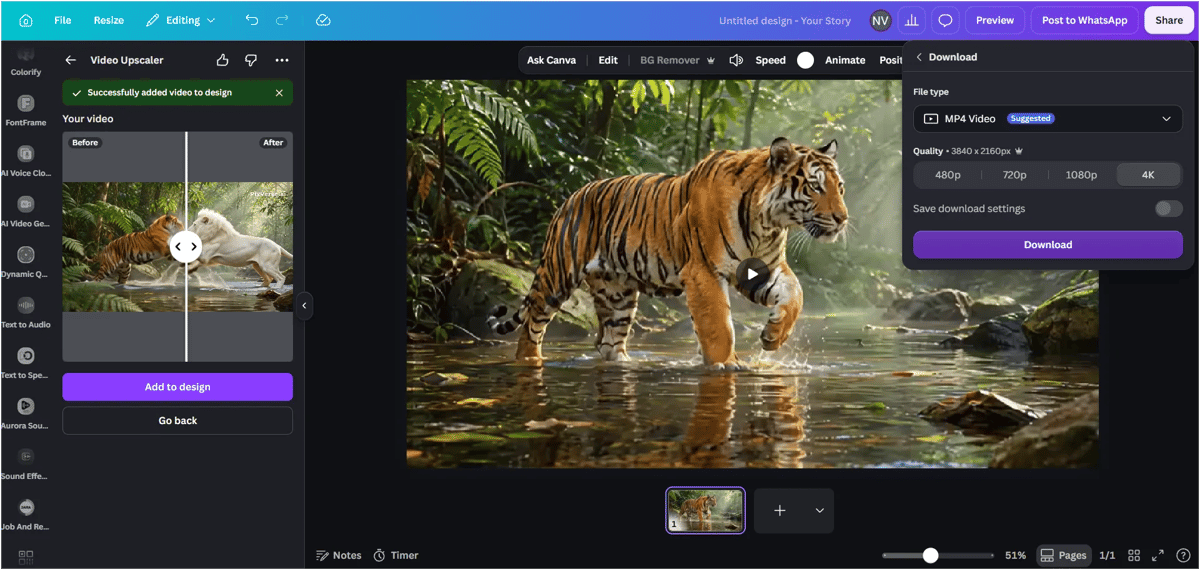
Once the video is upscaled, click Add to Design. We noticed that the design opened in portrait format. If your original video is already portrait, there’s no issue. But if it’s landscape, create a new page, resize it to landscape, and adjust the video to fit. When downloading, select 4K resolution and click Download. The final video was 17.6 MB, compared to the original sample video, which was 1.74 MB.
The maximum supported video resolution is 1920 × 1080, with a file size limit of 30 MB, a maximum duration of 60 seconds and a frame rate of 60 FPS. It supports MP4, MOV, and MKV formats. You also get 30 free video upscaler credits to enhance your videos.
Our Experience
We tested the Video Upscaler with both Canva Free and Pro accounts, and it worked with both. Free users can also upscale videos. We compared the output with the original sample video and found a noticeable improvement in quality. Downloading the upscaled video is also easy. You can further edit it in Canva using other tools, such as the Video Background Remover, which lets you remove the video background in Canva in a few clicks. To learn more about Canva's features, read our full Canva review
Pros | Cons |
|---|---|
Works for both Canva Free and Pro users | Input is capped at 1080p, 30 MB and 60 seconds |
Upscales and exports in 4K | Upscaled video opens in a portrait design, so landscape clips need a manual resize |
Three enhancement styles: General, Anime and Portrait | Requires a separate sign-in to A1D.AI |
Keep editing in Canva with tools like Video Background Remover | Only 30 free credits before you need to buy more |
Noticeable quality boost in our test (1.74 MB sample became a 17.6 MB 4K file) | Not built for long or heavy footage |
2. VmakeLabs
Vmake AI, from Vmake Labs, is a web-based AI toolkit where the video enhancer sits alongside tools like object removal and AI background removal. It's aimed at creators and online sellers who want to restore blurry, noisy or compressed footage straight from the browser, which is handy if you make AI videos and want to clean up the output.
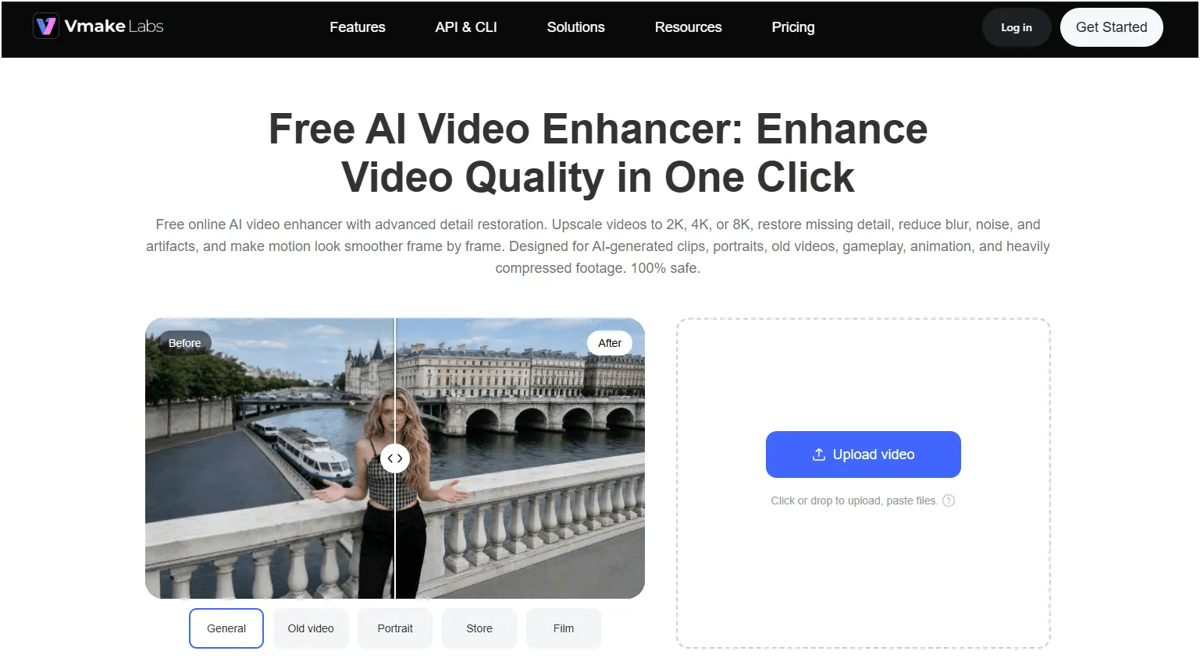
Click Upload Video and upload your video. You'll be prompted to sign up immediately after uploading.
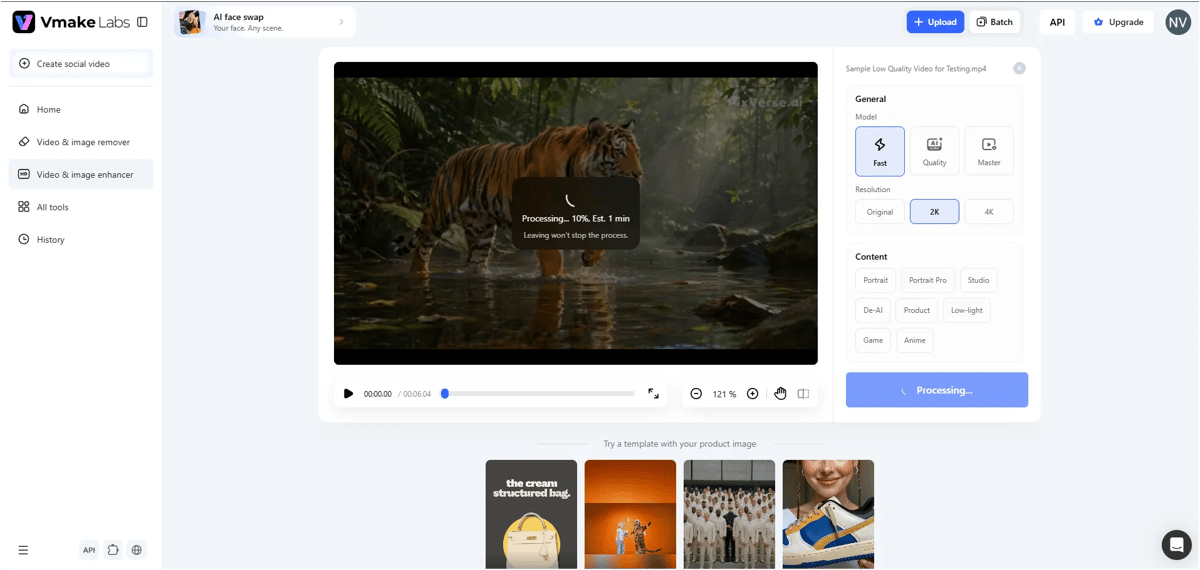
The video is being upscaled. With a free account, you can download up to 5 preview videos. To upscale videos in 8K quality, you need a paid plan.
We've shared the output below for you to check.
Our Experience
With Vmake Labs, the paid plan supports video upscaling up to 8K quality. The Plus plan also allows you to upscale 10 videos per day and includes several additional features. The output quality is also good, with a noticeable improvement over the original video.
Pros | Cons |
|---|---|
Upscales up to 8K on its top paid plan | Asks you to sign up immediately after uploading |
Choice of Fast, Quality and Master models | Free account is limited to 5 preview downloads |
Content presets for Portrait, Low-light, Game, Anime and De-AI footage | 8K is locked to the highest-tier plan |
Plus plan allows 10 video enhancements per day | USD prices are not clearly shown on the official pricing page |
Clear improvement over the original in our test | Free resolution options are limited |
3. Artplayer AI
Artplayer AI is a browser-based video toolkit and its upscaler sits alongside tools such as frame interpolation, subtitle removal and video compression. It works well for editors and creators who want to upscale footage and handle other quick fixes in one place, with every job processed in the cloud.
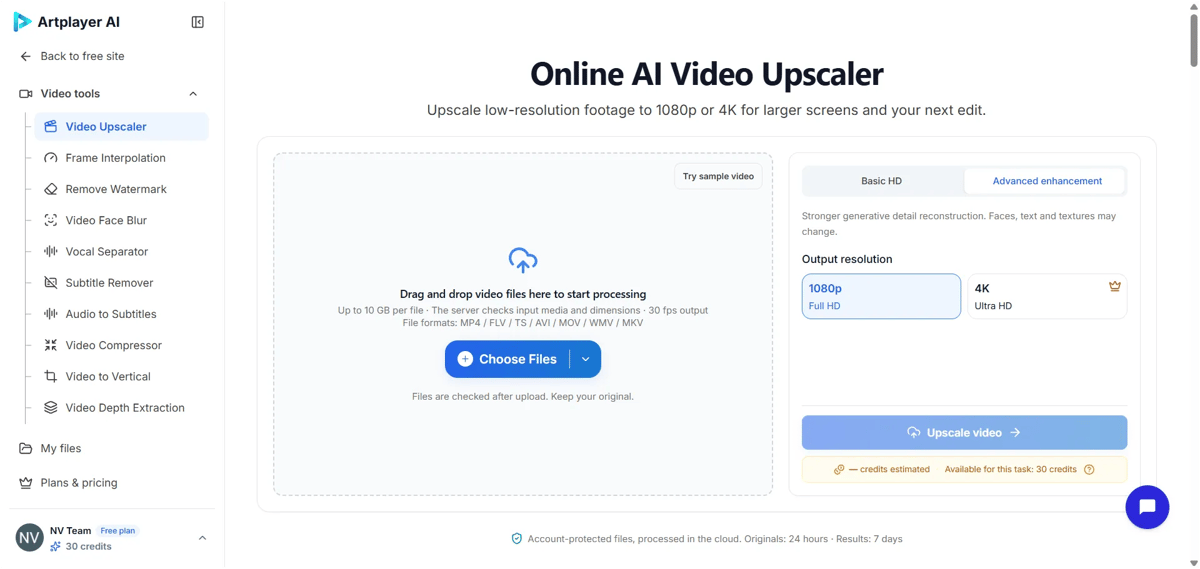
When we signed up, We received 30 free credits. After uploading the video, We selected 1080p (1920 × 1080) with 3.00x enlargement and clicked Upscale Video. It estimated 19 credits for the process.
There is also a 4K (3840 × 2160) option with 6.00x enlargement, which requires an estimated 73 credits.
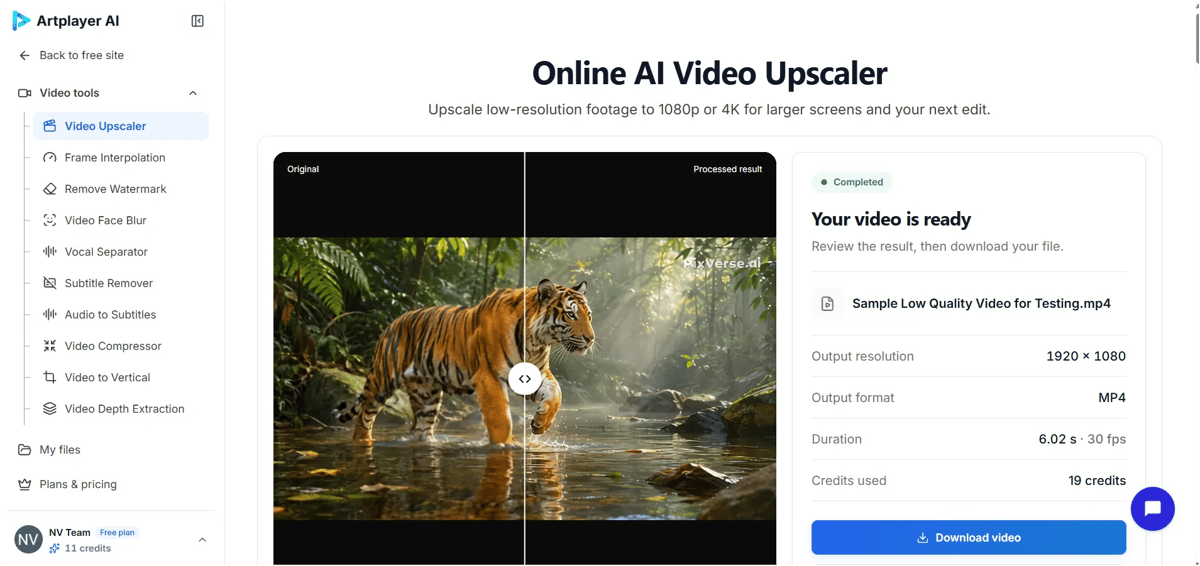
The upscaled video file size was 5.2 MB. The results are stored for only 7 days, so make sure to download and save your video before they expire.
Our Experience
The tool delivers good output quality and supports upscaling videos to 4K Ultra HD. It's also very user-friendly, with a simple and clear interface that doesn't overwhelm users with too many options.
Pros | Cons |
|---|---|
30 free credits on sign-up | Results are deleted after 7 days, so download quickly |
Simple, clean interface with no clutter | 4K upscaling uses a lot of credits (73 credits for our 6-second clip) |
Shows the estimated credit cost before you upscale | Output is fixed at 30 FPS |
Supports files up to 10 GB in seven formats | Free starter credits expire in 7 days |
Upscales to 1080p or 4K Ultra HD | Advanced 4K enhancement needs paid credits |
Pricing Comparison Table
Tool | Free option | Paid plans | Notes |
|---|---|---|---|
Canva (Video Upscaler by A1D.AI) | Free app on any Canva plan, with 30 upscaler credits | Extra upscaler credits are bought from A1D.AI; Canva Pro (optional) is $18/month or $144/year in the US | Canva Pro is not required to use the upscaler |
Vmake AI | Free plan with up to 5 preview downloads | Plus: 1,000 credits/month, 10 files/day · Pro: 4,500 credits/month, 50 files/day · Max: up to 30,000 credits/month, 8K | Official page doesn't list USD prices; third-party listings report Plus at about $9.99/month and Pro at about $29.99/month |
Artplayer AI | 30 starter credits, valid 7 days | Basic: $9/month (1,000 credits) · Pro: $29/month (3,400 credits) · Studio: $59/month (7,400 credits) | One-time top-up: $9 for 900 credits that never expire |
Note: Prices checked November 2026 and may vary by region.
Final Conclusion
All three tools delivered a visible jump in quality, so the right choice depends on how you work. Pick Canva if you want a free, beginner-friendly 4K upscale inside the editor you already use. Choose Vmake AI if you need maximum resolution and specialised presets for portraits, low-light or gameplay footage. Go with Artplayer AI if you handle large files, want to see credit costs upfront, or prefer paying only for what you use. Once your footage is sharp, you can trim, caption and polish it further with one of the best AI video editors.
FAQs
1. What is the best AI video upscaler in 2026?
It depends on your needs. Canva is best for quick, free 4K upscales, Vmake AI is best for up to 8K output, and Artplayer AI is best for large files and flexible credit-based pricing.
2. Can I upscale a video to 4K for free?
Yes. Canva's Video Upscaler app gives you 30 free credits and exports in 4K, even on a Canva Free account. Artplayer AI also gives 30 free starter credits, though 4K jobs use more credits.
3. Does AI video upscaling really improve quality?
Yes. In our tests, all three tools made a low-quality sample clip noticeably sharper and more detailed. If you only need a clearer still frame from your video, you can also unblur an image with AI.
4. Which AI tool can upscale video to 8K?
Vmake AI supports upscaling up to 8K, but only on its top-tier paid plan.
5. Is Canva's Video Upscaler free to use?
Yes. The Video Upscaler by A1D.AI app is free with any Canva plan and includes 30 credits. After those run out, you can buy more credits from A1D.AI.